With our Apex Legends Best Settings guide, you’ll discover the top in-game settings for maximum performance. From there, we dive into everything, from graphics tweaks to mouse and controller configs. As a result, our Best Settings for Apex Legends will help you fully optimize your gameplay. Ultimately, these key settings make it easier and faster to climb the ranks and stay ahead of the competition.
Apex Legends Best Settings Key Takeaways:
- The best Apex Legends settings focus on stable FPS, low input delay, and clean visibility during fights.
- Use Fullscreen mode, native resolution, disabled V-Sync, and NVIDIA Reflex if you play on an NVIDIA GPU.
- Set FOV between 100 and 110, depending on your monitor size and comfort with distant targets.
- Keep shadows, lighting, ragdolls, and extra effects low to reduce visual clutter and improve performance.
- For mouse settings, start with 800 DPI and 1.3–1.6 sensitivity, then adjust in small steps.
- For controller settings, Button Puncher, Small Deadzone, Vibration Off, and 4/3 sensitivity give a strong base.
- Advanced Look Controls help fine-tune controller aim, but you should change one value at a time.
- Sound Effects should stay at 100%, while Music should stay at 0% for cleaner footsteps and gunfire audio.
- Cap FPS near your monitor refresh rate to keep frame pacing stable during ranked and busy fights.
 4.9
4.9Apex Legends Best Graphic Settings
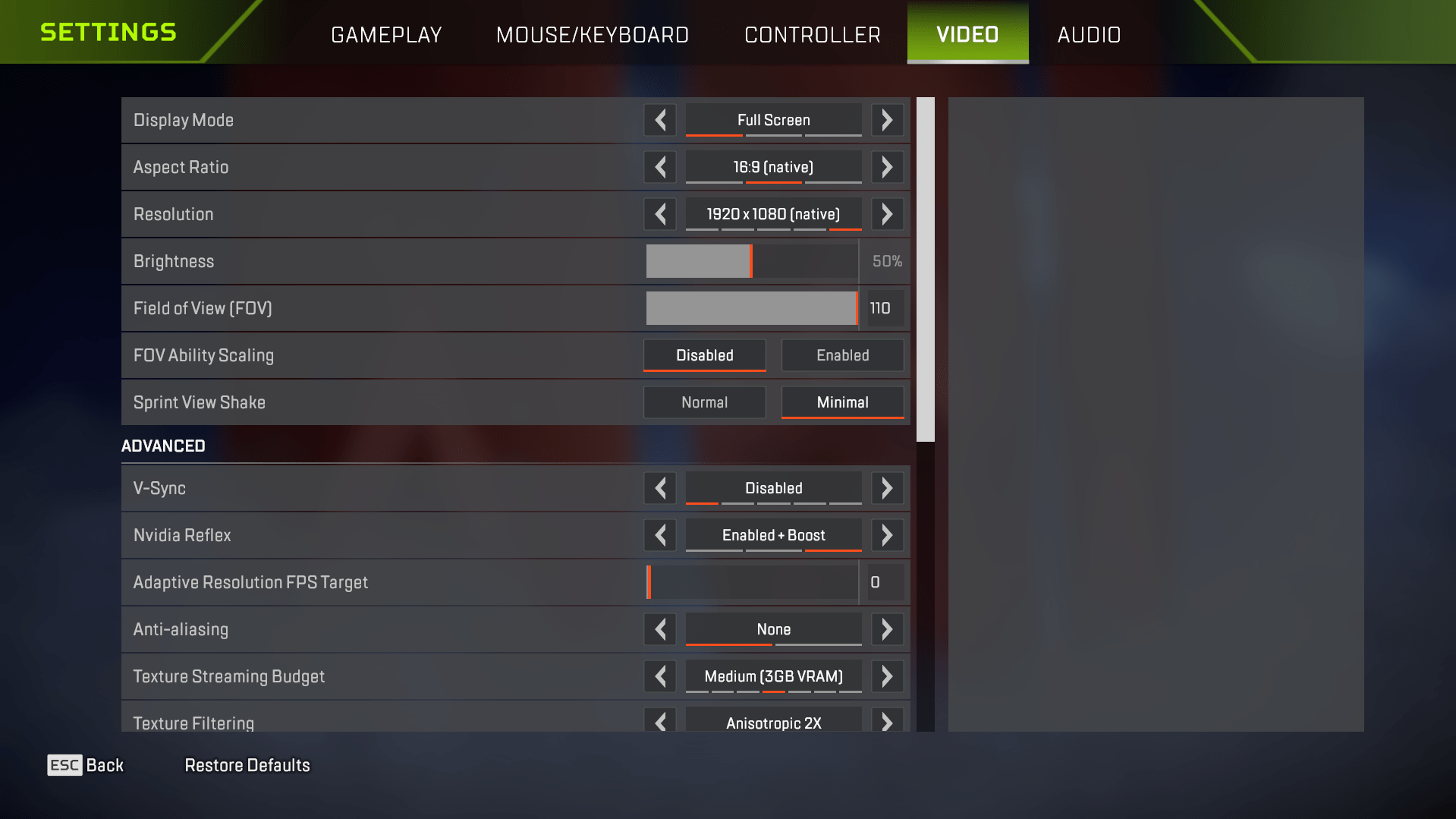
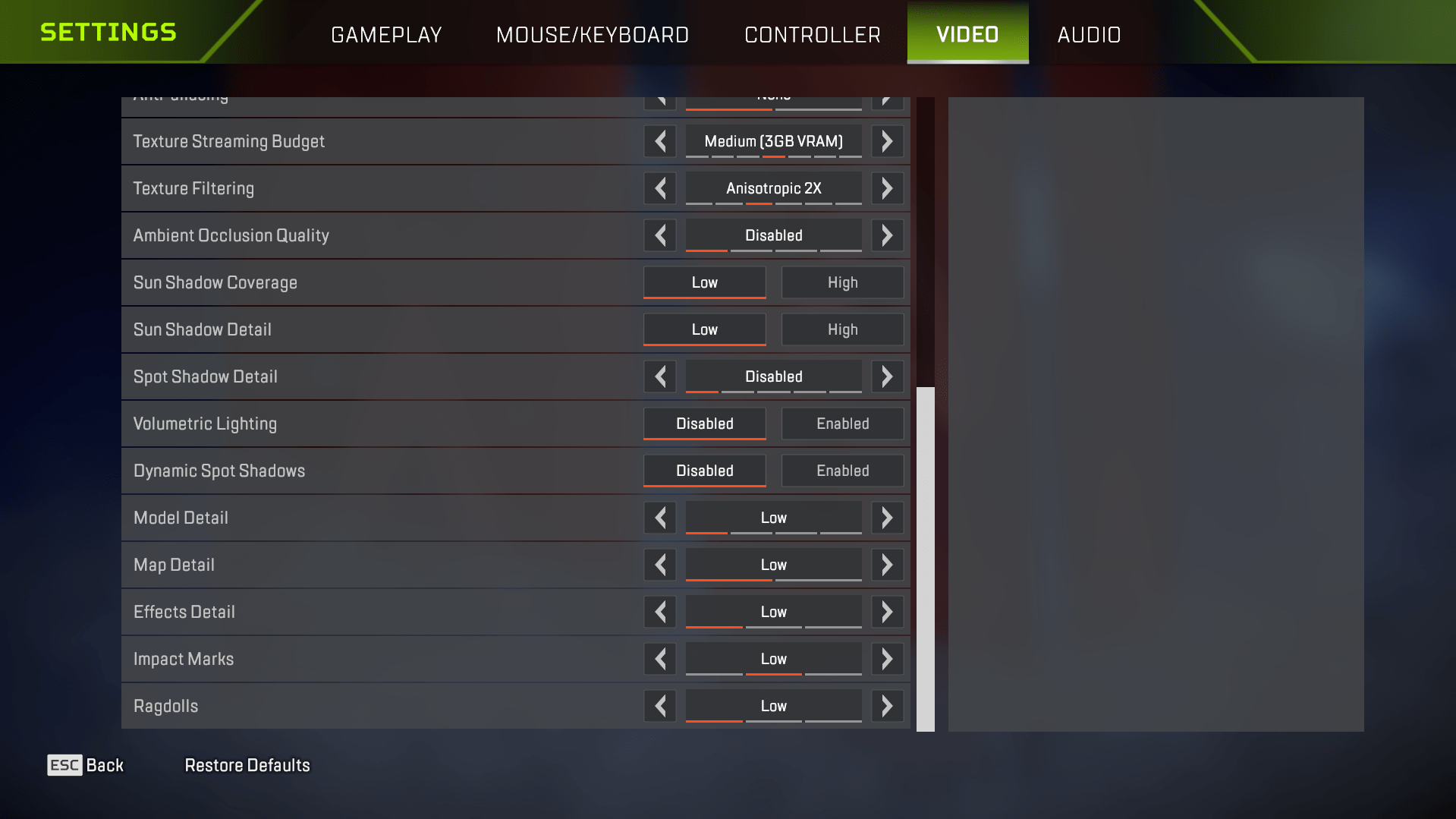
Apex Legends also received several PC performance fixes, including improvements for high-FPS gameplay. So this setup focuses on stable frame pacing, clear visibility, and settings that do not overload your system during busy fights.
| Setting | Recommended Value | Description |
|---|---|---|
| Display Mode | Fullscreen | Gives Apex Legends full focus and usually provides the most stable FPS. |
| Aspect Ratio | Native | Matches your monitor’s default ratio and keeps the image clean. |
| Resolution | Native (1920×1080) | Best starting point for clear visuals and steady FPS. |
| Field of View (FOV) | 100–110 | Use 110 for wider awareness, or lower it if distant enemies feel too small. |
| FOV Ability Scaling | Disabled | Keeps aim and movement feeling more consistent during Legend abilities. |
| Sprint View Shake | Minimal | Reduces screen movement while sprinting and makes targets easier to track. |
| V-Sync | Disabled | Reduces input delay and avoids extra frame buffering. |
| NVIDIA Reflex | Enabled + Boost | Use this on NVIDIA GPUs to lower system latency. |
| Adaptive Resolution FPS Target | Off (0) | Prevents sudden resolution drops that can make tracking feel worse. |
| Anti-Aliasing | Off / TSAA | Keep it Off for more FPS, or use TSAA if shimmering bothers you. |
| Texture Streaming Budget | Low to Medium | Use Low on weaker PCs; Medium works well if your GPU has enough VRAM. |
| Texture Filtering | Anisotropic 2x | Keeps surfaces readable without costing much performance. |
| Ambient Occlusion Quality | Disabled / Low | Disabled gives the cleanest FPS; Low is fine after Season 29’s AO improvements. |
| Sun Shadow Coverage | Low | Reduces shadow load while keeping basic map readability. |
| Sun Shadow Detail | Low | Cuts extra shadow detail that rarely helps during fights. |
| Spot Shadow Detail | Disabled | Removes small shadows that add visual noise. |
| Volumetric Lighting | Disabled | Removes heavy lighting effects and keeps visibility cleaner. |
| Dynamic Spot Shadows | Disabled | Improves FPS and reduces distractions in close fights. |
| Model Detail | Low / Medium | Use Low for max FPS; Medium is fine on stronger PCs. |
| Effects Detail | Low | Reduces visual clutter from explosions, abilities, and chaotic fights. |
| Impact Marks | Low | Keeps basic hit feedback without adding too much screen noise. |
| Ragdolls | Low | Reduces extra physics load during fights. |
| Performance Display | On | Shows FPS, ping, packet loss, and other useful match data. |
| FPS Cap | Match your monitor refresh rate or slightly below | Use 141–144 for 144Hz, 162–165 for 165Hz, and 237–240 for 240Hz. |
If you want smoother matches in Apex Legends, graphics settings should be the first thing you fix. Clean visuals, stable FPS, and lower input delay make fights easier to read, especially in ranked.
Apex Legends Best FPS Settings
The best Apex Legends FPS settings focus on stable frame pacing, low input delay, and fewer sudden drops during fights. High FPS feels great, but unstable FPS can make tracking, recoil control, and close-range duels feel worse. In Season 29: Overclocked, Apex Legends received several PC performance fixes, including improvements for very high FPS setups. Still, the safest approach is to cap your FPS near your monitor refresh rate and keep heavy visual settings low.
| Setting | Recommended Value | Description |
|---|---|---|
| Display Mode | Fullscreen | Usually gives the most stable FPS and reduces unwanted background input delay. |
| V-Sync | Disabled | Reduces input delay and avoids extra frame buffering during fights. |
| NVIDIA Reflex | Enabled + Boost | Use this on NVIDIA GPUs to lower system latency and make inputs feel faster. |
| Adaptive Resolution FPS Target | Off (0) | Prevents Apex Legends from lowering resolution during FPS drops. |
| Texture Streaming Budget | Low to Medium | Use Low on weaker PCs, or Medium if your GPU has enough VRAM. |
| Ambient Occlusion Quality | Disabled / Low | Disabled gives cleaner FPS, while Low is fine on stronger PCs after Season 29 changes. |
| Sun Shadow Coverage | Low | Reduces shadow load and helps keep FPS steadier on open maps. |
| Sun Shadow Detail | Low | Cuts extra shadow detail that rarely helps in real fights. |
| Spot Shadow Detail | Disabled | Removes smaller shadows that add GPU load and visual noise. |
| Volumetric Lighting | Disabled | Removes heavy lighting effects and keeps visibility cleaner. |
| Dynamic Spot Shadows | Disabled | Improves FPS during busy fights and ability-heavy moments. |
| Effects Detail | Low | Reduces visual clutter from explosions, abilities, and chaotic third-party fights. |
| Ragdolls | Low | Reduces extra physics load when fights get messy. |
| Performance Display | On | Shows FPS, ping, packet loss, and other match data while you play. |
| FPS Cap | Match your monitor refresh rate or slightly below | Use 141–144 for 144Hz, 162–165 for 165Hz, and 237–240 for 240Hz. |
For most players, a stable FPS cap feels better than an uncapped FPS. If you use a 144Hz monitor, start around 141–144 FPS. For 240Hz, try 237–240 FPS and lower it slightly if you notice stutters.
Apex Legends Best Settings for Low-End PCs
Apex Legends can feel rough on low-end PCs, especially during third-party fights, smoke, ultimates, and busy final rings. The goal here is not to make the game look pretty. You want stable FPS, clear enemies, and fewer sudden drops during fights. For weaker systems, start with low graphics settings, Fullscreen mode, and a realistic FPS cap. A stable 60–90 FPS setup usually feels better than uncapped frames jumping all over the place.
| Setting | Recommended Value | Description |
|---|---|---|
| Display Mode | Fullscreen | Gives the game full focus and usually provides better FPS stability. |
| Resolution | 1920×1080 / 1600×900 | Start with 1080p, then drop to 1600×900 only when FPS feels unstable. |
| Field of View (FOV) | 90–100 | Lower than 110 to reduce visual load while keeping decent awareness. |
| V-Sync | Disabled | Reduces input delay and avoids extra frame buffering. |
| NVIDIA Reflex | Enabled | Use this on NVIDIA GPUs to reduce latency without pushing the system too hard. |
| Adaptive Resolution FPS Target | Off / 60 | Keep it Off first; use 60 only if your PC cannot hold stable FPS. |
| Anti-Aliasing | Off | Improves FPS and removes extra GPU load. |
| Texture Streaming Budget | None / Low | Use None on very weak GPUs, or Low if you have enough VRAM. |
| Texture Filtering | Bilinear / Anisotropic 2x | Use Bilinear for max FPS, or 2x for slightly cleaner surfaces. |
| Ambient Occlusion Quality | Disabled | Removes extra shading and keeps performance cleaner. |
| Sun Shadow Coverage | Low | Reduces shadow load on open areas and outdoor fights. |
| Sun Shadow Detail | Low | Keeps shadows simple and reduces GPU strain. |
| Spot Shadow Detail | Disabled | Removes smaller shadows that rarely help in fights. |
| Volumetric Lighting | Disabled | Removes heavy lighting effects and improves visibility. |
| Dynamic Spot Shadows | Disabled | Helps reduce FPS drops during close-range fights. |
| Model Detail | Low | Reduces system load while keeping enemy models readable. |
| Effects Detail | Low | Reduces clutter from explosions, abilities, and chaotic team fights. |
| Impact Marks | Low / Disabled | Use Disabled on very weak PCs to remove extra visual effects. |
| Ragdolls | Low | Reduces physics load after knockdowns and eliminations. |
| Performance Display | On | Shows FPS, ping, packet loss, and other useful performance data. |
| FPS Cap | 60 / 90 / 120 | Pick the highest value your PC can hold without constant drops. |
Low-end PCs benefit most from stable settings, not from chasing the highest number possible. Start with a 60 FPS cap, then try 90 or 120 if the game stays smooth in real matches.
Lowering resolution should be your last step. Dropping from 1080p to 1600×900 can help, but enemies become harder to see at range. Avoid going too low unless your PC struggles badly during fights. For launch options, low-end players can use a simple FPS cap instead of a long command line:
+fps_max 90 -novid -fullscreenChange the number based on your setup. Use +fps_max 60 for older PCs, +fps_max 90 for weaker gaming laptops, or +fps_max 120 if your system can handle it during full matches.
Best Resolution for Apex Legends
The best resolution for Apex Legends is still 1920×1080 for most players. It keeps enemies readable, gives solid FPS, and does not make the image feel too stretched or messy. That is why many competitive players stay on Full HD, even with stronger PCs.
| Resolution | Best For | Description |
|---|---|---|
| 1920×1080 | Most players | Best balance between clear visuals, stable FPS, and smooth aiming. |
| 2560×1440 | Stronger PCs | Sharper image, but it needs more GPU power to keep high FPS. |
| 1600×900 | Low-end PCs | Can improve FPS, but distant enemies may look less clear. |
| Native Resolution | Cleanest image | Matches your monitor and avoids scaling issues or extra blur. |
You can lower the resolution if your system struggles during busy fights, but do not drop it too far. Apex Legends already has fast movement, long sightlines, and plenty of visual noise. If the image gets blurry, spotting enemies on rooftops, ziplines, or dark corners becomes much harder.
The best graphics settings in Apex Legends might not be enough to reach the highest rank. We can help with that. Contact us and get the Predator Rank quickly and effortlessly!
Apex Legends Best Gameplay Settings
The best Apex Legends gameplay settings should make fights easier to read and inputs more predictable. You want clean damage numbers, useful HUD info, and fewer menu problems during armour swaps or quick resets. In Season 29: Overclocked, Chain Healing also became a new setting to check. Single is the safest option for most players because it lets you queue one extra heal without wasting resources by accident.
| Setting | Recommended Value | Description |
|---|---|---|
| Damage Numbers | Stacking | Keeps damage clear during sprays, team shots, and close-range fights. |
| Ping Opacity | Default | Keeps pings visible without covering enemies or important loot. |
| Button Hints | Off | Removes extra HUD clutter once you know the basic controls. |
| Crosshair Damage Feedback | X with Shield Icon | Makes shield hits, cracks, and flesh damage easier to read mid-fight. |
| Damage Indicator | 2D / 3D Both | Shows where shots come from, which helps during third-party fights. |
| Taking Damage Closes Deathbox Menu | Off | Lets you finish armor swaps even when enemies start shooting. |
| Minimap Rotation | On | Makes rotations easier to read while moving, fighting, or repositioning. |
| Auto-Sprint | Off | Gives better movement control during peeks, crouch fights, and small strafes. |
| Double Tap Sprint | Off | Prevents accidental sprint inputs during looting, aiming, or slow movement. |
| Auto-Cycle Weapon on Empty | On | Switches weapons when your current gun runs out of ammo. |
| Chain Healing | Single | Queues one extra heal after the current heal finishes, without overcommitting resources. |
| Performance Display | On | Shows FPS, ping, packet loss, and other match data during games. |
| Obituaries | On | Shows knockdowns and eliminations, which helps track nearby fights. |
| Streamer Mode | Off | Keep it off unless you need extra privacy while streaming. |
These Apex Legends gameplay settings work well for ranked, pubs, and Mixtape. The biggest change is Chain Healing, since it makes shield cell spam less annoying after trades. Still, Single feels safer than Auto because you keep more control over batteries, med kits, and timing.
Apex Legends Best Launch Options
Apex Legends launch options can help you control FPS, skip intro videos, and force the game into Fullscreen mode. You do not need a long command line here, a clean setup works better than old copied commands that may no longer help. The best Apex Legends launch options should match your monitor refresh rate.
| Launch Option | Recommended Use | Description |
|---|---|---|
| +fps_max 144 | 144Hz monitors | Caps FPS near 144Hz for stable frame pacing and smoother aim. |
| +fps_max 165 | 165Hz monitors | Good option for players using 165Hz gaming monitors. |
| +fps_max 240 | 240Hz monitors | Works well for high-refresh setups if your PC can hold it. |
| -novid | Faster startup | Skips intro videos and gets you to the game menu faster. |
| -fullscreen | Stable display mode | Forces Apex Legends to launch in Fullscreen mode. |
For most players, this is the safest Apex Legends launch option setup:
+fps_max 240 -novid -fullscreenChange the FPS value based on your monitor. Use +fps_max 144 for 144Hz, +fps_max 165 for 165Hz, or +fps_max 240 for 240Hz. Avoid uncapped FPS unless you are testing performance, since stable frames usually feel better than random spikes.
You may see extra commands like -high, +cl_forcepreload, or -forcenovsync in older guides. We do not recommend adding them by default. Apex Legends has changed over time, and too many launch commands can cause weird stutters, crashes, or no real gain at all.
Apex Legends Best Audio Settings
Good audio settings in Apex Legends help you hear footsteps, gunfire, armor cracks, and enemy abilities before a fight starts. For most players, the best Apex Legends audio settings keep sound effects high and music low or disabled. This setup makes fights cleaner and helps you react faster when squads rotate, push, or third-party your fight.
| Setting | Recommended Value | Description |
|---|---|---|
| Master Volume | 100% | Keeps all important in-game sounds clear and easy to catch. |
| Sound Effects Volume | 100% | Makes footsteps, gunfire, reloads, armor cracks, and abilities easier to hear. |
| Dialogue Volume | 25–30% | Keeps Legend voice lines readable without covering combat sounds. |
| Music Volume | 0% | Removes music during matches, so it does not hide enemy movement or shots. |
| Lobby Music Volume | 10–15% | Keeps the lobby from feeling silent, but stays quiet enough between matches. |
| Voice Chat Volume | 70–100% | Set this based on your squad, mic quality, and Discord usage. |
| Individual Squad Voice Volume | Adjust Manually | Lower loud teammates or raise quiet ones from the squad menu. |
| Sound in Background | Off | Stops Apex Legends audio from playing when the game is minimized. |
| Play Incoming Text Chat as Speech | Off | Prevents text-to-speech from interrupting fights or comms. |
| Convert Incoming Voice to Chat Text | Off | Keeps the screen cleaner and avoids extra text distractions. |
Apex Legends Best Mouse Settings
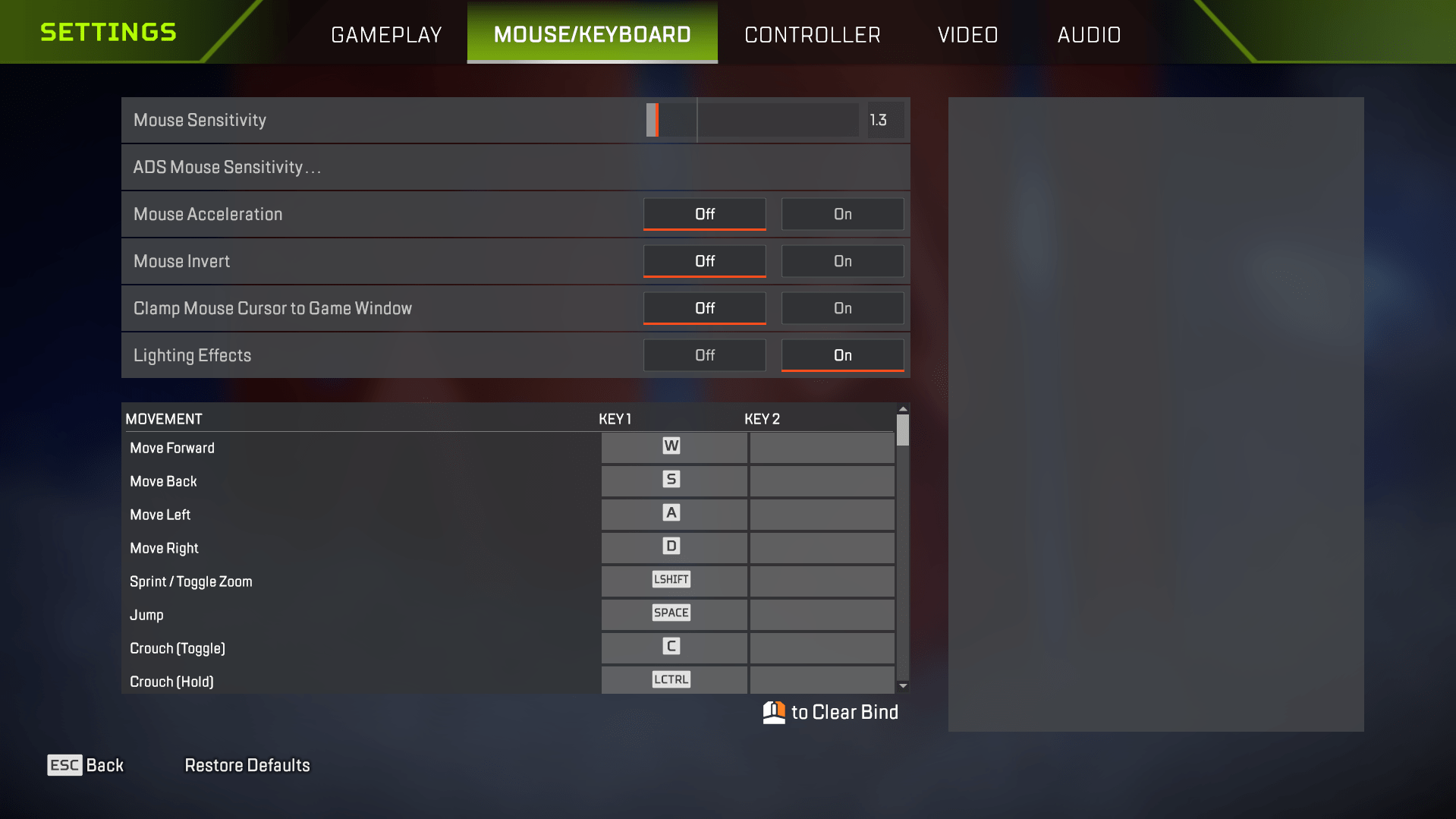
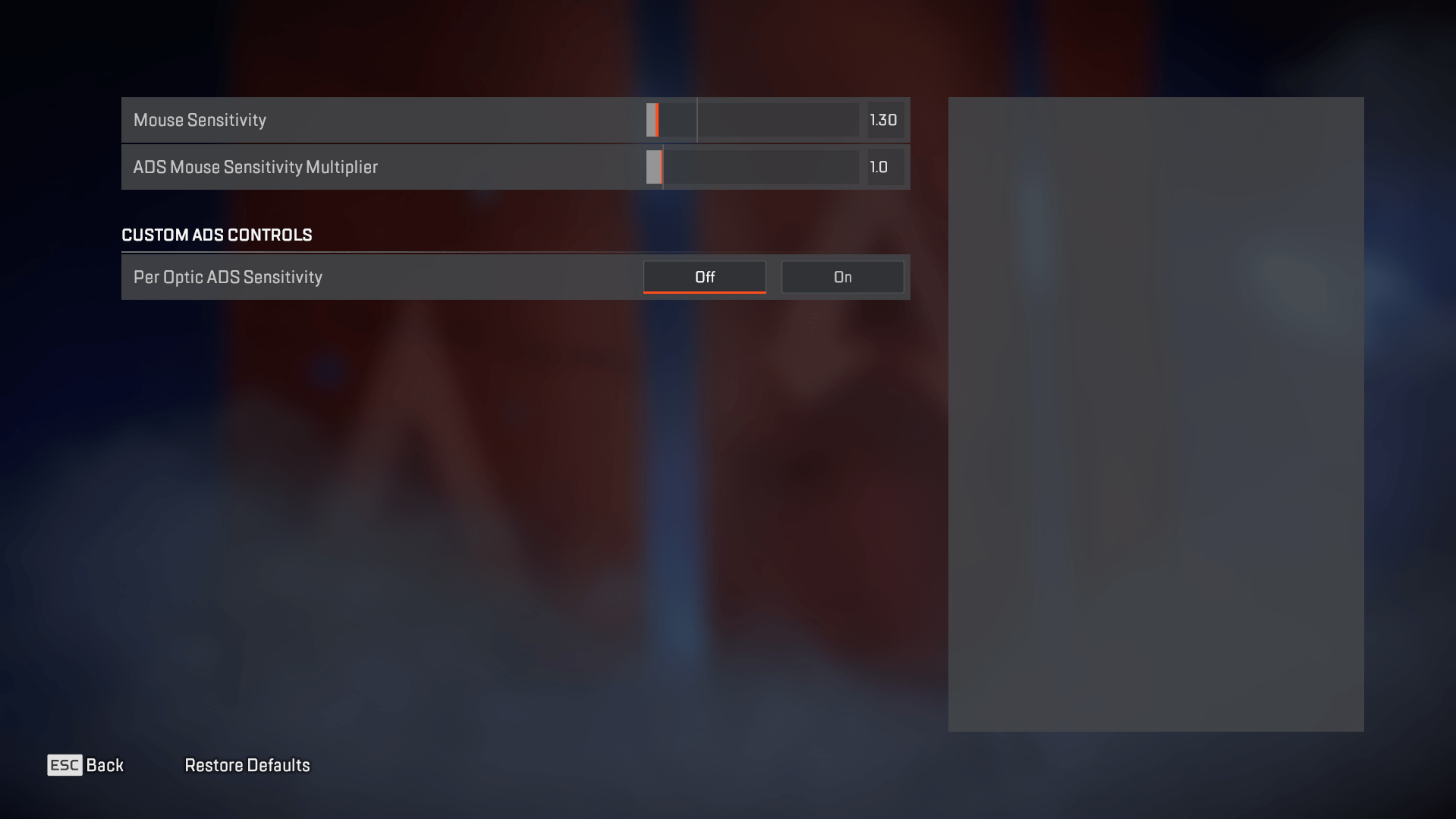
Mouse settings in Apex Legends mostly come down to comfort, but there are still good starting points. A lower sensitivity gives you better control during tracking, recoil control, and mid-range fights. For most players, 800 DPI with moderate in-game sensitivity feels stable without making turns too slow. From there, adjust in small steps until your aim feels natural in close fights and longer sprays.
| Mouse Setting | Recommended Value | Description |
|---|---|---|
| DPI | 800 | A strong starting point for steady aim, clean tracking, and quick menu control. |
| Mouse Sensitivity | 1.3–1.6 | Keeps aim controlled without making close-range turns feel too slow. |
| ADS Sensitivity Multiplier | 1.0 | Keeps hip-fire and ADS aim feeling consistent during fights. |
| Per Optic ADS Sensitivity | Off | Helps build cleaner muscle memory across different scopes. |
| eDPI | 1000–1600 | Good competitive range for most mouse and keyboard players. |
| Mouse Acceleration | Off | Keeps cursor movement predictable and removes unwanted speed changes. |
| Mouse Invert | Off | Uses the standard aiming direction for most players. |
| Polling Rate | 1000Hz | Makes mouse input feel smoother and more responsive on most modern setups. |
| Windows Enhance Pointer Precision | Off | Disables extra mouse acceleration outside the game. |
To calculate eDPI in Apex Legends, multiply your DPI by your in-game sensitivity. For example, 800 DPI with 1.5 sensitivity gives you 1200 eDPI. Do not change your Apex Legends mouse settings after every bad match. Play several games first, then adjust by small amounts. Big sensitivity changes usually hurt consistency more than they help.
The best way to test your mouse settings is in-game, but if you’d rather not risk losing while experimenting, we’ve got you covered. Our team can provide a Pro Player who’ll dominate any match on your behalf.
Best Controller Settings for Apex Legends
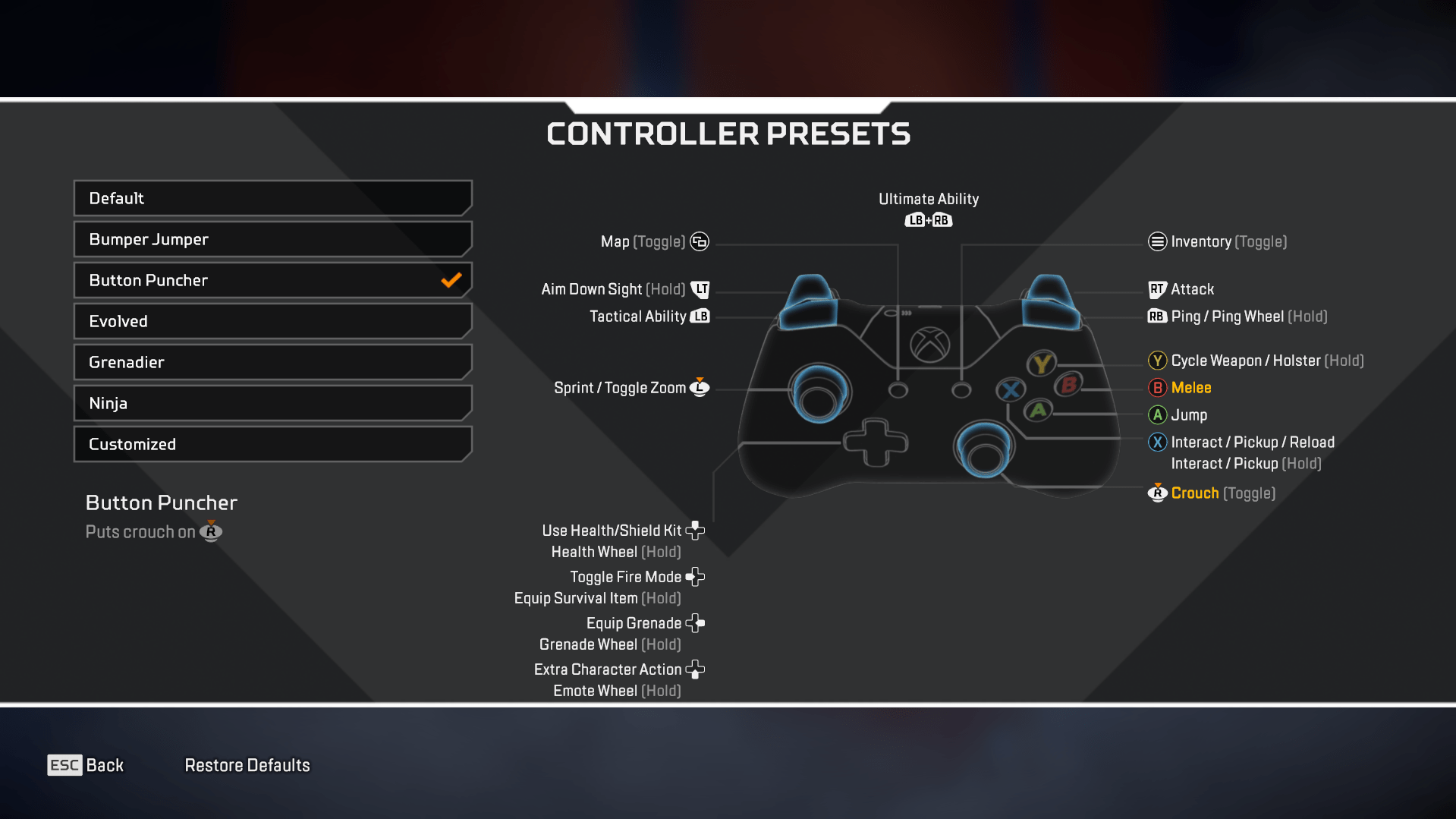
The best controller settings for Apex Legends should move, aiming, and looting feel fast without losing control. You do not need a wild setup here. A clean layout with low deadzones, disabled vibration, and reliable aim settings works better for most players.
| Setting | Recommended Value | Description |
|---|---|---|
| Button Layout | Button Puncher | Swaps crouch and melee, so you can slide and crouch while keeping aim control. |
| Stick Layout | Default | Keeps movement and aim familiar for most Apex Legends controller players. |
| Interact / Reload Button | Tap to Use and Reload | Makes reloading, opening doors, looting, and reviving feel faster in fights. |
| Crouch Button | Hold | Helps with faster crouch movement and smoother close-range duels. |
| Aim Button | Hold | Feels more consistent for tracking, peeking, and quick ADS shots. |
| Survival Slot Button | On | Gives quick access to Heat Shields and Mobile Respawn Beacons. |
| Trigger Deadzones | None / Default | Use None for faster input, or Default if your triggers feel too sensitive. |
| Look Sensitivity | High (4) | Gives quick turns without making your aim too hard to control. |
| ADS Sensitivity | Default (3) | Keeps ADS tracking steadier during mid-range sprays and pokes. |
| Per Optic ADS Sensitivity | Off | Keeps aim feeling the same across scopes and helps build muscle memory. |
| Look Deadzone | Small | Reduces stick delay while still helping control light stick drift. |
| Movement Deadzone | Small | Makes strafing, sliding, and small movement inputs feel more responsive. |
| Inverted Look | Off | Uses the standard vertical aim direction for most players. |
| Vibration | Off | Removes controller shake, so your aim stays cleaner during heavy fights. |
Button Puncher in Apex Legends is still a strong starting point because it lets you crouch, slide, and fight without taking your thumb off the stick. From there, adjust sensitivity and deadzones based on stick drift, hand comfort, and how often you play close-range fights.
These Apex Legends controller settings give you a stable base for ranked, pubs, and mixtape modes. If your stick drifts, raise the Look Deadzone slightly instead of changing every setting at once.
Apex Legends Advanced Look Controls
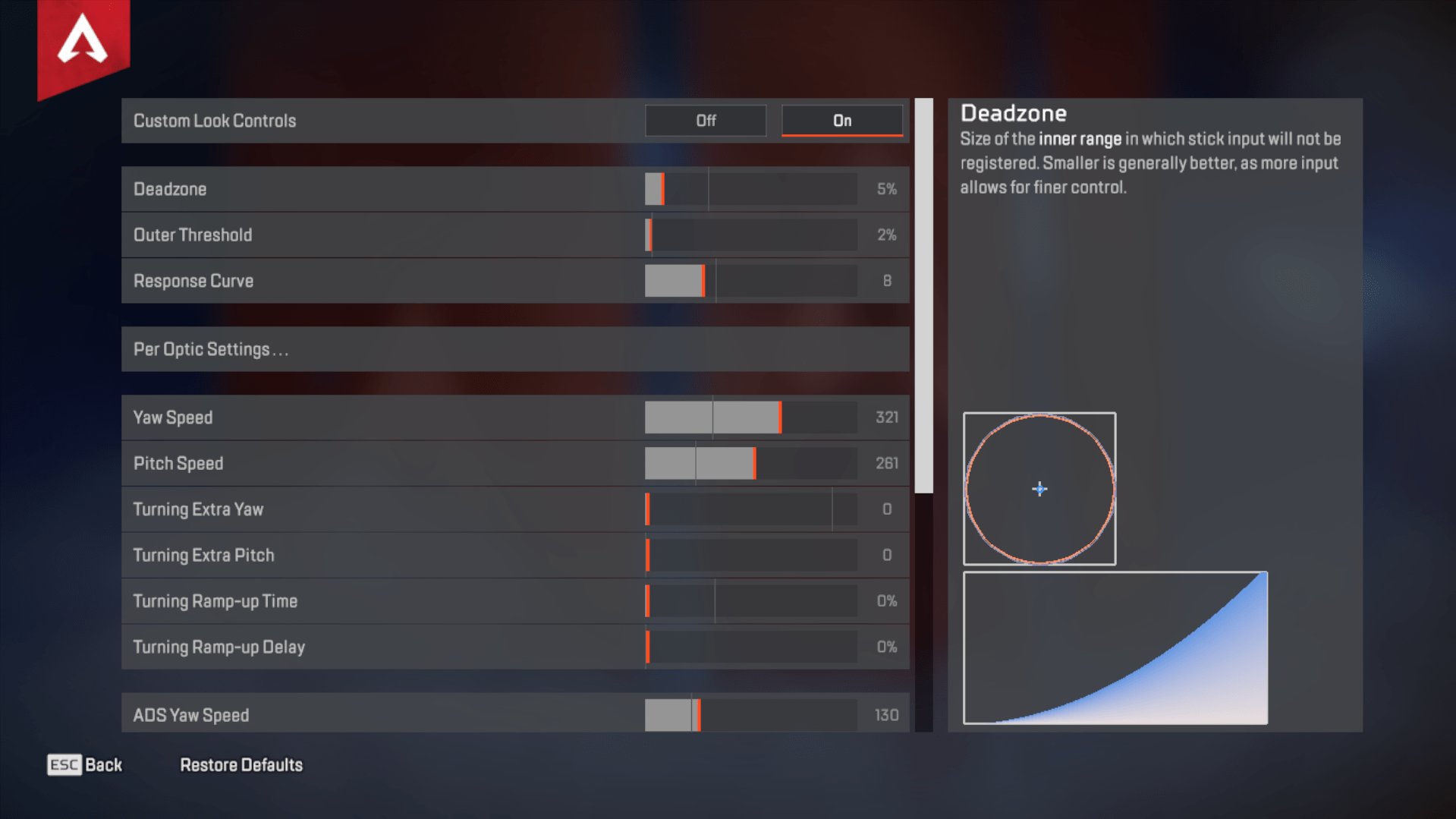
Advanced Look Controls in Apex Legends give controller players more room to tune aim feel. They can help a lot, but only if you change them carefully. Small tweaks work better than copying random values after one bad match.
| Setting | Recommended Value | Description |
|---|---|---|
| Deadzone | 5% | Start low for faster response, then raise it only if you notice stick drift. |
| Outer Threshold | 2% | Keeps stick movement responsive near the edge without making turns feel jumpy. |
| Response Curve | 8 | Gives a smooth aim curve close to Classic, but with more room for tuning. |
| Yaw Speed | 320 | Controls horizontal turning speed and helps with fast target swaps. |
| Pitch Speed | 260 | Keeps vertical aim slower for better control during recoil and tracking. |
| Turning Extra Yaw | 0 | Removes extra horizontal acceleration for more predictable turns. |
| Turning Extra Pitch | 0 | Stops vertical aim from speeding up too much during quick movements. |
| Turning Ramp-up Time | 0% | Makes your turn speed kick in right away. |
| Turning Ramp-up Delay | 0% | Removes delay between stick movement and camera response. |
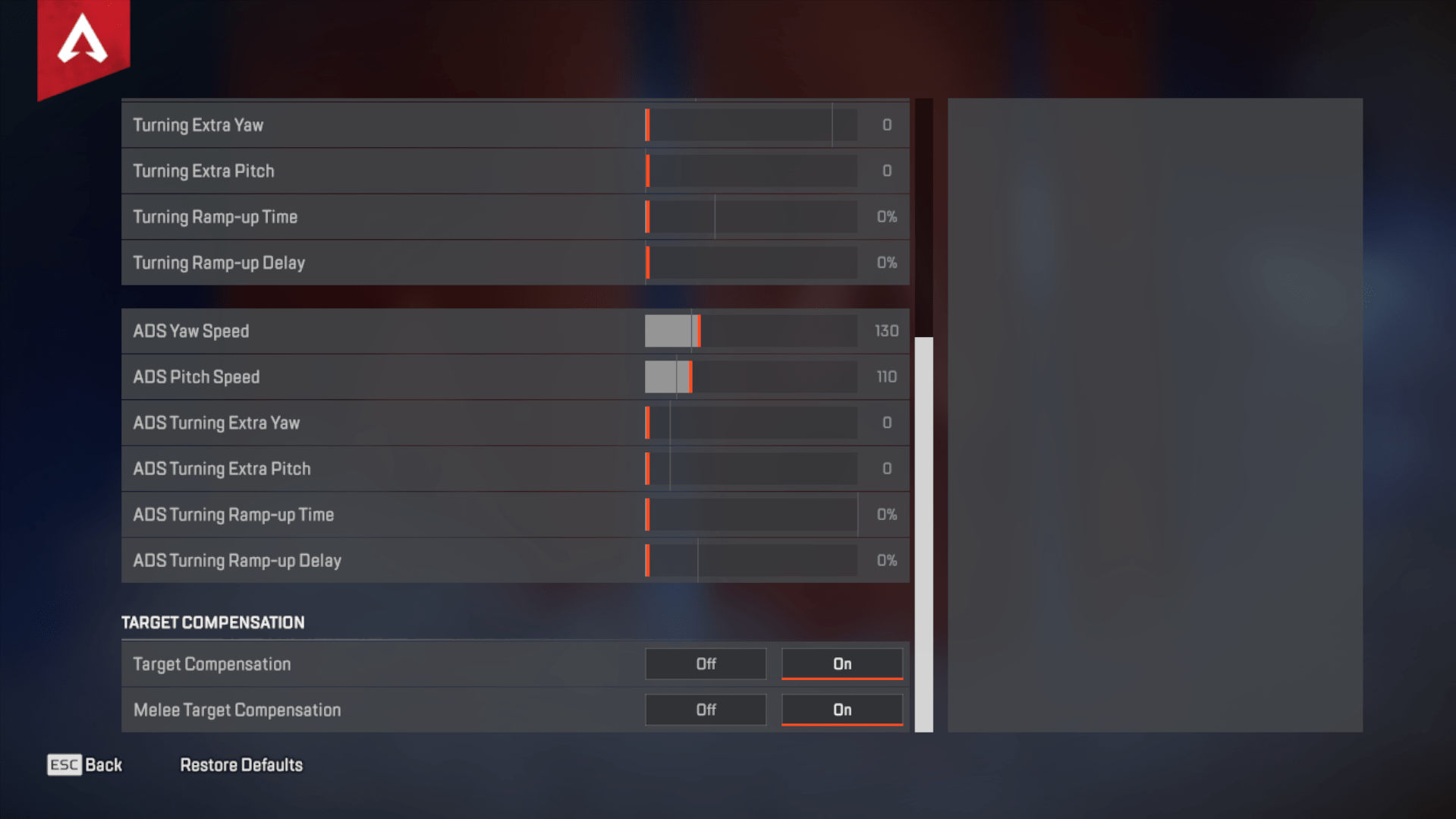
| ADS Yaw Speed | 130 | Gives steady horizontal ADS tracking without feeling too slow. |
| ADS Pitch Speed | 110 | Keeps vertical ADS movement controlled during sprays and recoil pulls. |
| ADS Turning Extra Yaw | 0 | Keeps scoped horizontal aim consistent without extra acceleration. |
| ADS Turning Extra Pitch | 0 | Removes extra vertical acceleration while aiming down sights. |
| ADS Turning Ramp-up Time | 0% | Gives instant ADS response when you start moving the stick. |
| ADS Turning Ramp-up Delay | 0% | Removes input delay during ADS tracking and quick corrections. |
| Target Compensation | On | Helps track moving enemies during close and mid-range fights. |
| Melee Target Compensation | On | Helps melee hits connect during messy close-range fights. |
This setup gives you steady tracking, quick turns, and cleaner ADS control. It works well as a starting point for ranked, pubs, and close-range fights where every small input matters. These Apex Legends ALC settings should feel controlled rather than flashy. If your aim feels too slow, raise Yaw Speed by small steps. If ADS tracking feels shaky, lower ADS Yaw Speed or Response Curve slightly.
Apex Legends Controller Best Movement and Aiming Settings
Getting your sensitivity right is crucial for controller players. You want quick enough movement to track targets, but not so fast that you lose precision. A high Look Sensitivity paired with a slightly lower ADS Sensitivity hits that sweet spot. Most pros avoid per-optic ADS settings to keep their aim muscle memory consistent. Toss in low deadzones and disabled vibration, and you’ve got a stable base for accurate and snappy gameplay.
| Setting | Recommended Value | Description |
|---|---|---|
| Look Sensitivity | High (4) | Allows faster turning while keeping good control. |
| ADS Sensitivity | Default (3) | Slower when aiming down sights for better accuracy. |
| Per Optic ADS Sensitivity | Off | Keeps aiming consistently across all scopes. |
| Look Deadzone | Small | Improves response time by reducing stick delay. |
| Movement Deadzone | Small | Makes every movement snappier and more responsive. |
| Inverted Look | Off | Standard aiming direction; easier to adjust to. |
| Vibration | Off | Disables hand shake during intense fights for better control. |
Apex Legends Settings FAQ
Got questions about the best settings in Apex Legends? You’re not alone. Whether you’re new to the game or tweaking your setup for the hundredth time, this FAQ covers the most common concerns players have.
Maybe your question isn’t listed here, but we’re here to help. Reach out to us, and our Сoaches will answer anything you need and teach you the best tactics to win more in Apex Legends.
What is The Best Setting for Apex Legends?
Here are the gameplay settings that we recommend as a solid starting point if you want a mix of performance and smooth gameplay:
- Display Mode: Use Fullscreen mode if you’re on a single monitor. Go with Windowed if you’re running a multi-monitor setup to avoid screen-switching issues.
- Aspect Ratio: Set it to your monitor’s default for proper scaling.
- Resolution: Stick with your native monitor resolution usually 1920×1080 for the best balance between visuals and FPS.
- Brightness: Slightly increase it to make enemies easier to spot in darker areas.
- Field of View (FOV): Anywhere between 90 and 110 is ideal. Most pros lean toward 110 for maximum awareness, but adjust based on what feels right to you.
What is NVIDIA Reflex Low Latency, and should I enable it in Apex Legends?
Yes, you should enable NVIDIA Reflex for optimal performance — ideally with the “Enabled + Boost” option. It helps your GPU and CPU work together more efficiently, which lowers overall system latency.
What are The Best Sensitivity Settings for Controller Players in Apex Legends?
For a smooth and responsive experience on the controller, these settings are a great place to start:
- Look Sensitivity: Set to High (4) for fast camera movement and quick target tracking.
- ADS Sensitivity: Keep it at Default (3) for steady control while aiming down sights.
- Per Optic ADS Sensitivity: Turn this Off to maintain consistent aim across all scopes.
- Look Deadzone: Use Small to reduce input delay and make stick movements feel more responsive.
- Movement Deadzone: Also set to Small for quicker character movement without extra lag.
- Inverted Look: Leave this Off unless you prefer reversed vertical controls.
- Vibration: Set to Off for better aim stability and less hand shake during intense moments.
What Are the Best Apex Legends Settings?
The best Apex Legends settings use Fullscreen mode, native resolution, disabled V-Sync, low shadows, low effects, and stable FPS cap. For most players, 100–110 FOV, clean audio settings, and low input delay matter more than high graphics quality.
What Are the Best Graphics Settings for Apex Legends?
The best graphics settings for Apex Legends keep most heavy options on Low or Disabled. Turn off Volumetric Lighting, Dynamic Spot Shadows, and V-Sync, then use NVIDIA Reflex if you play on an NVIDIA GPU.
What Is the Best FPS Cap for Apex Legends?
The best FPS cap depends on your monitor refresh rate. Use 141–144 FPS for 144Hz, 162–165 FPS for 165Hz, and 237–240 FPS for 240Hz. Stable frames usually feel better than uncapped FPS with random drops.
What Is the Best FOV for Apex Legends?
The best FOV for Apex Legends is usually between 100 and 110. Use 110 if you want wider awareness, especially in ranked. Lower it to 100 if distant enemies look too small or tracking feels harder.
What Is the Best Resolution for Apex Legends?
The best resolution for Apex Legends is 1920×1080 for most players. It gives a clean image, stable performance, and clear enemy visibility. You can try 2560×1440 on stronger PCs, but make sure your FPS stays steady.
What Are the Best Mouse Settings for Apex Legends?
For mouse and keyboard, start with 800 DPI and 1.3–1.6 in-game sensitivity. This gives a good base for tracking, recoil control, and mid-range fights. Keep ADS Sensitivity Multiplier at 1.0 for a more consistent aim feel.
What Are the Best Controller Settings for Apex Legends?
The best controller settings for Apex Legends start with Button Puncher, Small Deadzone, Vibration Off, Look Sensitivity 4, and ADS Sensitivity 3. This setup keeps movement fast while keeping aim steady during close and mid-range fights.
Should I Use Advanced Look Controls in Apex Legends?
Use Advanced Look Controls if you want more control over controller aim. They can help with tracking and turning speed, but do not change every value at once. Test one setting at a time in the Firing Range first.
What Are the Best Audio Settings for Apex Legends?
Keep Sound Effects Volume at 100% and Music Volume at 0%. This makes footsteps, gunfire, armor cracks, and ability sounds easier to hear. Lower Dialogue Volume if Legend voice lines cover combat audio.
What Are the Best Apex Legends Settings for Low-End PCs?
Low-end PCs should use Fullscreen mode, low graphics, disabled heavy lighting, and a realistic FPS cap. Start with 60 or 90 FPS, then raise it only if the game stays smooth during real matches.
Should I Use Apex Legends Launch Options?
Yes, but keep them simple. Use launch options mainly to cap FPS, skip intro videos, and force Fullscreen mode. A safe setup looks like this: +fps_max 240 -novid -fullscreen.
What is The Best Refresh Rate for Apex Legends?
Сapping your FPS around 180 – 190 helps prevent microstutters, especially on 240Hz+ monitors.
What is The Best Resolution for Apex Legends?
The best resolution for Apex Legends is 1920×1080 (Full HD). It offers the ideal balance between visual clarity and high frame rates, which is why the majority of pro players stick with it.
In our Apex Legends Best Settings and Options guide, you’ve now learned all about the effective settings to boost your gaming performance. Throughout the guide, we covered the best graphics, mouse, and controller configurations to help you stay ahead of the competition. Good luck out there in the Apex Legends battle royale.
