With our Apex Legends Best Settings guide, you’ll discover the top in-game settings for maximum performance. From there, we dive into everything, from graphics tweaks to mouse and controller configs. As a result, our Best Settings for Apex Legends will help you fully optimize your gameplay. Ultimately, these key settings make it easier and faster to climb the ranks and stay ahead of the competition.
 4.9
4.9Apex Legends Best Graphic Settings
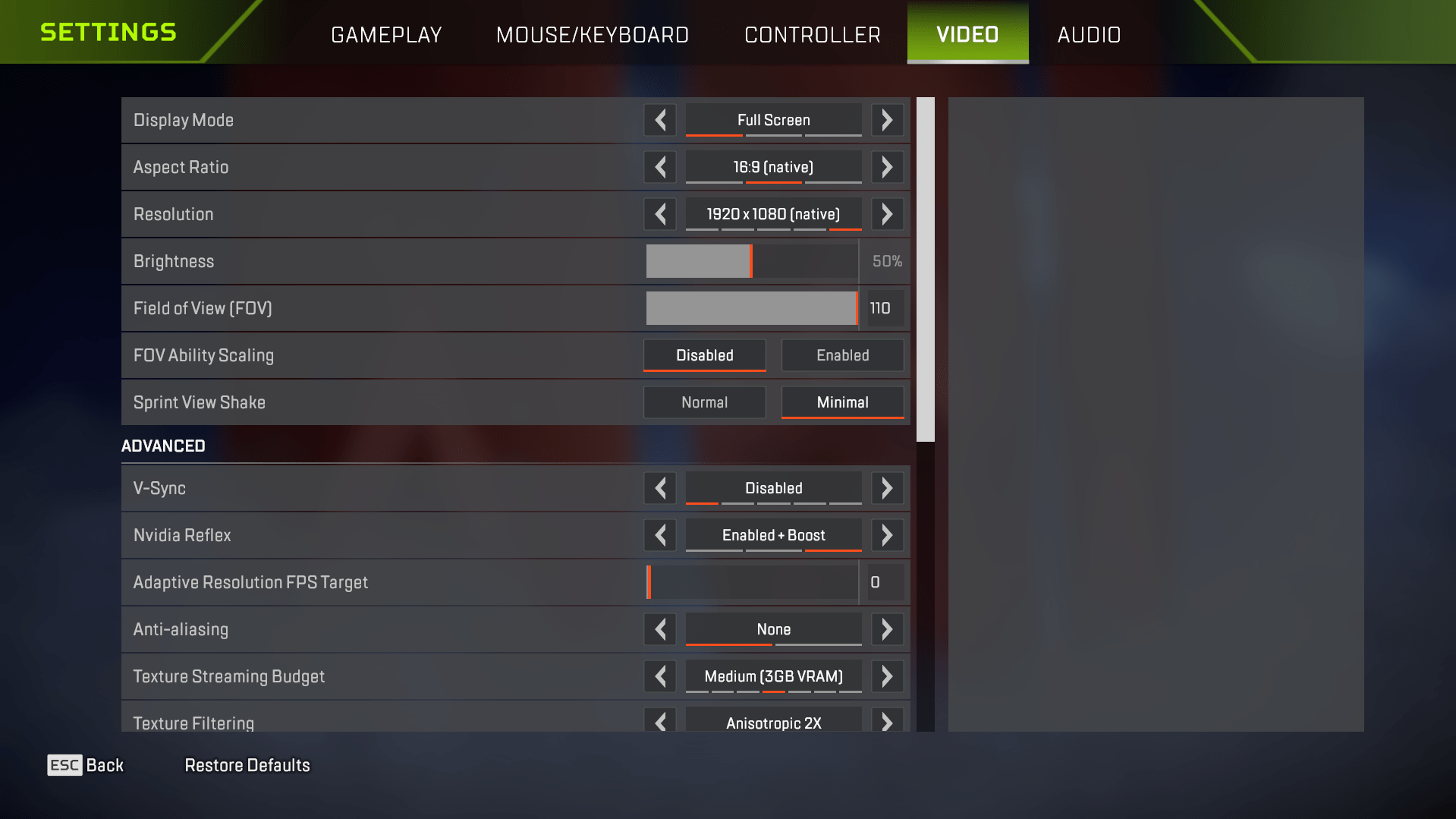
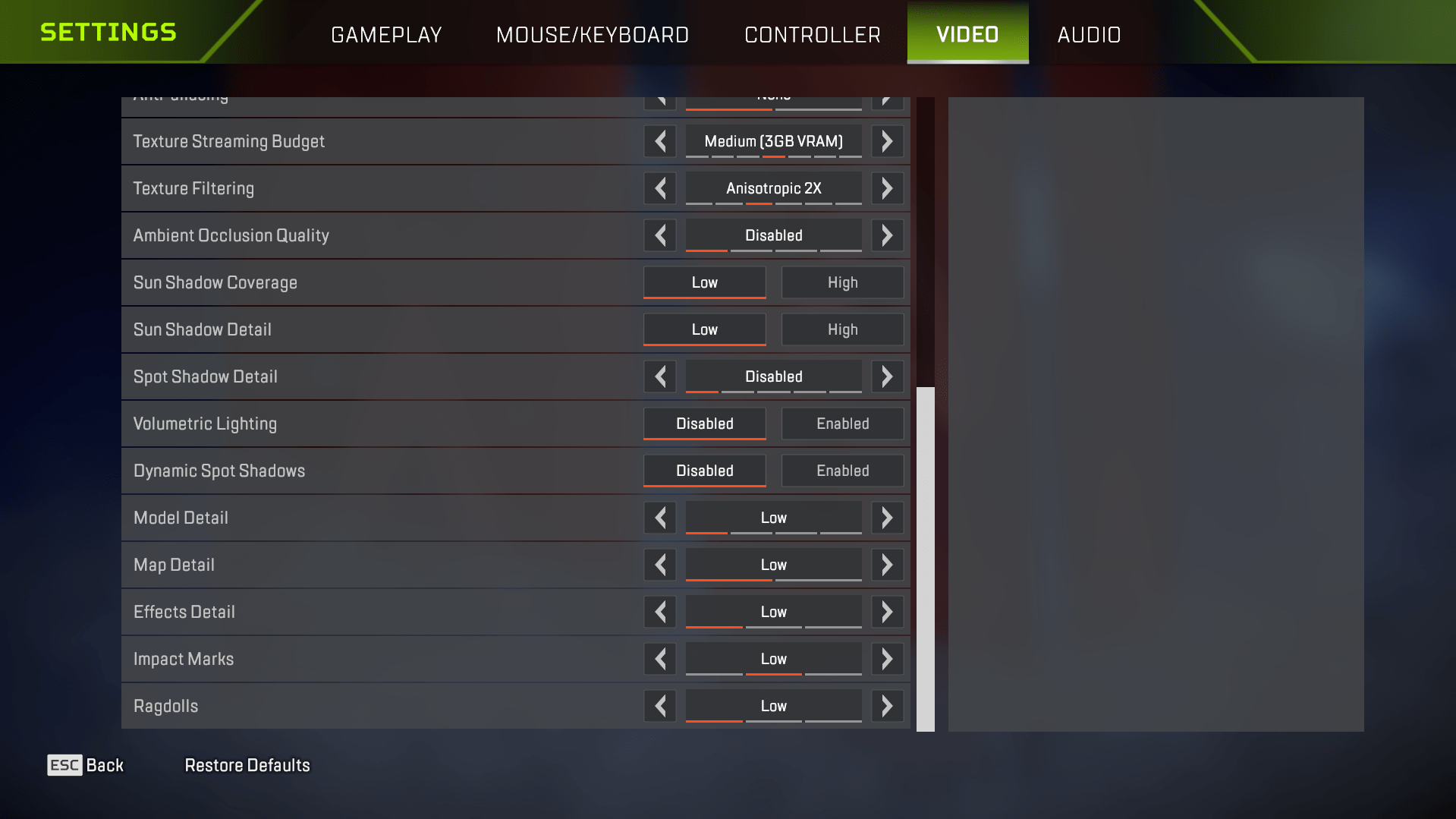
If you’re serious about improving and climbing the ranks in competitive games, using the right settings isn’t optional — it’s essential, and our guide will help you with the Best Apex Legends Video Settings. Higher frame rates, display settings, smoother aim, tighter controls — it all adds up.
| Setting | Recommended Value | Description |
|---|---|---|
| Display Mode | Full Screen | Maximizes FPS by allocating all system resources to the game. |
| Aspect Ratio | Native | Match your monitor’s default aspect ratio for best clarity. |
| Resolution | Native (1920×1080) | Balances clear visuals with stable, high FPS. |
| Field of View (FOV) | 110 | Offers the best peripheral vision; widely preferred by professionals. |
| FOV Ability Scaling | Disabled | Maintains consistent sensitivity and aim stability. |
| Sprint View Shake | Minimal | Reduces unnecessary screen movement, improving enemy visibility. |
| V-Sync | Disabled | Reduces input lag and allows maximum FPS. |
| NVIDIA Reflex | Enabled + Boost | Significantly lowers system latency, improving reaction times. |
| Adaptive Resolution FPS Target | Off (0) | Avoids fluctuating resolutions that can disrupt aiming. |
| Anti-Aliasing | Off | Improves FPS with minimal visual sacrifice. |
| Texture Streaming Budget | Medium | Balances graphical detail and performance. |
| Texture Filtering | Anisotropic 2x | Ensures good visuals without compromising performance. |
| Ambient Occlusion Quality | Disabled | Removes non-essential visual effects to boost FPS. |
| Sun Shadow Coverage | Low | Minimizes shadows that can distract and reduce FPS. |
| Sun Shadow Detail | Low | Further optimizes performance by limiting shadow detail. |
| Spot Shadow Detail | Disabled | Eliminates unnecessary shadows for clearer visuals. |
| Volumetric Lighting | Disabled | Removes lighting effects that hinder performance. |
| Dynamic Spot Shadows | Disabled | Improves FPS significantly by disabling dynamic shadow rendering. |
| Model Detail | Low | Reduces system load; consider increasing only on powerful systems. |
| Effects Detail | Low | Minimizes distractions and improves performance. |
| Impact Marks | Low | Keeps visual feedback without sacrificing performance. |
| Ragdolls | Low | Reduces unnecessary load during combat. |
Best Resolution for Apex Legends
In Apex Legends, resolution is more than just visual sharpness — it’s tied directly to how many frames your system can pump out. Most pros stick to 1920×1080 for one simple reason: it offers the perfect balance of clarity and game performance. Dropping your resolution can help if you’re chasing more FPS, but go too low and the game becomes a blurry mess. For most players, Full HD (1080p) is the sweet spot where the game still looks great and runs fast.
| Resolution | Description |
|---|---|
| 1920×1080 | Standard resolution for clear visuals and smooth performance. |
| Other resolutions | Used mainly if performance issues occur at higher resolutions. |
The best graphics settings in Apex Legends might not be enough to reach the highest rank. We can help with that. Contact us and get the Predator Rank quickly and effortlessly!
Apex Legends Best Audio Settings
Optimizing your audio Apex settings is crucial for enhancing in-game awareness and gaining a competitive edge. Below is a table summarizing the recommended audio configurations:
| Setting | Recommended Value | Description |
|---|---|---|
| Master Volume | 100% | Makes all game audio fully audible. |
| Sound Effects Volume | 100% | Ensures critical sounds like footsteps and gunfire are clear. |
| Dialogue Volume | 30% | Keeps voice lines audible without overpowering gameplay sounds. |
| Music Volume | 0% | Disables in-game music for better focus and awareness. |
| Lobby Music Volume | 15% | Provides subtle music in the lobby without being distracting. |
| Sound In Background | Off | Prevents audio playback when the game is minimized. |
| Play Incoming Text Chat as Speech | Off | Disables text-to-speech to avoid unnecessary audio interruptions. |
| Convert Incoming Voice to Chat Text | Off | Disables voice-to-text transcription for cleaner communication. |
Apex Legends Best Mouse Settings
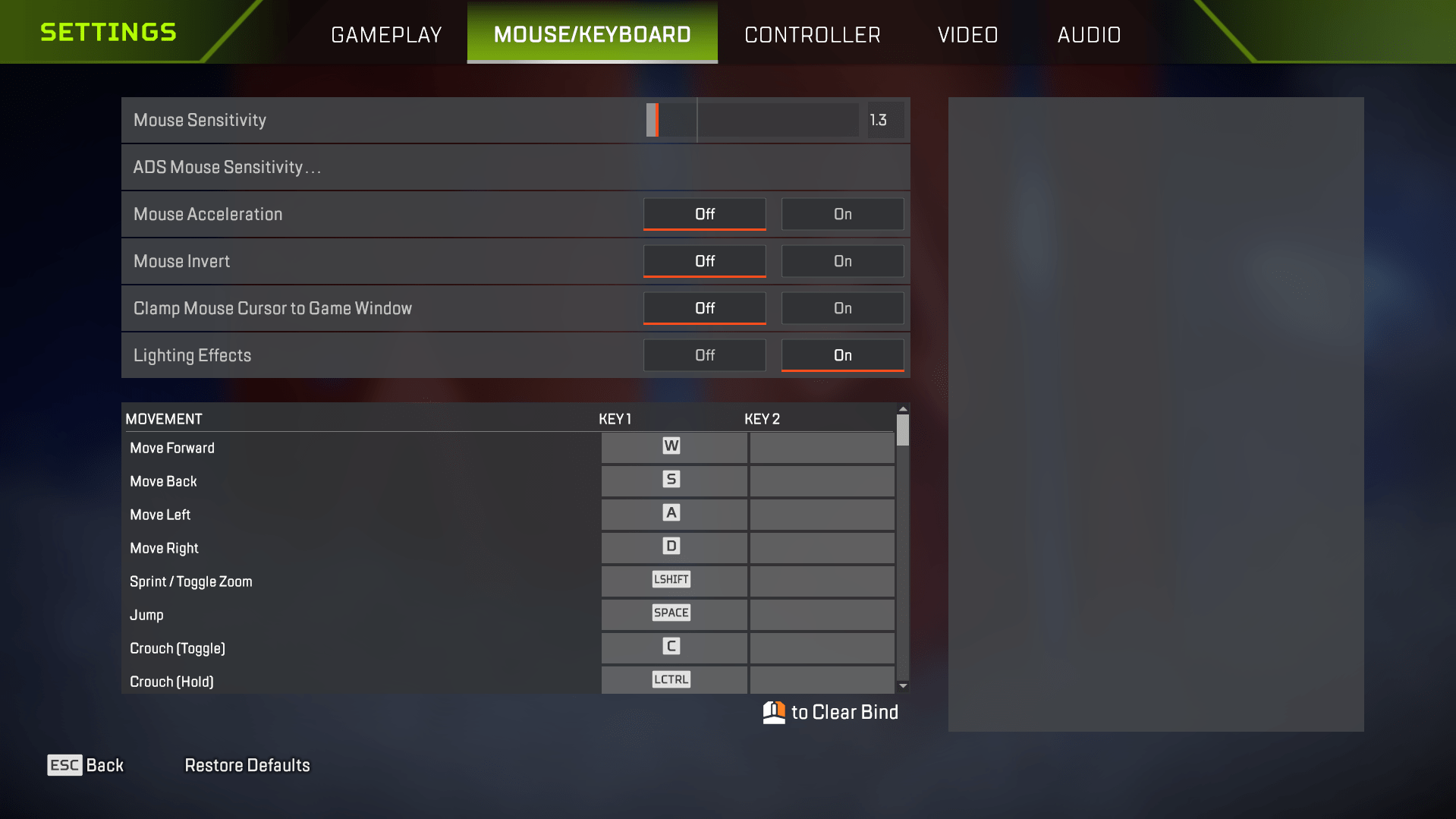
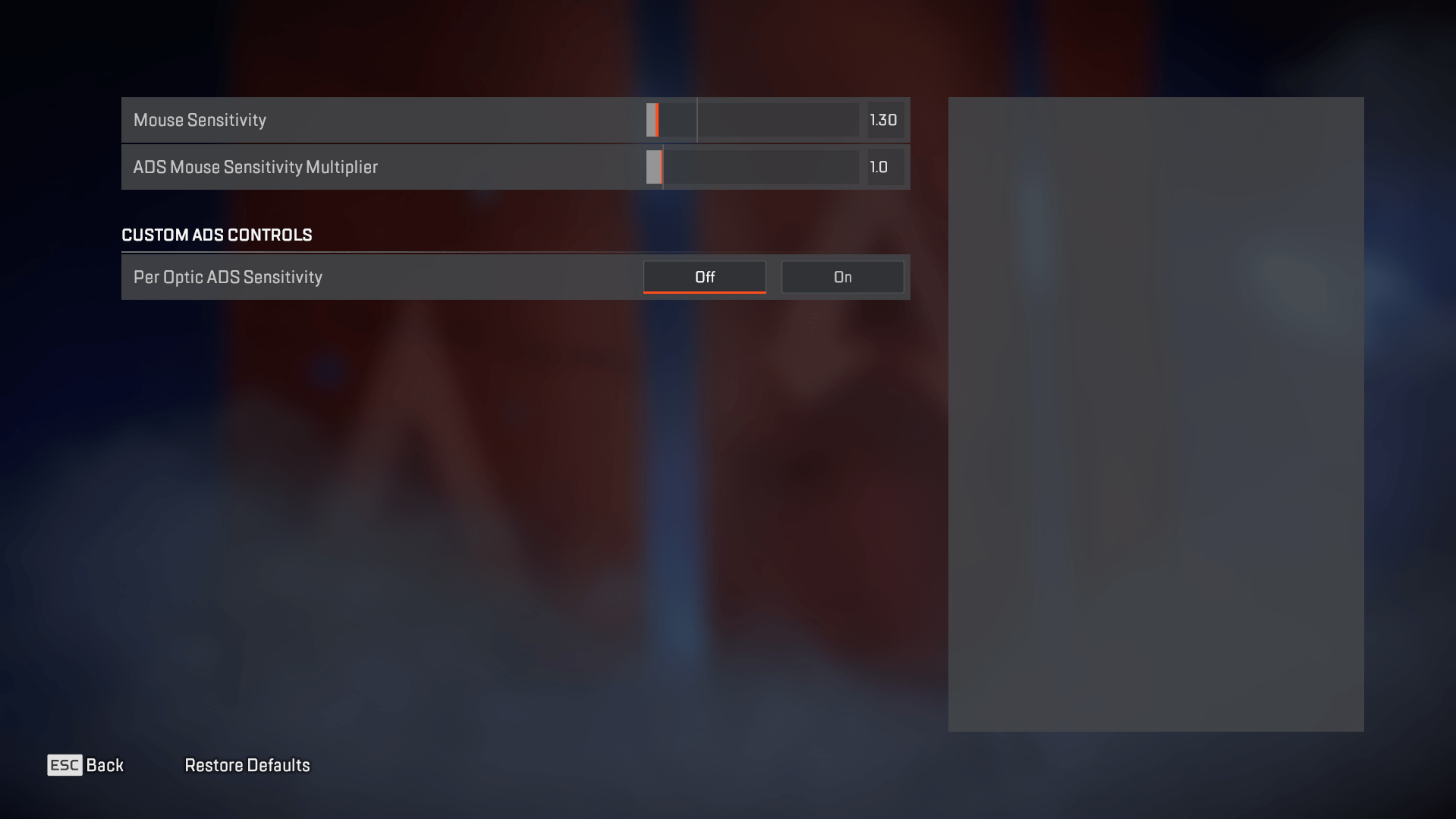
Mouse sensitivity is one of the most personal and impactful settings in Apex Legends. And contrary to what you might think, lower sensitivity usually wins out in pro play. That’s because low mouse sensitivity allows for more precise micro-adjustments when aiming, especially with larger mousepads. In this section, we’ll cover DPI, in-game sens, and how to calculate your eDPI for Apex. If your aim feels off, this is where you start fixing it.
| Mouse Setting | Recommended Value | Description |
|---|---|---|
| DPI | 800 | Provides excellent balance between cursor speed and precision. |
| In-game Sensitivity | 1.3 to 1.6 | Optimal range for precision aiming without sacrificing speed. |
| ADS Sensitivity Multiplier | 1.0 | Keeps aiming consistent between hip-fire and scoped views. |
| eDPI | 1000 to 1600 | Effective DPI range for competitive aiming. |
The best way to test your mouse settings is in-game, but if you’d rather not risk losing while experimenting, we’ve got you covered. Our team can provide a Pro Player who’ll dominate any match on your behalf.
Best Controller Settings for Apex Legends
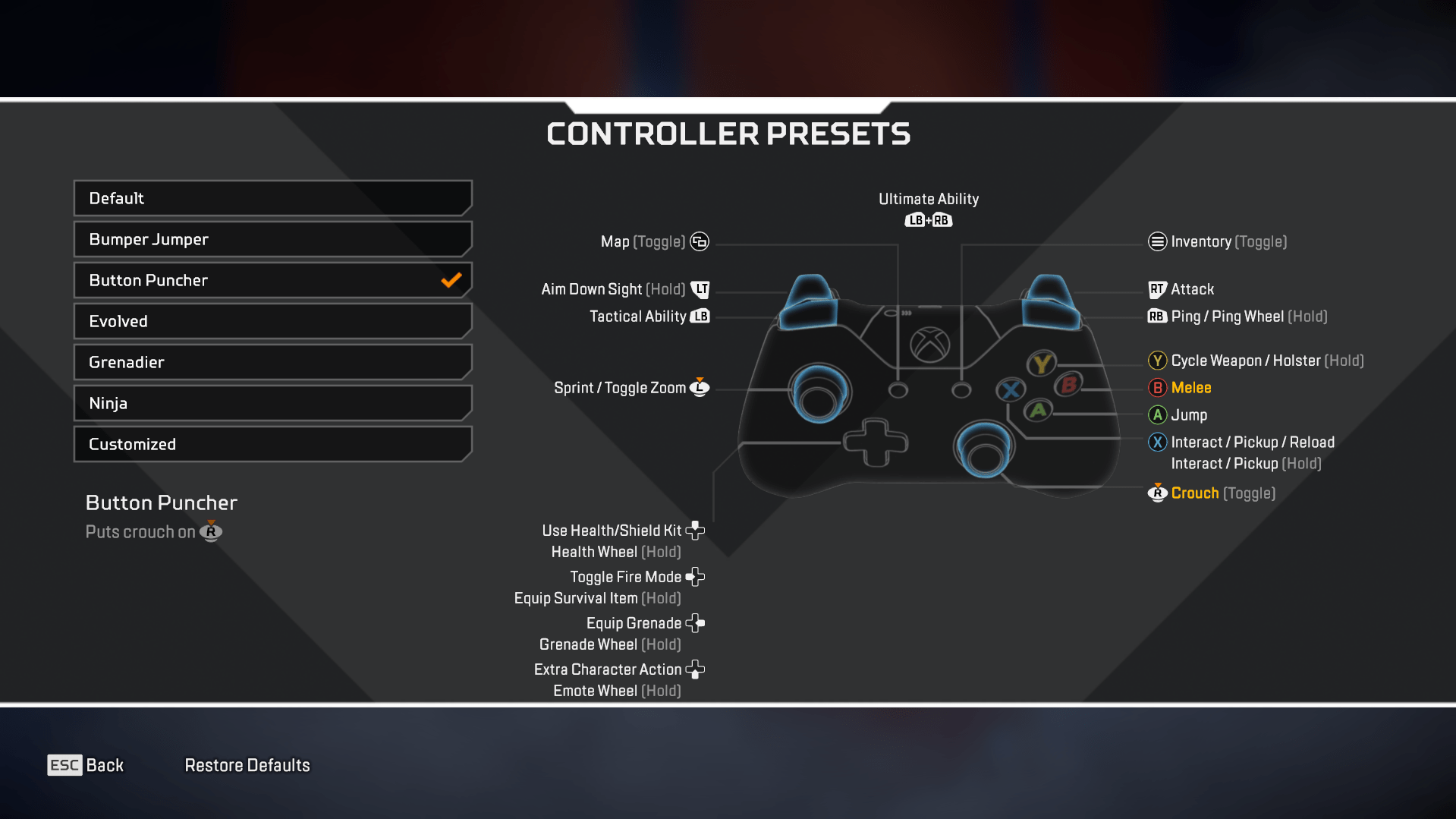
Apex Legends lets you customize controller settings to fit your playstyle. But if you’re looking for the most effective setup used by pros, these recommendations will give you tighter control, smoother movement, and better aim, without the constant need to tweak things mid-season.
| Setting | Recommended Value | Description |
|---|---|---|
| Button Layout | Button Puncher | Swaps Crouch and Melee, so you can slide and crouch without losing aim control. |
| Stick Layout | Default | Standard layout that keeps things intuitive. |
| Interact/Reload Button | Tap to Use and Reload | Tap to reload faster; hold to open doors or revive allies. Streamlines multitasking. |
| Crouch Button | Hold | Essential for fast crouch-spamming in close-range fights. |
| Aim Button | Hold | More natural, aiming for better shot control. |
| Survival Slot Button | On | Quick access to Heat Shields and Mobile Respawn Beacons via the D-Pad. |
| Trigger Deadzones | Default | Gives solid trigger response without accidental input. |
Apex Legends Advanced Look Controls
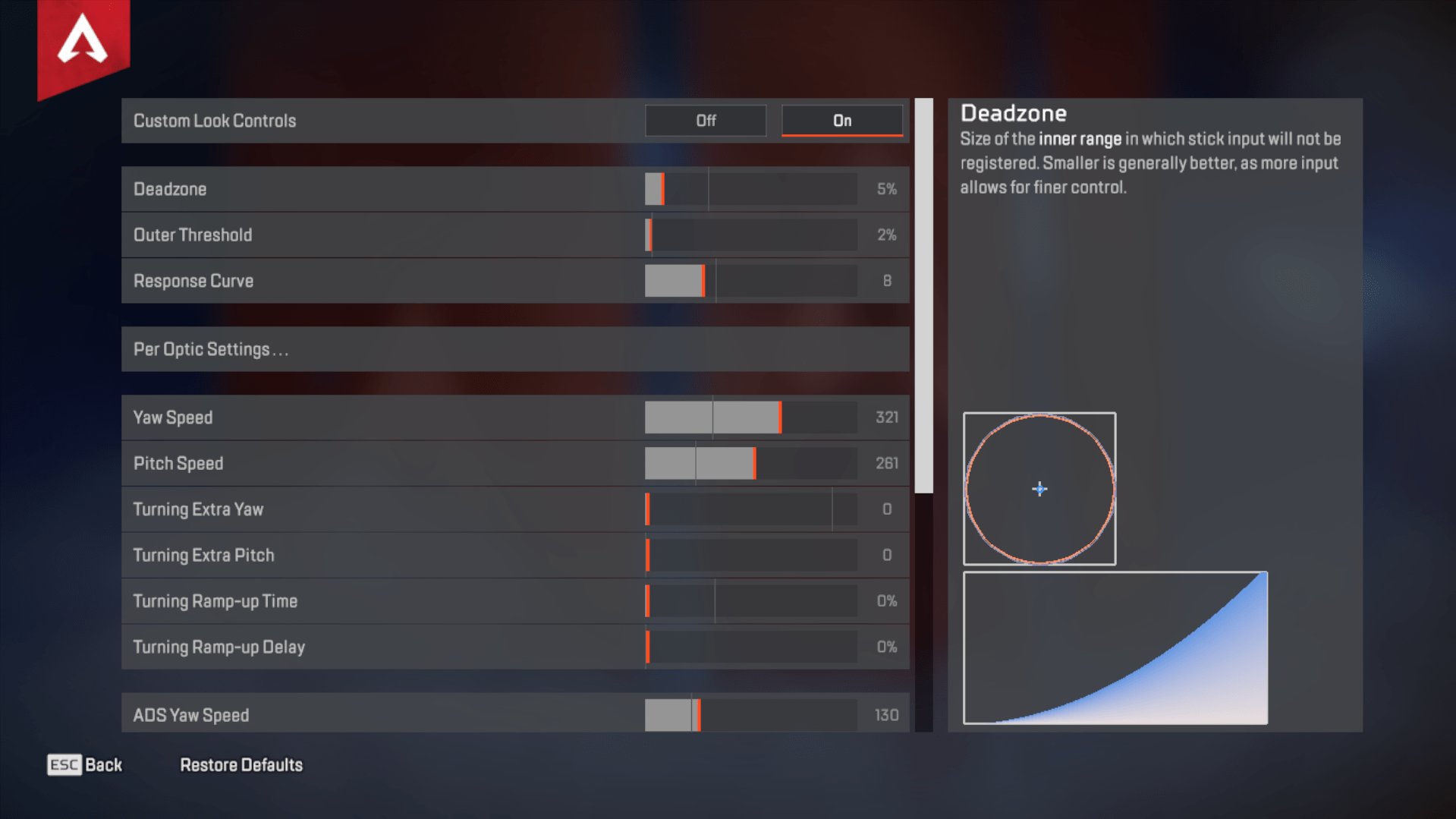
If you play on a controller, having the right settings can make a world of difference. From smoother movement to more responsive aim, the right setup can help you keep up with even the sweatiest mouse and keyboard players. In this section, we’ll walk through proven controller layouts, button configurations, and key settings like deadzones and hold/tap toggles. Whether you’re grinding ranked or dropping in for fun, dialing in these controls gives you the edge.
| Setting | Recommended Value | Description |
|---|---|---|
| Deadzone | 5% | Start low and raise only if you get stick drift. |
| Outer Threshold | 2% | Keeps a fast response at the edge of your stick range. |
| Response Curve | 8 | Gives a stable, smooth response curve similar to “Classic.” |
| Yaw Speed | 320 | Fast horizontal movement speed—great for quick turning. |
| Pitch Speed | 260 | Lower than yaw to maintain vertical aim stability. |
| Turning Extra Yaw | 0 | Leave off for steady and predictable turns. |
| Turning Extra Pitch | 0 | Disabling this avoids aim overshoot while looking up/down. |
| Turning Ramp-up Time | 0% | No delay before max turning speed kicks in. |
| Turning Ramp-up Delay | 0% | Instant responsiveness from stick movement. |
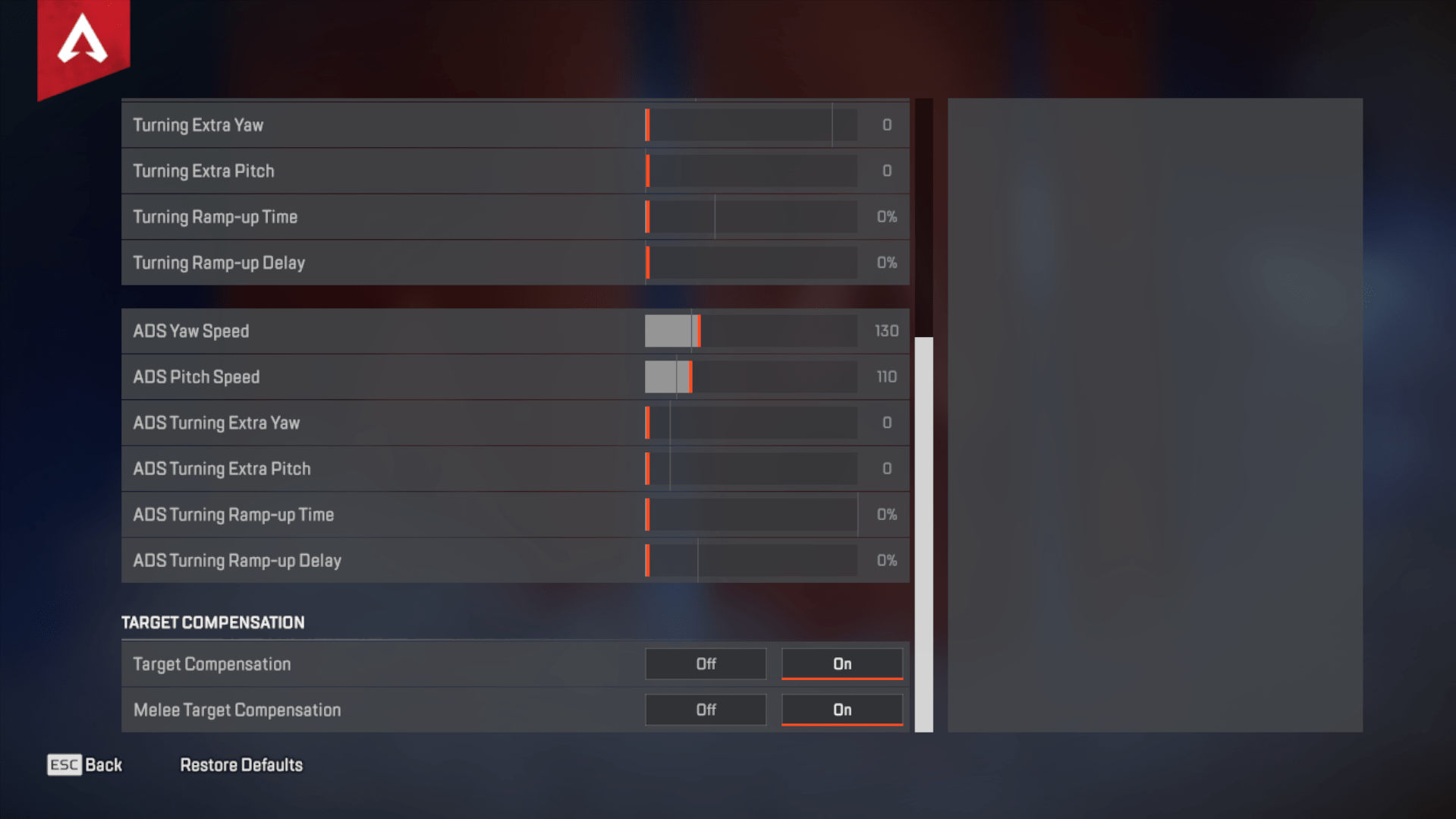
| ADS Yaw Speed | 130 | Maintains horizontal control while aiming. |
| ADS Pitch Speed | 110 | Lower speed for precision in vertical aim. |
| ADS Turning Extra Yaw | 0 | Stable sensitivity without extra acceleration. |
| ADS Turning Extra Pitch | 0 | Keep off for a consistent aiming feel. |
| ADS Turning Ramp-up Time | 0% | Instant aim response when engaging enemies. |
| ADS Turning Ramp-up Delay | 0% | No delay between movement and aiming precision. |
| Target Compensation | On | Assists in tracking enemies when they move across your screen. |
| Melee Target Compensation | On | Helps land melee hits during chaotic close combat. |
Apex Legends Controller Best Movement and Aiming Settings
Getting your sensitivity right is crucial for controller players. You want quick enough movement to track targets, but not so fast that you lose precision. A high Look Sensitivity paired with a slightly lower ADS Sensitivity hits that sweet spot. Most pros avoid per-optic ADS settings to keep their aim muscle memory consistent. Toss in low deadzones and disabled vibration, and you’ve got a stable base for accurate and snappy gameplay.
| Setting | Recommended Value | Description |
|---|---|---|
| Look Sensitivity | High (4) | Allows faster turning while keeping good control. |
| ADS Sensitivity | Default (3) | Slower when aiming down sights for better accuracy. |
| Per Optic ADS Sensitivity | Off | Keeps aiming consistently across all scopes. |
| Look Deadzone | Small | Improves response time by reducing stick delay. |
| Movement Deadzone | Small | Makes every movement snappier and more responsive. |
| Inverted Look | Off | Standard aiming direction; easier to adjust to. |
| Vibration | Off | Disables hand shake during intense fights for better control. |
Apex Legends Settings FAQ
Got questions about the best settings in Apex Legends? You’re not alone. Whether you’re new to the game or tweaking your setup for the hundredth time, this FAQ covers the most common concerns players have. From sensitivity confusion to monitor refresh rates and controller aim assist, this section gives you quick, clear answers to help you fine-tune your gameplay and stay competitive.
Maybe your question isn’t listed here, but we’re here to help. Reach out to us, and our Сoaches will answer anything you need and teach you the best tactics to win more in Apex Legends.
What is The Best Setting for Apex Legends?
Here are the gameplay settings that we recommend as a solid starting point if you want a mix of performance and smooth gameplay:
- Display Mode: Use Fullscreen mode if you’re on a single monitor. Go with Windowed if you’re running a multi-monitor setup to avoid screen-switching issues.
- Aspect Ratio: Set it to your monitor’s default for proper scaling.
- Resolution: Stick with your native monitor resolution—usually 1920×1080—for the best balance between visuals and FPS.
- Brightness: Slightly increase it to make enemies easier to spot in darker areas.
- Field of View (FOV): Anywhere between 90 and 110 is ideal. Most pros lean toward 110 for maximum awareness, but adjust based on what feels right to you.
What is NVIDIA Reflex Low Latency, and should I enable it in Apex Legends?
Yes, you should enable NVIDIA Reflex for optimal performance — ideally with the “Enabled + Boost” option. It helps your GPU and CPU work together more efficiently, which lowers overall system latency.
What are The Best Sensitivity Settings for Controller Players in Apex Legends?
For a smooth and responsive experience on the controller, these settings are a great place to start:
- Look Sensitivity: Set to High (4) for fast camera movement and quick target tracking.
- ADS Sensitivity: Keep it at Default (3) for steady control while aiming down sights.
- Per Optic ADS Sensitivity: Turn this Off to maintain consistent aim across all scopes.
- Look Deadzone: Use Small to reduce input delay and make stick movements feel more responsive.
- Movement Deadzone: Also set to Small for quicker character movement without extra lag.
- Inverted Look: Leave this Off unless you prefer reversed vertical controls.
- Vibration: Set to Off for better aim stability and less hand shake during intense moments.
What is The Best Refresh Rate for Apex Legends?
Сapping your FPS around 180 – 190 helps prevent microstutters, especially on 240Hz+ monitors.
What is The Best Resolution for Apex Legends?
The best resolution for Apex Legends is 1920×1080 (Full HD). It offers the ideal balance between visual clarity and high frame rates, which is why the majority of pro players stick with it.
In our Apex Legends Best Settings and Options guide, you’ve now learned all about the effective settings to boost your gaming performance. Throughout the guide, we covered the best graphics, mouse, and controller configurations to help you stay ahead of the competition. Good luck out there in the Apex Legends battle royale.
