The best settings for World of Warcraft Forever should ensure that your FPS is stable, the combat info is displayed clearly, and the control responses are responsive. This WoW Forever Best Settings guide discusses how you can set up your graphics, performance, controls, nameplates, sound options, networking options, and low-end PC settings.
WoW Forever Best Settings Key Takeaways:
- Use your monitor’s native resolution with 100% Render Scale wherever possible.
- Turn off Vertical Sync to reduce input lag unless screen tearing is bothersome.
- Leave Projected Textures on since these provide vital information regarding ground mechanics.
- Decrease shadowing, SSAO, depth effects, and ground clutter before decreasing texture quality.
- Enable Async Resource Creation, Multithreaded Rendering, and Advanced Work Submit.
- Use Reduced Spell Density while raiding but leave important encounter effects visible.
- Turn on enemy nameplates, cast information, aggro markers, and Target of Target.
- Set up the built-in Cooldown Manager, Damage Meter, Swing Timer, and DR Tracker.
 4.9
4.9WoW Forever Best Settings Overall
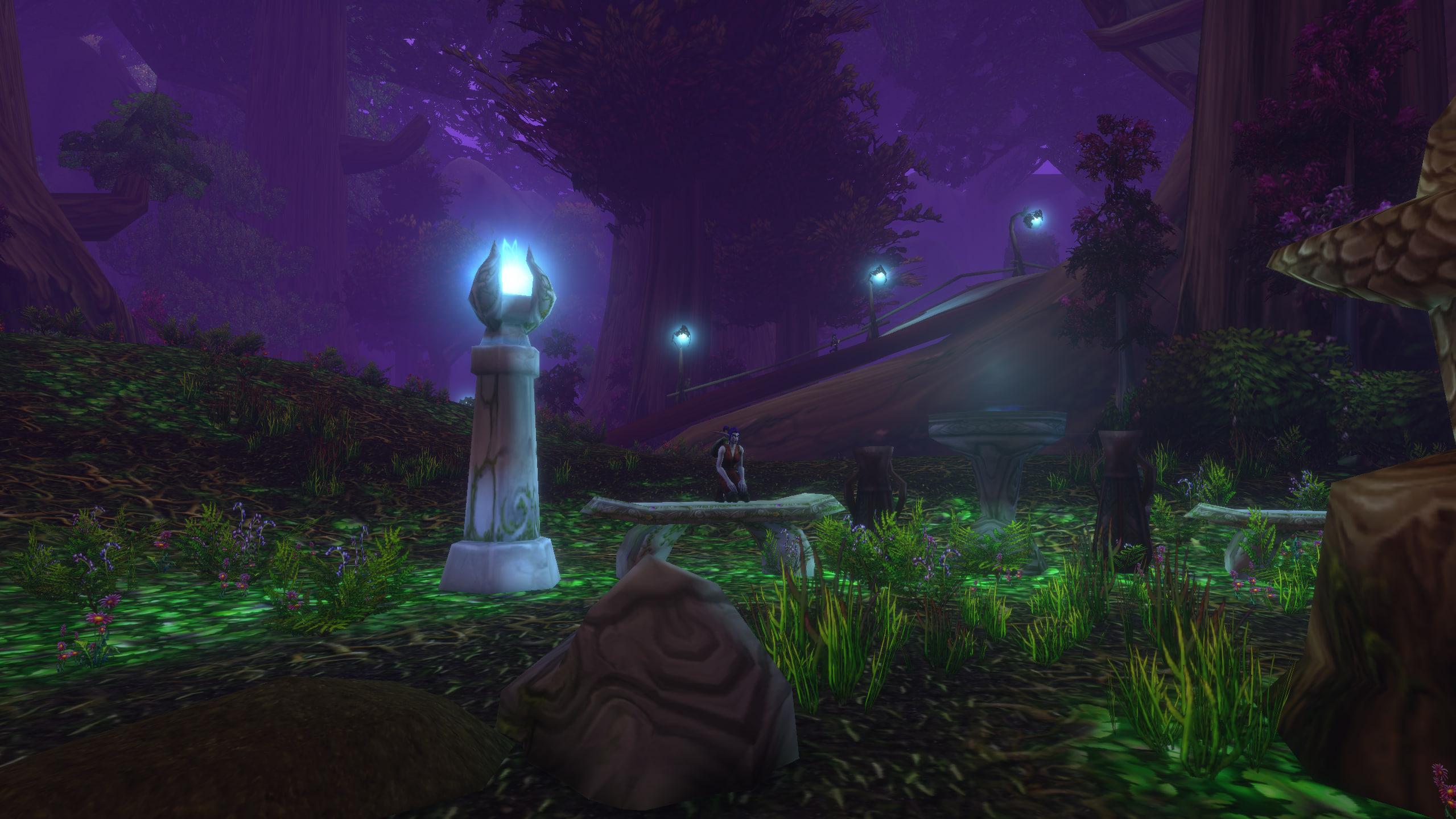
The best settings for WoW Forever balance visual quality with consistent performance during crowded encounters. The following overview provides a strong starting point for most modern gaming PCs.
| Setting Category | Recommended Configuration |
|---|---|
| Resolution | Native monitor resolution |
| Render Scale | 100% |
| Display Mode | Fullscreen Windowed |
| Vertical Sync | Disabled |
| Low Latency Mode | Auto Detect |
| Graphics API | DirectX 12 |
| Base Game Quality | Custom preset based around Quality 5 |
| Raid and Battleground Quality | Custom performance preset |
| Spell Density | Reduced |
| Projected Textures | Enabled |
| Camera FOV | 90 |
| Foreground FPS Limit | Slightly below monitor refresh rate |
| Background FPS Limit | 30 FPS |
| Multithreaded Rendering | Enabled |
Good settings make every activity easier to navigate, but character preparation still requires time. The WoW Forever Starter Package combines leveling, gear, professions, and mount preparation in one option.
WoW Forever Best Graphics Settings

Recommended WoW Forever graphics settings should protect frame pacing during raids, cities, and large battlegrounds. Visual effects that hide mechanics or create unstable FPS provide little gameplay value. Best graphics options for WoW Forever cover four areas that affect image clarity, latency, and FPS. The sections below provide a complete visual and performance configuration:
- Display Settings: Configure resolution, Render Scale, Vertical Sync, anti-aliasing, and Camera FOV.
- Graphics Quality Settings: Balance shadows, textures, particles, lighting, and environment detail.
- Advanced Graphics Settings: Set the graphics API, frame limits, upscaling, and hardware optimizations.
- Raid and Battleground Settings: Create a lighter preset for crowded group content.
WoW Forever Display Settings
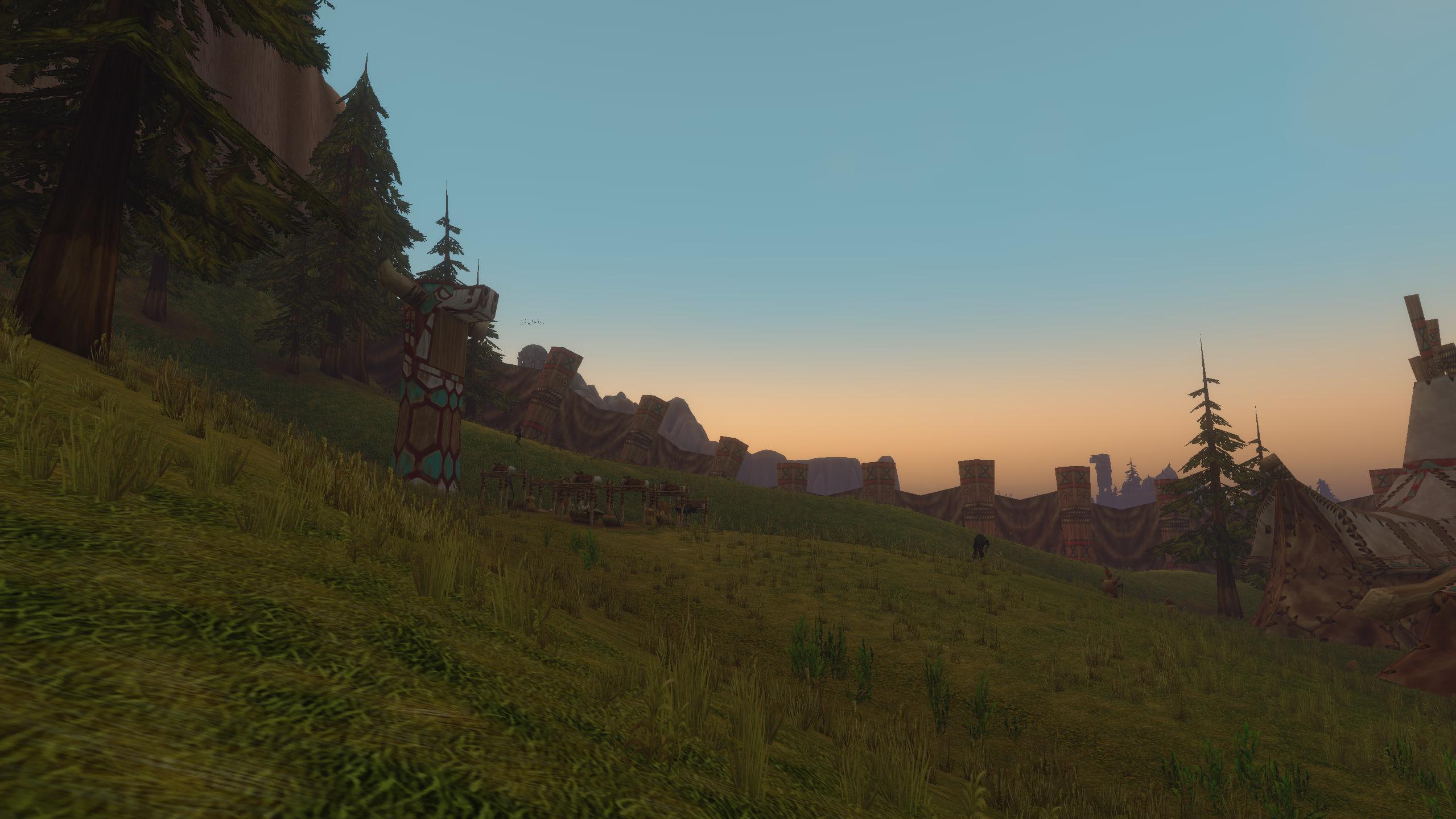
The best display configuration for WoW Forever uses native resolution and avoids unnecessary image scaling. Start with the following WoW Forever best display settings before changing individual graphics options.
| Display Setting | Recommended Value | Why Use It |
|---|---|---|
| Monitor | Primary gaming monitor | Ensures the correct display and refresh rate |
| Display Mode | Fullscreen Windowed | Supports fast tab switching and stable desktop behavior |
| Resolution | Native resolution | Produces the sharpest image |
| Render Scale | 100% | Preserves nameplate, text, and world clarity |
| Use UI Scale | Personal preference | Adjusts interface size without lowering image quality |
| Vertical Sync | Disabled | Reduces input latency |
| Low Latency Mode | Auto Detect | Uses supported latency features automatically |
| Anti-Aliasing | Image-Based Techniques | Opens efficient post-process options |
| Image-Based Technique | CMAA2 | Smooths edges with a modest performance cost |
| Multisample Technique | None | Avoids the larger MSAA performance cost |
| Multisample Alpha-Test | Enabled | Improves foliage and transparent texture edges |
| Character Models | High Definition | Improves models with limited combat impact |
| Camera FOV | 90 | Provides the widest combat view |
WoW Forever Best Graphics Settings
Balanced graphics options for WoW Forever keep textures sharp while reducing expensive lighting and environmental effects. These values suit dungeons, leveling, and general open-world gameplay. Use balanced WoW Forever visual preset settings for dungeons, leveling, and open-world gameplay.
| Graphics Setting | Recommended Value | Performance Impact |
|---|---|---|
| Shadow Quality | Low | High |
| Legacy Liquid Detail | Good | Low |
| PBR Liquid Detail | Good | Medium |
| Particle Density | Good | Medium |
| SSAO | Low | Medium to High |
| Bloom Intensity | Low | Low |
| Depth Effects | Disabled | Medium |
| Compute Effects | Low | Medium |
| Texture Resolution | High | Mostly affects VRAM usage |
| Spell Density | Reduced | High during group content |
| Projected Textures | Enabled | Required for mechanic visibility |
| Secondary Lighting | Low | Medium |
| View Distance | 5 | Medium |
| Environment Detail | 4 | Medium |
| Ground Clutter | 3 | Medium |
WoW Forever Best Advanced Graphics Settings
WoW Forever performance settings include several CPU, GPU, and frame-limiting options. Apply the following WoW Forever performance settings for low latency and consistent frame delivery.
| Advanced Setting | Recommended Value | Notes |
|---|---|---|
| Triple Buffering | Disabled | Enable only when using Vertical Sync |
| Texture Filtering | 16x Anisotropic | Keeps distant textures sharp at little cost |
| Ray Traced Shadows | Disabled | Provides a large FPS saving |
| Resample Quality | FidelityFX Super Resolution 1.0 | Useful below 100% Render Scale |
| VRS Mode | Disabled | Preserves interface and effect clarity |
| Graphics API | DirectX 12 | Best starting option for modern hardware |
| Physics Interactions | Player Only | Reduces unnecessary scene calculations |
| Graphics Card | Dedicated GPU or Auto Detect | Prevents accidental integrated GPU use |
| Max Foreground FPS | Refresh rate minus three FPS | Controls heat and frame pacing |
| Max Background FPS | 30 FPS | Reduces resource use while tabbed out |
| Target FPS | Disabled | Prevents unwanted dynamic quality changes |
| Resample Sharpness | 0.2 to 0.4 | Avoids excessive sharpening |
| Optional GPU Features | Enabled | Allows supported GPU optimizations |
| Async Resource Creation | Enabled | Reduces loading-related stutter |
| Multithreaded Rendering | Enabled | Spreads rendering work across CPU threads |
| Advanced Work Submit | Enabled | Improves modern rendering throughput |
WoW Forever Raid and Battleground Settings
The best WoW Forever raid settings reduce effects that become expensive when many players enter combat. Configure the separate WoW Forever group content graphics preset tab with these values.
| Raid or Battleground Setting | Recommended Value |
|---|---|
| Shadow Quality | Disabled or Low |
| Particle Density | Good |
| SSAO | Disabled |
| Bloom Intensity | Disabled |
| Depth Effects | Disabled |
| Compute Effects | Low |
| Spell Density | Reduced |
| Projected Textures | Enabled |
| Secondary Lighting | Low |
| View Distance | 3 |
| Environment Detail | 3 |
| Ground Clutter | 1 or 2 |
A separate group-content preset is easiest to test across different encounters. The WoW Forever Dungeon Tour provides varied dungeon situations for checking FPS, effects, nameplates, and combat visibility.
How to Increase FPS in WoW Forever
WoW Forever FPS Optimization should focus on minimizing the impact of visuals and unnecessary background loads. The recommended WoW Forever settings for FPS are:
- Use DirectX 12 and activate Multithreaded Rendering.
- Turn off Ray Traced Shadows, SSAO, Bloom, and Depth Effects.
- Keep Shadow Quality at Low or Off.
- Decrease View Distance, Environment Details, and Ground Clutter.
- Set Spell Density to Reduced but keep Projected Textures On.
- Reduce Render Scale in 5% increments if FPS is still low.
- Activate Async Resource Creation and Advanced Work Submit.
- End any background downloads, overlays, and unneeded applications.
Best WoW Forever Settings for FPS
The optimal WoW Forever FPS settings reduce expensive visual effects while keeping combat mechanics readable. This preset targets stable performance on mid-range and modern gaming PCs.
| Setting | Best Value for FPS |
|---|---|
| Display Mode | Fullscreen Windowed |
| Resolution | Native resolution |
| Render Scale | 90% to 100% |
| Vertical Sync | Disabled |
| Low Latency Mode | Auto Detect |
| Anti-Aliasing | None or CMAA2 |
| Character Models | High Definition |
| Camera FOV | 90 |
| Shadow Quality | Low |
| Legacy Liquid Detail | Low |
| PBR Liquid Detail | Low |
| Particle Density | Good |
| SSAO | Disabled |
| Bloom Intensity | Disabled |
| Depth Effects | Disabled |
| Compute Effects | Low |
| Texture Resolution | High |
| Spell Density | Reduced |
| Projected Textures | Enabled |
| Secondary Lighting | Low |
| View Distance | 4 |
| Environment Detail | 3 |
| Ground Clutter | 2 |
| Triple Buffering | Disabled |
| Texture Filtering | 16x Anisotropic |
| Ray Traced Shadows | Disabled |
| VRS Mode | Enabled if supported |
| Graphics API | DirectX 12 |
| Physics Interactions | Player Only |
| Max Foreground FPS | Three FPS below monitor refresh rate |
| Max Background FPS | 30 FPS |
| Target FPS | Disabled |
| Optional GPU Features | Enabled |
| Async Resource Creation | Enabled |
| Multithreaded Rendering | Enabled |
| Advanced Work Submit | Enabled |
4.9WoW Forever Best Settings for Low-End PCs
This low-spec WoW Forever graphics preset prioritizes playability on older processors, integrated graphics, and entry-level GPUs. It reduces resolution-dependent effects before removing essential combat information.
| Setting | Recommended Low-End Value |
|---|---|
| Display Mode | Fullscreen Windowed |
| Resolution | Native resolution |
| Render Scale | 75% to 85% |
| Vertical Sync | Disabled |
| Low Latency Mode | Auto Detect |
| Anti-Aliasing | None |
| Character Models | Standard or original models |
| Camera FOV | 90 |
| Base Game Quality | Custom preset based around Quality 1 or 2 |
| Shadow Quality | Disabled |
| Legacy Liquid Detail | Low |
| PBR Liquid Detail | Low |
| Particle Density | Low |
| SSAO | Disabled |
| Bloom Intensity | Disabled |
| Depth Effects | Disabled |
| Compute Effects | Low |
| Texture Resolution | Medium |
| Spell Density | Reduced |
| Projected Textures | Enabled |
| Secondary Lighting | Disabled or Low |
| View Distance | 3 |
| Environment Detail | 2 |
| Ground Clutter | 1 |
| Triple Buffering | Disabled |
| Texture Filtering | 4x or 8x Anisotropic |
| Ray Traced Shadows | Disabled |
| Resample Quality | FidelityFX Super Resolution 1.0 |
| VRS Mode | Enabled |
| Graphics API | DirectX 12 |
| Physics Interactions | Player Only |
| Max Foreground FPS | 60 FPS |
| Max Background FPS | 15 or 30 FPS |
| Target FPS | 45 or 60 FPS |
| Optional GPU Features | Enabled |
| Async Resource Creation | Enabled |
| Multithreaded Rendering | Enabled |
| Advanced Work Submit | Enabled |
| Audio Channels | 32 |
| Enable Reverb | Disabled |
Once the client runs smoothly, the next step is unlocking more content. WoW Forever Character Progression helps prepare a character for new zones, dungeons, and group activities.
Best WoW Forever Settings for Maximum Quality
Best WoW Forever graphics options include high-quality environment, lights, models, and scenery at distance. It is optimal for use with top-end computers and world exploration.
| Setting | Maximum Quality Value |
|---|---|
| Display Mode | Fullscreen Windowed |
| Resolution | Native resolution |
| Render Scale | 100% or 125% |
| Vertical Sync | Enabled without adaptive sync |
| Low Latency Mode | Auto Detect |
| Anti-Aliasing | Multisample Techniques |
| Multisample Technique | 4x or 8x MSAA |
| Multisample Alpha-Test | Enabled |
| Character Models | High Definition |
| Camera FOV | 90 |
| Base Game Quality | 10 |
| Shadow Quality | High |
| Legacy Liquid Detail | High |
| PBR Liquid Detail | High |
| Particle Density | High |
| SSAO | High |
| Bloom Intensity | High |
| Depth Effects | High |
| Compute Effects | High |
| Texture Resolution | High |
| Spell Density | Everything |
| Projected Textures | Enabled |
| Secondary Lighting | High |
| View Distance | 10 |
| Environment Detail | 10 |
| Ground Clutter | 10 |
| Triple Buffering | Enabled with Vertical Sync |
| Texture Filtering | 16x Anisotropic |
| Ray Traced Shadows | Enabled on supported GPUs |
| VRS Mode | Disabled |
| Graphics API | DirectX 12 |
| Physics Interactions | All |
| Max Foreground FPS | Monitor refresh rate |
| Target FPS | Disabled |
| Optional GPU Features | Enabled |
| Async Resource Creation | Enabled |
| Multithreaded Rendering | Enabled |
| Advanced Work Submit | Enabled |
Best WoW Forever Interface Settings
The best interface settings for WoW Forever place important information near the center without covering mechanics. This recommended interface setup for WoW Forever section divides the main UI options into three groups:
- Action Bar and Cooldown Settings: Display abilities, cooldown numbers, meters, and class-specific trackers.
- Raid Frame Settings: Track health, threat, incoming healing, defensive cooldowns, and debuffs.
- Map and Notification Settings: Configure coordinates, tutorials, chat bubbles, and pop-up notifications.
WoW Forever Action Bar Settings
Recommended WoW Forever action bar settings improve cooldown tracking and prevent accidental ability movement. Configure only the WoW Forever action bars that contain active keybinds.
| Interface Setting | Recommended Value |
|---|---|
| Action Bars 2–8 | Enable every bar containing assigned abilities |
| Lock Action Bars | Enabled |
| Unlock Modifier | Shift |
| Show Numbers for Cooldowns | Enabled |
| Show Action Bar Highlight | Enabled |
| Enable Action Bar Scaling | Enabled |
| Show Empty Action Bars | Disabled after setup |
| Cooldown Manager | Enabled |
| Damage Meter | Enabled |
| Auto Reset Damage Meter | Enabled for instanced content |
| Swing Timer | Enabled for melee and wand users |
| Diminishing Returns Tracking | Enabled for PvP |
WoW Forever Raid Frame Settings
Clear WoW Forever raid frame settings help every role track health, threat, defensive cooldowns, and removable effects. The following setup works for dungeons and raids.
| Raid Frame Setting | Recommended Value |
|---|---|
| Display Incoming Heals | Enabled |
| Display Power Bars | Enabled for healers and resource-sensitive groups |
| Display Aggro Highlight | Enabled |
| Display Class Colors | Enabled |
| Display Pets | Disabled unless required by your role |
| Display Main Tank and Assist | Enabled |
| Show Debuffs | Enabled |
| Bigger Role Debuffs | Enabled |
| Display Only Dispellable Debuffs | Disabled |
| Center Big Defensives | Enabled |
| Dispellable Debuff Indicator | Show All |
| Dispellable Debuff Color | Use Debuff Color |
| Flashing Animation | Disabled |
| Animated Border | Disabled |
| Display Health Text | Percentage or remaining health |
WoW Forever Map Settings
Useful WoW Forever interface options can reduce navigation time without adding combat clutter. Apply the following small interface changes.
- Enable player, cursor, and minimap coordinates.
- Disable tutorials after learning the basic systems.
- Keep item and recipe toasts enabled during leveling.
- Disable unnecessary collection notifications during progression content.
- Keep party chat bubbles enabled for visible group callouts.
- Disable raid chat bubbles when they obstruct mechanics.
Best WoW Forever Nameplate Settings
WoW Forever nameplate settings should reveal casts, personal debuffs, threat changes, and priority enemies. Decorative names matter less than actionable combat information.
| Nameplate Setting | Recommended Value |
|---|---|
| Always Show Nameplates | Enabled |
| Enemy Unit Nameplate | Enabled |
| Enemy Player Nameplate | Enabled for PvP |
| Friendly Player Nameplate | Disabled outside healing or organized PvP |
| Minion Nameplates | Disabled in PvE and enabled in PvP |
| Stack Nameplates | Stacking |
| Size | 1.0 to 1.2 |
| Buff and Debuff Scale | 100% to 120% |
| Nameplate Information | Health or health percentage |
| Cast Bar Information | Spell name, icon, and highlight |
| Aggro Display | Enabled |
| Enemy NPC Buffs and Debuffs | Mob buffs and personal debuffs |
| Enemy Player Buffs and Debuffs | Enemy buffs and personal debuffs |
Hall of Thanes provides a practical environment for testing nameplates, cast bars, and crowded combat. A Hall of Thanes Dungeon Run includes a complete clear with optional loot priority.
Best WoW Forever Combat Settings
Recommended combat settings for WoW Forever improve target awareness and reduce unnecessary screen clutter. Several choices depend on your role, but the following preset provides a reliable baseline.
| Combat Setting | Recommended Value |
|---|---|
| Personal Resource Display | Enabled |
| Self Highlight | Outline or subtle highlight |
| Show Silhouette When Obscured | Enabled |
| Target of Target | Enabled |
| Loss of Control Alerts | Enabled |
| Scrolling Combat Text for Self | Disabled |
| Mouseover Cast | Enabled for healers and support classes |
| Self Cast | Auto and Key Press |
| Self Cast Key | Alt |
| Focus Cast Key | Personal keybind or modifier |
| Empowered Spell Input | Hold and Release |
| Spell Alert Opacity | 75% to 85% |
| Press and Hold Casting | Disabled |
| Enable Action Targeting | Disabled |
Best WoW Forever Controls Settings
The best control settings for WoW Forever reduce extra clicks and keep the camera under direct player control. Mouse sensitivity remains personal, so use a repeatable value. This section covers three WoW Forever input areas:
- Control Settings: Improve targeting, looting, interaction, and mouse behavior.
- Camera Settings: Expand battlefield awareness and disable disruptive automatic movement.
- Gamepad Settings: Configure camera speed, movement thresholds, prompts, and controller behavior.
WoW Forever Control Settings
Efficient WoW Forever gameplay settings speed up looting, targeting, and environmental interaction. The following WoW Forever control settings provide a practical keyboard-and-mouse baseline.
| Control Setting | Recommended Value |
|---|---|
| Sticky Targeting | Enabled |
| Auto Cancel Away Mode | Enabled |
| Interact on Left Click | Enabled |
| Open Loot Window at Mouse | Enabled |
| Auto Loot | Enabled |
| Auto Loot Key | Shift |
| Combine Bags | Enabled |
| Enable Interact Key | Enabled |
| Interact With Target | Bind to F or another nearby key |
| Interact Key Sound Cue | Personal preference |
| Lock Cursor to Window | Disabled |
| Invert Mouse | Disabled |
| Mouse Look Speed | 4.0 to 6.0 |
| Click-to-Move | Disabled |
WoW Forever Camera Settings
Best Camera Settings in WoW Forever for Maximum Awareness of Boss Mechanics and PvP Encounters. Apply this Best Camera Setup in WoW Forever.
| Camera Setting | Recommended Value |
|---|---|
| Camera FOV | 90 |
| Max Camera Distance | Maximum |
| Camera Following Style | Never adjust or only while moving |
| Water Collision | Disabled |
| Follow Terrain | Disabled |
| Head Bob | Disabled |
| Smart Pivot | Enabled |
| Auto Follow Speed | Personal preference |
Players who need help with a specific activity can use Flexible WoW Forever Assistance for selected quests, dungeons, professions, or farming tasks.
WoW Forever Gamepad Settings
Controller settings for WoW Forever will result in predictable movement but not overly sensitive cameras. WoW Forever Gamepad menu is still marked as Alpha, so check out the setup prior to entering group content.
| Gamepad Setting | Recommended Value |
|---|---|
| Enable Gamepad UI | Enabled when using a controller |
| Show Input Legend | Enabled |
| Horizontal Speed | 1.3 |
| Vertical Speed | 1.0 |
| Invert Horizontal Axis | Disabled |
| Invert Vertical Axis | Disabled |
| Follow Camera | Disabled |
| Movement Face Angle | 0 |
| Movement Face Angle Combat | 105 |
| Back Pedal Stick Threshold | 0.6 |
| Stick Run Threshold | 0.5 |
| Face Movement While Mounted | Enabled |
| Face Movement While Swimming | Enabled |
| HUD Modifier Press to Toggle | Disabled |
| Show Input Prompts | Enabled |
Best WoW Forever Audio Settings
The best audio settings for WoW Forever keep combat cues audible while lowering music and environmental noise. Use headphones when positional information matters.
| Audio Setting | Recommended Value |
|---|---|
| Master Volume | 80% to 100% |
| Music | 20% to 40% |
| Effects | 100% |
| Ambience | 40% to 60% |
| Dialog | 80% to 100% |
| Gameplay Sound Effects | 100% |
| Error Speech | Disabled |
| Sound in Background | Enabled |
| Enable Reverb | Enabled |
| Distance Filtering | Enabled |
| Audio Channels | 64 |
| Audio Cache Size | Large 128 MB |
Best WoW Forever Network Settings
Recommended WoW Forever network settings favor responsive data transfer without creating unnecessary combat logs. These recommended WoW Forever latency settings cannot repair an unstable connection, but they provide a clean baseline.
| Network Setting | Recommended Value |
|---|---|
| Optimize Network for Speed | Enabled |
| Enable IPv6 When Available | Disabled unless your connection supports stable IPv6 |
| Advanced Combat Logging | Disabled unless recording logs |
The following WoW Forever latency tips can further improve connection stability:
- Use Ethernet instead of Wi-Fi whenever possible.
- Stop downloads and cloud synchronization before group content.
- Avoid routing the game through an unnecessary VPN.
- Select the nearest available game region.
- Restart the router only when connection problems affect other services too.
Best WoW Forever Accessibility Settings
Accessible settings for WoW Forever improve readability and reduce distracting visual feedback. Adjust these settings based on your display size and personal comfort.
| Accessibility Setting | Recommended Value |
|---|---|
| Text Scale | 100% to 120% |
| Quest Text Contrast | High or Custom |
| Subtitles | Enabled when dialog information matters |
| Audio Assist | Enable required cues individually |
| Do Not Flash Screen at Low Health | Enable if flashing causes discomfort |
| Interface Colors | Customize for clear effect recognition |
Best WoW Forever PvP Settings
Competitive WoW Forever settings prioritize enemy information, crowd-control tracking, and camera awareness. This recommended WoW Forever PvP configuration preset keeps essential visual and audio feedback active.
| PvP Setting | Recommended Value |
|---|---|
| Camera FOV | 90 |
| Max Camera Distance | Maximum |
| Enemy Player Nameplates | Enabled |
| Enemy Minion Nameplates | Enabled |
| Cast Bar Information | Spell name, icon, and highlight |
| Enemy Buffs and Personal Debuffs | Enabled |
| Diminishing Returns Tracking | Enabled |
| Loss of Control Alerts | Enabled |
| Target of Target | Enabled |
| Spell Density | Reduced |
| Projected Textures | Enabled |
| Ping System | Enabled with Quick Ping |
| Music | 0% to 20% |
| Effects | 100% |
WoW Forever Best Settings FAQ
Common questions about WoW Forever settings usually focus on FPS, graphics quality, combat visibility, and input latency. The answers below explain which options provide the best balance between performance and clarity.
What Are the Best Graphics Settings for WoW Forever?
Use native resolution, 100% Render Scale, DirectX 12, low shadows, Reduced Spell Density, and enabled Projected Textures. Disable ray-traced shadows and unnecessary post-processing effects.
How Do I Increase FPS in WoW Forever?
Lower shadows, SSAO, depth effects, view distance, and ground clutter first. Reduce Render Scale only after lowering expensive visual effects.
Should I Enable Vertical Sync in WoW Forever?
Disable Vertical Sync for lower latency. Enable it only if screen tearing remains distracting and your display lacks adaptive sync.
Should Projected Textures Be Enabled?
Yes. Projected Textures display important ground mechanics and should remain enabled in dungeons, raids, and PvP.
What Spell Density Should I Use in WoW Forever?
Reduced Spell Density provides the best balance for group content. It limits visual clutter while preserving relevant encounter effects.
Is DirectX 12 Better for WoW Forever?
DirectX 12 is the best starting option for modern systems. Test another API only when DX12 causes repeatable crashes or graphical issues.
Should I Enable the WoW Forever Damage Meter?
Enable it when reviewing personal or group performance. Auto Reset keeps separate encounters from merging into one result.
What Are the Best WoW Forever PvP Settings?
Enable enemy nameplates, cast details, DR tracking, Loss of Control Alerts, and Target of Target. Use maximum camera distance and keep gameplay effects audible.
4.9WoW Forever best settings combine stable performance with readable combat information. Start with the balanced preset, then lower expensive effects when necessary. Keep Projected Textures, combat alerts, and enemy cast information enabled across every configuration.
