Escape from Tarkov is one of the most punishing and extreme tactical shooters out there, demanding a great deal more from your hardware than most games. Below, we’ll break down the best Tarkov 1.0 settings in all categories, such as graphics, display, audio, mouse, and more, to boost FPS, reduce input lag, and get the cleanest and most competitive experience possible.
Best Tarkov Settings Key Takeaways:
- Install the game on an SSD-this alone cuts the loading times and stutters drastically.
- The lowest input lag can be achieved with Fullscreen mode, V-Sync Off, and Nvidia Reflex On + Boost.
- Set the field of view to 60–65 for a good balance between awareness and the target’s visibility.
- Lower Shadow Quality, SSR, and HBAO to boost FPS without hurting enemy visibility.
- TAA anti-aliasing, moderate PostFX sharpening for a clean and readable image.
- Turn off the distracting visual effects: Z-Blur, Chromatic Aberration, Noise, and Grass Shadows.
 4.9
4.9Escape from Tarkov Best Optimization Tips
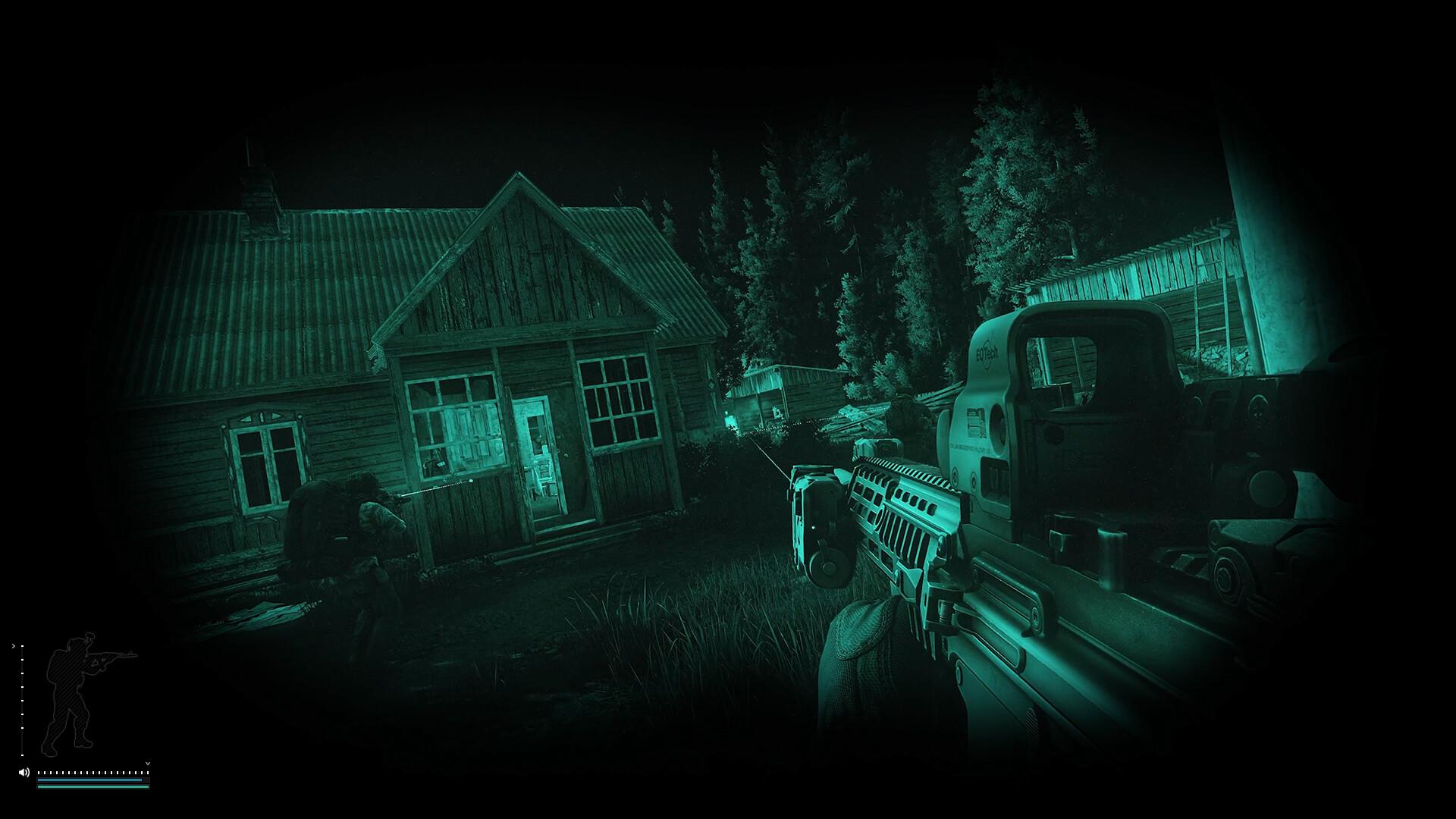
Escape from Tarkov is one of the most performance-hungry shooters out there. If you struggle with FPS drops in Tarkov 1.0, stutters, or input lag, these best Tarkov settings will help to stabilize your game and make every raid much smoother.
These tweaks will improve FPS in Tarkov 1.0, reduce microstutters, and lower input latency-all before even touching in-game graphics settings. Follow this checklist to increase the frames per second in Tarkov 1.0 and eliminate annoying lag or texture loading issues.
| Setting | Performance Focus | Quality Focus |
|---|---|---|
| Game Install Location | SSD | NVMe SSD |
| Display Mode | Fullscreen | Borderless |
| V-Sync | Off | On |
| FPS Limit (In-Raid) | Uncapped or Refresh Rate | Capped |
| Texture Quality | Medium | High |
| Shadows Quality | Low | Medium |
| Anti-Aliasing | TAA | TAA + Sharpening |
| PostFX | Off or Minimal | On |
| Nvidia Reflex / AMD Anti-Lag | On + Boost | On |
| Background Apps | Closed | Essentials Only |
| Windows Power Plan | High Performance | High Performance |
| Mip Streaming | Off | On |
| Clear Cache (Launcher) | Weekly | Weekly |
| Use Only Physical Cores | On | Off |
Want a smoother start? Get the Escape from Tarkov Welcome Bundle, extra gear, meds, and roubles to make early raids easier while you focus on optimizing your setup.
Escape from Tarkov Best Game Settings
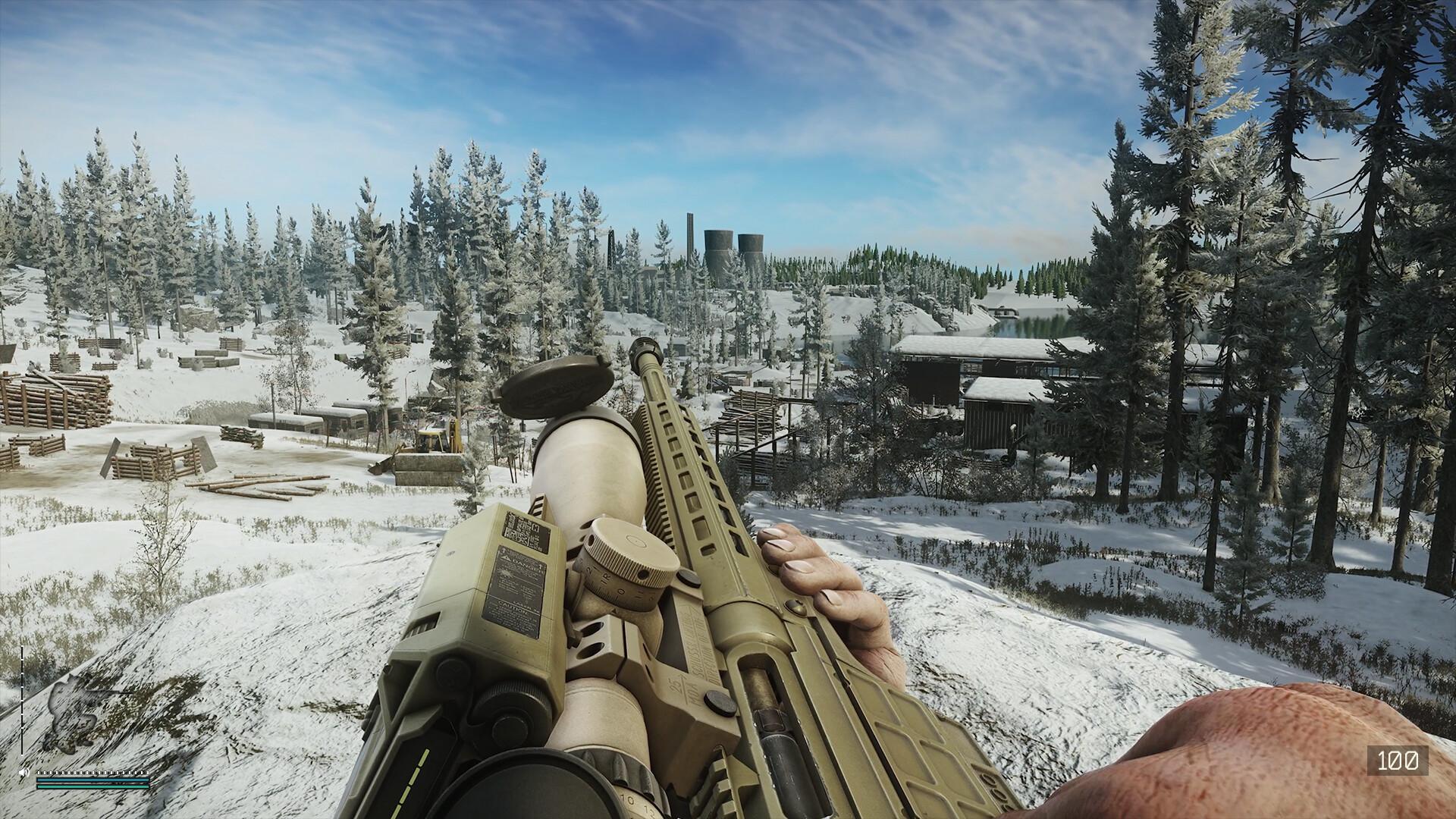
EfT gameplay settings are more than comfort options; they can directly impact your visibility, how well your aim responds, and how you handle character movement. By adjusting these Tarkov 1.0 best settings correctly, you’ll improve how the game feels and remove distractions that break immersion or slow you down.
| Setting | Performance Focus | Quality Focus |
|---|---|---|
| Head Bobbing | 0.2 | 0.2 |
| FOV | 60–63 | 65–75 |
| Auto RAM Cleaner | On | Off |
| Use Only Physical Cores | On | Off |
| Stamina/Health Indicators | Auto | On |
| Interface Elements | Off | On |
| Quick Slots Visibility | Auto or On | On |
Most of these gameplay settings in Escape from Tarkov 1.0 will not affect raw FPS, but they do shape how you interact with the game, especially on fast-paced raids. Keeping screen shake low, HUD clean, and FOV adjusted to your preference may also help you respond quicker and spot enemies with less effort.
Escape from Tarkov Best Display Settings
Display options in Escape from Tarkov are pretty important for smooth gameplay, low input lag, and clear visuals. Choosing the best Tarkov 1.0 screen mode and resolution can increase your FPS and make gunfights feel way more responsive.
| Setting | Performance Focus | Quality Focus |
|---|---|---|
| Resolution | Native | Native |
| Aspect Ratio | Match Monitor | Match Monitor |
| Display Mode | Fullscreen | Borderless |
| V-Sync | Off | On |
| FPS Limit (In-Raid) | Uncapped or 144+ | Match Refresh Rate |
| FPS Limit (Lobby) | 60 | 60 |
| FOV | 60–65 | 70–75 |
| Brightness / Gamma | Adjust via Monitor | Adjust via Monitor |
Escape from Tarkov Best Camera Settings
Settings related to cameras in Escape from Tarkov would directly influence how stable and readable your screen would be during movement and combat. Disabling unnecessary effects like blur and distortion makes the targets more easily visible and helps you to focus on the action. These tweaks and Tarkov 1.0 settings help you improve visibility, get rid of distractions, and sometimes free up some extra FPS as well.
| Setting | Performance Focus | Quality Focus |
|---|---|---|
| Head Bobbing | 0.2 | 0.2 |
| Z-Blur | Off | Off |
| Chromatic Aberration | Off | Off |
| Film Grain (Noise) | Off | Off |
| PostFX Sharpening | 0.5–0.7 | 0.8–1.0 |
| FOV | 60–65 | 70–75 |
| Depth of Field | Off | Off |
Escape from Tarkov Best Advanced Settings
EfT 1.0 advanced settings allow you to have deeper control over performance and responsiveness. These options-mostly live outside of the main graphics tab-can have a real impact on FPS, load times, and input lag. Mastering the Tarkov 1.0 advanced settings is important if you’re aiming for smooth, stable gameplay-especially during fights.
| Setting | Performance Focus | Quality Focus |
|---|---|---|
| Nvidia Reflex / Anti-Lag | On + Boost | On |
| Use Only Physical Cores | On | Off |
| Auto RAM Cleaner | On | Off |
| Mip Streaming | Off | On |
| Streets Texture Optimization | On | Off |
| Shader Cache (Clear) | Weekly | Weekly |
| Fullscreen Optimizations | Disabled | Disabled |
| Windows Power Plan | High Performance | High Performance |
| Background Apps | Closed | Essentials Only |
Running out of stash space fast? The Kappa Safe Crate is a solid pickup for new players, providing them with some early breathing room regarding loot and building up their kit without much inventory juggling. Extra helpful while testing out new settings or running offline raids.
Escape from Tarkov Best Graphics Settings
The biggest gains or losses in frames per second are found within Escape from Tarkov’s graphics settings. You want to maximize clarity and visibility while cutting down on heavy effects that don’t add much in a firefight. The Escape from Tarkov 1.0 best graphics settings are built around stable performance, sharp visuals, and minimal distractions.
| Setting | Performance Focus | Quality Focus |
|---|---|---|
| Texture Quality | Medium | High |
| Shadow Quality | Low | Medium |
| Object LOD Quality | 2.0–2.5 | 3.0+ |
| Overall Visibility | 1000–1500 | 1500+ |
| Anti-Aliasing | TAA | TAA + Sharpening |
| Anisotropic Filtering | On | On |
| Resampling | 1x Off | 1x Off |
| HBAO | Off | On |
| SSR | Off | Performance |
| Sharpness | 0.5–0.7 | 0.8–1.0 |
| PostFX | Off or Minimal | On |
| Z-Blur / Chromatic / Noise | Off | Off |
| Grass Shadows | Off | On |
| DLSS / FSR | Off | Quality Mode |
| Nvidia Reflex | On + Boost | On |
Escape from Tarkov Best PostFX Settings
PostFX settings in Escape from Tarkov mostly help with visibility, not raw FPS. They change how colors, shadows, sharpness, and contrast look during raids. Good PostFX will not turn Tarkov into a clean arcade shooter, but it can make enemies easier to spot.
| Setting | Recommended Value | What It Does |
|---|---|---|
| Brightness | 10–20 | Makes dark corners easier to read without overexposing bright areas. |
| Saturation | 20–30 | Adds stronger colors, so players and objects stand out better. |
| Clarity | 40–60 | Sharpens the image and helps with mid-range visibility. |
| Colorfulness | 30–45 | Makes the picture less washed out during daytime raids. |
| Luma Sharpen | 50–70 | Adds extra edge sharpness without changing colors too much. |
| Adaptive Sharpen | 0–20 | Keep this low if the image starts looking grainy. |
| Color Grading | None or Cognac | Use a light preset only if your monitor looks too gray. |
| Intensity | 0–20 | Keep it low, or the whole image may look too filtered. |
| Colorblind Mode | Off | Turn it on only if you personally need it. |
Escape from Tarkov Best Mouse Settings
Your mouse settings in Escape from Tarkov 1.0 directly influence the consistency of your aim and the precision of flicks. Be it clearing tight hallways or landing those super-long shots, the right sensitivity and input settings can make all the difference. Here are the best mouse settings for Escape from Tarkov, tuned for control, not chaos.
| Setting | Performance Focus | Quality Focus |
|---|---|---|
| Game Install Location | SSD | NVMe SSD |
| Display Mode | Fullscreen | Borderless |
| V-Sync | Off | On |
| FPS Limit (In-Raid) | Uncapped or refresh rate | Capped |
| Texture Quality | Medium | High |
| Shadows Quality | Low | Medium |
| Anti-Aliasing | TAA | TAA + PostFX Sharpening |
| PostFX | Off or Minimal | On with Visibility Tweaks |
| Nvidia Reflex / AMD Anti-Lag | On + Boost | On |
| Background Apps | Closed | Essentials Only |
| Windows Power Plan | High Performance | High Performance |
| Mip Streaming | Off | On |
| Clear Cache (Launcher) | Weekly | Weekly |
| Use Only Physical Cores | On | Off |
If you are having trouble landing shots or dialing in the perfect sensitivity, EfT Coaching is worth considering. A pro will help you break those bad habits, fine-tune your mouse setup, and improve your fighting way quicker than by trial and error. Great for PvP-focused players.
Escape from Tarkov Best Audio Settings
Hearing footsteps, reloads, and movement can be more important than what you see in Escape from Tarkov 1.0. Audio gives away the position of your enemies, particularly in buildings and stairwells. That’s why tweaking the best EfT 1.0 audio settings can help you react faster and survive longer. Here’s how to make sure you don’t miss crucial sound cues.
| Setting | Performance Focus | Quality Focus |
|---|---|---|
| Binaural Audio | Off | Off |
| Overall Volume | High | High |
| Interface Volume | Low | Medium |
| In-Game Headsets | ComTac / Sordin | Any |
| Output Configuration | Stereo | Stereo |
| Windows Settings | Stereo, No Enhancements | Stereo, No Enhancements |
| VOIP | Push-to-Talk | Push-to-Talk |
Escape from Tarkov Settings FAQ
Escape from Tarkov settings can feel confusing because every option changes something different. Some settings affect FPS, while others help with visibility, input delay, or sound clarity. Below, we answer the most common questions about the best Tarkov 1.0 settings.
What Are the Best Graphics Settings for Escape from Tarkov?
The best FPS settings in Escape from Tarkov are Low Shadows, SSR Off, HBAO Off, Grass Shadows Off, and Fullscreen mode. Keep textures on Medium if you have limited VRAM. Also enable NVIDIA Reflex or AMD Anti-Lag to reduce input delay.
How to Have Better Audio in Tarkov?
To have better audio in Tarkov, use Stereo output and disable Windows sound enhancements. Keep Overall Volume high, lower Interface Volume, and use Push-to-Talk for VOIP. In raids, headsets like ComTac or Sordin help you hear footsteps and movement more clearly.
How to Reduce Stuttering in Escape from Tarkov?
To reduce stuttering in Escape from Tarkov, install the game on an SSD and close background apps. Clear the launcher cache from time to time. If you have limited RAM, try Auto RAM Cleaner and test Mip Streaming carefully.
Should I use NVIDIA Reflex in Tarkov?
Yes, NVIDIA Reflex is worth using in Escape from Tarkov if you have an NVIDIA GPU. Set it to On + Boost for lower input lag. This helps the game feel more responsive during fights.
Should I use DLSS or FSR in Escape from Tarkov?
Use DLSS or FSR only if you need extra FPS. Quality Mode is the safest option because it keeps the image cleaner. Avoid Performance Mode if enemies start looking blurry at distance.
What is the Best FOV for Tarkov PvP?
The best FOV for Tarkov PvP is usually 60–65. It keeps targets easier to see while still giving decent awareness. Higher FOV can help in close fights, but long-range spotting becomes harder.
Should V-Sync be On or Off in Escape from Tarkov?
V-Sync should usually be Off in Escape from Tarkov. It can add input lag and make aiming feel less responsive. Use an FPS cap instead if you want smoother frame pacing.
Are PostFX Settings Worth Using in Tarkov?
PostFX settings are worth using if you want better visibility in Escape from Tarkov. Keep them light, with moderate Brightness, Clarity, and Luma Sharpen. Too much PostFX can make the image noisy or overfiltered.
What are the Best Mouse Settings for Escape from Tarkov?
The best mouse settings for Escape from Tarkov depend on your DPI and comfort. Use a sensitivity that lets you track targets smoothly without overflicking. Turn off mouse acceleration in Windows for better consistency.
Should Tarkov be Installed on an SSD?
Yes, Escape from Tarkov should be installed on an SSD. It helps reduce loading times, texture delays, and some stutters. An NVMe SSD works even better if your system supports it.
Is Binaural Audio Good in Escape from Tarkov?
Binaural Audio depends on the current sound build and your headset setup. Many players keep it Off for cleaner, more predictable audio. Test it in offline raids before using it in serious PvP runs.
4.9Escape from Tarkov is one of the toughest shooters to optimize, demanding both sharp reflexes and stable performance. With our Tarkov 1.0 best settings, dialing in your graphics, mouse, and audio settings can dramatically improve how you track enemies, manage recoil, and survive chaotic firefights.
