VALORANT is a competitive tactical shooter in which having optimized settings can provide you with a true edge which you can obtain with our Valorant Best Settings guide. Optimizing your game for raw performance, visibility, and comfort will make you both move and shoot more efficiently. This Valorant Best Settings guide has pro-recommended performance, graphics, crosshair, mouse, audio, and keybind optimizations.
 4.9
4.9Valorant Performance Optimization
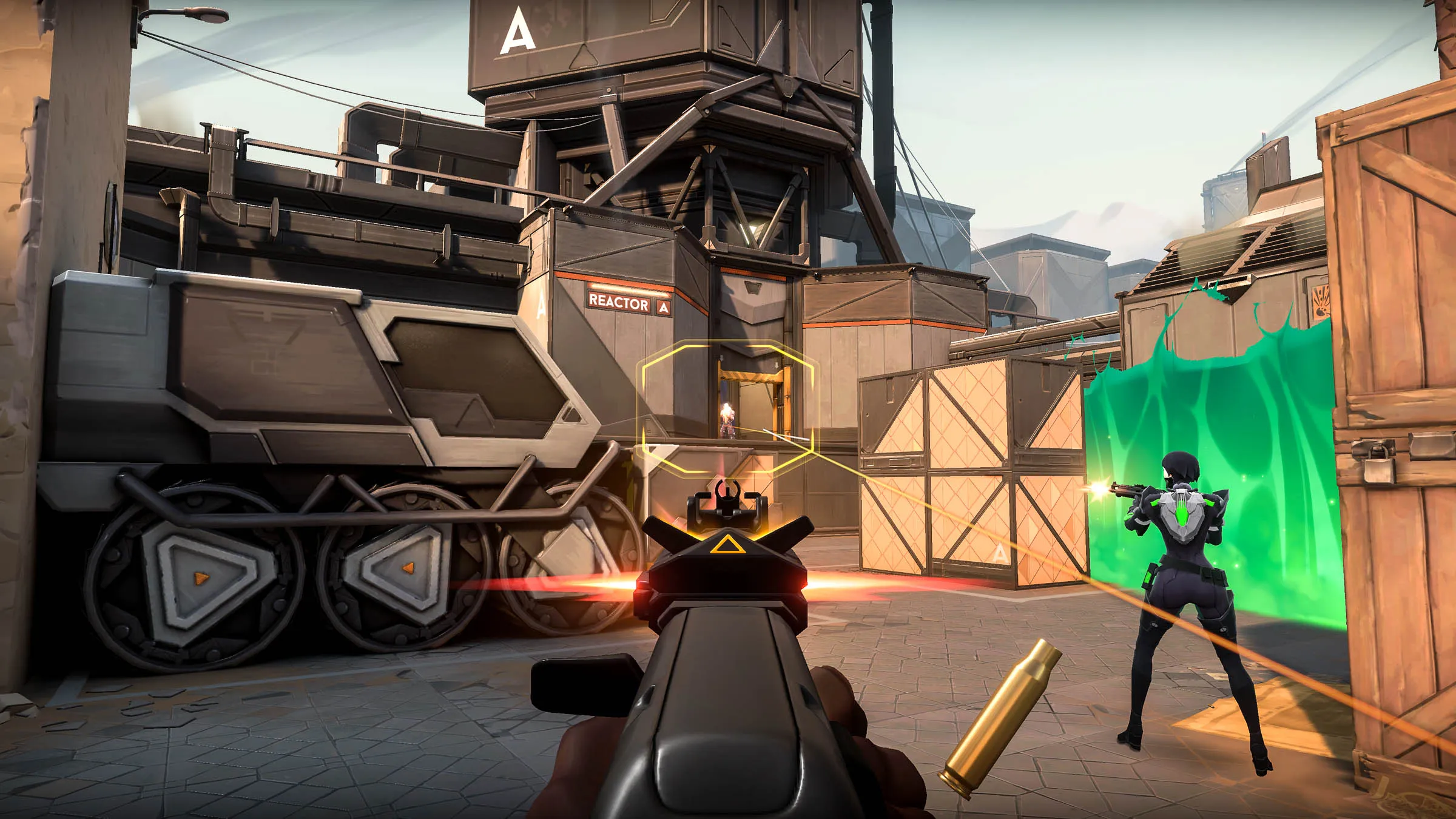
High frame rates and low input latency are extremely important in VALORANT’s quick gunfights. Pro players appreciate performance more than graphics for a smooth experience with less lag in a competitive game. Here’s how you can optimize your game settings and system for optimum performance and smoother gameplay:
| Setting | Recommended Option | Notes |
|---|---|---|
| Resolution | 1920×1080 | Standard resolution for optimal clarity and reliable FPS performance |
| Display Mode | Fullscreen | Reduces input lag compared to windowed modes |
| Max FPS Always | Uncapped or High | More FPS = lower input delay, only cap if overheating occurs |
| NVIDIA Reflex | On + Boost | NVIDIA Reflex reduces system latency, available on NVIDIA GPUs |
If these settings don’t meet your expectations, we can help tailor them specifically for you! Simply sign up for our Valorant Coaching Services, and our expert coaches will customize the perfect settings to match your playstyle!
Valorant Graphics Settings
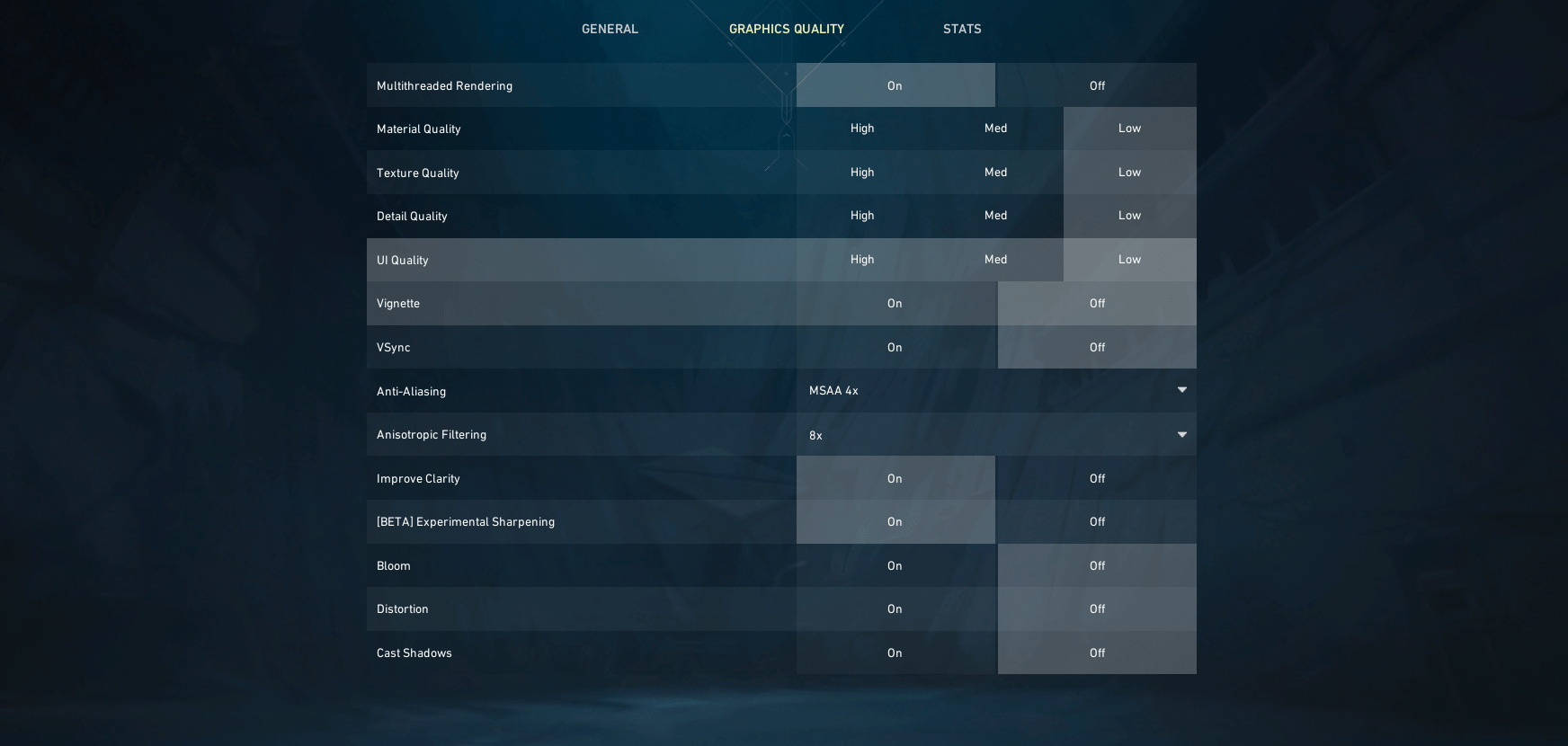
Selecting the best graphic settings in VALORANT is crucial to maintain a clear look and a balance between performance and visual clarity. The perfect balance will keep enemies highly visible while also maximizing FPS and minimizing distractions for good competitive performance. Apply the following settings to achieve the perfect balance between visual quality and competitive performance. Here are video settings:
| Setting | Recommended Option | Notes |
|---|---|---|
| Multithreaded Rendering | On | Uses multiple CPU cores for better performance |
| Material Quality | Low/Medium | Provides visual clarity while keeping performance impact minimal |
| Texture Quality | Low/Medium | Optimal mix between graphics quality and smooth competitive gameplay |
| Detail Quality | Low | Reduces unnecessary visual distractions and clutter |
| UI Quality | Low | Minimal gameplay impact, primarily aesthetic |
| Vignette | Off | Removes distracting darkened edges from your screen |
| V-Sync | Off | Eliminates noticeable input lag caused by frame synchronization |
| Anti-Aliasing | MSAA 2x or 4x | Smoothes visual edges effectively without significantly harming FPS |
| Anisotropic Filtering | 4x or 8x | Enhances clarity of angled textures, useful for spotting enemies clearly |
| Improve Clarity | On (optional) | Sharpens visuals; turn off if maximum FPS is needed |
| Experimental Sharpening | On | Adds further definition and clarity to textures and character models |
| Bloom | Off | Removes distracting glow effects, making enemies clearer to spot |
| Distortion | Off | Reduces unnecessary visual effects from abilities |
| Cast Shadows | Off | Removes personal character shadows, keeping visuals simpler and clearer |
Valorant Refresh Rate Settings
Your resolution and refresh rate setting have a huge impact on both visual clarity and game fluidity. Pro players play on settings that improve both their reaction time and their visibility, so they can spot enemies right away and clearly:
| Setting | Recommended Option | Notes |
|---|---|---|
| Refresh Rate | Highest Available (144Hz, 240Hz, or 360Hz) | Provides smoother visual experience, critical for competitive play |
| Frame Limit | Uncapped or matched to refresh rate | Ensures consistent frame timing and gameplay smoothness |
Valorant Crosshair
Crosshair customization is an extremely important part of aiming in the game. VALORANT has the feature to import and share crosshair codes, so it is simple to try out different styles. The majority of the Best Crosshairs Valorant settings are those of professional players, with high visibility and accuracy.
If you’re looking for Valorant pro crosshairs, you can try importing setups from top-tier players. To do this, go to Options Menu → Settings → Crosshair → Import Profile Code, and paste a shared crosshair string. This allows you to instantly test and tweak crosshairs that professionals use, helping you find one that suits your aiming style to improve your competitive performance.
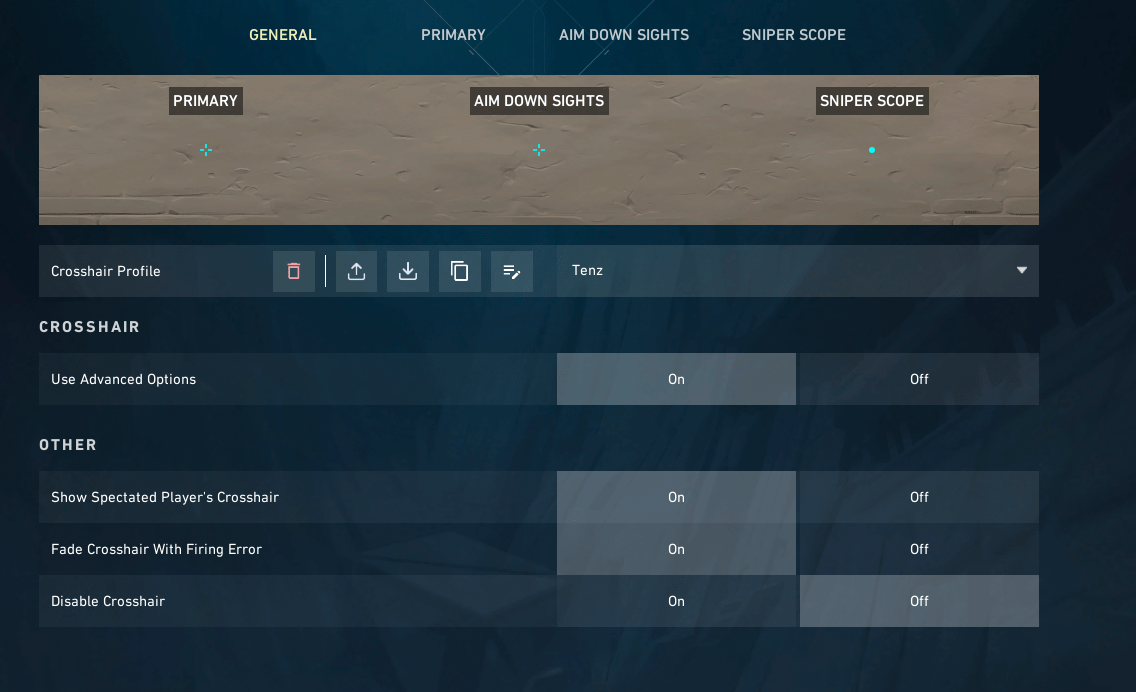
Crosshair Tenz
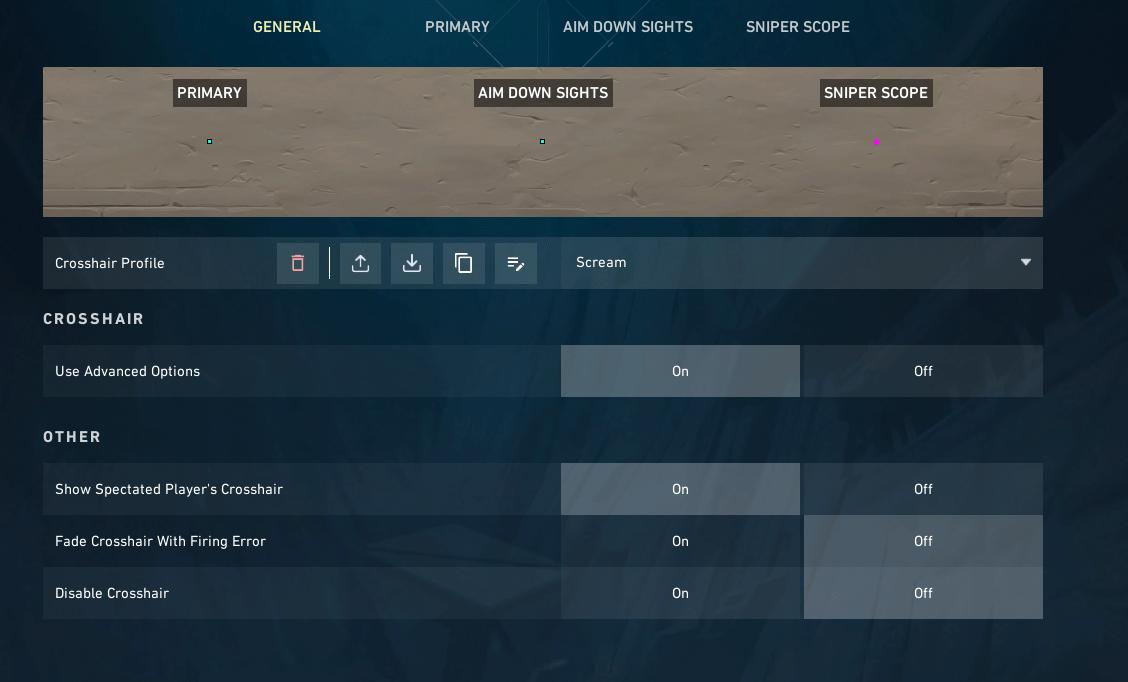
Crosshair Scream
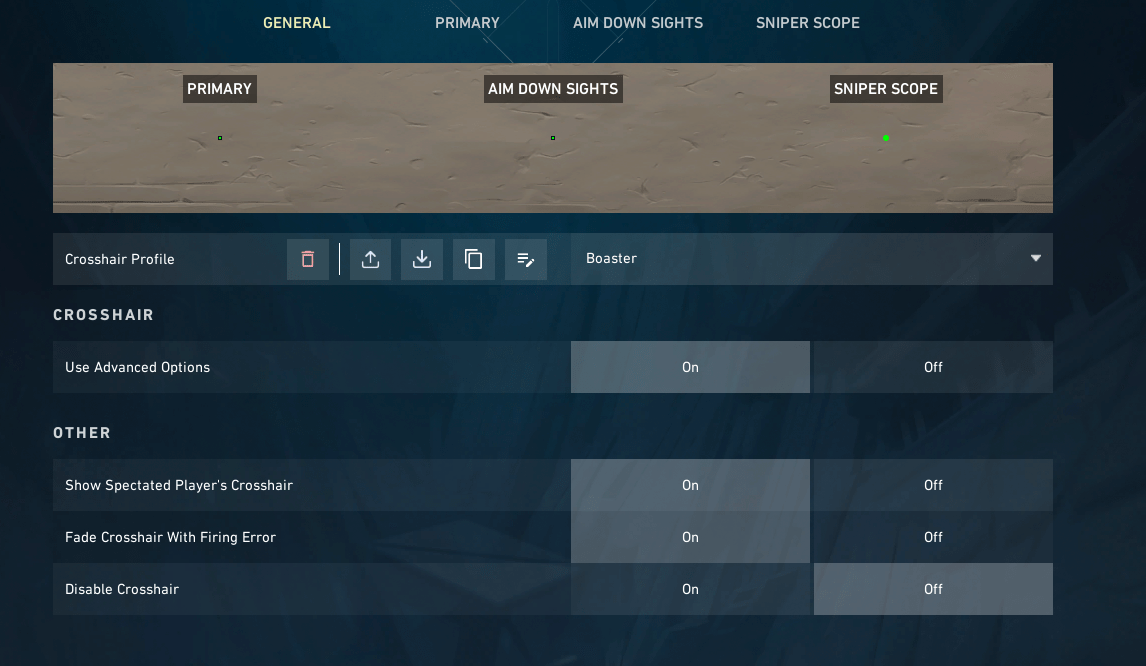
Crosshair Boaster
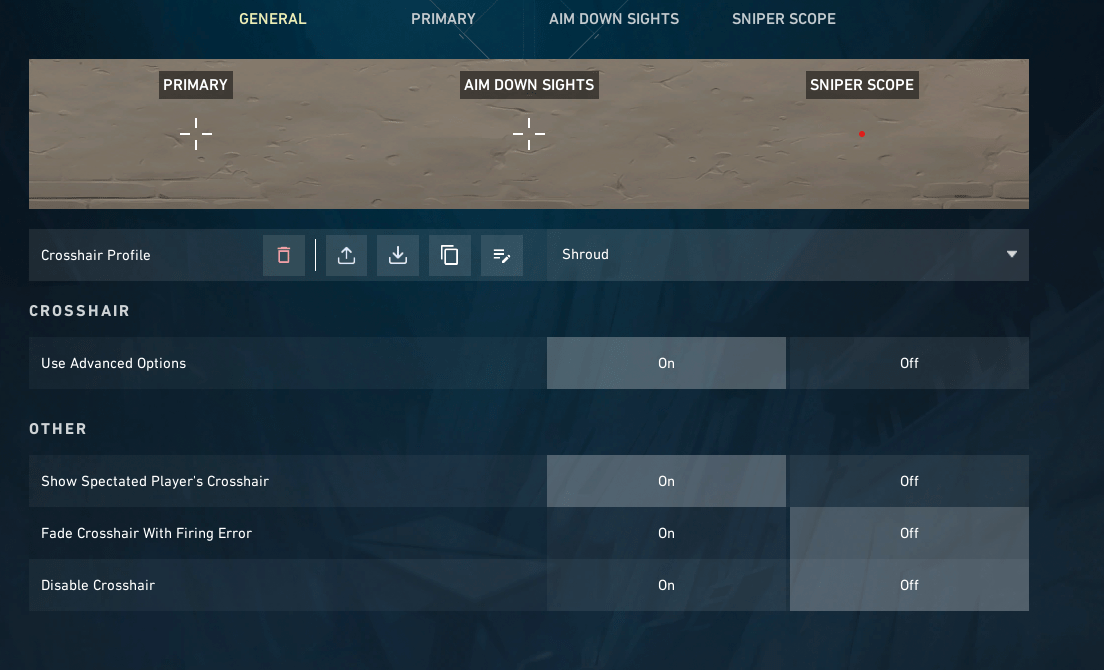
Crosshair Shroud
Tenz Crosshair
0;s;1;P;c;5;h;0;m;1;0l;4;0o;2;0f;0;1b;0;S;c;5;o;1Scream Crosshair
0;s;1;P;c;5;o;1;d;1;z;3;f;0;0t;6;0l;0;0a;1;0f;0;1b;0;S;c;6;s;0.949;o;1Boaster Crosshair
0;s;1;P;c;1;o;1;d;1;0l;0;0o;2;0a;1;0f;0;1t;0;1l;0;1o;0;1a;0;S;c;1;o;1Shroud Crosshair
0;s;1;P;o;0;f;0;0b;0;1l;10;1o;6;1a;1;1m;0;1f;0With these crosshairs, it will be easier to take down your enemies, but that might not be enough. If you want to win more consistently, you can Rent a Booster from us and make your climb even smoother!
Valorant Crosshair Settings
A quality crosshair helps to improve the accuracy of aiming without being an eyesore. Adjusting your crosshair settings to pro levels can make a big difference in your accuracy and consistency:
| Setting | Recommended Option | Notes |
|---|---|---|
| Crosshair Style | Static | Avoid dynamic changes for consistency |
| Color | Green, Cyan, White | Pick a color that contrasts with the map |
| Outlines | Off or Thin | Keeps visibility without extra bulk |
| Center Dot | Off | Optional, but most prefer no dot |
| Inner Lines | Length 4, Thickness 2, Gap 2 | Small, precise, and easy to track |
| Outer Lines | Off | Avoids extra clutter |
Valorant Mouse Settings
Aiming accuracy is very dependent on your mouse settings. Pro players usually use a low DPI setting with medium sensitivity settings to possess precision and fast flicks, accuracy and agility:
| Setting | Recommended Option | Notes |
|---|---|---|
| DPI (On your mouse) | 400 or 800 | Standard for most pro players |
| In-Game Mouse Sensitivity | 0.3 – 0.5 | Adjust to personal comfort |
| eDPI (On your mouse) | 150 – 300 | average eDPI (DPI * Sensitivity) |
You can try these mouse settings in-game, but sometimes it’s important to take a break. Our pro players can win matches for you while you rest — just reach out to us and get the amount of Valorant Victories you want!
Valorant Audio Settings
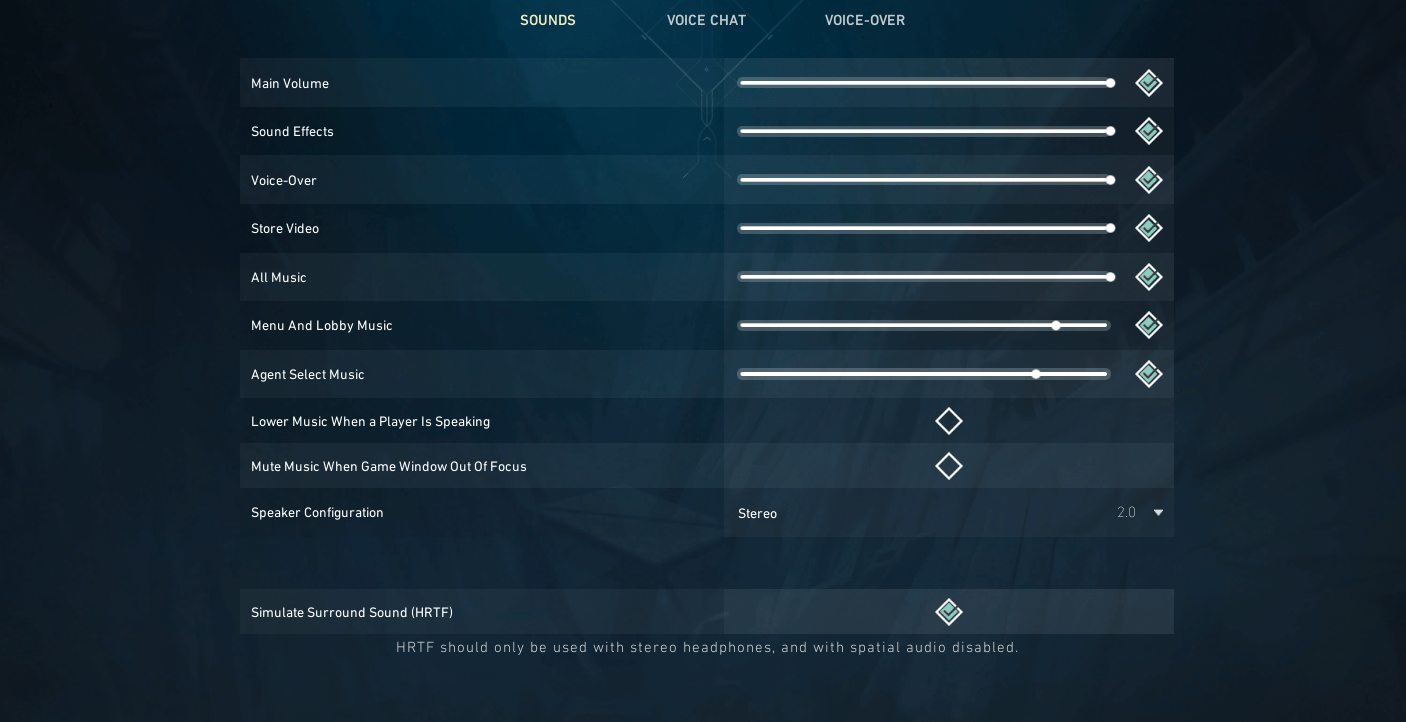
In this section, we’ve detailed the Valorant Best Audio Settings for you. Audio is very important in VALORANT, and it plays a major role in your opponent detection. Precise, clear audio settings assist with enemy location, making your tactical choices and reaction time better. Here is optimal performance:
| Setting | Recommended Option | Notes |
|---|---|---|
| Speaker Configuration | Stereo | Avoid surround-sound emulation |
| HRTF | On | Improves directional audio cues |
| Sound Effects Volume | 100% | Ensures footstep clarity |
| Voice-Over Volume | Lowered | Reduces distracting dialogue |
| Music Volume | 0% | Avoids unnecessary audio clutter |
Valorant Minimap Settings
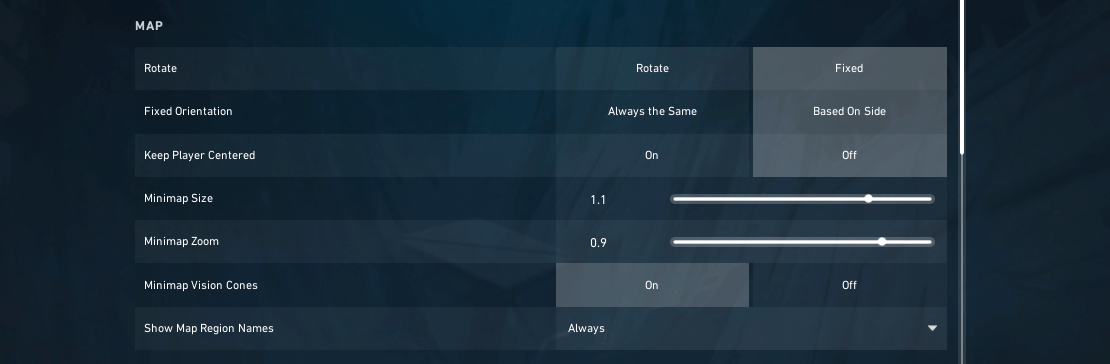
Optimizing your minimap greatly enhances situational awareness and team communication, essential to competitive success. A properly configured minimap puts valuable information clearly in sight. Here are optimal Minimap settings:
| Setting | Recommended Option | Notes |
|---|---|---|
| Rotate | Rotate | Provides intuitive orientation aligned with your current perspective |
| Keep Player Centered | Off | Expands overall map visibility, beneficial for tactical planning |
| Minimap Size | 1.1 – 1.2 | Optimal balance for clarity without obstructing your view |
| Minimap Zoom | 0.9 | Ideal zoom to clearly view detailed information |
| Minimap Vision Cones | On | Clearly displays teammate sightlines, aiding coordinated strategies |
| Show Map Region Names | Always | Improves team communication through clear callouts and locations |
Valorant Keybinds
Intuitive keybindings make for fast response and fun gameplay. Optimized key binding suggestions are as follows:
| Action | Recommended Keybind | Notes |
|---|---|---|
| Walk | Shift | Default, but can be toggled |
| Crouch | Ctrl | Standard for movement |
| Jump | Space + Mouse Wheel Down | Helps with bunny hopping |
| Use Object (Plant, Defuse, Interact) | F or E | Should be easy to reach |
| Ability 1 | C or Mouse Button 4 | Frequently used abilities should be accessible |
| Ability 2 | Q or Mouse Button 5 | Quick access to important abilities |
| Ability 3 (Signature Ability) | E or F | Most commonly used ability |
| Ultimate | X or F | Ensure it’s easy to press during combat |
| Ping | Z or Mouse Button | Quick pings for teammates |
Valorant Settings FAQ
Here we answer the most popular Valorant Settings questions and explain basic concepts related to this topic.
What is the Best Valorant Setting?
The best Valorant settings prioritize performance, clarity, and comfort. Here’s a breakdown of key settings you should use:
- Display Mode: Fullscreen for reduced input lag and better responsiveness.
- Max FPS: Uncapped or set to your monitor’s refresh rate for smoother gameplay.
- NVIDIA Reflex: On + Boost to reduce system latency.
- Graphics Settings: Low to ensure higher FPS and clearer visuals.
- Mouse Sensitivity: Low DPI (400 or 800) with in-game sensitivity between 0.3 to 0.5.
- Audio: Stereo headphones with HRTF enabled for improved spatial awareness.
By optimizing these settings, you’ll achieve the best balance of performance, clarity, and control in VALORANT.
Is 800 DPI Good for Valorant?
Yes, 800 DPI is a standard and popular choice among pro Valorant players. It offers an excellent balance of precision and responsiveness when combined with an in-game sensitivity of around 0.3 to 0.5.
What Settings do Pro Valorant Players Use?
Pro players optimize their settings for maximum performance and minimal distractions. Here’s a breakdown of the key settings they use:
- Display Mode: Fullscreen for reduced input lag and better responsiveness.
- Graphics Settings: Low (material and texture quality set to low/medium) to maximize FPS and visibility.
- Max FPS Limit: Uncapped or set to the monitor’s refresh rate to ensure smooth gameplay.
- NVIDIA Reflex: On + Boost to reduce system latency and improve reaction times.
- Mouse DPI: 400 or 800 for precision aiming without excessive movement.
- In-Game Sensitivity: 0.3–0.5 for controlled, accurate crosshair placement.
- Crosshair: Static, small, and high-contrast (green, cyan, or white) to ensure clear visibility and precision.
4.9This Valorant Best Settings guide has provided pro-recommended optimizations for graphics, crosshair, mouse, and audio to ensure you get the best out of your setup. By implementing these adjustments, you’ll be equipped with a high-performance configuration that enhances your aiming, movement, and overall gameplay.
