League of Legends Best Settings for 2026 can determine the way you play or how fast you respond to in-game events, as well as let you enjoy the outstanding graphics and convenient camera movement. In this guide, we will discuss the best settings for graphics, mouse control, hotkeys, camera, interface, sound, and game client. We also explain which type of control works better for competitive play and LoL Classic.
League of Legends Best Settings Key Takeaways:
- The best settings in League of Legends are optimized for the 2026 game version, as well as the newly added LoL Classic.
- Use Full Screen mode, your monitor’s native resolution, and its highest available refresh rate.
- Deactivate VSync, shadows, Character Inking, and Screen Shake for cleaner graphics and less input lag.
- Enable Quick Cast, Attack Move on Cursor, spell costs, and cooldown timers.
- Unlock the camera and press the Space key to always recapture the champion in the camera.
- Position the size of the minimap at 75-100, but decrease the size of the HUD to get extra space on the screen.
- You can start with 800-1600 DPI and 40-60 Mouse Speed as in-game parameters, and change them gradually.
- Low-spec machines require Low Spec Mode and Close Client During Game settings.
 4.9
4.9League of Legends Starter Settings
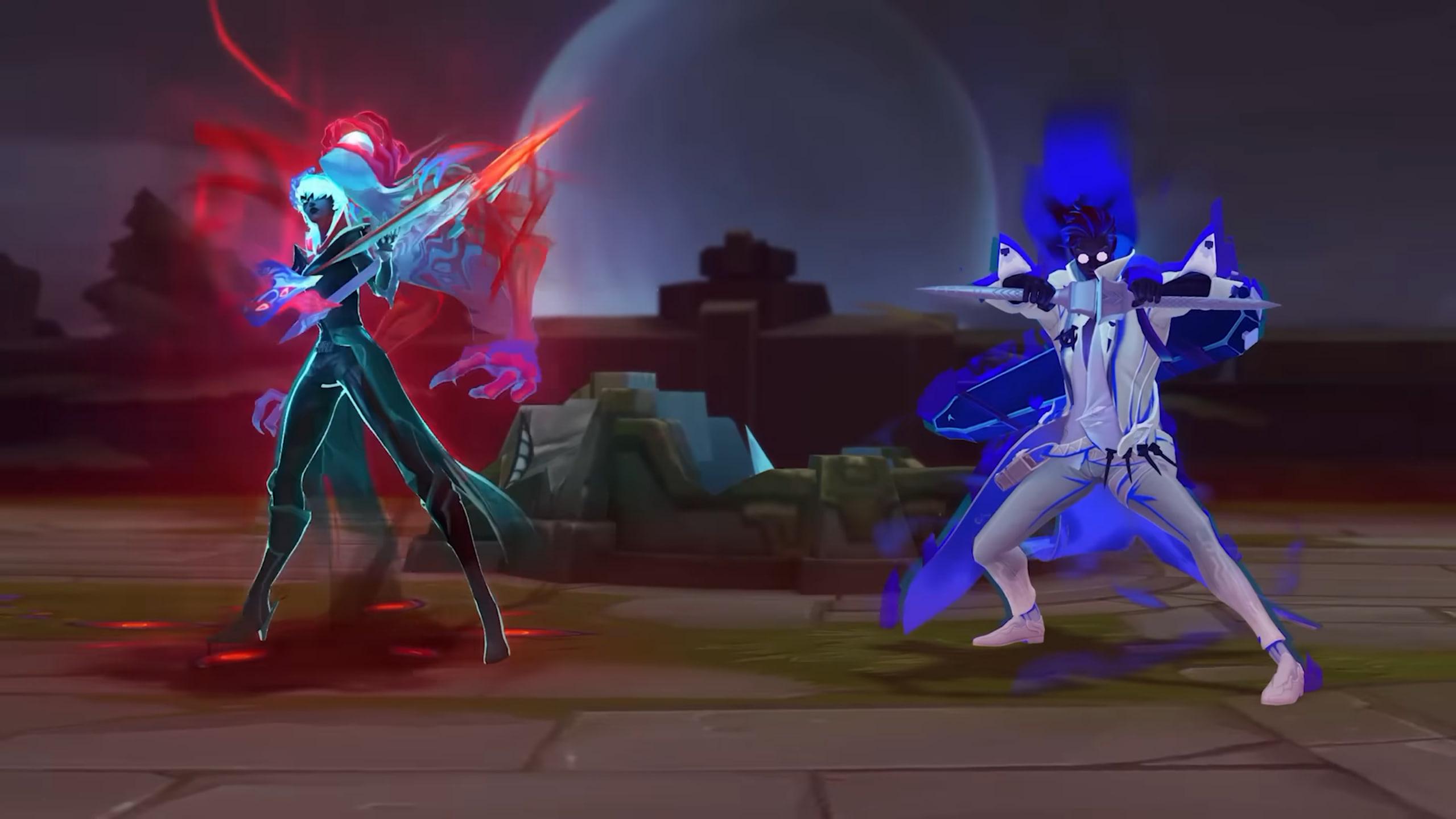
The game changes every season, so adjusting your League of Legends settings for the 2026 version is essential if you have just started the game. Additionally, if you plan to play LoL Classic, the starter setting will come in handy. The following LoL settings are aimed at steady performance, fight clarity, and easy access to important actions. The table below contains the main LoL settings to start the game:
| Setting | Recommended Value |
|---|---|
| Window Mode | Full Screen |
| Resolution | Native Monitor Resolution |
| Refresh Rate | Highest Available |
| Frame Rate Cap | Stable Value Supported by Your PC |
| VSync | Off |
| Character Quality | Medium |
| Environment Quality | Low |
| Effects Quality | Low |
| Shadows | Off |
| Character Inking | Off |
| Anti-Aliasing | Off or Personal Preference |
| Screen Shake | Off |
| Colorblind Mode | On if It Improves Visibility |
| Mouse DPI | 800–1600 Starting Range |
| In-Game Mouse Speed | 40–60 Starting Range |
| Windows Mouse Acceleration | Off |
| Quick Cast | On |
| Quick Cast With Indicator | Optional Secondary Bind |
| Attack Move on Cursor | On |
| Auto Attack | Off for Most Players |
| Camera Mode | Unlocked |
| Center Camera on Champion | Space |
| Minimap Scale | 75–100 |
| HUD Scale | 0–50 |
| Cursor Scale | 40–70 |
| Show Spell Costs | On |
| Show Timestamps | On |
| Music Volume | Low or Off |
| Ping and Sound Effect Volume | Medium or High |
| Low Spec Mode | On for Low-End PCs |
| Close Client During Game | On for Low-End PCs |
The table shows you the League of Legends starting preset for competitive gaming. Recommended settings in LoL can improve clarity, but climbing still depends on decisions, mechanics, and consistency. LoL Rank Progression is an option for players focused on reaching a specific competitive tier.
League of Legends Pro Settings
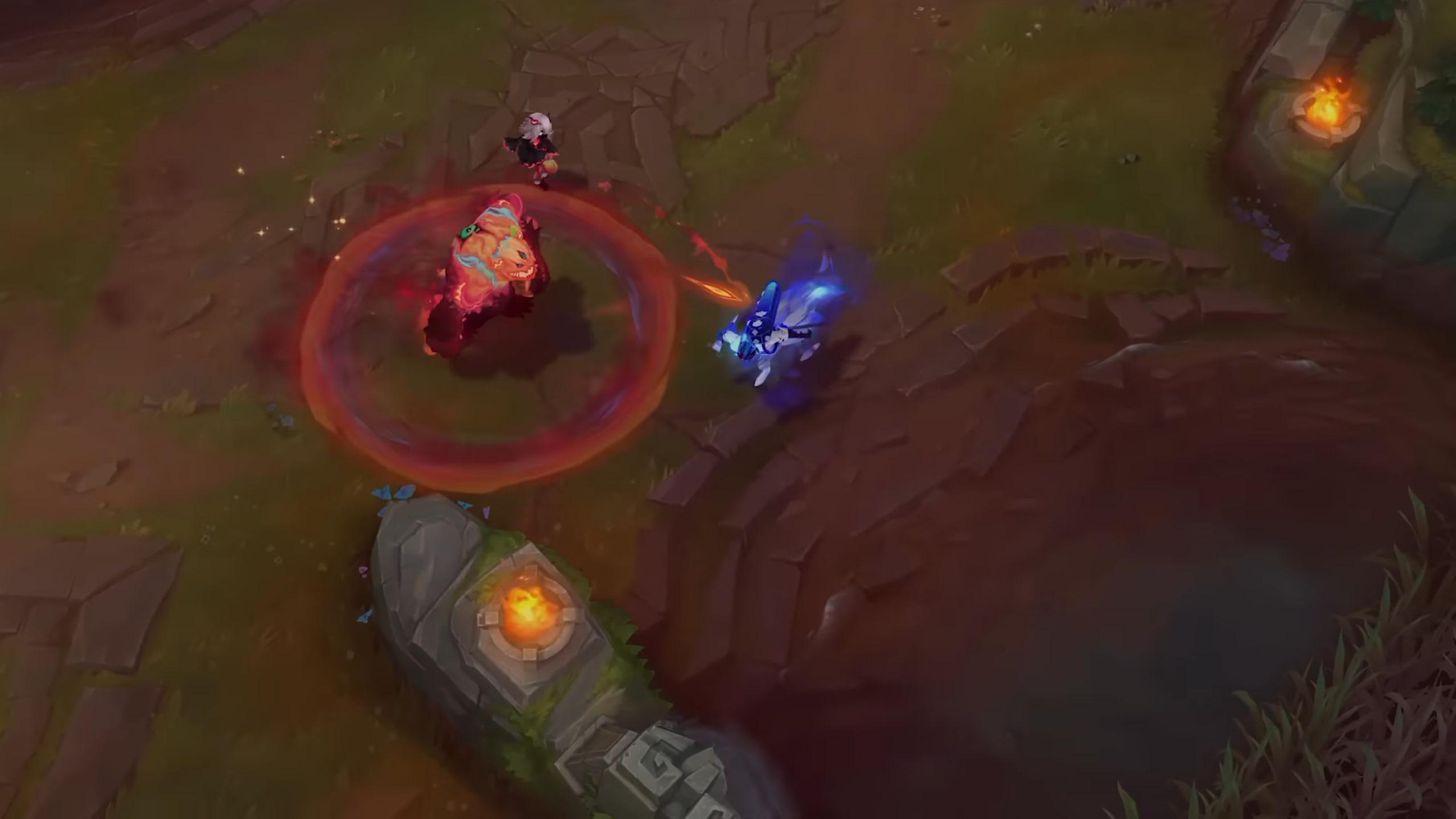
In League of Legends pros use different configurations depending on their players, positions, monitors, and even teams. However, there is no standard professional DPI or interface that ensures increased effectiveness. Nonetheless, almost all competitive League of Legends setups in 2026 have similar features:
- Full Screen mode;
- Native resolution;
- VSync off;
- Low or medium graphics;
- Quick Cast enabled;
- Unlocked Camera;
- Attack Move available;
- Large minimap;
- Personal DPI and item keybinds.
These choices reduce clutter and keep gameplay information close at hand. The exact Mouse Speed or HUD Scale changes from one player to another.
League of Legends Best Settings for Low-End PCs
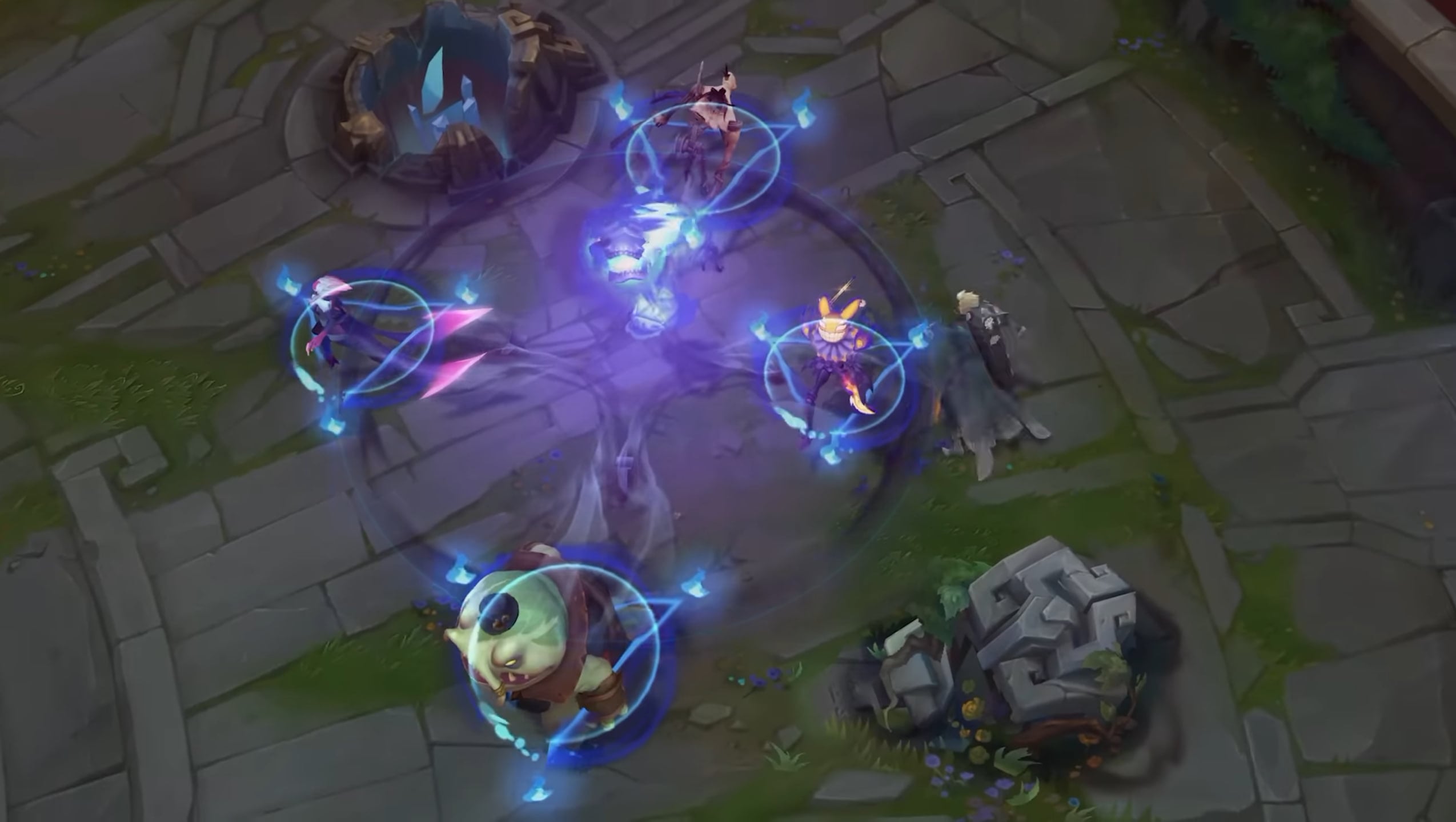
The LoL Settings for Low-End Computers should decrease effects first and then decrease resolution only if it’s needed. In any case, your priority should be achieving stability during the fights of Baron and other teams. These are the best LoL settings for low-end PCs:
- Use Full Screen mode;
- Keep the native resolution unless FPS remains too low;
- Set Character, Environment, and Effects Quality to Low;
- Turn Shadows off;
- Turn Character Inking off;
- Turn Anti-Aliasing off;
- Turn VSync off;
- Disable Screen Shake;
- Set a stable Frame Rate Cap;
- Enable Low Spec Mode;
- Enable Close Client During Game.
Watch the frame rate during busy fights, not while standing at the fountain. The fountain number tells you little about performance when ten champions start throwing ultimates.
Stable performance matters most when every early-season game affects your starting rank. LoL Placement Matches give players a structured way to begin the competitive climb.
League of Legends Best Graphics Settings
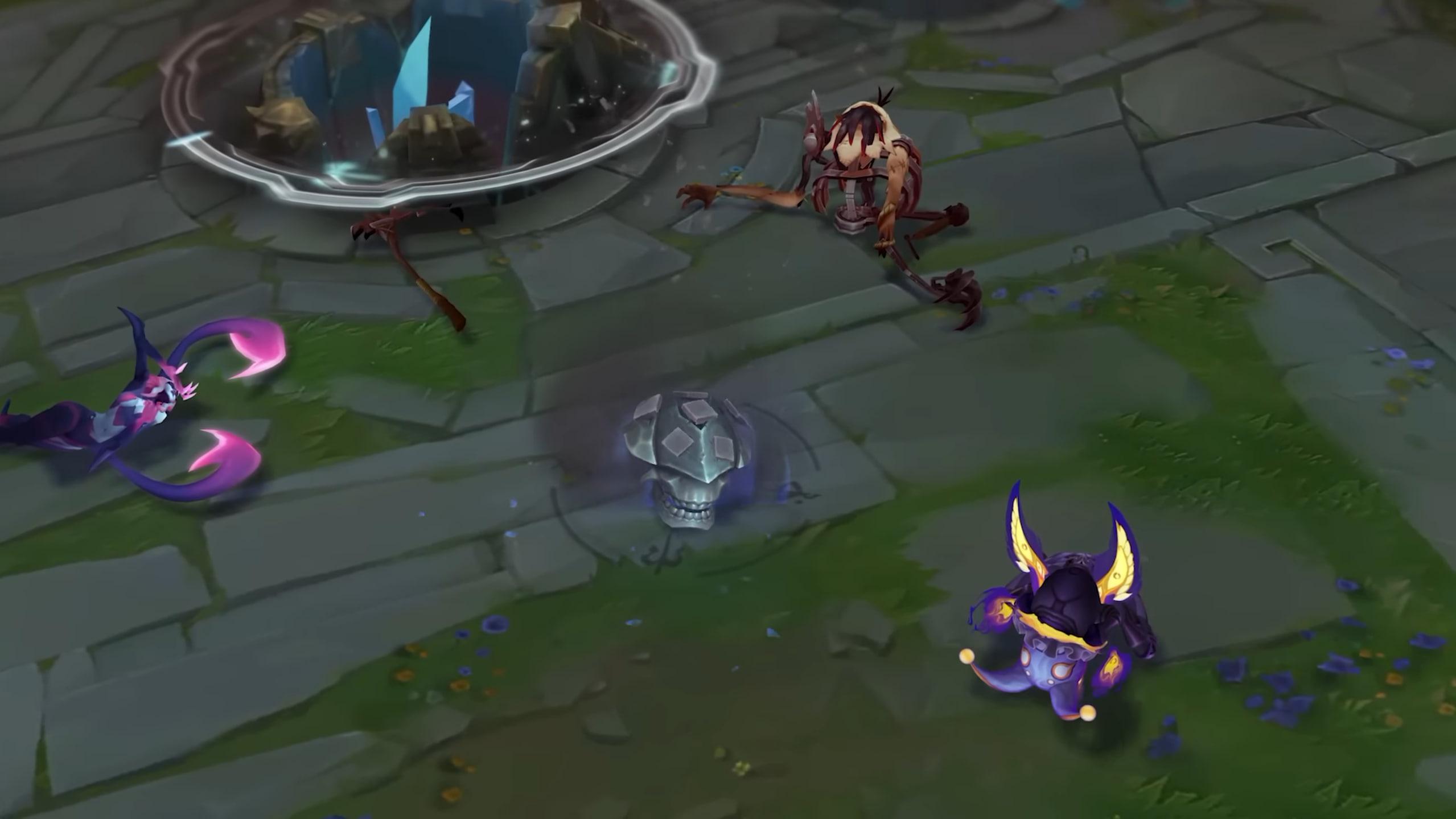
The best League of Legends graphics settings remove distracting effects without making champions difficult to recognize. LoL runs well on many systems, yet large team fights can still cause sudden frame drops. This table can help you with choosing the best graphics settings for League of Legends:
| Graphics Setting | Recommended Value | Why Use It |
|---|---|---|
| Window Mode | Full Screen | Reduces distractions and may lower input delay |
| Resolution | Native | Keeps champions, health bars, and text sharp |
| Character Quality | Medium | Preserves clear champion models at a small performance cost |
| Environment Quality | Low | Removes map detail that rarely helps during a match |
| Effects Quality | Low | Reduces visual clutter during team fights |
| Shadows | Off | Provides little competitive value and consumes extra resources |
| Character Inking | Off | Removes an extra outline effect around character models |
| Anti-Aliasing | Off | Improves performance, though edges may look rougher |
| VSync | Off | Avoids the input delay commonly caused by synchronization |
| Screen Shake | Off | Keeps the image steady during major abilities |
League of Legends Best Settings for Maximum FPS
If your PC is not strong enough, you should concentrate on smooth gameplay in LoL. A locked frame rate of 120 FPS will always be more pleasant than jumping from 100 to 240 FPS. Here you can find the best LoL settings for maximum FPS:
| Setting | Maximum FPS Value |
|---|---|
| Display Mode | Full Screen |
| Resolution | Native or One Step Lower |
| Character Quality | Low |
| Environment Quality | Low |
| Effects Quality | Low |
| Shadows | Off |
| Character Inking | Off |
| Anti-Aliasing | Off |
| VSync | Off |
| Frame Rate Cap | Highest Stable Value |
Reduce resolution only if the default one does not provide stable performance. Lower resolution makes it harder to see health bars, ability icons, and small targets.
League of Legends Best Settings for Visibility
A good visibility preset in LoL hides unnecessary map elements and champion effects but allows you to see the champion models. Use the following best LoL settings for visibility:
- Character Quality: Medium;
- Environment Quality: Low;
- Effects Quality: Low;
- Shadows: Off;
- Character Inking: Off;
- Anti-Aliasing: Off or personal preference;
- Screen Shake: Off;
- Colorblind Mode: On if health bars and team colors become easier to separate.
Colorblind mode isn’t only for color blind users. Test out this preset in several Normal games, then set Character Quality or Anti-Aliasing if you think that the picture is too pixelated.
League of Legends Best Camera Settings
Unlocked Camera is the best LoL camera setting because of its ability to allow you to inspect fights, lanes, objectives, and enemies’ positions not in proximity to your champion. Bind Center Camera on Champion to Space. Press it when you are in a close battle situation, and let go of it if you want to scout. Use these Best LoL Camera Settings for maximum impact:
| Camera Setting | Recommended Value |
|---|---|
| Camera Mode | Unlocked |
| Center Camera on Champion | Space |
| Camera Move Speed | 40–60 Starting Range |
| Mouse Button Drag Scroll | Optional |
| Ally Camera Hotkeys | F1–F5 |
Set the Camera Move Speed quite high so that one can scan the nearby lanes. In case the screen skips the action, reduce it by increments of five.
Use F1-F5 buttons to reposition the camera on friendly champs. The jungler and support can make use of these buttons to observe the lane, wave, and trades happening without the need to click on the minimap.
A new player in League of Legends can begin with either Dynamic Locked or Semi-Locked Camera. After some time, unlock the camera temporarily and hit Space whenever you lose track of your champ.
An unlocked camera also helps track threats during hectic multi-team fights. LoL Arena offers a fast-paced setting for practicing camera movement and keeping every opponent in view.
League of Legends Best Interface Settings
The best League of Legends interface settings leave more room for the battlefield while keeping the minimap readable. A giant HUD hides useful space, but a tiny minimap makes rotations easy to miss. You can use these best League of Legends interface settings:
| Interface Setting | Recommended Value |
|---|---|
| HUD Scale | 0–50 |
| Minimap Scale | 75–100 |
| Cursor Scale | 40–70 |
| Show Spell Costs | On |
| Ability Cooldown Display | Minutes and Seconds |
| Show Timestamps | On |
| Show Health Bars | On |
| Champion Names | Champion Name |
Set the minimap near its largest comfortable size. It should be readable through peripheral vision rather than requiring a long look away from the lane.
Show Spell Costs prevents failed casts caused by missing mana. Cooldown values also help you judge whether an ability will return before a fight ends.
League of Legends Best Sound Settings
League sound carries real match information. Ability cues, pings, objective announcements, and champion voice lines can warn you before the screen catches up. Choose the best League of Legends sound settings:
| Sound Setting | Recommended Value |
|---|---|
| Master Volume | Comfortable Listening Level |
| Music | Low or Off |
| Sound Effects | Medium or High |
| Voice | Medium |
| Announcer | Medium or High |
| Ambience | Low |
| Pings | Clearly Audible |
Clear pings and ability sounds matter even more in coordinated team play. LoL Clash suits players who want to test their communication during organized matches.
League of Legends Best Client Settings
The LoL client stays open during the match unless you close it manually. On less powerful machines, the client takes up memory and CPU usage through animations and background tasks. Here are the best League of Legends client settings you can set:
- Enable Low Spec Mode on older PCs;
- Enable Close Client During Game if memory usage causes stutters;
- Disable unnecessary client animations;
- Limit desktop notifications that distract during queue preparation;
- Close heavy browser tabs before launching a match.
Close Client During Game can make post-match loading slightly slower because the client must reopen.
League of Legends Best Mouse Settings
These are optimal settings in LoL that enable you to traverse the screen rapidly but prevent overshooting of tiny targets. You require sufficient sensitivity for camera movement, skill shots, last hits, and changes in target. Begin with 800-1600 DPI together with in-game Mouse Speed of 40-60. These are reference ranges, not mandatory competitive settings. Use these Best Mouse Settings in LoL to improve your impact:
| Mouse Setting | Recommended Value |
|---|---|
| DPI | 800–1600 |
| In-Game Mouse Speed | 40–60 |
| Windows Pointer Speed | 6/11 |
| Enhance Pointer Precision | Off |
| Polling Rate | 500 Hz or 1000 Hz |
Disabling Enhance Pointer Precision in Windows will eliminate mouse acceleration, whereby the same movement of the hand will create various lengths, based on speed.
Finding comfortable mouse settings takes more than copying another player’s DPI. Our LoL Coaching can help identify targeting, camera, and movement habits that hold back your gameplay.
League of Legends Keybinds Explained
Good LoL keybinds reduce the number of separate clicks required during a fight. Every important action should feel reachable without forcing your hand into an awkward position. You do not need to replace every default bind in League of Legends at once. Start with these LoL Settings:
- Quick Cast,
- Attack Move,
- Target Champions Only,
- Essential Hotkeys.
League of Legends Quick Cast
LoL Quick Cast triggers an ability as soon as you press the ability key. Normal Cast mode opens up the ability’s targeting interface and asks for a second mouse click. In general, Quick Cast of Q, W, E, and R abilities is beneficial for most champions. It allows you to perform quicker combos because it takes away one input per ability.
Use these League of Legends Quick Cast settings to improve your gameplay:
| Casting Method | Recommended Bind | Best Use |
|---|---|---|
| Quick Cast | Q, W, E, R | Regular abilities and fast combos |
| Quick Cast With Indicator | Shift + Q, W, E, R | Checking ability range when needed |
| Normal Cast | Optional Individual Bind | Abilities requiring careful placement |
Quick Cast With Indicator enables the range display while you hold down the key, and casts when you release the key. This mode is somewhat slower but useful for learning ranges of new abilities. Shift key combination provides a good compromise. You get fast default casts but can also verify the range of the ability beforehand.
League of Legends Attack Move Settings
Attack Move in LoL tells your champion to attack a valid target near the selected area. It reduces the risk of walking directly into an enemy after missing a right-click.
Enable Attack Move on Cursor so the game checks targets near your cursor. Without it, target selection can depend on your champion’s position instead. You can bind and use these LoL attack move Settings:
- Player Attack Move Click: A;
- Attack Move on Cursor: On;
- Stop Position: S;
- Hold Position: H.
This setup helps ADCs and other auto-attack champions kite between hits. Kayle, Kindred, Tryndamere, and ranged top laners also gain plenty from it. Attack Move does not replace accurate targeting. If several enemies stand close together, the command can still select a target you did not want.
League of Legends Target Champions Only Setting
Target Champions Only prevents direct clicks and targeted spells from selecting minions, monsters, or turrets. It helps during tower dives and fights inside crowded waves.
Bind it to the tilde key (`) or a side mouse button. You can also enable Treat Target Champions Only as a Toggle if holding the button feels uncomfortable.
There is one major limitation: Target Champions Only does not make Attack Move ignore minions. Attack Move still follows its normal target-selection rules, even while the toggle remains active.
LoL Essential Hotkeys
Use Ctrl + Q, W, E, or R to level abilities without clicking the interface. Fast leveling can decide an early fight, especially when a minion grants level two mid-trade.
Place active items on buttons you can reach without looking down. Players with side mouse buttons can assign one to a common defensive item or Trinket.
- Level Up Abilities: Ctrl + Q, W, E, R;
- Regular Items: 1–6;
- Trinket: 4 or another familiar key;
- Area Is Warded Ping: H or a free mouse button;
- Recall: B;
- Stop Position: S.
Keep item placement consistent between matches. For example, always placing Zhonya’s Hourglass on the same key prevents a lot of panic clicking.
Once your new keybinds feel comfortable, tougher challenges provide a good way to test them. Our LoL Challenges offer clear goals beyond regular Ranked matches.
League of Legends Specific Keybinds
Champion-specific keybinds were implemented by League of Legends Patch 26.9. Now you can configure unique hotkeys for each main champ without having to reconfigure all controls before each game.
Such a function is helpful for champions with uncommon input or many active moves. Champions like Lee Sin, Nidalee, Jayce, Elise, and others who have form changes can require specific casting options.
How to Reset League of Legends Settings
Most of League of Legends’ settings can be reset via the in-game options menu. Go to Settings, select the needed category, and press Restore Defaults before saving.
Reset each category separately if you have only hotkey or graphics problems. The complete reset will reset your personal camera, interface, ping, and item hotkeys. In case the settings change constantly or do not save, quit League and the Riot Client completely. Launch them normally and then apply the settings again.
📌 Do not perform any manual changes in the configuration files unless necessary. Make a backup of the configuration folder before any changes.
Point and Click vs WASD Controls in League of Legends
WASD controls became available in Ranked and Clash after Patch 26.9. Players can now choose between traditional Point and Click movement and direct keyboard movement.
Riot reported that both control methods reached similar performance levels during testing. Point and Click still held a minor win-rate advantage when WASD entered Ranked.
| Control Scheme | Advantages | Drawbacks |
|---|---|---|
| Point and Click | Familiar precision, more free keyboard buttons, established competitive standard | Movement and aiming share the mouse |
| WASD | Direct movement, familiar to MMO and shooter players, mouse stays free for aiming | Consumes four keys and requires a new hotkey layout |
League of Legends Best Settings FAQ
The answers below cover common questions about League of Legends best settings, competitive controls, FPS, and mouse sensitivity.
What Are the Best Settings for League of Legends?
Use Full Screen, native resolution, VSync off, low effects, and shadows off. Enable Quick Cast, Attack Move on Cursor, an unlocked camera, and a large minimap.
What Are the Best LoL Settings for FPS?
Set all graphics options to Low, then disable shadows, Anti-Aliasing, Character Inking, VSync, and Screen Shake. Cap FPS at a value your PC can maintain during fights.
Should I Use Quick Cast in League of Legends?
Yes, Quick Cast removes an extra click and makes most abilities faster. Keep Quick Cast With Indicator on Shift + QWER when you need to check range.
Should VSync Be On or Off in League of Legends?
VSync should usually remain off for competitive play because it can add input delay. Consider enabling it only if screen tearing becomes too distracting.
What DPI Is Best for League of Legends?
There is no single best LoL DPI. The 800–1600 range provides a useful starting point, but resolution, mousepad size, and personal control matter more.
Is WASD Better Than Point and Click in LoL?
Neither option works better for every player. WASD feels familiar after shooters and MMOs, while Point and Click retains a minor statistical advantage and established muscle memory.
Should I Turn Auto Attack Off in League of Legends?
Most players should turn Auto Attack off for better wave control. You can still attack with right-click or Attack Move without hitting minions automatically.
What Is the Best Camera Setting in LoL?
Unlocked Camera offers the most information and control. Bind camera centering to Space so you can quickly return the view to your champion.
Do Pro LoL Players Use Low Graphics?
Many competitive players lower shadows and effects to improve clarity and frame stability. Their exact Character Quality, resolution, and interface settings still vary.
4.9The best League of Legends settings begin with three changes: stable FPS, faster casting, and a readable interface. From there, adjust mouse sensitivity, camera speed, and keybinds around your own habits. The right setup is the one you can trust when a messy late-game fight starts.
