In this Fortnite Best Settings guide, we will tell you the best settings for graphics, performance, controller, keyboard, and mouse. Fortnite settings feature some of the most important factors to take into account when setting the game up for top-notch play.
Fortnite Best Settings Key Takeaways:
- The ideal Fortnite graphics settings are to have consistent fps, minimal latency, and an acceptable amount of visibility.
- DX12 is preferable for strong computers, assuming Fortnite is running flawlessly.
- The following settings can be turned off in ranked battles: Motion Blur, VSync, Shadows, Ray Tracing, Nanite, and Lumen.
- The FPS cap should be adjusted based on your monitor’s refresh rate or on what the average FPS is in-game.
- For controllers, start with either Builder Pro or Custom and then slowly fine-tune the sensitivity.
- Visualization of Sound Effects is extremely helpful when playing footsteps, chests, vehicles, shootings, and battle sounds.
Fortnite Best Graphics Settings
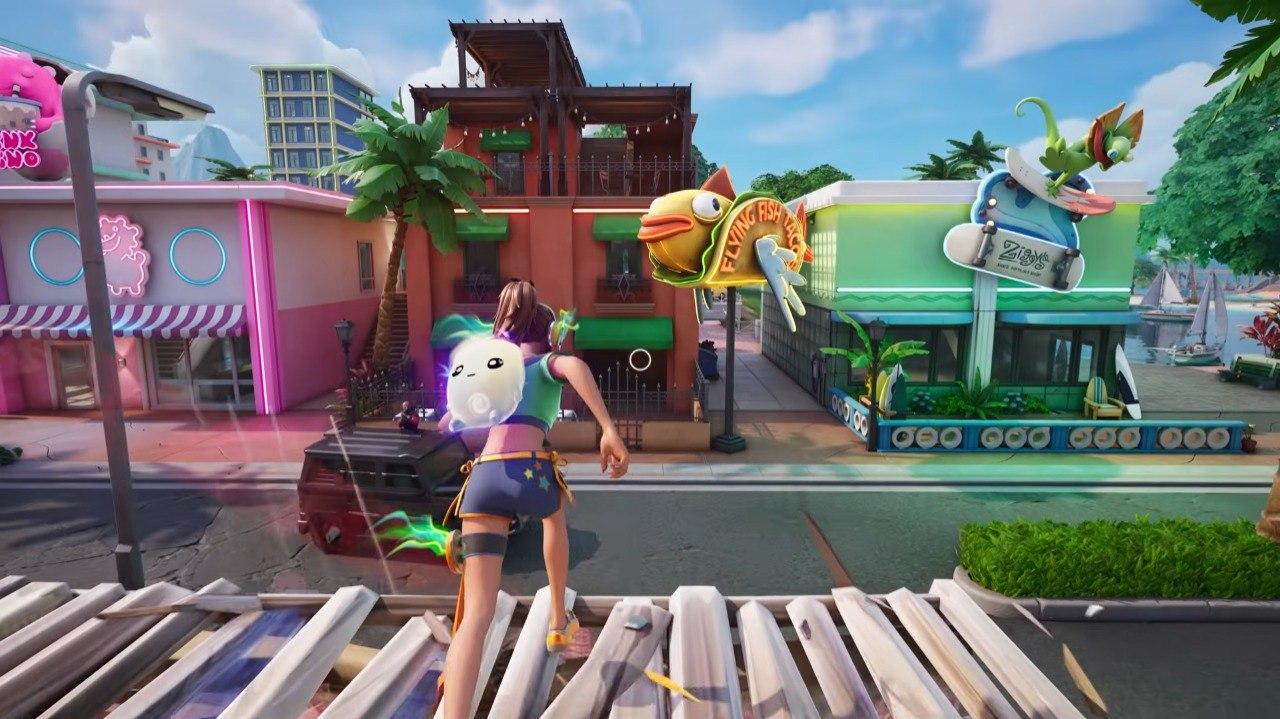
The graphics settings not only affect the visual quality of the game, but also its performance, stability, input delay, and the messiness of the fighting process. As the primary, think about the following Best Fortnite Graphics Settings in 2026:
| Graphics Setting | Recommended Value |
|---|---|
| Window Mode | Fullscreen |
| Resolution | Native monitor resolution |
| Frame Rate Limit | 144 / 165 / 240 / 360 FPS or stable custom cap |
| Rendering Mode | DirectX 12 or Performance Mode |
| Brightness | 100–120% |
| User Interface Contrast | 1x |
| Color Blind Mode | Off or Tritanope |
| Color Blind Strength | 5–10 if enabled |
| Motion Blur | Off |
| Show FPS | On |
Fortnite Best Rendering Mode
The most significant Fortnite 2026 setting to change is Rendering Mode. The mode has an impact on the appearance of the game world and on the strain placed on your computer.
- DirectX 12 is usually the most preferable Fortnite Rendering Mode for powerful PCs. Fortnite may start playing smoothly after shader loading is done in DirectX 12.
- If your computer or laptop is slow, Performance mode is the ideal Fortnite setting. It will make the game smooth, but it also reduces visual performance. Builds and environments will be simplified with less graphic detail, which can make them more visible.
- It is often used instead of DirectX 11. If you notice stutters using DirectX 12 and if you don’t enjoy the Performance Mode, then you should try DirectX 11.
Best Fortnite Performance Mode Settings
Performance Mode makes Fortnite lighter and cleaner. It is not the prettiest way to play, but it works well when FPS matters more than visuals. Many players also like it because the builds look less busy.
| Performance Mode Setting | Best Value |
|---|---|
| Rendering Mode | Performance – Lower Graphical Fidelity |
| Meshes | Low |
| View Distance | Medium or Far |
| Textures | Low |
| Auto Download High Resolution Textures | Off |
| High Resolution Textures | Disabled |
| 3D Resolution | 100% if possible |
| Shadows | Off |
| Effects | Low |
| Post Processing | Low |
| Show FPS | On |
Fortnite Best Advanced Graphics Settings
Advanced graphics settings can quietly ruin Fortnite performance. Some options look great in screenshots, but they add clutter and lower FPS. For ranked, keep this section strict and clean.
| Advanced Graphics Setting | Recommended Value |
|---|---|
| V-Sync | Off |
| Motion Blur | Off |
| Show FPS | On |
| NVIDIA Reflex Low Latency | On + Boost |
| Nanite Virtualized Geometry | Off |
| Global Illumination | Off |
| Reflections | Off |
| View Distance | Medium or Far |
| Shadows | Off |
| Anti-Aliasing & Super Resolution | Off / TSR Low / DLSS if needed |
| Textures | Low to High based on VRAM |
| Effects | Low |
| Post Processing | Low |
| Hardware Ray Tracing | Off |
Fortnite Best FPS Settings
The best Fortnite FPS settings depend on your monitor and PC. A 60 Hz monitor does not need 300 FPS, but stable frame pacing still helps. A 240 Hz monitor only shines if your PC can hold high FPS in fights.
| Monitor Refresh Rate | Recommended FPS Cap |
|---|---|
| 60 Hz | 60 or 120 FPS |
| 75 Hz | 75 or 120 FPS |
| 120 Hz | 120 or 144 FPS |
| 144 Hz | 144 or 160 FPS |
| 165 Hz | 165 or 180 FPS |
| 240 Hz | 240 FPS |
| 360 Hz | 360 FPS |
Fortnite Best Settings for Low-End PC
If you can barely play Fortnite on your PC, try out these settings. Increase one setting at a time. View Distance and 3D Resolution will be the best settings to fine-tune once you stabilize your FPS. Budget computers require a real Fortnite setup. Here are Best Fortnite Settings for Low-End PC in 2026:
| Setting | Best Low-End PC Value |
|---|---|
| Window Mode | Fullscreen |
| Rendering Mode | Performance Mode |
| Resolution | Native or slightly lower |
| Frame Rate Limit | 60, 120, or stable custom cap |
| 3D Resolution | 80–100% |
| View Distance | Medium |
| Textures | Low |
| Meshes | Low |
| Shadows | Off |
| Effects | Low |
| Post Processing | Low |
| Motion Blur | Off |
| V-Sync | Off |
| High Resolution Textures | Off |
Best Fortnite Settings for High-End PC
High-end PCs can run Fortnite with better visuals, but ranked still benefits from clean settings. Good equipment is always helpful, but no hardware solves the input lag issue magically. A neat setup will make you feel better, regardless. Best Fortnite Settings for High-End PC in 2026:
| Setting | Best High-End PC Value |
|---|---|
| Window Mode | Fullscreen |
| Rendering Mode | DirectX 12 |
| Resolution | Native |
| Frame Rate Limit | Match monitor Hz or stable high cap |
| View Distance | Far or Epic |
| Textures | Medium or High |
| Shadows | Off |
| Effects | Low or Medium |
| Post Processing | Low |
| Nanite | Off for competitive |
| Global Illumination | Off for competitive |
| Reflections | Off for competitive |
| NVIDIA Reflex | On + Boost |
Best Fortnite Keyboard and Mouse Settings
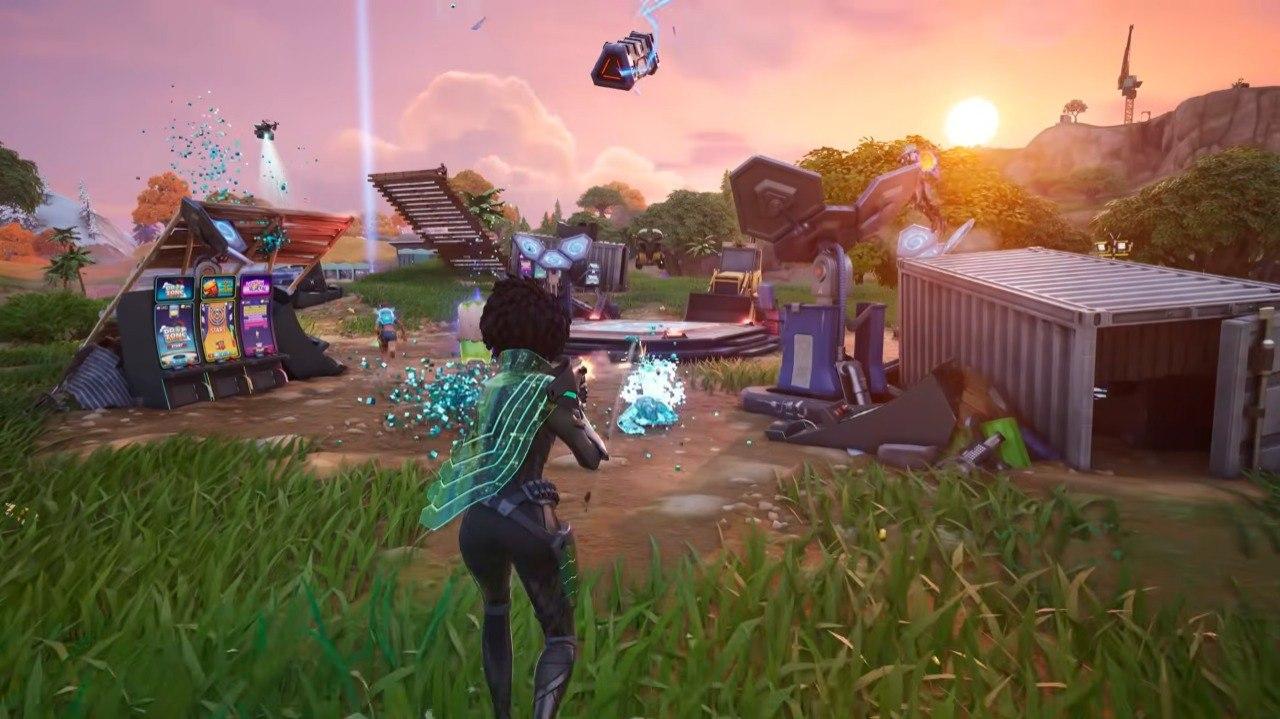
Keyboard and mouse settings determine how your Fortnite will play out in any battle. Everything from aiming, editing, building, resetting, and weapon switching depends on your comfort level. You should not blindly copy a professional setup unless it is comfortable for your hands.
Fortnite Best Mouse Settings
A lower Mouse sensitivity setting improves your accuracy with shotguns. However, Fortnite also requires quick movement around and within a map. The best Fortnite mouse settings will offer you a nice balance between both. Here are Fortnite Best Mouse Settings in 2026:
| Mouse Setting | Recommended Range |
|---|---|
| DPI | 800 or 1600 |
| X-Axis Sensitivity | 5–10% at 800 DPI |
| Y-Axis Sensitivity | 5–10% at 800 DPI |
| Targeting Sensitivity | 35–60% |
| Scope Sensitivity | 35–60% |
| Ignore Gamepad Input | On, if you do not use controller |
| Lock Input Method as Mouse | On, if you do not swap inputs |
Best Fortnite Keybinds
Good Fortnite keybinds keep your movement fingers free. You should build, edit, jump, and swap weapons without twisting your hand. Mouse side buttons help a lot here. Here are the best Fortnite Keybinds in 2026:
| Action | Recommended Keybind |
|---|---|
| Wall | Mouse Button 4 or Q |
| Floor | Mouse Button 5 or C |
| Stairs | E or V |
| Roof | Left Shift or X |
| Trap | T |
| Edit | F or E |
| Use | E or Mouse Wheel Up |
| Reset Edit | Mouse Wheel Down |
| Crouch | Left Ctrl |
| Reload | R |
| Pickaxe | 1 |
| Weapon Slots | 2–6 or 1–5 |
Best Fortnite Controller Settings
The controller setup in Fortnite requires a lot of care. Although the aim assist is helpful, the wrong sensitivity can make all the battles quite clunky. Start with a safe configuration and then adjust each option separately. Here are the best Fortnite Controller Settings in 2026:
| Controller Setting | Recommended Value |
|---|---|
| Controller Layout | Builder Pro or Custom |
| Vibration | Off |
| Build Mode Sensitivity Multiplier | 1.8x–2.4x |
| Edit Mode Sensitivity Multiplier | 1.8x–2.4x |
| Look Horizontal Speed | 35–50% |
| Look Vertical Speed | 35–50% |
| ADS Look Horizontal Speed | 8–15% |
| ADS Look Vertical Speed | 8–15% |
| Look Input Curve | Linear or Exponential |
| Look Dampening Time | 0.00–0.10 |
| Confirm Edit on Release | On for most players |
| Builder Pro: Build Immediately | On |
| Aim Assist Strength | 100% |
| Auto-Run | On |
Fortnite Best Controller Layout
Builder Pro is the best default layout for almost all Fortnite controller users. It gives instant access to the building and feels comfortable even after a couple of games. The customized layout turns out to be superior once you know which buttons hinder your game.
| Controller Option | Recommended Choice |
|---|---|
| Controller Layout | Builder Pro or Custom |
| Edit Hold Time | 0.100 or lower |
| Slide Hold Time | Personal preference |
| Reset Camera Axes | Pitch or Disabled |
| Vibration | Off |
| Confirm Edit on Release | On for most players |
| Auto-Run | On |
| Builder Pro: Build Immediately | On |
Fortnite Best Controller Sensitivity
Never increase sensitivity too quickly. When your crosshair is shaking while using shotguns, reduce the Look Speed by two or three units. Changes made to controllers have a significant influence on Fortnite.
| Controller Setting | Recommended Range |
|---|---|
| Look Horizontal Speed | 35–50% |
| Look Vertical Speed | 35–50% |
| Turning Horizontal Boost | 0–5% |
| Turning Vertical Boost | 0–5% |
| ADS Look Horizontal Speed | 8–15% |
| ADS Look Vertical Speed | 8–15% |
| ADS Turning Boost | 0% |
| Build Mode Sensitivity Multiplier | 1.8x–2.4x |
| Edit Mode Sensitivity Multiplier | 1.8x–2.4x |
| Look Dampening Time | 0.00–0.10 |
| Look Input Curve | Linear or Exponential |
| Aim Assist Strength | 100% |
Best Fortnite Audio Settings
The audio setting is often ignored, but it decides many battles in the game. All the information can be conveyed by Fortnite through footsteps, gliders, chests, healing, vehicles, and shots.
| Audio Setting | Recommended Value |
|---|---|
| Main Volume | 80–100% |
| Music | 0–20% |
| Sound Effects | 100% |
| Dialogue | 20–50% |
| Voice Chat | Personal preference |
| Cinematics | 20–50% |
| Sound Quality | High, if performance allows |
| 3D Headphones | On |
| Background Audio | Off |
| Visualize Sound Effects | On |
Best Fortnite Visibility Settings
Visibility settings enable you to see movement faster. Fortnite can be full of visual clutter due to its builds, effects, storm colors, skins, and lighting at POIs. Clean visuals help with decision-making.
| Visibility Setting | Recommended Value |
|---|---|
| Brightness | 100–120% |
| Motion Blur | Off |
| Shadows | Off |
| Effects | Low |
| Post Processing | Low |
| Color Blind Mode | Off or Tritanope |
| Color Blind Strength | 5–10 if enabled |
| HUD Scale | 70–90% |
| Reticle | Personal preference |
Fortnite Best Console Settings
Console settings provide players with fewer graphical settings, but they still play a significant role. The basic aims are similar to those mentioned above — stable FPS, good audio, and control. Here you can find the Best Fortnite Console Settings for Xbox Series X|S should also take into account the availability of 120 fps mode.
Best Fortnite PS5 Settings
The 120 FPS mode will make the game look much smoother in Fortnite on PS5. However, for that, you need to have a compatible display. Otherwise, concentrate on the controller and audio settings. Here you can find the best Fortnite PS5 Settings in 2026:
| PS5 Setting | Recommended Value |
|---|---|
| 120 FPS Mode | On, if your display supports it |
| Motion Blur | Off |
| Brightness | 100–120% |
| Controller Layout | Builder Pro or Custom |
| Vibration | Off |
| Visualize Sound Effects | On |
| 3D Headphones | On |
Best Fortnite Xbox Settings
Similar to Xbox players, one should also take care of console display settings. Make sure that your console uses the right refresh rate; the whole Fortnite setup will feel off. Here you can find the best Fortnite Xbox Settings in 2026:
| Xbox Setting | Recommended Value |
|---|---|
| 120 FPS Mode | On, if supported |
| Motion Blur | Off |
| Brightness | 100–120% |
| Controller Layout | Builder Pro or Custom |
| Vibration | Off |
| Visualize Sound Effects | On |
| 3D Headphones | On |
Best Fortnite Nintendo Switch Settings
The hardware of the Switch is limited, so do not expect anything like FPS from a PC. Yet, settings such as Visualization of Sound Effects, clean HUD, and good controls can help a lot. Here you can find the best Fortnite Nintendo Switch Settings in 2026:
| Switch Setting | Recommended Value |
|---|---|
| Motion Blur | Off |
| Brightness | Slightly higher |
| Controller Layout | Builder Pro |
| Vibration | Off |
| Visualize Sound Effects | On |
| HUD Scale | 80–90% |
Best Fortnite Ranked Settings
Ranked Fortnite rewards stable settings. You do not need the prettiest version of the game here. You need fast inputs, clear visibility, and FPS that holds up under pressure. Best Fortnite Settings for Ranked in 2026:
| Category | Best Ranked Setting |
|---|---|
| Rendering Mode | DirectX 12 or Performance Mode |
| Window Mode | Fullscreen |
| FPS Cap | Stable cap near monitor Hz |
| V-Sync | Off |
| Motion Blur | Off |
| Shadows | Off |
| Effects | Low |
| Post Processing | Low |
| Nanite / Lumen | Off |
| Visualize Sound Effects | On |
| Controller Layout | Builder Pro or Custom |
| Mouse Sensitivity | Low to medium |
Best Fortnite Settings for Beginners
New players should avoid extreme settings. Tiny crosshairs, strange keybinds, and very high sensitivity can make Fortnite harder. Start simple, then tune after you understand the basics. Best Fortnite Settings for Beginners in 2026:
| Beginner Setting | Recommended Choice |
|---|---|
| Rendering Mode | DirectX 12 or Performance Mode |
| Frame Rate Limit | Stable monitor-based cap |
| Motion Blur | Off |
| Shadows | Off |
| View Distance | Medium or Far |
| Controller Layout | Builder Pro |
| Keyboard Edit | F or E |
| Visualize Sound Effects | On |
| Sensitivity | Medium-low |
Fortnite Common Settings Mistakes
Here you can find Common mistakes that people make with their Fortnite settings:
- Playing with V-Sync active.
- Motion Blur active.
- Epic graphics settings for ranked play.
- Nanite, Lumen, and Ray Tracing are ranked.
- FPS cap set above the maximum FPS of your computer.
- Adopting the pro sensitivity without testing it out first.
- High-resolution textures on a low-end PC.
- Not adjusting Visualize Sound Effects.
- Changing too many settings every time you have a poor performance.
How to Get More FPS in Fortnite
Here are the ways to increase FPS in Fortnite:
- Enable Performance Mode for less powerful computers.
- Disable Shadows, Motion Blur, Effects, and Post Processing.
- Deactivate High Resolution Textures in the Epic Games Launcher.
- Set up the Fullscreen mode.
- Limit FPS at a certain value.
- Close your browser, overlays, launchers, and recording tools.
- Update your GPU drivers.
- Cool your PC and remove dust from the vents.
- Launch Fortnite from an SSD, if possible.
- Check the integrity of the game files in case of sudden performance problems.
Fortnite System Requirements
Fortnite can run on many PCs, but higher settings need stronger hardware. If your system barely meets minimum specs, use Performance Mode and low visuals. If you meet the recommended specs, DirectX 12 becomes more realistic.
| Requirement Type | Official PC Specs |
|---|---|
| Minimum | Intel HD 4000 or AMD Radeon Vega 8; Core i3-3225; 8 GB RAM. |
| Recommended | GTX 960, AMD R9 280, or equivalent DX11 GPU; 2 GB VRAM; Core i5-7300U or Ryzen 3 3300U; 16 GB RAM; NVMe SSD. |
| Epic Quality Presets | RTX 3070, RX 6700 XT, or equivalent GPU; 8 GB VRAM; i7-8700 or Ryzen 7 3700X; 16 GB RAM; NVMe SSD. |
Fortnite Best Settings FAQ
This section will answer all the most common questions relating to the best Fortnite settings.
What Are the Best Fortnite Settings?
The top Fortnite settings to use are Fullscreen, V-Sync Off, Motion Blur Off, Shadows Off, and stable FPS cap.
What Are the Best Fortnite Settings for FPS?
Use Performance Mode, low graphics, Shadows Off, Effects Low, and Post Processing Low. Cap the price of FPS at a fixed level.
Should I Use Performance Mode in Fortnite?
If the PC doesn’t have high frames per second or stutters, then use Performance Mode. It reduces visuals but improves Fortnite gameplay.
Is DirectX 12 Better than Performance Mode in Fortnite?
DirectX 12 will function better on more powerful machines. Performance Mode is better for low systems and smoother fps.
What Are the Best Fortnite Controller Settings?
Begin from Builder Pro or Custom, Vibration Off, Aim Assist Strength is 100%, Sensitivity is moderate.
What Are the Best Fortnite Keyboard and Mouse Settings?
Utilize comfortable build binds, Mouse Wheel Reset, and medium-low sensitivity. A good starting point is 800 DPI.
Should I Turn On Visualize Sound Effects in Fortnite?
Sure, Visualize Sound Effects can monitor footsteps, chests, vehicles, gliders, and the location of nearby shots.
What Fortnite Settings Should Beginners Use?
For the beginner, set the FPS to a stable value, Motion Blur Off, Shadows Off, and Visualize Sound Effects On.
What Is the Best Fortnite FPS Cap?
Try your monitor’s refresh rate as the upper limit for your FPS. If it is not possible to keep the frames stable at that speed on your PC, then reduce it.
Are Epic Graphics Settings Good for Fortnite?
Epic graphics look good, but the low settings are fine in Fortnite’s ranked and competitive modes.
Fortnite’s optimal settings will help you have a smoother game. All you have to do is get the best of the recommended settings in our Fortnite guide, test it for a couple of games, and make only adjustments to what feels out of the ordinary.
