To play Call of Duty Black Ops 7 on PC, both Secure Boot and TPM 2.0 must be enabled. These features verify your system from startup, blocking unauthorized programs. This is required for Call of Duty’s new anti-cheat system – Ricochet. In this guide, we will walk you through the process of checking if Secure Boot is supported by your system and how to enable it for Black Ops 7.
Key Takeaways:
- Secure Boot and TPM 2.0 are mandatory to launch Call of Duty: Black Ops 7 on PC. Both features are part of the new RICOCHET Anti-Cheat security system.
- If Secure Boot is unsupported or off, switch to UEFI mode in BIOS and confirm your system drive uses the GPT format.
- Seeing “OS FIRMWARE: UPDATE REQUIRED” usually means your BIOS needs updating. Download the latest version from your motherboard manufacturer’s website.
 4.9
4.9Your PC Does Not Meet Security Requirements Error Black Ops 7
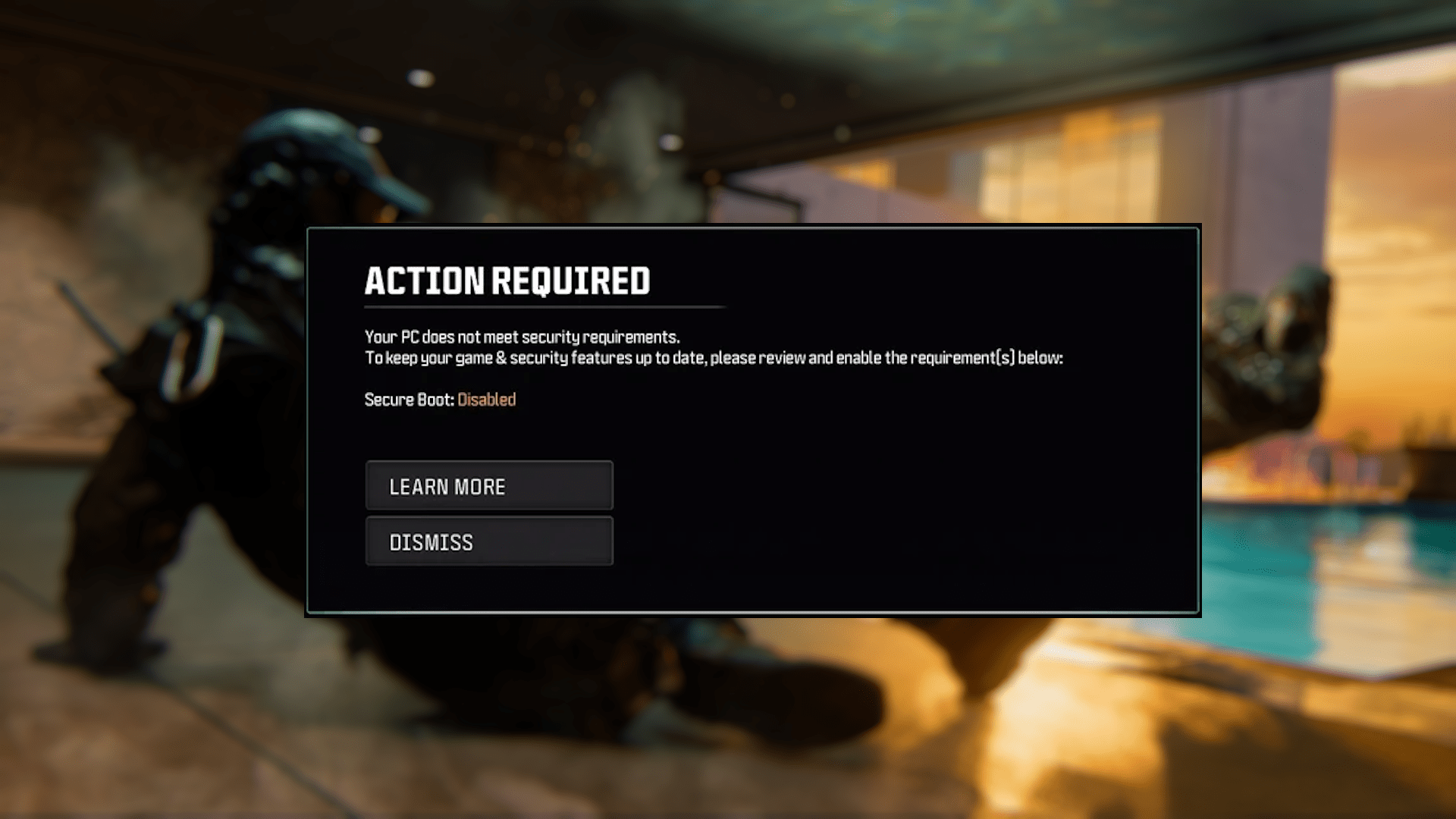
If you are getting the Secure Boot Error in Black Ops 7, you might see the message:
“Your PC does not meet security requirements.”
“Secure Boot: Disabled”
This error means that your computer does not have one or both of the required features enabled. This message can appear even on modern systems if Secure Boot or TPM 2.0 is disabled in the BIOS. Fortunately, it can be fixed in just a few minutes.
Before changing anything, it’s helpful to check whether your system already supports Secure Boot.
How to Check if Secure Boot is Supported for Black Ops 7
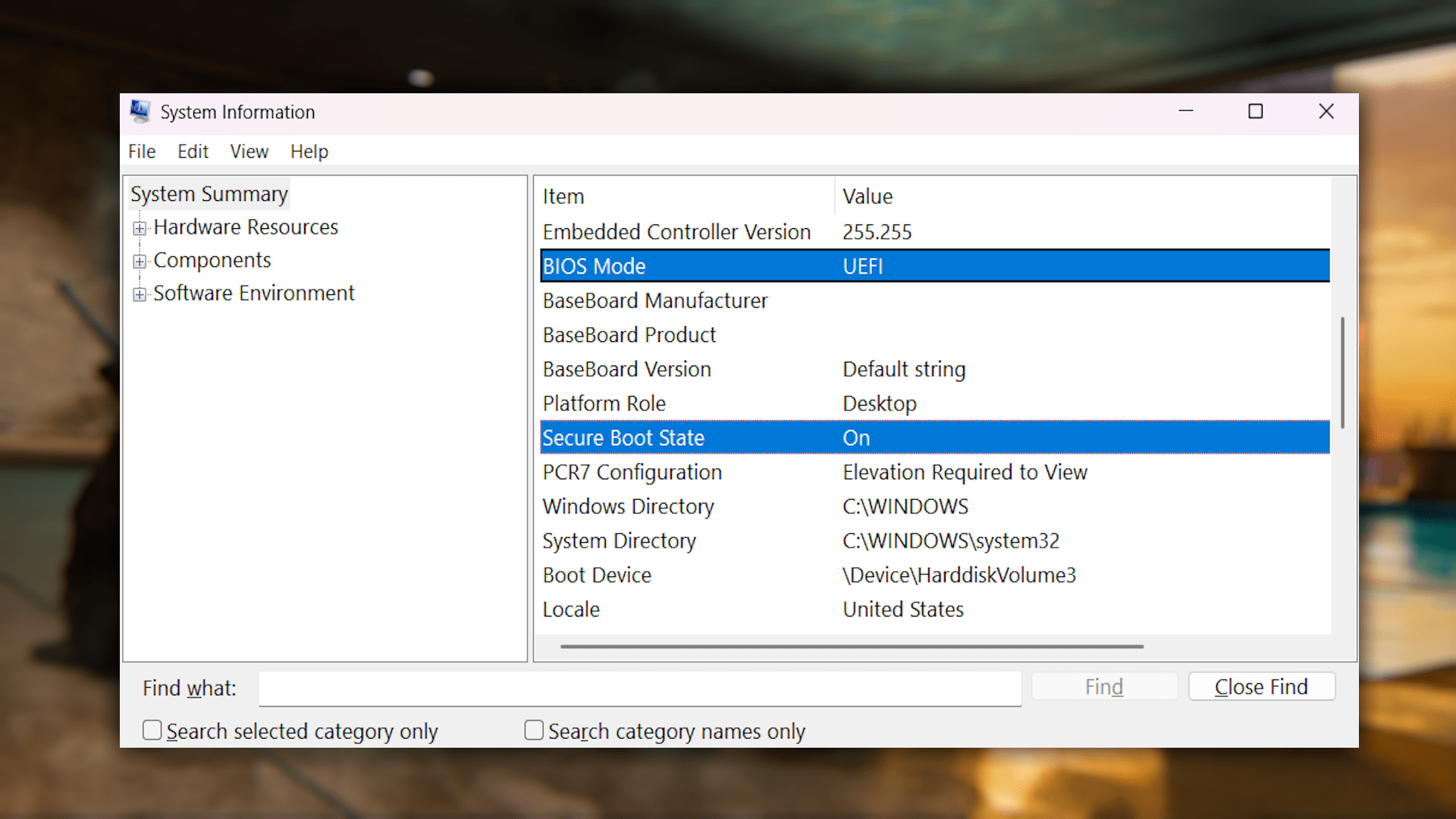
If you are unsure whether your PC supports Secure Boot for Black Ops 7, you can check using Windows System Information.
- Press Windows Key + R, type msinfo32, and press Enter.
- Under System Summary, look for:
- BIOS Mode: Must show UEFI.
- Secure Boot State:
- “On” means Secure Boot is enabled.
- “Off” means it’s supported but disabled.
- “Unsupported” means your hardware does not support Secure Boot.
If your BIOS Mode is set to Legacy, you’ll need to switch to UEFI in BIOS and ensure your system drive uses the GPT format. You can check this by right-clicking your Windows drive in Disk Management, selecting Properties → Volumes, and confirming that Partition Style: GPT.
How to Enable Secure Boot for Black Ops 7
❗ Before making any BIOS changes, we recommend you to back up your data and review your motherboard manual for exact instructions.
To enable Secure Boot for Black Ops 7, restart your computer and open your BIOS or UEFI settings. You can do this by pressing DEL, F2, or F10 repeatedly during startup. Alternatively, you can access UEFI from Windows by navigating to:
- Windows 11: Settings → System → Recovery → Advanced Startup → Restart Now
- Windows 10: Settings → Update & Security → Recovery → Advanced Startup → Restart Now
Once inside the BIOS:
- Navigate to the Boot, Security, or Authentication menu.
- Find the Secure Boot option and enable it.
- If your BIOS lists “Enabled but Not Active,” save and reboot — this activates Secure Boot.
- Press F10 to save changes and exit.
- Back in Windows, open msinfo32 again and verify that Secure Boot State now says On.
If Secure Boot is unavailable, check that your Boot Mode is set to UEFI and that your system drive uses the GPT partition style. Systems using Legacy Boot Mode or MBR partitions will need to be converted before Secure Boot can be enabled.
Once you have fixed the error that prevents you from playing Black Ops 7, you can jump straight into the game! If you want to skip leveling to avoid even more hassle after having to deal with a Secure Boot error, our BO7 Leveling service is exactly what you are looking for.
Black Ops 7 TPM 2.0
TPM 2.0 is another security feature that has to be enabled for Black Ops 7. The Trusted Platform Module (TPM 2.0) is a small security chip built into most modern motherboards or CPUs. It stores encryption keys, verifies your operating system’s integrity, and ensures that critical security checks occur during startup. TPM 2.0 is already a requirement for Windows 11, but it’s now also mandatory for Call of Duty: Black Ops 7.
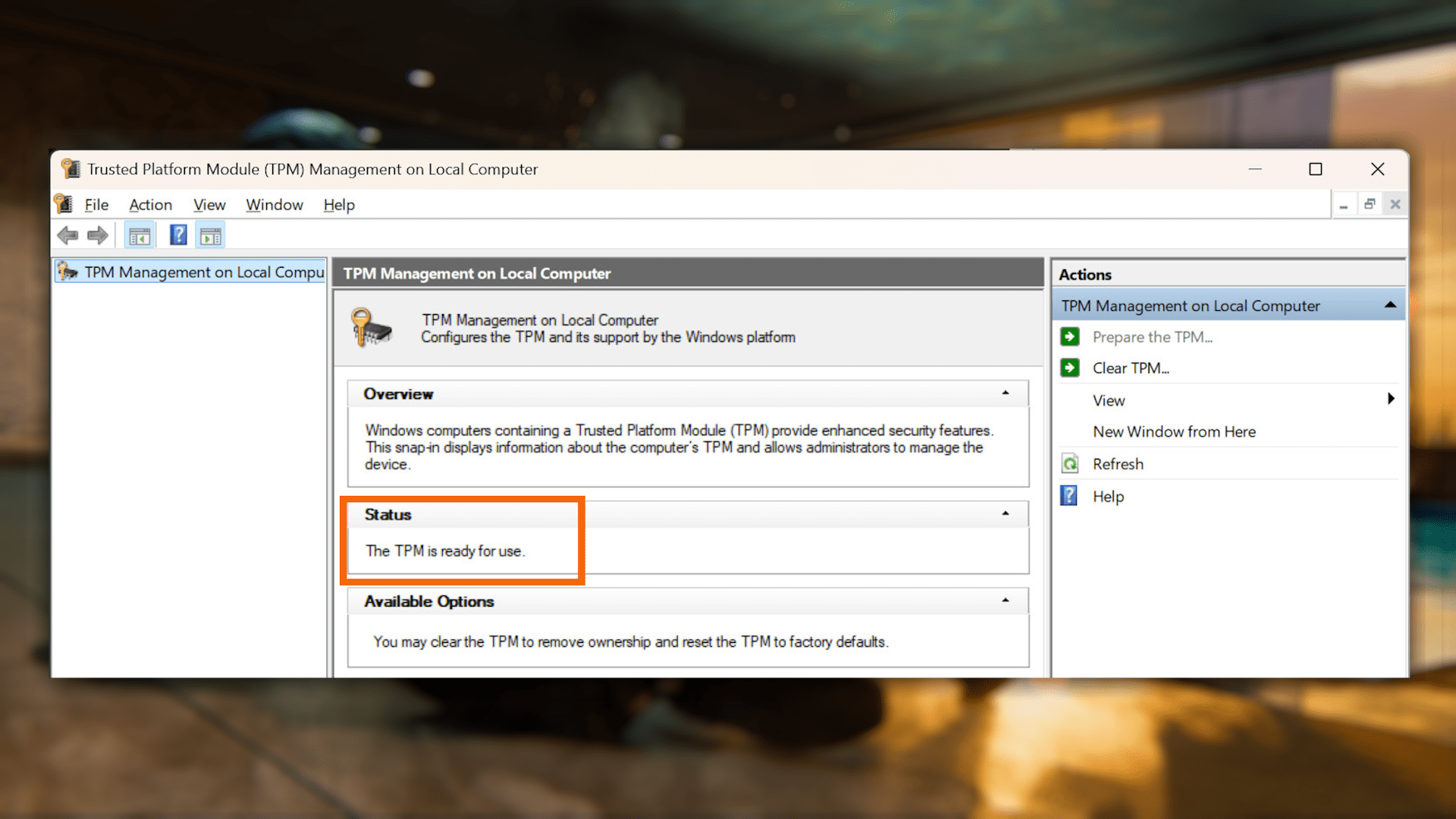
To check whether TPM 2.0 is enabled on your PC:
- Press Windows Key + R to open the Run dialog.
- Type tpm.msc and press Enter.
- Look under Status:
- If it says “The TPM is ready for use”, you’re good to go.
- If it says “Compatible TPM cannot be found”, TPM might be disabled in the BIOS.
To enable TPM 2.0, restart your PC and enter the BIOS again. Look for a setting named Intel PTT, AMD fTPM, or Security Device Support under the Advanced, Security, or Trusted Computing menu. Enable the appropriate setting for your CPU type, save your changes, and reboot.
After restarting, repeat the tpm.msc check to confirm TPM 2.0 is active. You should now be able to start Black Ops 7! If you want to get better at the game and top the leaderboards early, our Coaching is exactly what you are looking for!
Black Ops 7 OS Firmware Update Required
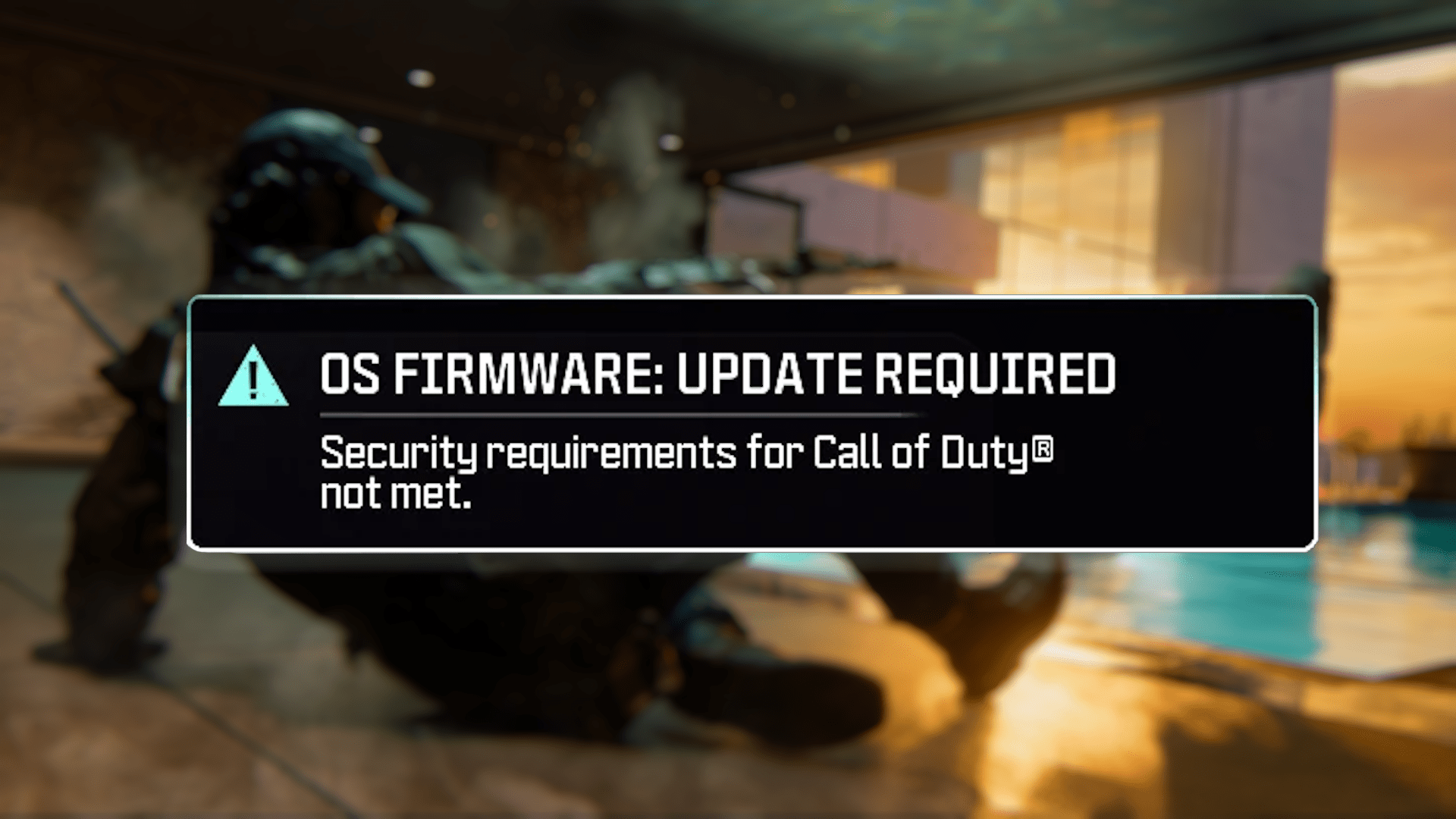
Some players encounter an “OS FIRMWARE: UPDATE REQUIRED” message when booting up Black Ops 7, even after enabling Secure Boot. This often appears briefly when launching the game and disappears before you can interact with it.
In most cases, this message refers to your BIOS version being out of date. Updating your BIOS typically resolves the issue.
- Check your motherboard manufacturer’s website for the latest BIOS version.
- Follow their official instructions to safely update your BIOS.
After updating, you may need to re-enable Secure Boot and XMP/EXPO profiles for your memory. Updating BIOS resets many settings to default, so verify everything afterward before restarting the game.
Why is Secure Boot Needed for Black Ops 7?
Call of Duty: Black Ops 7 requires both Secure Boot and TPM 2.0 to properly run its updated Ricochet anti-cheat system. These two Windows security features work together to protect the game from tampering and block unauthorized programs from loading before the operating system starts.
Secure Boot ensures that only trusted, signed software and drivers can run when your PC powers on, helping to prevent rootkits or malicious loaders from interfering with the system. TPM 2.0 (Trusted Platform Module) provides an additional layer of protection by storing cryptographic keys and validating that the system’s firmware and boot files haven’t been altered.
These settings make it much harder for cheat tools to gain low-level access to the game or inject code during startup, which is one of the main ways cheats operate in online games. While many users may not typically enable Secure Boot or TPM 2.0, both are now required for Black Ops 7 to ensure the integrity of Ricochet’s kernel-level protection.
We don’t use cheats during our services, so if you want to increase your BO7 Prestige, you have come to the right place.
Black Ops 7 Secure Boot FAQ
If you are getting security requirement errors or need help enabling TPM 2.0 and Secure Boot, these quick answers cover the most common questions that you might have.
Why TPM 2.0 and Secure Boot are Needed for Black Ops 7?
They protect your system from unauthorized software and are required for the Ricochet anti-cheat system in Call of Duty: Black Ops 7.
What are the Requirements for TPM 2.0 and Secure Boot in Black Ops 7?
Your PC must use UEFI mode with Secure Boot and TPM 2.0 enabled in BIOS to meet the game’s security standards.
Can I Play Black Ops 7 if I Don’t Enable TPM 2.0 and Secure Boot?
Black Ops 7 won’t launch and will show the “Your PC does not meet security requirements” message.
How Do I Check if Secure Boot is Enabled On My PC for Black Ops 7?
Press Windows + R, type msinfo32, and look for “Secure Boot State: On” under System Summary.
How do I Check if TPM 2.0 is Enabled on my PC for Black Ops 7?
Press Windows + R, type tpm.msc, and check the status window.
4.9Once Secure Boot and TPM 2.0 are turned on, the “security requirements” message will disappear, and you can start the game up. With everything set up, you should be good to go. Enjoy Call of Duty Black Ops 7!
