This Modern Warfare 4 Best Settings guide covers graphics, controls, visibility, and audio settings, with starting values you can adjust around your setup. The best Call of Duty Modern Warfare 4 settings will help you get better targets, a consistent frame rate, and controllable aim. There is no point in high sensitivity if you keep dragging your aim past someone standing behind a door. Similarly, high FPS does not matter when there is lag due to explosions.
Best Settings for Modern Warfare 4 Key Takeaways:
- PC graphics: Turn off ray tracing reflections, minimize costly lighting, and keep motion blur off for both settings.
- Upscaling: Test Quality at 1440p or 4K in case your GPU needs a boost; native rendering at 1080p is an option.
- Frame generation: Off for your first competitive profile and assess performance based on render FPS.
- Controller sensitivity: Try horizontal and vertical 1.60, then make incremental changes after that.
- Deadzone: Begin with 3–5 for stick minimums and only raise it until drift is eliminated.
- FOV: Start somewhere between 105-110; PC players can test Enhanced FOV as well at the same minimum base value.
- Audio: Try Headphones, turn off gameplay music, and keep voice chat muted relative to sound effects.
- Console display: Select Game Mode and enable one of the high refresh rates that your display and console support.
 4.9
4.9Modern Warfare 4 Best Settings Overall
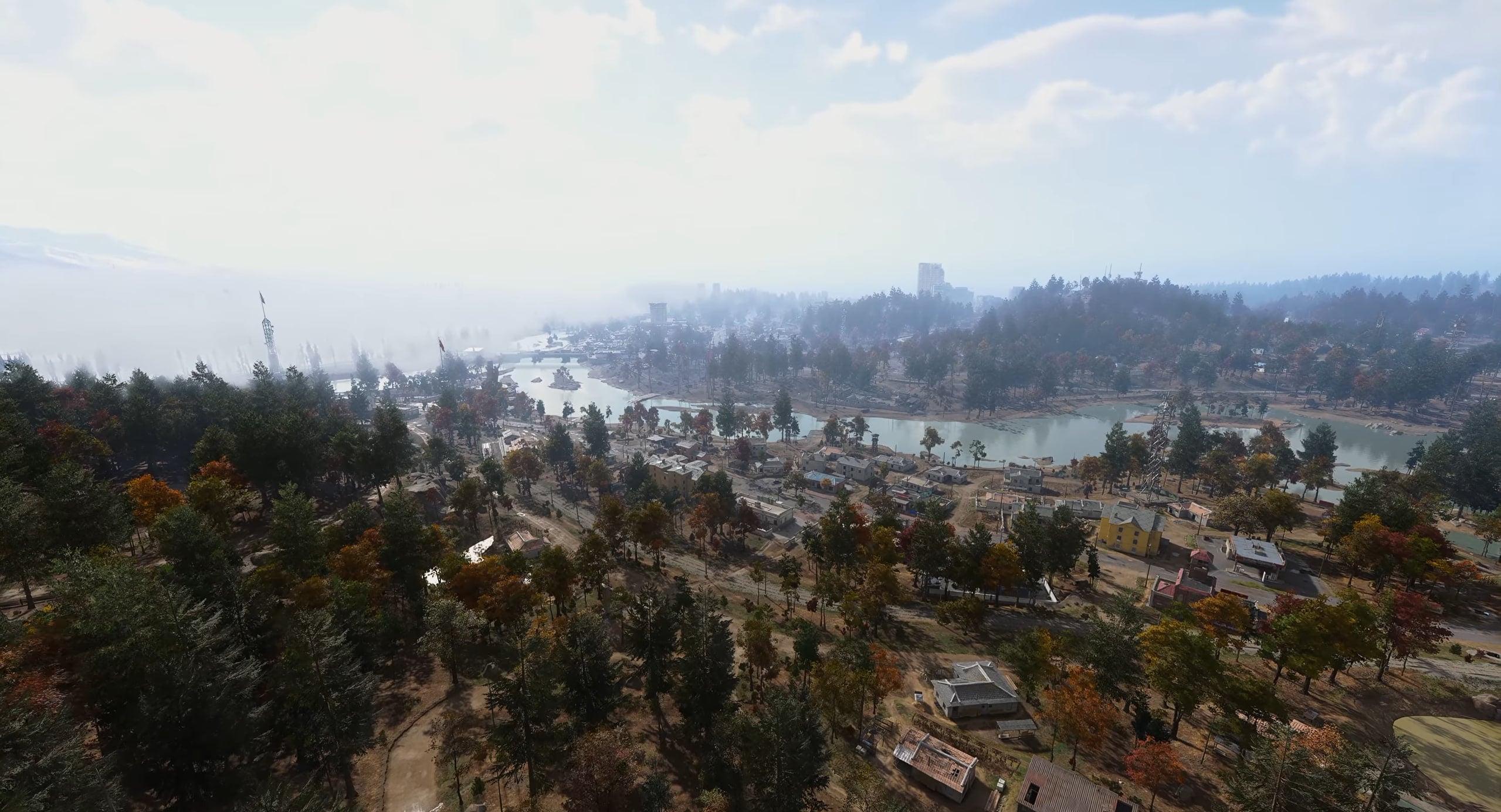
The best settings for Modern Warfare 4 help you achieve a realistic starting configuration for multiplayer play. This configuration prefers easily observable gameplay along with controllable controls. The settings allow for different types of hardware as well. Follow the detailed CoD Modern Warfare 4 Best Settings table below:
| Setting | Recommended Value |
|---|---|
| Graphics Preset | Custom |
| Display Resolution | Your monitor’s native resolution |
| Screen Refresh Rate | Highest supported value |
| Render Resolution | 100% when upscaling is off |
| Upscaling / Sharpening | DLSS, FSR, or XeSS: Quality at 1440p or 4K; compare native rendering at 1080p |
| Texture Resolution | High; use Normal if video memory becomes a problem |
| Texture Filter Anisotropic | High |
| Detail Quality | High |
| Particle Resolution | High; lower it if busy fights cause frame drops |
| Shader Quality | High |
| Shadow Quality | High |
| Shadow Filtering Quality | High |
| Screen Space Reflections | Enabled |
| Volumetric Quality | High; lower it if fog-heavy scenes feel choppy |
| Ray Tracing Reflections | Off initially; optional with enough performance headroom |
| World Motion Blur | Off |
| Weapon Motion Blur | Off |
| World Depth of Field | Off |
| Weapon Depth of Field | On for a more cinematic weapon presentation |
| Frame Generation | Off for multiplayer; optional for campaign |
| NVIDIA Reflex Low Latency | On with a compatible NVIDIA GPU |
| HDR | On with a compatible, properly calibrated HDR display |
| Gameplay Frame Rate Limit | A sustainable cap, such as 120 FPS when your PC can maintain it |
| Audio Mix | Headphones when using a headset |
More unlocked weapons give you extra loadouts to test with your new settings. MW4 Military Rank Leveling helps you reach your chosen rank and unlock base weapons. It’s a useful option for expanding your weapon selection with less time spent on the rank grind.
Modern Warfare 4 Best Multiplayer Settings
Modern Warfare multiplayer settings prioritize clear targets, responsive controls, and steady frame rates during busy fights. Use the Modern Warfare 4 best settings for multiplayer table below to set up graphics, controls, and audio for multiplayer matches.
| Setting | Recommended Multiplayer Value |
|---|---|
| Graphics Preset (PC) | Custom |
| Texture Resolution (PC) | Normal; use High when video memory allows |
| Particle Resolution (PC) | Low |
| Shadow Quality (PC) | Low; compare Normal if visibility suffers |
| Ray Tracing Reflections (PC) | Off |
| Upscaling / Sharpening (PC) | Quality if GPU load limits FPS; compare native rendering when performance allows |
| Frame Generation (PC) | Off |
| NVIDIA Reflex Low Latency (PC) | On with a compatible NVIDIA GPU |
| Gameplay Frame Rate Limit (PC) | A level your PC can sustain during busy fights |
| Console High Refresh Mode | Enable when available with a compatible display |
| World Motion Blur | Off |
| Weapon Motion Blur | Off |
| World Depth of Field | Off where available |
| Weapon Depth of Field | Off where available |
| Field of View | 105–110 initially |
| Enhanced FOV (PC) | On; disable it if edge distortion distracts you |
| 1st Person Camera Movement | Minimal, 25% |
| Horizontal / Vertical Controller Sensitivity | 1.60 / 1.60 initially |
| Controller ADS Sensitivity Multiplier | 0.95 |
| Target Aim Assist | On when using a controller |
| Stick Minimum Deadzones | 3–5; raise them only enough to remove drift |
| Controller Vibration | Off |
| Aim Down Sight Behavior | Hold |
| Interact/Reload Behavior | Prioritize Reload |
| Audio Mix | Headphones when using a headset |
| Gameplay Music Volume | 0 |
| Voice Chat Volume | Around 40–60; keep teammates audible without covering useful game sounds |
Modern Warfare 4 Best PC Settings
The MW4 best PC settings start with your monitor, frame timing, and input latency. Then, you figure out your texture quality. If not, you’ll be tweaking your graphics settings for hours just to realize that you use the wrong refresh rate. Here you can find Call of Duty Modern Warfare 4 Best PC Settings:
| Setting | Recommended Value |
|---|---|
| Graphics Preset | Custom |
| Display Mode | Fullscreen Exclusive; use Borderless if you prefer easier multitasking |
| Display Monitor | Your main gaming monitor |
| Display Adapter | Your gaming GPU |
| Display Resolution | Your monitor’s native resolution |
| Screen Refresh Rate | Highest supported value |
| Render Resolution | 100% when upscaling is off |
| Upscaling / Sharpening | DLSS, FSR, or XeSS: Quality at 1440p or 4K; compare native rendering at 1080p |
| Texture Resolution | High; reduce to Normal if video memory becomes a problem |
| Texture Filter Anisotropic | High |
| Detail Quality | High |
| Shader Quality | High |
| Shadow Quality | High |
| Screen Space Reflections | Enabled |
| Volumetric Quality | High; lower it if fog-heavy scenes cause frame drops |
| Ray Tracing Reflections | Off initially; optional if your PC maintains your target frame rate |
| VRAM Scale Target | Around 80 as a starting point |
| World Motion Blur | Off |
| Weapon Motion Blur | Off |
| World Depth of Field | Off |
| Weapon Depth of Field | On for a more cinematic weapon presentation |
| NVIDIA Reflex Low Latency | On with a compatible NVIDIA GPU |
| Frame Generation | Off for multiplayer; optional for campaign |
| V-Sync (Gameplay) | Off initially; compare your display’s VRR setup if tearing appears |
| Gameplay Frame Rate Limit | A sustainable cap, such as 120 FPS when your PC can maintain it |
| Menu Frame Rate Limit | 60 FPS |
| Out-of-Focus Frame Rate Limit | 30 FPS |
| Background Shader Preloading | On |
| On-Demand Texture Streaming | Optimized; limit downloads if they affect your connection |
| HDR | On with a compatible, properly calibrated HDR display |
| Field of View | 105–110 |
| Enhanced FOV | On; disable it if edge distortion distracts you |
Modern Warfare 4 Best Display Settings
Choose your gaming monitor and its highest supported refresh rate. Then check that the game uses your intended graphics card and display resolution. Use these Modern Warfare 4 Display settings:
| Setting | Recommendation |
|---|---|
| Display Mode | Fullscreen Exclusive, if available; compare Borderless if it behaves better |
| Display Resolution | Your monitor’s native resolution |
| Screen Refresh Rate | Highest supported value |
| Render Resolution | 100% when testing native rendering |
| V-Sync (Gameplay) | Off for the initial low latency profile |
| Custom Gameplay Frame Rate Limit | A value your PC can sustain during busy fights |
| Menu Frame Rate Limit | 60 FPS |
| Out-of-Focus Frame Rate Limit | 30 FPS |
| NVIDIA Reflex Low Latency | On with a compatible NVIDIA GPU |
| Background Shader Preloading | On |
Modern Warfare 4 Best Upscaling Settings
Utilize DLSS, FSR, or XeSS when the GPU load makes you unable to get your targeted FPS. With 1440p and 4K, the Quality setting offers a fair comparison to a native render. With 1080p, verify distant targets since the lower internal resolution might cause softening of small details.
The game designers support DLSS 4.5, FSR Redstone, and XeSS 3. The availability of these features depends on your computer and chosen one of them. Select the supported upscaler that will make moving targets clearer to see.
Disable frame generation during your competitive setup. Frame generation will provide smooth movement, but they do not refresh your game state like new renders do. The increased number on screen cannot indicate faster responsiveness. Test frame generation separately during your single-player gameplay.
Modern Warfare 4 Best Graphics Settings
The best Modern Warfare 4 graphics settings take into account the balance between target visibility and your GPU load. First of all, reduce reflections, volumetrics, and any other costly effects, and then make everything blurry. There is a special consideration regarding texture quality since it depends on video RAM. Use these Modern Warfare 4 graphics settings:
| Setting | Competitive Starting Point |
|---|---|
| Texture Resolution | Normal; try High when video memory allows |
| Texture Filter Anisotropic | High |
| Detail Quality | Low |
| Particle Resolution | Low |
| Shading Quality | Low |
| Shadow Quality | Low initially; compare Normal if visibility suffers |
| Shadow Filtering Quality | Low |
| Screen Space Shadows | Off initially |
| Occlusion and Screen Space Lighting | Off initially |
| Screen Space Reflections | Off |
| Ray Tracing Reflections | Off |
| Volumetric Quality | Low |
| Water Quality | Low |
| World Motion Blur | Off |
| Weapon Motion Blur | Off |
| World Depth of Field | Off |
| Weapon Depth of Field | Off initially; test separately if you prefer its presentation |
| VRAM Scale Target | Around 80 as a starting point |
| On-Demand Texture Streaming | Optimized; limit downloads if your connection is busy |
Once your MW4 settings feel comfortable, you can focus on your next progression goal. MW4 Prestige Progression helps you reach your chosen Prestige and collect the rewards tied to it. That leaves more of your gaming time for the modes and loadouts you enjoy.
Modern Warfare 4 Best Settings for FPS
The best Modern Warfare 4 settings for FPS will ensure less rendering, which will allow your GPU to render frames more quickly. Apply the following settings where fast frame rates are required in multiplayer battles. These Modern Warfare 4 best settings for FPS can help you:
| Setting | Recommended FPS Value |
|---|---|
| Graphics Preset | Custom |
| V-Sync (Gameplay) | Off |
| Gameplay Frame Rate Limit | Unlimited while comparing rendered FPS; set your preferred cap afterward |
| Upscaling / Sharpening | Balanced when GPU-limited; use Quality if distant targets look too soft |
| Frame Generation | Off while comparing rendered FPS |
| Texture Resolution | Normal; lower it if video memory becomes a problem |
| Texture Filter Anisotropic | High |
| Detail Quality | Low |
| Particle Resolution | Low |
| Shader Quality | Low |
| Shading Quality | Low |
| Shadow Quality | Low |
| Shadow Filtering Quality | Low |
| Screen Space Shadows | Off |
| Occlusion and Screen Space Lighting | Off |
| Screen Space Reflections | Off |
| Ray Tracing Reflections | Off |
| Volumetric Quality | Low |
| Water Quality | Lowest available |
| World Motion Blur | Off |
| Weapon Motion Blur | Off |
| World Depth of Field | Off |
| Weapon Depth of Field | Off |
Modern Warfare 4 Best Settings for Performance
The best settings for performance in MW4 focus on steady frame pacing and responsive inputs. A consistent frame rate makes tracking easier when smoke, explosions, and several players fill an objective. Use this Modern Warfare 4 Best settings for performance profile when your game keeps switching between smooth movement and sudden drops.
| Setting | Recommended Performance Value |
|---|---|
| Display Mode | Fullscreen Exclusive; compare Borderless if it behaves better on your PC |
| Screen Refresh Rate | Highest supported value |
| Gameplay Frame Rate Limit | A level your PC can sustain during busy fights |
| Menu Frame Rate Limit | 60 FPS |
| Out-of-Focus Frame Rate Limit | 30 FPS |
| NVIDIA Reflex Low Latency | On with a compatible NVIDIA GPU |
| Frame Generation | Off for multiplayer while tuning response and frame pacing |
| Background Shader Preloading | On; finish preparation before comparing performance |
| Texture Resolution | Normal initially; raise it when video memory allows |
| VRAM Scale Target | Around 80 initially; adjust if you observe memory pressure |
| On-Demand Texture Streaming | Optimized; limit downloads if they affect your connection |
| Windows Game Mode | On |
Modern Warfare 4 Settings for Low-End PC
For MW4 settings for low-end PC, remove expensive effects before sacrificing target clarity. Eliminate costly features, but only after checking which aspect of performance is affected by your lag. This will prevent you from reducing resolution if there are other bottlenecks.
- Disable ray tracing, decrease shadows, volumetric, particle, and shading effects.
- Complete the preparation of shaders before evaluating stuttering in the game.
- Decrease texture resolution when the amount of RAM used is close to the available limit on your graphics card.
- Apply Quality upscaling if GPU usage affects FPS; Balanced is an option if you have to make a sacrifice.
- Limit FPS to a value that your PC can sustain in intensive scenes.
- Stop any unnecessary recording and downloading processes and repeat the check.
Modern Warfare 4 Best Controller Settings
The best MW4 controller settings should let you turn quickly without losing a moving target. We recommend 1.60 as a trial value on the beta’s decimal sensitivity scale. Treat it as a starting point, then tune your own controller.
| Setting | Recommended Starting Point |
|---|---|
| Button Layout | Tactical without paddles; your familiar layout with paddles |
| Stick Layout Preset | Default |
| Horizontal Stick Sensitivity | 1.60 |
| Vertical Stick Sensitivity | 1.60 |
| ADS Sensitivity Multiplier | 0.95 |
| Aim Response Curve Type | Dynamic |
| ADS Sensitivity Transition Timing | Instant |
| Target Aim Assist | On |
| ADS Aim Assist | On, if your build shows this separate option |
| Controller Vibration | Off |
| Motion Sensor Function Behavior | Off unless you already prefer gyro aiming |
Modern Warfare 4 Best Controller Deadzone Settings
Minimum dead zones control in MW4 mean how much you need to move the stick before anything happens. Lower settings may make your controls seem more sensitive, but you could run into problems with old joysticks.
| Deadzone Setting | Starting Value |
|---|---|
| Left Stick Min | 3–5 |
| Left Stick Max | 70 |
| Right Stick Min | 3–5 |
| Right Stick Max | 99 |
| Left Trigger | 0–3 |
| Right Trigger | 0–3 |
Modern Warfare 4 Best Mouse Settings
When it comes to CoD MW4 mouse and keyboard settings, choose a mouse sensitivity that you can adjust while tracking targets. As a first step, we suggest 800 DPI and 4.00 sensitivity. Make sure to keep your acceleration and mouse smoothing disabled.
| Setting | Recommended Starting Point |
|---|---|
| Aiming Input Device | Mouse |
| Mouse DPI | 800 |
| In-game Mouse Sensitivity | Try 4.00, then adjust around your mousepad and aim |
| ADS Sensitivity Multiplier | 1.00 initially |
| Mouse Acceleration | 0 |
| Mouse Filtering | 0 |
| Mouse Smoothing | Off |
| Mouse Polling Rate | 1000 Hz initially |
Modern Warfare 4 Best Keyboard Settings
The optimal MW4 keyboard settings ensure easy access to movement and equipment. Make sure that your crouch and prone binds are separate from each other, as they need to perform different actions. The Modern Warfare 4 Best Keyboard bindings below are suggested choices you can change around your hand position:
| Action | Suggested Key |
|---|---|
| Move | W / A / S / D |
| Jump / Mantle | Space |
| Sprint / Tactical Sprint | Left Shift |
| Crouch / Slide | C |
| Prone | Left Ctrl |
| Reload | R |
| Interact | F |
| Tactical Equipment | Q |
| Lethal Equipment | E |
| Melee | V |
| Select Primary / Secondary Weapon | 1 / 2 |
Modern Warfare 4 Best FOV Settings
For MW4 best FOV settings, start around 105–110 and check targets at the distances you normally fight. A wider conventional FOV shows more of the room but makes distant enemies appear smaller. On a smaller screen, slightly lower values may feel easier to read. Use these Modern Warfare 4 FOV Settings:
| View Setting | Recommendation |
|---|---|
| Field of View | 105–110 initially |
| Enhanced FOV | PC only; compare Off and On at the same base FOV |
| 1st Person Camera Movement | Minimal, 25% |
| 3rd Person Camera Movement | Minimal, 25%, when relevant |
| Inverted Flashbang | Personal preference; On replaces the bright flash presentation |
Modern Warfare 4 Best Movement Settings
The optimal movement settings in MW4 will make your desired move simple to execute. Automated moves will enable you to navigate through the map, but they might surprise you when you are close to cover. Start with manual movement and then add support to your path.
| Setting | Recommended Starting Point |
|---|---|
| Sprint Assist | Off initially; test Tactical Sprint Assist for aggressive movement |
| Mantle Assist | Off |
| Slide/Dive Behavior | Tap to Slide; try Hybrid if you regularly use both actions |
| Slide Maintains Sprint | On |
| Sprint/Tactical Sprint Behavior | Toggle |
| Tactical Sprint Activation | Single Tap Sprint |
| Auto Move Forward | Off |
| Auto Door Peek | Off |
Modern Warfare 4 Best Combat Settings
The best settings for the MW4 combat system make aiming, reloading, and using equipment predictable. Controlling your aim is in your hands by using ADS. Your interaction priority should be according to the mode you usually play.
| Setting | Recommended Starting Point |
|---|---|
| Aim Down Sight Behavior | Hold |
| Interact/Reload Behavior | Prioritize Reload for multiplayer; compare Prioritize Interact for DMZ |
| Manual Fire Behavior | Press |
| Equipment Behavior | Hold |
| Weapon Mount Activation | ADS + Melee |
| Focus Behavior | Hold |
| Depleted Ammo Weapon Switch | On |
| Armor Plate Behavior | Apply All when using armor plates in DMZ |
Modern Warfare 4 Best Audio Settings
The MW4 audio settings begin by ensuring that the correct output is set, along with the mix of the audio that suits your headset. Remove any audio that may interfere with the sound of footsteps and any helpful call-outs. Music or voice chatting may block out important audio cues.
| Audio Setting | Recommended Starting Point |
|---|---|
| Speakers/Headphones Game Sound Device | Select your actual headset or speakers |
| Audio Mix | Headphones when using a headset |
| Master Game Volume | A comfortable level; try 70 and adjust |
| Gameplay Music Volume | 0 |
| Cinematic Music Volume | 0 for multiplayer |
| Effects Volume | 100 relative to the other game sliders |
| Dialogue Volume | Around 50 |
| Voice Chat Volume | Around 40–60 |
| Mono Audio | Off for directional stereo |
| Microphone Mode | Push to Talk on keyboard |
Modern Warfare 4 Best Xbox Settings
Check your Xbox Series X|S output settings before adjusting sensitivity inside the game. Then use the MW4 best Xbox settings table below to configure the display, camera, and controller.
| Setting | Recommendation |
|---|---|
| TV or Monitor Picture Mode | Game Mode |
| Xbox Refresh Rate | 120 Hz when your display and connection support it |
| In-game High Refresh Option | Enable when available for your console |
| Variable Refresh Rate | Enable with a compatible display |
| HDR | Enable on a compatible, calibrated HDR display |
| Controller Vibration | Off for the competitive profile |
| Horizontal / Vertical Sensitivity | 1.60 / 1.60 initially |
| ADS Sensitivity Multiplier | 0.95 |
| Target Aim Assist | On |
| Stick Minimum Deadzones | 3–5; raise them only enough to remove drift |
| Field of View | 105–110 initially |
| 1st Person Camera Movement | Minimal, 25% |
Modern Warfare 4 Best PS5 Settings
The Best Settings for MW4 on PS5 provide you with clarity of movement, responsive aim, and your monitor’s compatibility with different output modes. Set 120 Hz Output to Auto if your monitor can support it. After that, set up the controller sensitivity and the camera sensitivity.
| Setting | Recommendation |
|---|---|
| TV or Monitor Picture Mode | Game Mode |
| PS5 Resolution | Automatic |
| PS5 120 Hz Output | Automatic with a compatible display |
| In-game High Refresh Option | Enable with a compatible display |
| PS5 VRR | Automatic with a compatible display |
| PS5 HDR | On When Supported; calibrate HDR first |
| Controller Vibration | Off for the competitive profile |
| Adaptive Trigger Effects | Off for the competitive profile |
| Horizontal / Vertical Sensitivity | 1.60 / 1.60 initially |
| ADS Sensitivity Multiplier | 0.95 |
| Target Aim Assist | On |
| Stick Minimum Deadzones | 3–5; raise them only enough to remove drift |
| Field of View | 105–110 initially |
| 1st Person Camera Movement | Minimal, 25% |
Modern Warfare 4 Settings FAQ
Modern Warfare 4 Settings FAQ covers the settings players usually want to change first.
What Are the Best MW4 Settings for Multiplayer?
Disable motion blur, reduce expensive lighting, and choose a frame rate your hardware can maintain. Keep aim settings comfortable and calibrate deadzones around drift. For audio, remove gameplay music and keep voice chat below effects.
What Controller Sensitivity Should I Use in MW4?
Try 1.60 horizontally and vertically on the beta’s decimal scale, with a 0.95 ADS multiplier. Lower values if you repeatedly overshoot targets. Raise them gradually if you struggle to turn or follow movement.
What Is the Best FOV for MW4?
Start around 105–110, then check distant targets and your peripheral awareness. PC players should also compare Enhanced FOV at the same base value. Choose the view that keeps fights easiest to read.
Should I Use Frame Generation in MW4?
Leave it off for your initial competitive profile. It adds displayed frames without an equivalent increase in game simulation updates. Compare it separately for campaign play after your rendered frame rate feels stable.
How Can I Hear Footsteps Better in MW4?
Select your actual output device, try Headphones, and set gameplay music to zero. Keep voice chat low enough to hear movement underneath it. Compare audio processing carefully, since nearby gunfire can still mask footsteps.
Why Does MW4 Stutter Even With High FPS?
Average FPS can hide shader preparation, memory pressure, or background activity. Check when the stutter appears and whether it follows effects or mouse movement. Then test one cause at a time using the same route.
4.9This Modern Warfare 4 Best Settings 2026 guide gives you a practical profile to build around your hardware and habits. Sort frame pacing first, then tune aim, FOV, and audio in separate passes. Once tracking feels controlled, give the setup several matches before changing it again. The menu grind should end with a setup you can trust during an actual fight.
