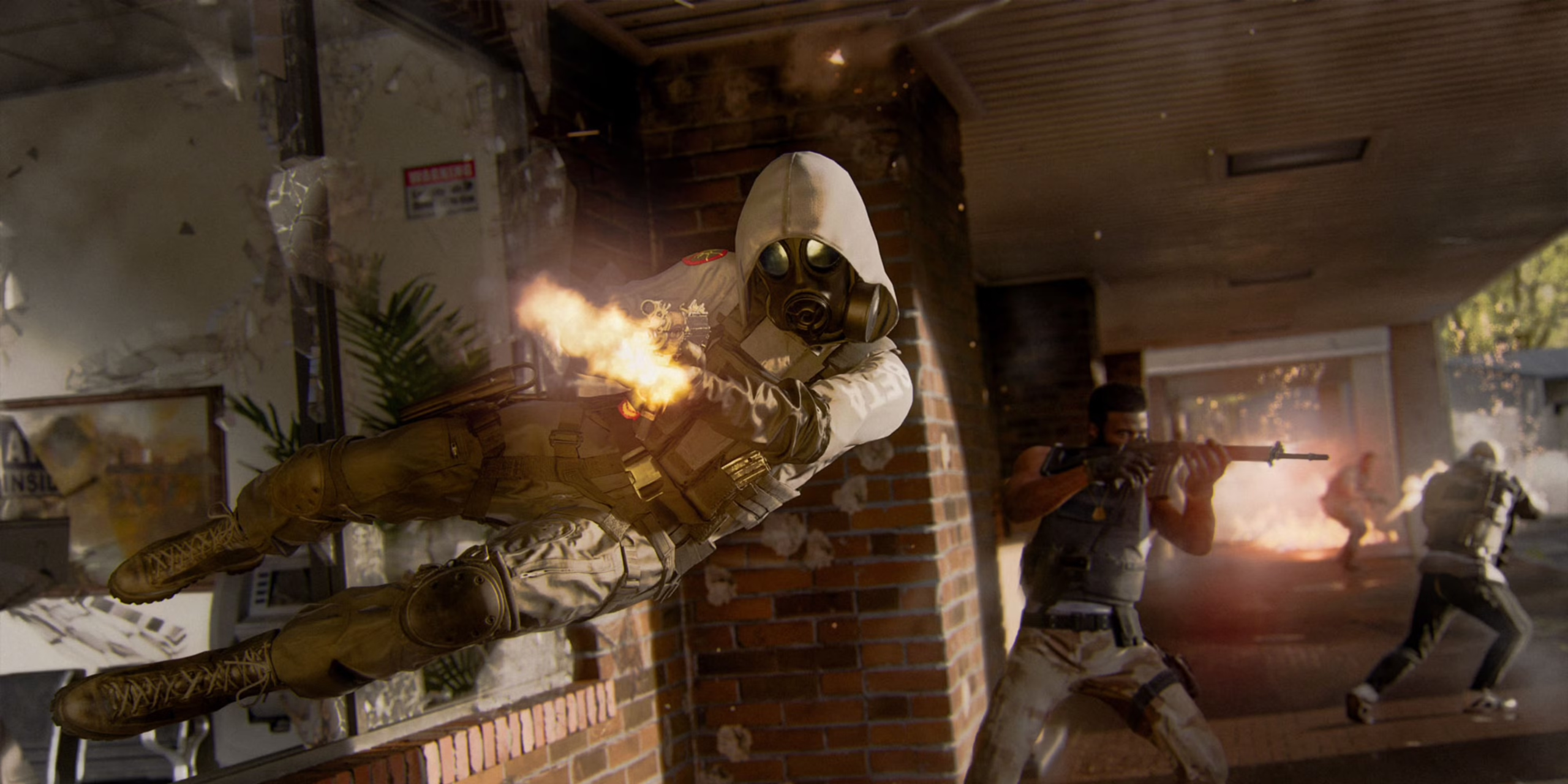
With the release of Season 2 in BO6, we decided to create the Best Settings for BO6 guide for you. In our BO6 Settings guide, we will share the best game settings for the game and multiplayer, as well as controller configurations. With these optimal settings, you should be able to play more comfortably and take down your opponents!
Optimize your gameplay with these carefully selected performance settings designed to maximize responsiveness, reduce input lag, and maintain smooth FPS. With these BO6 Performance settings, you’ll be able to enjoy convenient and precise aiming of your stunning weapon camo, and if you haven’t unlocked all the weapons and camo yet, we can help you obtain them!
Display Settings
Setting Name
Parameter
Description
Display Mode
Fullscreen or Borderless
Runs the game in borderless (full-screen, optional) for shorter transition times and easier use with alt-tab.
Aspect Ratio
Automatic
Adjusts aspect ratio for the best fit for your monitor.
Display Gamma
2.2 [sRGB]
Adjusts gamma to 2.2, equivalent to the ideal norm for contrast and brightness in sRGB.
Nvidia Reflex Low Latency
On
Optimizes pipeline for less system lag and snappier input.
Sustainability Settings
Setting Name
Parameter
Description
Eco Mode Preset
Custom
Turns on a configurable power-saving feature for best performance with least consumption.
V-Sync (Gameplay)
Off
Turns off V-Sync in-game for least input lag.
V-Sync (Menus)
Off
Turns off V-Sync in menu for less lag.
Custom Frame Rate Limit (Gameplay)
60, 120, or 144 FPS
Adjusts for in-game maximum FPS according to your computer capabilities.
Custom Frame Rate Limit (Menu)
60
Limits menu FPS to 60 for performance uniformity.
Custom Frame Rate Limit (Out of Focus)
30
Reduces in-game FPS to 30 when out of game, freeing system resources.
Reduce Menu Render Resolution
Optimal
Reduces menu resolution for increased performance with lesser loss in quality.
Pause Game Rendering
On
Turns off in-game rendering, conserving processing.
Reduce Quality When Inactive
10 Minutes
Reduces in-game detail when 10 minutes have elapsed with no activity, conserving resources.
Focused Mode
90
Adjusts performance settings when in-game, prioritizes performance for ongoing gaming activity.
Quality Settings
Setting Name
Parameter
Description
Graphic Preset
Balanced or Recommended
Applies an overall graphical quality preset for balanced fidelity and performance.
Dynamic Resolution
Off
Maintains constant resolution during gaming via disabling of dynamic scaling.
Upscaling/Sharpening
Default scaling (NVIDIA Image Scaling with GeForce Cards)
Uses NVIDIA’s picture sharpening and upscaling for enhanced sharpness.
NVIDIA DLSS Frame Generation
Off
Disables frame generation via DLSS for no artifacts and no increased latency.
VRAM Scale Target
80
Targets 80% usage of VRAM for balanced detail and performance.
Variable Rate Shading
On
Enables variable rate shading for performance boost with no loss in fidelity.
Texture Resolution
Normal
Adjusts textures to a normal resolution for balanced performance and fidelity.
Texture Filter Anisotropic
Normal
Enables anisotropic filtering at a default level for balanced performance and sharp textures.
Depth of Field
On
Enables depth of field for realism in focal blur and background blur.
Detail Quality
Normal
Provides a balanced level of detail for balanced consumption of system resources.
Particle Resolution
Normal
Adjusts particle effects to a normal resolution for balanced performance and detail.
Bullet Impacts
On
Enables visual effects for bullet impact for realism in fighting.
Persistent Effects
Off
Disables continuous visual effects for performance boost.
Shader Quality
Medium
Uses medium shader quality for balanced performance and fidelity.
On-Demand Texture Streaming
Optimized
Streamlines textures according to demand for less loading times and less use of memory.
Local Texture Streaming Quality
Low
Adjusts locally streamed textures’ quality to low for performance boost in less powerful machines.
Shadow and Lighting Settings
Setting Name
Parameter
Description
Shadow Quality
Low
Reduces shadow detail to lessen performance demands.
Screen Space Shadows
Low
Applies low-quality shadows computed in screen space to save processing power.
Occlusion and Screen Space Lighting
Medium
Uses medium settings for ambient occlusion and lighting effects to balance quality and performance.
Screen Space Reflections
Normal
Provides a standard level of reflections calculated in screen space for realistic lighting effects.
Static Reflection Quality
High
Enhances the quality of static reflections for improved visual fidelity in non-dynamic scenes.
Environment Settings
Setting Name
Parameter
Description
Tessellation
Near
Applies tessellation effects only to nearby objects to optimize performance.
Volumetric Quality
Low
Sets volumetric effects (fog, light scattering) to low quality, reducing their performance impact.
Deferred Physics Quality
High
Uses high-quality deferred physics for a more realistic simulation of physical interactions.
Weather Grid Volumes
Normal or High
Adjusts the quality of weather grid volumes to affect environmental effects based on performance needs.
Water Quality
Wave Wetness
Uses the “Wave Wetness” preset for water rendering, mitigating issues with water caustic glitches.
View Settings
Setting Name
Parameter
Description
Motion Reduction Preset
On/Off Preference
Enables or disables motion reduction to improve comfort for players sensitive to motion.
Arachnophobia Mode
On/Off Preference
Provides an option to disable or enable visual elements that might trigger arachnophobia.
Field of View Settings
Setting Name
Parameter
Description
Field of View
Preference
Allows adjustment of the general field of view (FOV) based on personal preference.
ADS Field of View
Affected
Indicates that the aiming down sights (ADS) FOV is influenced by the overall FOV setting.
Weapon Field of View
Default or Wide
Offers a choice between the default or a wider weapon FOV for enhanced peripheral vision during combat.
3rd Person Field of View
Preference
Customizes the field of view when playing in a third-person perspective.
Vehicle Field of View
Default
Uses the default FOV setting while in vehicles to maintain consistency.
Camera Settings
Setting Name
Parameter
Description
World Motion Blur
Off
Disables motion blur for the game world to improve clarity during fast movement.
Weapon Motion Blur
Off
Turns off motion blur on weapons for clearer visuals when aiming and shooting.
1st Person Camera Movement
Default 100%
Uses the default movement speed and behavior for the first-person camera.
3rd Person Camera Movement
Default 100%
Maintains the default movement settings for the third-person camera.
3rd Person ADS Transition
3rd Person ADS
Applies a transition mode optimized for third-person aiming down sights, ensuring smooth camera movement.
Inverted Flashbang
On
Inverts the visual effect of flashbangs to suit player preferences, altering how the flash effect is displayed.
We have also compiled the BO6 best multiplayer settings for you. While they won’t turn you into an incredible player, they will give you a slight edge over those who don’t have these settings. The best way to test these settings is to unlock matchmaking and verify their effectiveness!
Also, you might be interested in the BO6 graphics settings for PS5 and Xbox, so we’ve compiled a list of optimal graphics settings to enhance your gameplay in BO6.
Setting
Recommended Value
Notes
Refresh Rate & Cable
120 Hz
Ensure your display supports 120 Hz; use an HDMI 2.1 cable
Motion Blur
Off
Disable both general motion blur and weapon motion blur
Depth of Field
Off
—
Fidelity Cast
On; Strength at 90
Enhances visual clarity
Texture Streaming
Minimal; set to “small”
Lowers texture detail for improved performance
Field of View (FOV) – Multiplayer Only
~100 (e.g., 101–105)
Many pros use around 100 for multiplayer-only modes
Field of View (FOV) – Hybrid
105–110
A balanced setting if you play both multiplayer and Warzone
Field of View (FOV) – Warzone Only
110–120
Higher FOV helps minimize visual recoil on large maps
First-Person Camera Movement
Below 100%
Reduces excessive screen shake
Inverted Flashbang
Optional
Based on personal preference
BO6 Best Controller Settings
In this section, our team has gathered BO6 controller settings that can work for all platforms — PS5, Xbox, and PC. If you love playing with a controller, these settings should help you enjoy the game even more.
Setting
Recommended Value
Notes
Overall Sensitivity
2.05 (or 1.65 for precision)
Play at 2.05 normally, but if you want more accuracy, try 1.65.
ADS Sensitivity Multiplier
0.85
Slows down aim for improved control when aiming down sights.
Left Stick Dead Zone (Minimum)
0 – 5
Ideally, 0 if your controller can handle it. Adjust up to 5 if 0 feels too “clunky.”
Left Stick Dead Zone (Maximum)
~75 (range 65–85)
Lower values improve responsiveness and avoid settings near 99 to prevent delay.
Right Stick Dead Zone
0 (adjust to 1–5 if over-responsive)
Start at 0, tweak slightly if you experience over-aiming.
Trigger Dead Zones (L2/R2)
Minimum possible
Set as low as possible for rapid and responsive shooting.
Aim Mode
Dynamic
Movement starts fast and then slows down to your aim rate for smoother targeting.
Curve Slope Scale
1
Leave at default.
Target & ADS Aim Assist
On
Enable both for improved aim assist performance.
Motion Sensor Behavior
Off
Disabling this can help prevent unwanted movement adjustments.
Tactical Sprint Assist Delay
0
Eliminates delay to maximize movement speed.
Sprint Sideways & Backwards
Enabled
Improves overall mobility during gameplay.
Slide/Dive Behavior
Hybrid (recommended)
Offers a blend of sliding and diving with minimal delay. Slide-only is acceptable if preferred.
Sprint Restore
On
Helps maintain momentum after sprinting.
Single Tap to Run
Enabled
Use as a backup if auto tactical sprint fails.
Auto Door Peek
Optional
Useful in multiplayer for quickly checking around corners.
Settings Tips
We have gathered some BO6 settings tips for you to achieve the best gameplay experience.
Optimize Your Graphics for Maximum FPS
Refresh Rate: Make sure your console or PC is set to a 120 Hz refresh rate (if supported) and use an HDMI 2.1 cable if playing on console.
Motion Blur & Depth of Field: Disable motion blur and depth of field to reduce visual distortion and enhance image clarity.
Textures & Details: Set texture streaming to low or medium settings to reduce system load and maintain a stable frame rate.
Test Your Settings in Real Matches
Match Testing: Unlock matchmaking or create a private match to see how the settings perform under actual game conditions.
Gradual Adjustments: Make small tweaks to your settings gradually, allowing your muscle memory time to adapt.
Feedback Loop: Monitor your performance (accuracy, speed, and comfort), and don’t hesitate to experiment until you find the perfect balance for your playstyle.
Settings FAQ
In this section, we have gathered common questions about BO6 settings for you.
Best Black Ops 6 Settings for FPS
These are the best FPS settings for BO6 to ensure maximum-quality gameplay. With these settings, you can get better FPS in BO6:
Upscaling/Sharpening: Default scaling;
Nvidia DLSS Frame Generation: Off;
Texture Resolution: Normal;
Texture Filter Anisotropic: Normal;
Depth of Field: On;
Nearby Level of Detail: Low;
Particle Resolution: Normal;
Bullet Impacts: On;
Persistent Effects: Off;
Shader Quality: Medium;
On-Demand Texture Streaming: Optimized;
Local Texture Streaming Quality: Normal;
Shadow Quality: Low or Very Low;
Screen Space Shadows: Low or Off;
Screen Space Ambient Lightning: Low;
Screen Space Reflections: Normal or Off;
Static Reflection Quality: High;
Tessellation: Near;
Volumetric Quality: Low;
Deferred Physics Quality: High or Off;
Weather Grid Volumes: High or Low;
Water Quality: None;
VSync: Off.
Best Sensitivity for BO6
Here are the best mouse sensitivity settings for BO6:
From our BO6 Best Settings guide, you have learned about the best settings for playing BO6 on consoles and PC. With these settings, you’ll achieve optimal gameplay with max FPS that will allow you to fully enjoy playing BO6.