Where Winds Meet is a demanding open-world action RPG packed with flashy skills, cinematic fights, and dense landscapes that push your system hard. If you’re aiming for smooth gameplay, fast inputs, and clear visuals, dialing in the right settings is a must. Below, we’ll walk you through the best Where Winds Meet settings, covering graphics, display, audio, controls, and more, to boost FPS, reduce lag, and get the cleanest experience possible.
Where Winds Meet Best Settings Key Takeaways:
- Full-screen mode, along with the 1080p resolution, is the key to smooth gameplay for the FPS.
- Use either FSR or DLSS if you want better performance without sacrificing image detail.
- Recommended difficulty is the best all-around choice for many players, though Legend is now permanently locked.
- Ensure the sensitivity of the Mouse/Controller is calibrated for quick and precise controls.
- Audio adjustments such as reducing ambient noise levels and muting the background audio are helpful during battles.
- Hardware-level adjustments (shader cache, power state, driver updates) provide a good increase in the rate of speed.
- Legend difficulty is only available during the creation of the character. It’s irreversible. That’s perfect for badge hunters.
- Super-resolution functions and clearing the shader cache fix most problems related to frame speed in mid-range systems.
Where Winds Meet Best Camera Settings
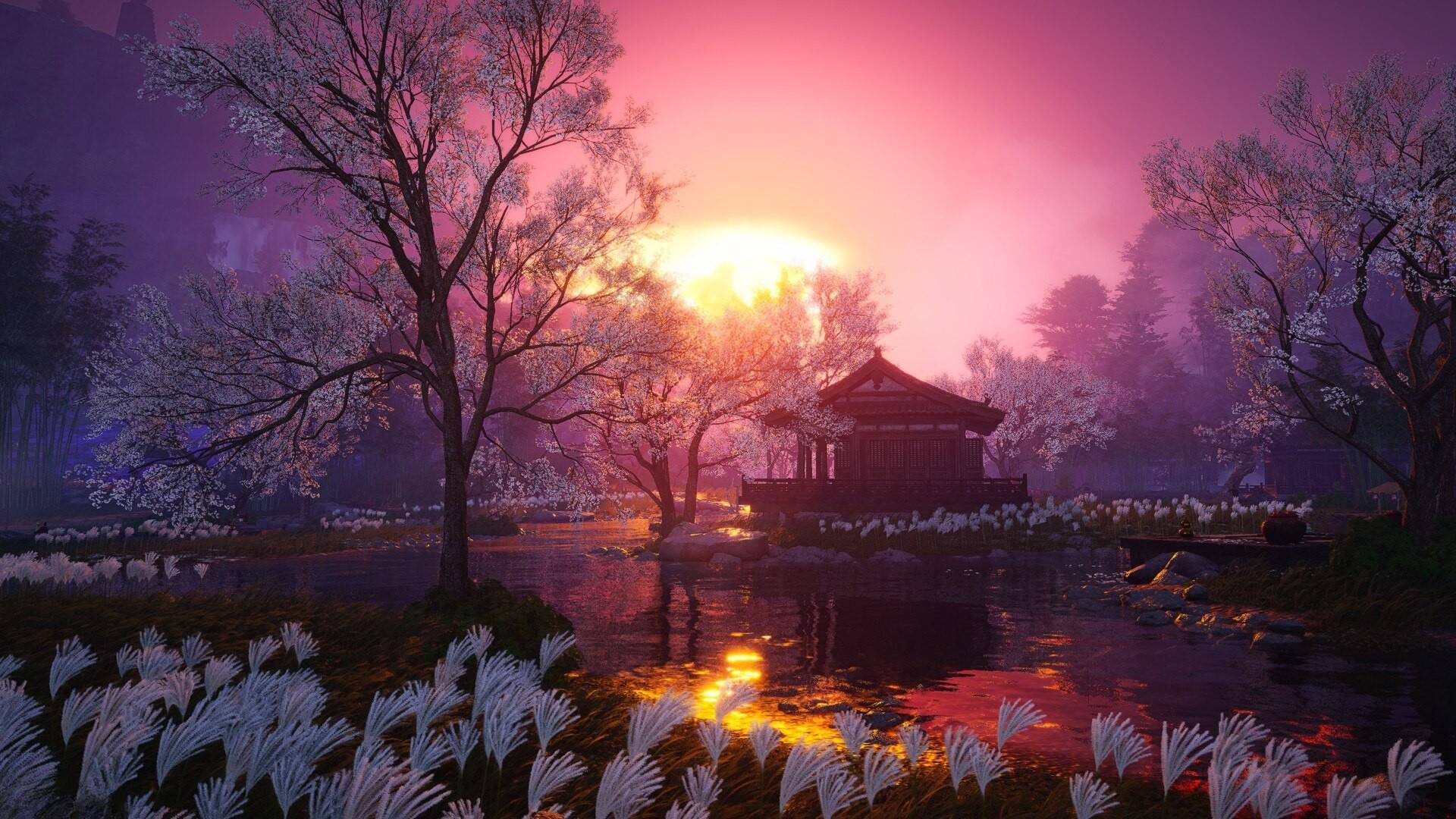
A smooth camera setup can make or break your experience in WWM. The best camera settings in Where Winds Meet give you a stable, wide view without wild swings or motion sickness. These options affect zoom, angle correction, and how your camera follows movement-all very important for reading fights and staying aware. Use the table below to set it up for clarity and control.
| Setting | Recommended Settings | Quality Focus |
|---|---|---|
| Camera Zoom | Wide | Wide |
| Camera Direction Correction | Close | Close |
| Horizontal View | Up to Preference | Custom per PvP/PvE |
| Vertical View | Up to Preference | Custom per PvP/PvE |
| Camera Sensitivity Horizontal | Up to Preference | Manual fine-tuned |
| Camera Sensitivity Vertical | Up to Preference | Manual fine-tuned |
| Invert Horizontal Camera | Up to Preference | Off |
| Invert Vertical Camera | Up to Preference | Off |
Where Winds Meet Best Display Settings
Display settings form the backbone of performance in WWM. From the screen mode down to the frame caps, these are the options that dictate just how smooth your FPS will feel when actually playing the game. The ideal display settings in Where Winds Meet make for less input delay, prevent frame drops, and keep the scenes fluid, most especially during fast combat and exploration.
| Setting | Recommended Settings | Quality Focus |
|---|---|---|
| Display Mode | Fullscreen | Fullscreen |
| Resolution | 1920 x 1080 | 2560 x 1440 or higher |
| Select Monitor | Your main monitor | Primary / calibrated display |
| FPS Limit | Unlimited | 75–120 FPS Cap |
| V-Sync | Off | On (if screen tearing) |
| Motion Blur | Off | Off |
| Super Resolution Type | FSR Quality | DLSS/FSR Quality |
| Anti-Aliasing | Enable | Enable (TAA) |
| Graphics Quality | Custom | High |
| Ambient Occlusion | Medium to High | High |
| Tessellation | Low | Medium |
| Vegetation Quality | Medium | High |
| Lighting Quality | High | Ultra |
| View Distance | Medium | High |
| Effect Quality | Low | Medium |
| Reflection Quality | Medium | High |
| Real Time Sunlight | Enable | Enable |
Where Winds Meet Best Graphics Settings
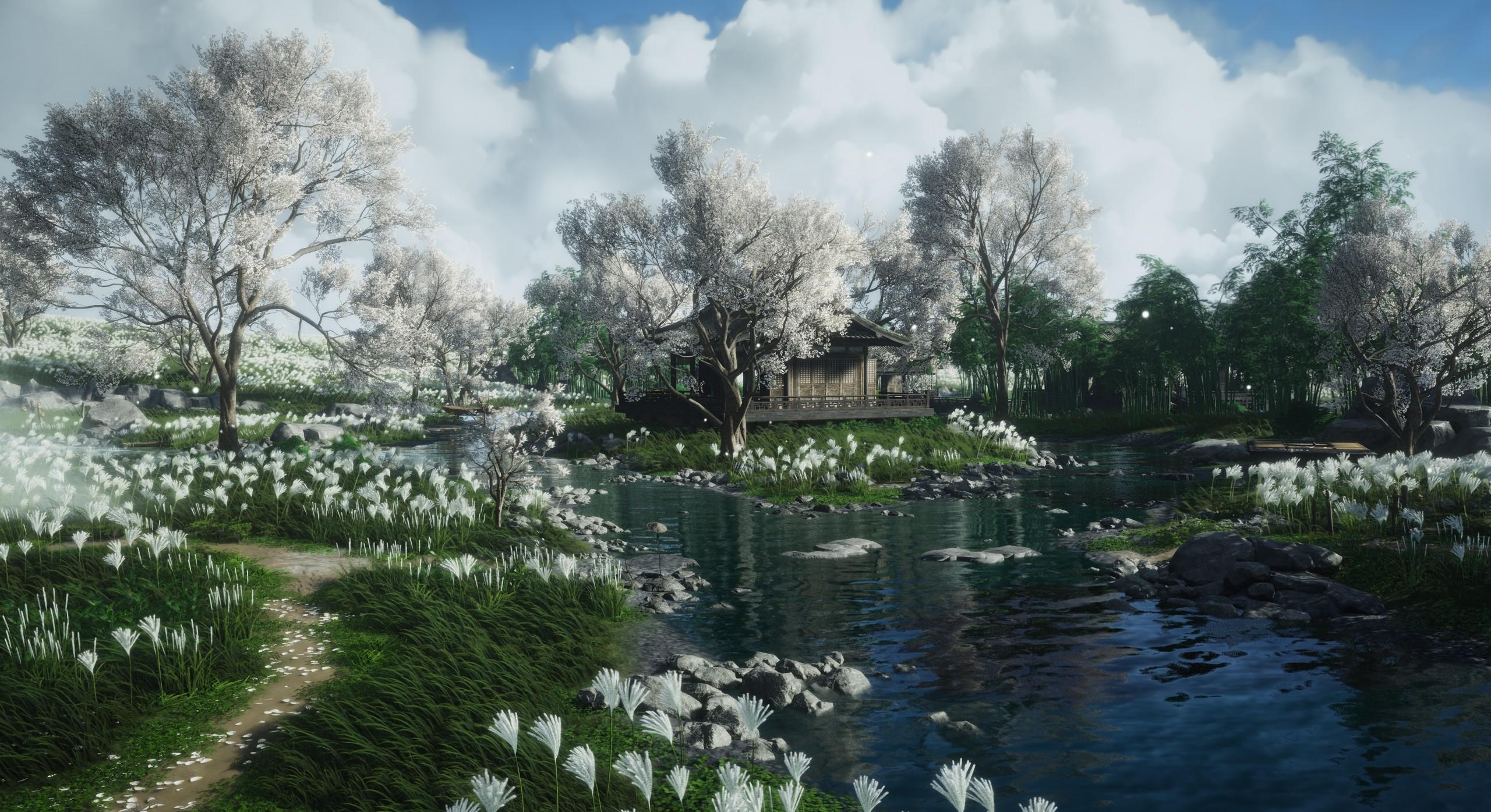
To better understand the impact of the in-game graphics options in Where Winds Meet, let’s compare them. Game graphics options in Where Winds Meet play an extremely important role in the gaming process. This is not just concerning the graphics, but also the gaming performance. Environments in the world of Where Winds Meet are packed, bright, and full of various graphical elements. Such elements might bring the whole system down if not controlled.
| Setting | Recommended Settings | Quality Focus |
|---|---|---|
| Graphics Quality | Quality | Ultra |
| Ambient Occlusion | High | High |
| Tessellation | Medium | High |
| Vegetation Quality | High | Ultra |
| Lighting Quality | Medium | High |
| View Distance | High | Ultra |
| Effect Quality | Low | Medium |
| Reflection Quality | Medium | High |
| Real-time Sunlight | Enable | Enable |
Where Winds Meet Best Advanced Settings
Where Winds Meet’s advanced graphics options make the most difference in gaining better performance by adjusting parameters such as DLSS, tessellation, and ambient occlusion. Since all the parameters outlined directly influence the utilization of the GPU and frame rate, especially while engaging in larger battles in the towns, make the necessary adjustments by referring to the table below.
| Setting | Performance Focus | Quality Focus |
|---|---|---|
| DLSS / FSR | Quality Mode | Quality Mode |
| Frame Generation | Off | On (RTX 40xx) |
| Tessellation | Low | Medium |
| Ambient Occlusion | Low | Medium |
| Reflections | Low | Medium |
Where Winds Meet Best Optimization Tips
Performance in Where Winds Meet is all about how effectively your system handles the open world streaming and the combat graphics. Even on mid-range hardware, you could extract better frames per second by incorporating some effective tweaks. Here’s how you could do the best to increase the performance in Where Winds Meet:
- Lower Effect Quality — Heavy effect FX and environment detail work might bring massive FPS losses in combat. Try lowering Effect Quality to Low for reduced GPU work. Excellent for team battles, PvP encounters, and congested regions.
- Enable Super Resolution (FSR/DLSS) — Go to the Super Resolution Type field and set it to FSR Quality or DLSS Quality (for NVIDIA RTX). These technologies allow the game to render at a lower resolution internally while upscaling the image to the resolution of your monitor, effectively giving you more frames in the same performance budget with negligible loss of image resolution.
- Clear Shader Cache — Go into your graphics card control panel (NVIDIA/AMD) and delete the shader cache. This serves to remove stutters generated by problematic shader files, particularly if the files are outdated. After clearing the cache, the initial startup may stutter for a short while before stabilizing.
- Turn off Background Applications — Use the Task Manager to shut down resource-intensive apps such as Discord overlays, web browser tabs, or background updating apps. This helps the game by giving it some breathing room in terms of processing power in areas like cities.
Where Winds Meet Best Controller Settings
Playing Where Winds Meet with a controller can feel smooth and immersive if your setup is dialed in. The best controller settings in Where Winds Meet make aiming, movement, and deflection easier without overcomplicating the input. Tweaking sensitivity, vibration, and layout options helps avoid clunky camera swings and missed parries. Whether on Xbox, DualSense, or another pad, refer to the table below to lock in the best feel for WWM.
| Setting | Performance Focus | Quality Focus |
|---|---|---|
| Stick Sensitivity | Medium | High |
| Aim Assist | On | On |
| Vibration | Off | On |
| Button Layout | Default | Custom |
| Dead Zone | Low | Medium |
Where Winds Meet Best Mouse Settings
You’ll want tight mouse input to block, dodge, and land skillshots, especially in PvP or fast duels. The best mouse settings in Where Winds Meet give you precision without delay or overshooting. Small tweaks here might help movement and combat feel way smoother, from DPI right down to in-game sensitivity and acceleration toggles. Use the table below to set up your mouse for maximum control in WWM.
| Setting | Performance Focus | Quality Focus |
|---|---|---|
| DPI | 800–1000 | 1000–1200 |
| In-Game Sensitivity | 40–50% | 50–60% |
| Mouse Acceleration | Off | Off |
| Dodge Keybind | Shift / Mouse Button | Same |
| Skill Activation Key | Near WASD | Near WASD |
Where Winds Meet Best Gameplay Settings
The best settings in terms of gameplay within Where Winds Meet affect how your character moves, reacts to combat, and interacts with core mechanics like the camera behavior, control input, and quick slot visibility. Most of the major WWM gameplay settings that will improve flow and control are listed below.
| Setting | Recommended Settings | Quality Focus |
|---|---|---|
| Camera Mode | ARPG | ARPG |
| Button Layout | Standard Layout | Custom Remap |
| Skill Display Mode | Simple | Detailed |
| Button Settings | Default | Personalized Mapping |
| Mouse Display Mode | Hold Control | Hold Control |
Where Winds Meet Best Difficulty Settings
The choice of difficulty level early in the game shapes how you experience the world. The best difficulty settings within Where Winds Meet rest on your own personal tolerance for combat pressure and reaction-based deflects. Here’s a breakdown of all the available difficulty levels within Where Winds Meet:
| Difficulty | Description |
|---|---|
| Story | Lowest enemy damage and health. Time slows during skill attacks. Extra deflect prompts are always active. Great for exploration-focused players. |
| Recommended | Balanced combat. No time-stop or help prompts unless enabled manually. Ideal for players who want solid fights without constant pressure. |
| Expert | Enemies hit much harder. No assist prompts or slowdowns. Requires timing and awareness. Recommended for skilled players. |
| Legend | Highest challenge. Must be selected at character creation. Locked difficulty. Unique badges available only here. |
| Hardcore | (Coming Soon) Death deletes your character permanently. Not yet available. |
Note: Legend mode can only be selected when creating a character and cannot be changed in the future.
Where Winds Meet How to Change Difficulty
But the ability to toggle between “Story”, “Recommended”, “Expert”, and “Legend Mode” is always available from the ‘Game → Combat Difficulty’ option in the ‘Settings’ menu. However, in the latter choice, the selection will be permanent, available only during the ‘Create New Character’ process.
Where Winds Meet Best Difficulty for Most Players
Recommended Mode is the way to play for most players. It keeps combat fair but skill-based while allowing the story to also come through. To make the gameplay more immersive, we recommend turning off time stop notifications and assist calls. You can do this in Settings → Display.
Where Winds Meet Best Audio Settings
The best audio settings for Where Winds Meet help you stay locked in during fights and avoid cluttered soundscapes. These Where Winds Meet best settings for audio improve reaction time in PvP and help you hear key cues in crowded zones.
| Setting | Recommended Settings | Quality Focus |
|---|---|---|
| Master Volume | 100 | 100 |
| SFX Volume | 80 | 100 |
| Music Volume | 80 | 60 |
| Voice Volume | 80 | 100 |
| Background Audio | Close | Close |
| Skill Voice | Enable | Enable |
| Ambient Volume | 80 | 90 |
Where Winds Meet System Requirements
Before jumping into settings and tweaks, make sure your PC can actually handle the game. Where Winds Meet features a massive open world, dense foliage, dynamic lighting, and fast-paced combat, all of which demand a decent setup.
| Component | Minimum | Recommended |
|---|---|---|
| CPU | i7-7700K / Ryzen 5 1600 | i7-10700 / Ryzen 7 3700X |
| RAM | 16 GB | 32 GB |
| GPU | GTX 1060 / RX 480 | RTX 2070 SUPER / RX 6700 XT / ARC A750 |
| OS | Windows 10/11 64-bit | Windows 10/11 64-bit |
| Storage | 100 GB (SSD recommended) | 100 GB (SSD required) |
If your system doesn’t meet the minimum requirements, even the best settings won’t save you from lag and crashes. Below are the official system specs you’ll need to run the game, plus our tips for mid-range performance and what to upgrade first if you’re struggling.
Where Winds Meet Best Settings for FPS
We’ve tried various WWM best graphic settings and come up with an optimal combination that ensures you maintain the sharpest gaming experience without taxing your graphics processor. Optimizations will ensure stutters are reduced in the game. Use the table given below to determine the right graphic settings for the best FPS in Where Winds Meet:
| Recommended Settings | Quality Focus |
|---|---|
| Fullscreen | Fullscreen |
| 1920 x 1080 | 1920 x 1080 or 1440p |
| Your main monitor | Your main monitor |
| Unlimited | Unlimited |
| Off | Off |
| Off | Off |
| FSR Quality | DLSS Quality (NVIDIA) or FSR |
| Enable | Enable (TAA) |
| Custom | Custom / High |
| Low | Medium |
| Low | Medium |
| Low | Medium |
| Low | Medium |
| Medium | High |
| Low | Medium |
| Low | Medium |
| Enable | Enable |
To ensure smooth battles and an ample framerate, the adjustments that must be made on the right settings are important. Best Settings for Where Winds Meet on Mid-Range PC are all about having smooth gameplay in the midst of many characters on the screen during big fights. This particular game is recognized for its beautiful graphics. However, going for the highest graphical parameters means disastrous performance on mid-range computers.
Where Winds Meet Best Settings FAQ
Still unsure about specific settings or how different features work? This FAQ covers the most common questions players ask while optimizing their experience. You’ll find clear answers here based on how Where Winds Meet actually plays. Use this section to lock in your setup and avoid confusion later on.
Can You Change Difficulty in Where Winds Meet?
You can switch between Story, Recommended, and Expert at any time through the Settings menu under “Game → Combat Difficulty.” However, if you choose Legend Mode, it becomes permanent, and it’s only available when creating a new character.
What’s Special About Legend Mode in Where Winds Meet?
Legend Difficulty locks your challenge from the start and removes all assistance. You’ll need perfect timing, and enemies are tougher in every way. It’s also the only mode where you can collect special badges. If you want the purest experience, this is where it happens.
Are There Any Trophies for Higher Difficulty in Where Winds Meet?
Nope. As of now, Where Winds Meet does not reward trophies or achievements based on difficulty. You can get 100% completion even while playing on Story Mode.
What Are the Best Settings for Where Winds Meet on Mid-Range PCs?
For mid-range systems, stick to 1080p resolution, FSR Quality, and low-to-medium settings on shadows, vegetation, and effects. This gives stable FPS in most zones.
Can You Improve Performance in Where Winds Meet Without Upgrading Hardware?
Yes. You can boost performance by enabling FSR or DLSS, turning off V-Sync, and clearing your GPU’s shader cache. Closing background apps also helps.
Does Where Winds Meet Run Well on Laptops?
With lowered settings and FSR enabled, Where Winds Meet can run decently on handhelds or gaming laptops. Use Performance mode and cap FPS to 45–60.
Is There a Way to Reset Graphics Settings in Where Winds Meet?
Yes, there’s a Reset to Default button in the Display and Graphics tabs. If anything breaks visually, that’s a quick fix to restore stability.
Do the Best Settings for Where Winds Meet Work in PvP?
Mostly yes. Fast settings like low effects and no motion blur help in PvP. Just avoid ultra view distance or reflections, they don’t give an edge but cost FPS.
Where Winds Meet is packed with stunning visuals and fast-paced mechanics, but that also makes it tricky to run well. With these WWM best settings, from graphics and camera to difficulty and audio, you’ll get smoother fights, sharper reaction time, and a cleaner overall feel.
