This WARDOGS Best Settings guide covers the best graphics, display, upscaling, and performance settings. We also explain what to change first when FPS starts dropping and how to Get More FPS in WARDOGS. The good settings should give you stable FPS without making distant enemies harder to see. For that reason, dropping every option to Low is not always the best move. Some settings improve visibility, while others mainly eat performance during busy fights.
WARDOGS Best Settings Key Takeaways:
- Use native resolution for the clearest image and better long-range visibility.
- Set View Distance to High to keep distant terrain and enemies easier to spot.
- Keep Global Illumination Off if you want more FPS during large fights.
- Set Shadows to Low for better performance and clearer dark areas.
- Use Medium Effects to balance combat visuals with stable frame rates.
- Keep Post-Processing Low and disable Motion Blur and Depth of Field.
- Use DLSS or FSR Quality when native rendering puts too much load on your GPU.
- Keep Texture Quality High if your GPU has enough available VRAM.
WARDOGS Recommended Settings
Optimal WARDOGS settings for FPS and performance eliminate unnecessary lighting and graphical effects without losing key terrain features. The WARDOGS settings preset provides an optimal starting point for infantry and vehicle warfare for most computers:
| Setting | Recommended Value |
|---|---|
| Display Mode | Fullscreen / Borderless Fullscreen |
| Resolution | Native |
| Frame Limit | Unlimited or Stable Cap |
| VSync | Off |
| NVIDIA Reflex | Enabled |
| Upscaling | DLSS / FSR |
| Upscaling Mode | Quality |
| Mesh Quality | Medium–High |
| View Distance | High |
| Shading | Medium |
| Global Illumination | Off |
| Shadows | Low |
| Reflections | Low |
| Effects | Medium |
| Particle Quality | Medium |
| Post-Processing | Low |
| Motion Blur | Off |
| Depth of Field | Off |
| Lens Flare | Off |
| Bloom | Low / Preference |
| Texture Quality | High if VRAM allows |
| Texture Filtering | High |
WARDOGS Best Gameplay Settings
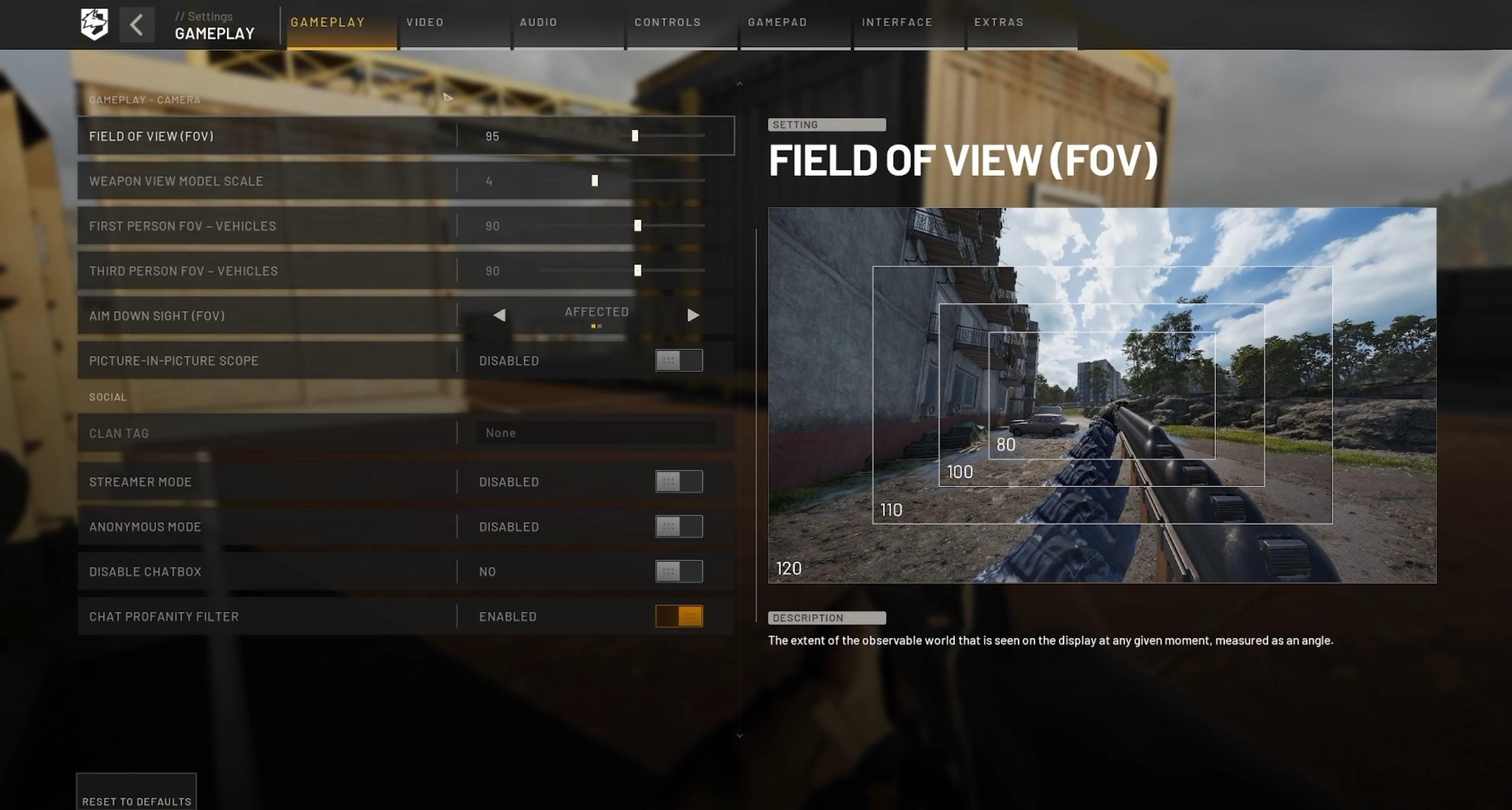
Settings that regulate WARDOGS gameplay determine FOV, weapon scale, ADS characteristics, and vehicle camera. Visibility is more important for these settings than the actual FPS. For the vast majority of players, the following WARDOGS gameplay settings would be optimal:
| Setting | Recommended Value |
|---|---|
| Field of View | 95 |
| Weapon View Model Scale | 4 |
| First Person FOV – Vehicles | 90 |
| Third Person FOV – Vehicles | 90 |
| Aim Down Sight FOV | Affected |
| Picture-in-Picture Scope | Disabled |
WARDOGS Best FOV Settings
Adjust the FOV in WARDOGS to 95 and start with it, as it gives great peripheral vision without making distant enemies too small. Since WARDOGS is all about sightlines, going to the maximum FOV would not benefit players. Small enemy characters would become even more difficult to spot on the fields and roads.
Adjust the ADS FOV option to Affected so that low magnification optics scale accordingly with your regular FOV setting. Players coming from fast-paced arena shooters may opt for higher numbers, but it would be perfect for WARDOGS due to its long-range target acquisition.
WARDOGS Best Display Settings
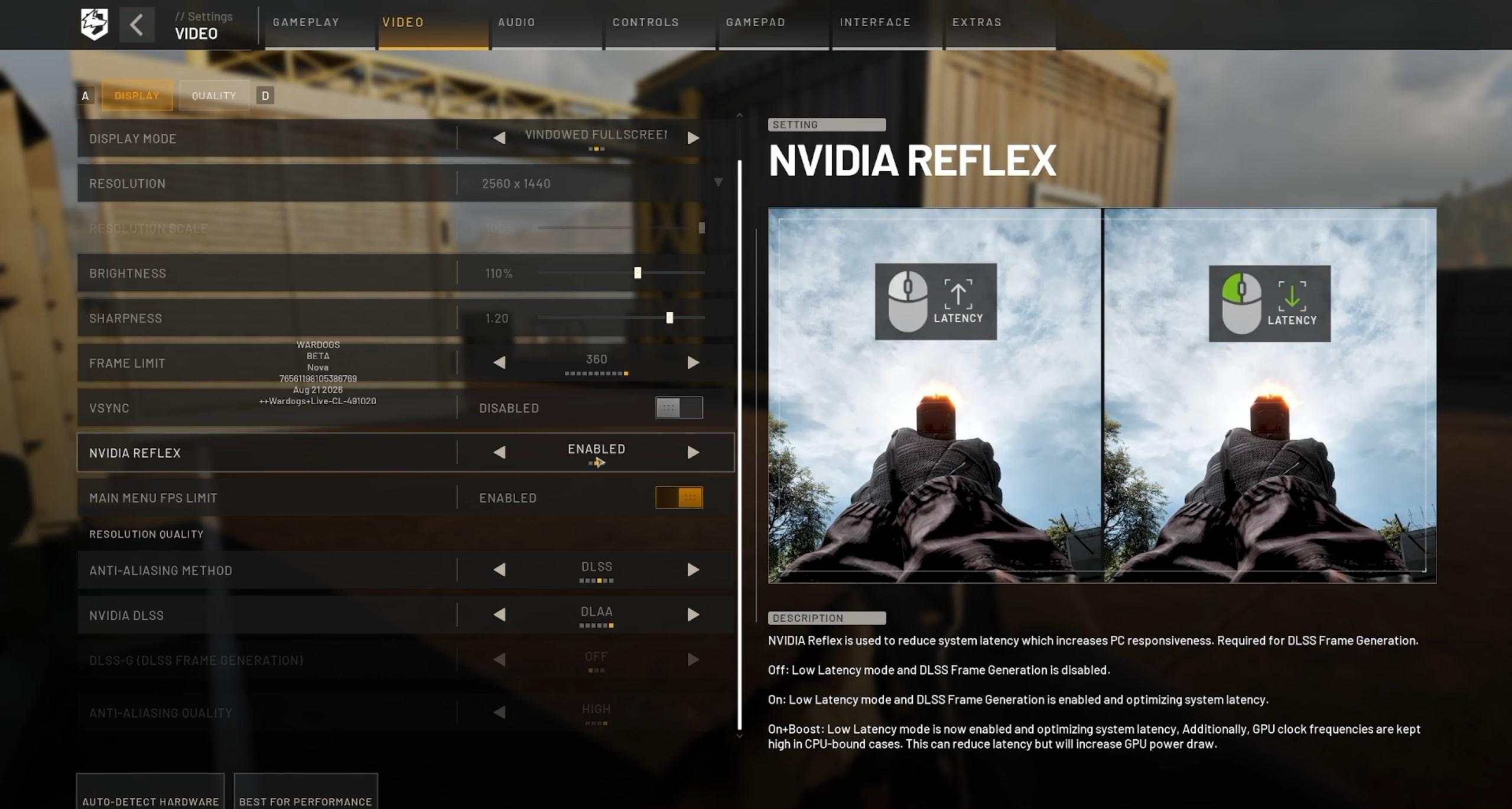
Your WARDOGS display settings control frame delivery and responsiveness before graphics quality enters the equation. Resolution, VSync, Reflex, and frame limits deserve attention before changing visual effects. Here you can find a table with the best WARDOGS display settings:
| Display Setting | Recommended Value |
|---|---|
| Display Mode | Fullscreen / Borderless Fullscreen |
| Resolution | Native Resolution |
| Frame Limit | Unlimited or Stable Cap |
| VSync | Off |
| NVIDIA Reflex | Enabled |
| Brightness | Adjust for Clear Dark Areas |
| Sharpness | Moderate |
Best WARDOGS Graphics Settings
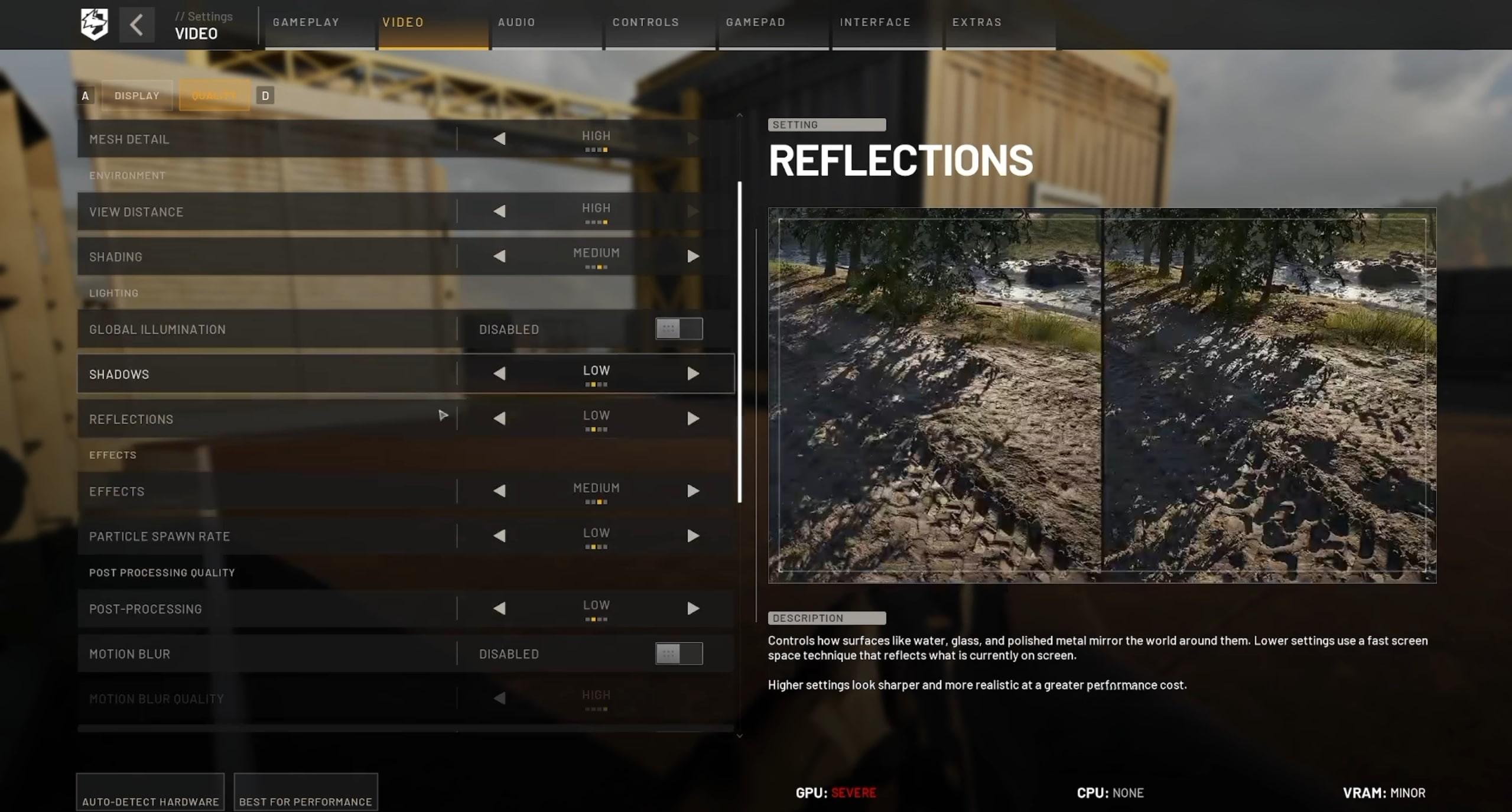
The highest impact of the WARDOGS graphics settings is observed when playing in crowded objectives, vehicle combat, and battles with much destruction. The following table emphasizes visibility and performance over graphic quality. Here you can find the best WARDOGS graphics settings:
| Graphics Setting | Recommended Value | Reason |
|---|---|---|
| Mesh Quality | Medium–High | Keeps important objects readable |
| View Distance | High | Helps during long-range fights |
| Shading | Medium | Good balance between quality and FPS |
| Global Illumination | Off | One of the first options to reduce |
| Shadows | Low | Saves performance and clears dark areas |
| Reflections | Low | Limited gameplay value |
| Effects | Medium | Keeps combat readable |
| Particle Quality | Medium | Controls clutter during large fights |
| Post-Processing | Low | Cleaner image and better performance |
| Motion Blur | Off | Improves clarity while moving |
| Depth of Field | Off | Keeps distant areas sharp |
| Lens Flare | Off | Removes visual distractions |
| Bloom | Low / Preference | Mostly visual preference |
| Texture Quality | High if possible | Mainly depends on available VRAM |
| Texture Filtering | High | Helps surface clarity |
WARDOGS Shadows Settings
The WARDOGS shadow settings are another good place to recover performance without hurting important world detail. Shadows can also make darker interiors and windows harder to read during fights.
Low is the safest starting point for most competitive setups. It cuts some GPU load while keeping the scene more consistent than the absolute minimum preset.
If your PC already holds stable FPS, raise Shadows to Medium and compare visibility in buildings and shaded areas. High shadows mostly add visual quality rather than a clear gameplay benefit.
WARDOGS Best Post-Processing Settings
Post-processing level: Low. The setting will improve image quality and performance as it is responsible for screen space effects that might complicate busy scenes.
Motion blur should be off since it diminishes the clarity of images taken at high-speed camera moves. Depth of field, lens flare, and bloom (the last one optional) have to stay off too.
WARDOGS Global Illumination Settings
If players seek higher frames per second in WARDOGS, they might want to experiment with Global Illumination right away. This option controls indirect lighting in big scenes and puts some load on the GPU.
Players can turn Global Illumination to Off when their FPS start being unstable. They can try this setting later once they are sure that their computer is powerful enough. In WARDOGS competitive, Off makes scenes look somewhat less complex. It will be a good idea to change it before experimenting with other settings.
WARDOGS Best View Distance Settings
Set View Distance to High as the optimal trade-off between visibility and performance. WARDOGS is packed with long sightlines, making lower settings may negatively impact the ability to see far-away objects and enemy locations.
Medium is the safer choice for weaker computers. This setting decreases scene complexity but still maintains enough detail to play the majority of matches.
High is our recommended view distance for playing against others, but when more FPS is needed, decrease shadows or reflections first because they are less important to the game than long sightlines.
WARDOGS Best Effects Settings
Effects should be set to Medium as a good compromise between performance and combat clarity. WARDOGS frequently combines explosions, smoke, debris, vehicles, and destruction in a single battle scenario, so this environment will seem very heavy.
If you experience a frame rate drop in busy scenarios, first turn Effects down to Low before lowering View Distance or texture quality. High Effects do not provide any significant competitive edge but add more eye candy to the game.
Best WARDOGS Upscaling Settings
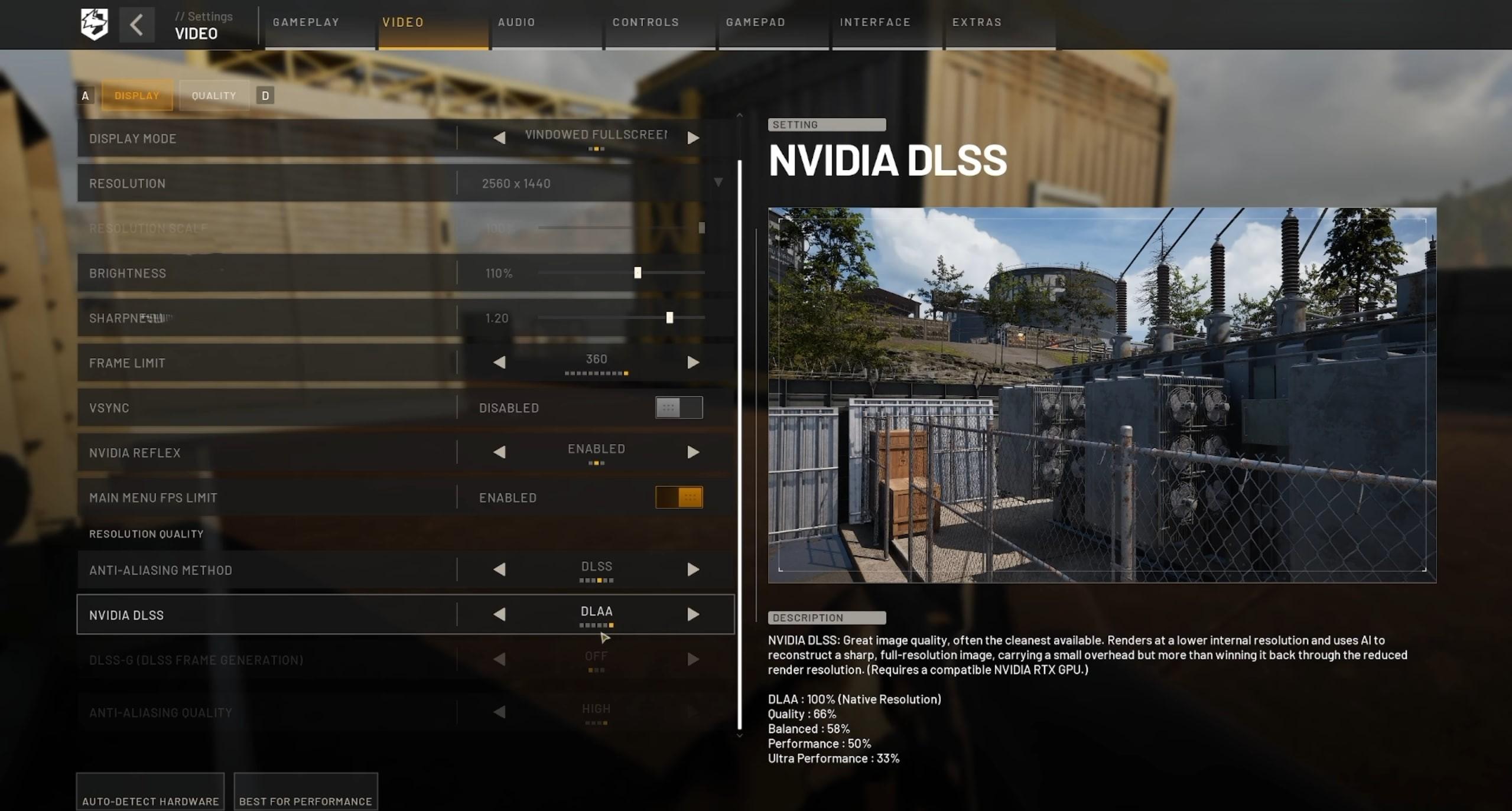
The WARDOGS upscaling settings are useful when your GPU struggles at native resolution. Both DLSS and FSR can recover performance while keeping a cleaner image than simply lowering resolution. Use the following modes as a general WARDOGS DLSS and FSR settings starting point:
| Situation | Recommended Mode |
|---|---|
| Plenty of GPU Headroom | Native |
| Best Balance | Quality |
| Need More FPS | Balanced |
| Very Heavy GPU Load | Performance |
| 1080p Competitive Play | Native / Quality |
| 1440p | Quality |
| 4K | Quality / Balanced |
Best WARDOGS DLSS Settings
RTX users should start with WARDOGS DLSS Quality when native resolution cannot hold their target FPS. This mode gives you extra GPU headroom without sacrificing too much image clarity.
Balanced is useful when Quality still leaves your GPU near full load. Move to Performance mainly at higher resolutions or on weaker RTX cards. Always compare moving targets rather than static screenshots. Blur around foliage or distant players matters more than a slightly sharper wall texture.
Best WARDOGS FSR Settings
The same approach works for WARDOGS FSR settings. Quality should be your first option, followed by Balanced when you need additional frames.
At 1440p or 4K, FSR has more source pixels to work with. At 1080p, aggressive modes can make the image noticeably softer. Try native rendering first if your GPU already reaches a stable frame rate. Upscaling should solve a performance problem rather than become an automatic setting.
WARDOGS Best Texture Quality Settings
One setting that you do not want to disable just to gain some FPS is Texture Quality. This setting requires high amounts of your GPU’s VRAM.
For users who have sufficient memory, it is possible to keep WARDOGS texture settings on High and reduce other heavy settings. Reduce texture quality when you face VRAM problems, streaming, or hitching.
WARDOGS Best Mouse Settings
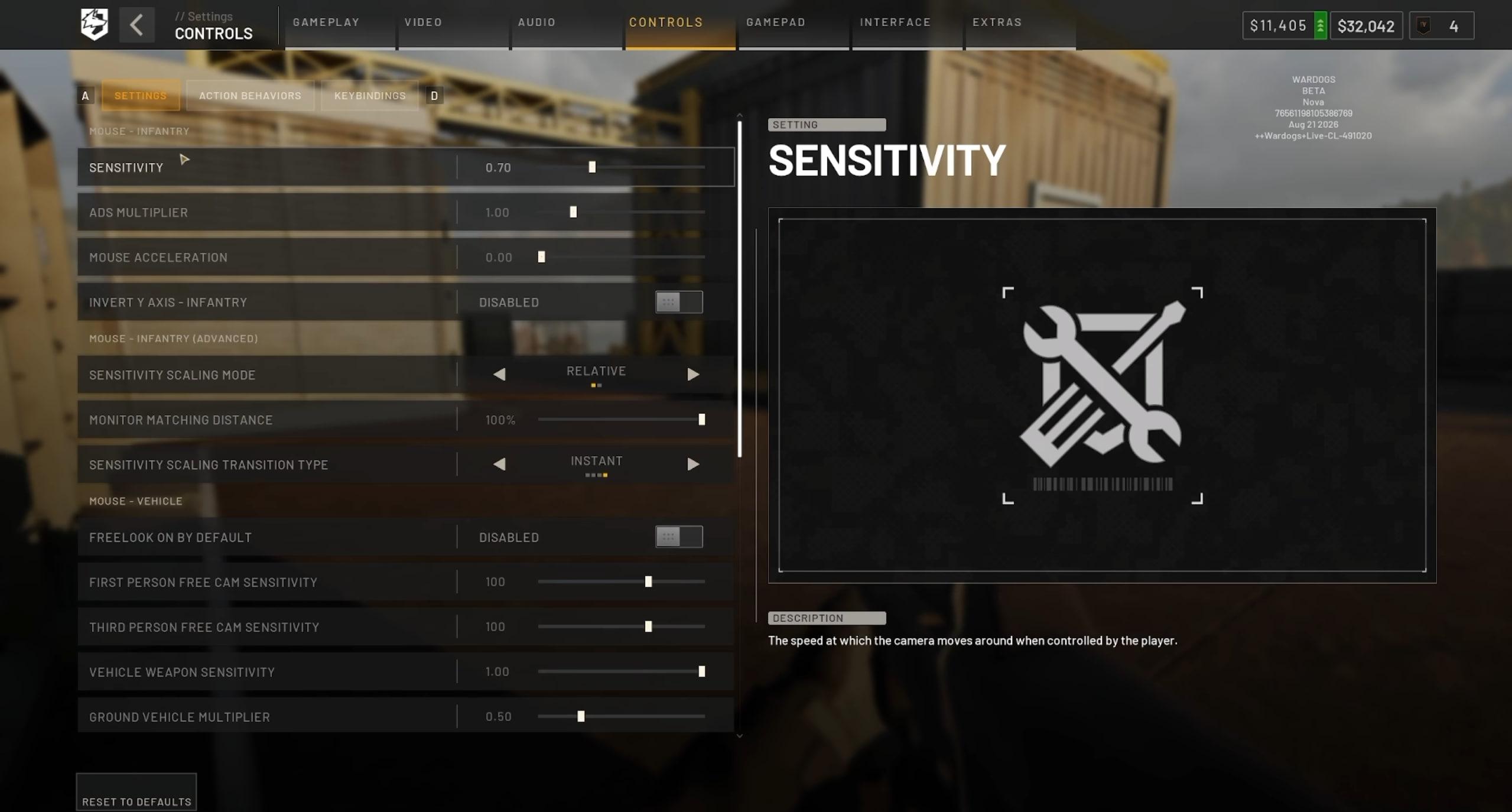
The WARDOGS sensitivity settings offer plenty of control over infantry aiming and ADS behavior. Mouse sensitivity remains personal, but several advanced options have clear competitive choices. Here you can find WARDOGS Best Mouse Settings:
| Mouse Setting | Recommended Value |
|---|---|
| Mouse DPI | 800 |
| Sensitivity | 0.70 |
| ADS Multiplier | 1.00 |
| Mouse Acceleration | 0.00 |
| Sensitivity Scaling Mode | Relative |
| Monitor Matching Distance | 100% |
| Sensitivity Scaling Transition Type | Instant |
| Invert Y Axis – Infantry | Disabled |
Keep Mouse Acceleration at 0.00 for predictable movement. The same physical mouse movement should produce the same camera turn each time. An ADS Multiplier of 1.00 is also a clean starting point. You can lower it later if long-range tracking feels too sensitive.
Use Relative sensitivity scaling with Monitor Matching Distance at 100%. Setting the transition to Instant also makes switching into ADS feel more immediate. The 0.70 sensitivity value works as a reference for 800 DPI. Adjust it around your mousepad size and existing FPS muscle memory.
WARDOGS Vehicle Mouse Settings
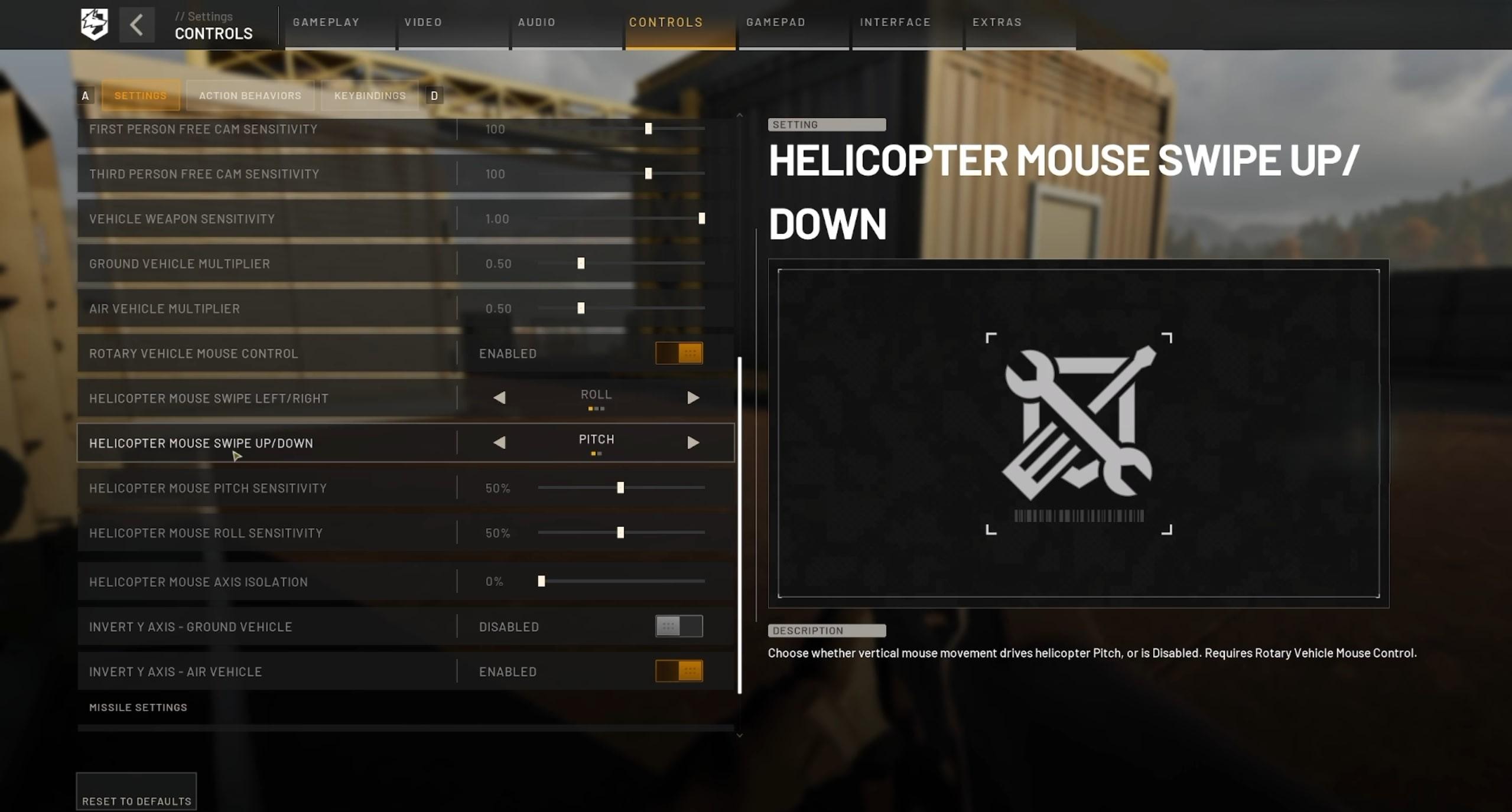
The WARDOGS helicopter settings need only a few changes before aircraft become much easier to control with a mouse. Rotary Vehicle Mouse Control is the most important option here. For mouse-controlled vehicles, these WARDOGS vehicle settings give you a clean starting configuration:
| Setting | Recommended Value |
|---|---|
| Freelook on by Default | Disabled |
| First Person Free Cam Sensitivity | 100 |
| Third Person Free Cam Sensitivity | 100 |
| Vehicle Weapon Sensitivity | 1.00 |
| Ground Vehicle Multiplier | 0.50 |
| Air Vehicle Multiplier | 0.50 |
| Rotary Vehicle Mouse Control | Enabled |
| Helicopter Mouse Swipe Left/Right | Roll |
| Helicopter Mouse Swipe Up/Down | Pitch |
Best WARDOGS Audio Settings
The WARDOGS audio settings need very little adjustment compared with graphics or controls. The main option to check is 3D Spatial Audio, since positional sound matters during infantry fights. For a straightforward WARDOGS sound settings setup, use these values:
| Audio Setting | Recommended Value |
|---|---|
| 3D Spatial Audio | Enabled |
| Enable Sound in Background | Disabled |
| Voice Chat | Enabled |
| Squad Voice Chat | Enabled |
| Proximity Voice Chat | Enabled |
| Microphone Volume | 100, then adjust |
| Master / Effects Volume | Personal Preference |
WARDOGS Best Interface Settings
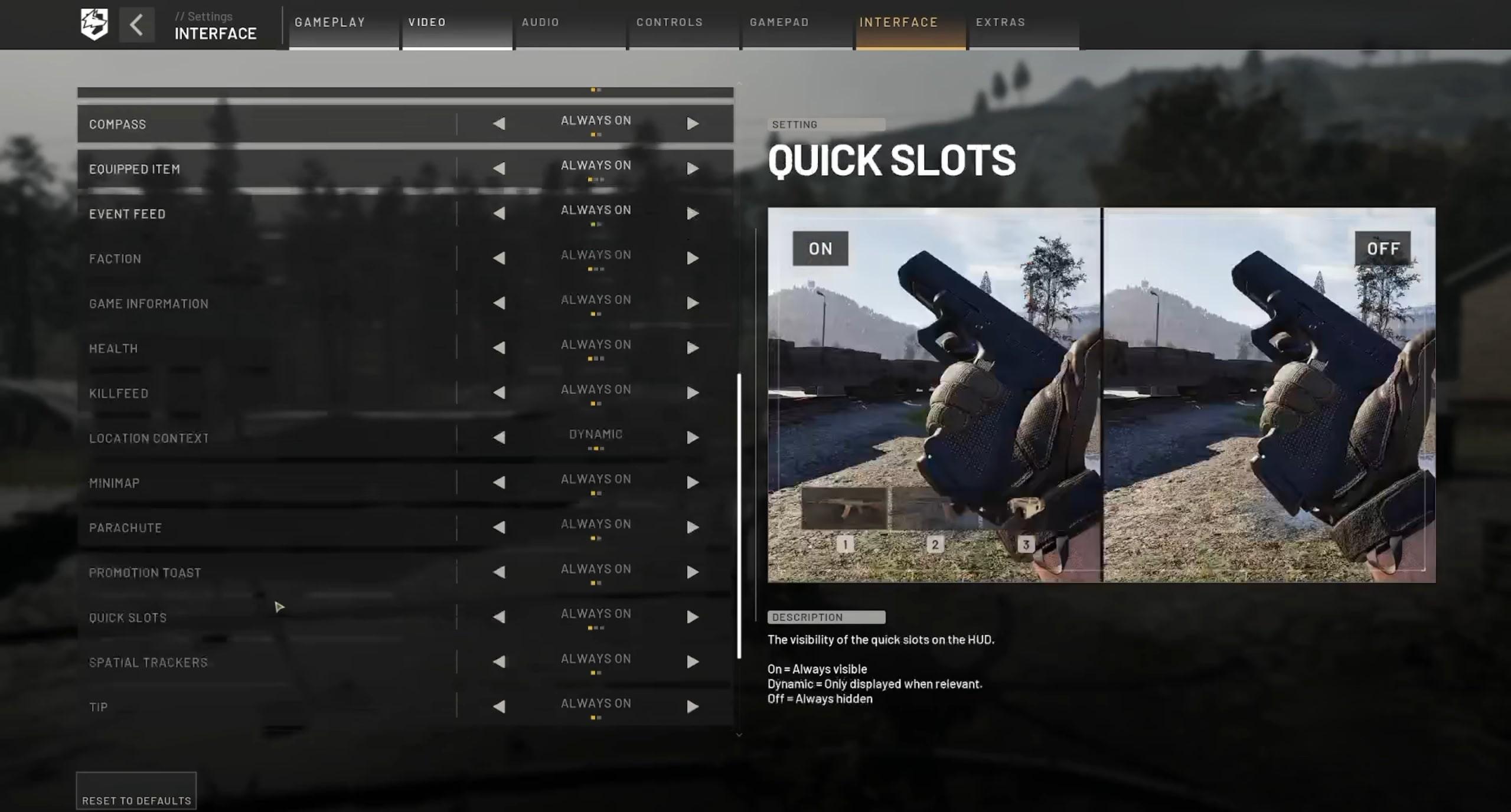
The settings of the interface for WARDOGS determine the quantity of combat information which will remain visible on your HUD. It is recommended that newbies utilize most of the useful streams, as opposed to Dynamic mode. Here is how you can set your WARDOGS HUD interface:
| Interface Setting | Recommended Value |
|---|---|
| Adaptive Crosshair | Enabled / Preference |
| Cash | Always On |
| Central HUD Reward | Always On |
| Chatbox | Dynamic |
| Compass | Always On |
| Equipped Item | Always On |
| Event Feed | Always On |
| Faction | Always On |
| Game Information | Always On |
| Health | Always On |
| Killfeed | Always On |
| Location Context | Dynamic |
| Minimap | Always On |
| Parachute | Always On |
Best WARDOGS Keybinds
The WARDOGS controls settings include separate action behaviors and keybinds for infantry, vehicles, and aircraft. Most defaults work, but several changes can make movement much more comfortable. Before changing individual keys, use these WARDOGS action behavior settings as a practical baseline:
| Action | Recommended Behavior |
|---|---|
| ADS | Hold |
| Steady Aim | Toggle |
| Crouch | Toggle |
| Prone | Toggle |
| Lean | Toggle |
| Sprint | Toggle |
| Slow Walk | Hold |
| Bipod Deployment | Automatic |
Best WARDOGS Infantry Keybinds
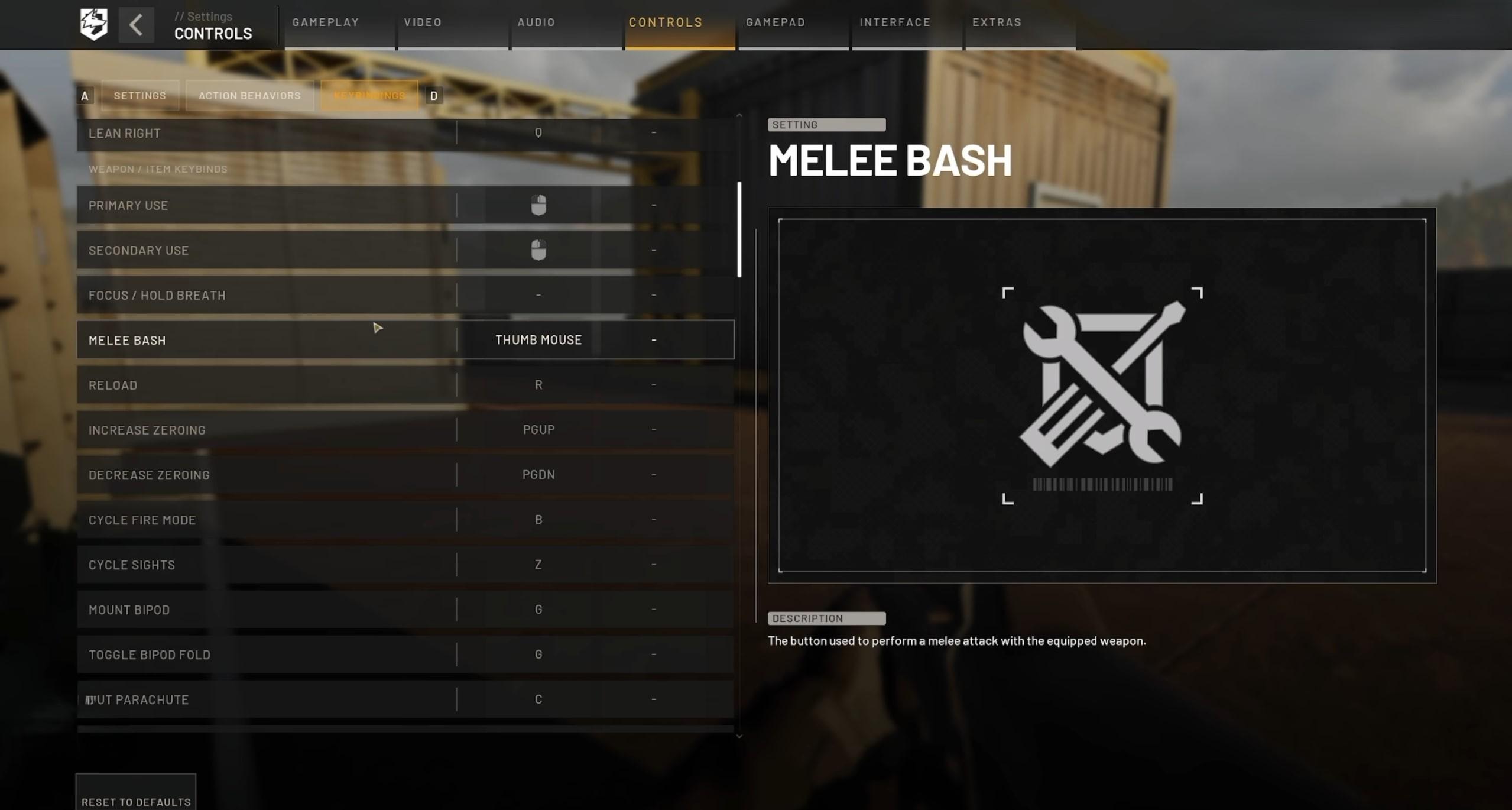
The best WARDOGS keybinds should keep movement actions available without forcing one finger to handle several keys at once. Leaning deserves special attention because it is strong during gunfights. For infantry controls, try these WARDOGS Infantry keyboard settings:
| Action | Recommended Key |
|---|---|
| Move | WASD |
| Sprint | Caps Lock |
| Jump | Space |
| Crouch | C |
| Prone | X |
| Lean Left | E |
| Lean Right | Q |
| Reload | R |
| Melee Bash | Mouse Thumb Button |
| Cut Parachute | C |
| Ping | Mouse Button |
Best WARDOGS Helicopter Keybinds
The WARDOGS helicopter controls become much easier once vertical movement stays on the keyboard, and directional control moves to the mouse. This setup also keeps yaw on familiar movement keys. For a simple WARDOGS helicopter keybind setup, use:
| Action | Recommended Input |
|---|---|
| Collective Raise | Space |
| Collective Lower | Left Shift |
| Yaw Left | A |
| Yaw Right | D |
| Forward / Backward | W / S |
| Pitch | Mouse Up / Down |
| Roll | Mouse Left / Right |
WARDOGS Best Competitive Settings
The WARDOGS competitive settings should move, and enemy silhouettes should be easier to read across complicated environments. Lighting, vegetation, smoke, and darker buildings can all hide players during a fight. For better WARDOGS visibility settings, these options remove the biggest visual distractions:
- Motion Blur: Off.
- Depth of Field: Off.
- Lens Flare: Off.
- Bloom: Low or Off.
- Post-Processing: Low.
- Global Illumination: Off.
- Shadows: Low.
- Reflections: Low.
- Effects: Medium.
- View Distance: High.
- Mesh Quality: Medium or High.
- Texture Quality: Medium or High.
- Upscaling: Native or Quality.
Best WARDOGS Settings for Spotting Enemies
Good WARDOGS settings for visibility cannot completely remove camouflage, shadows, or foliage. It is important to scout the environment in a different way compared to a small-scale arena shooter.
Movement needs to be detected near the tree lines, windows, rooftops, streets, and ruined buildings. Faraway players can easily become a part of the environment. Higher resolution or quality scaling of the picture is also going to help in this case. FPS is not important if everything far away becomes a silhouette.
WARDOGS Settings for Better FPS
The WARDOGS low-end PC settings should focus on stable performance while preserving enough clarity for long-range combat. Systems close to the minimum requirements should begin at 1080p with upscaling enabled. For better WARDOGS performance on low-end PCs, start with these values:
| Setting | Low-End Value |
|---|---|
| Resolution | 1920×1080 |
| Upscaling | DLSS / FSR |
| Upscaling Mode | Quality, then Balanced |
| Mesh Quality | Medium |
| View Distance | Medium |
| Shading | Low |
| Global Illumination | Off |
| Shadows | Low |
| Reflections | Low |
| Effects | Low |
| Particle Quality | Low |
| Post-Processing | Low |
| Motion Blur | Off |
| Depth of Field | Off |
| Textures | Medium |
| Texture Filtering | Medium |
How to Get More FPS in WARDOGS
If changing one graphics preset does not solve the problem, several smaller changes can improve WARDOGS FPS performance. Work through them one by one, so you know which adjustment actually helped. Try these steps when you need a WARDOGS FPS boost:
- Turn Global Illumination Off.
- Reduce Shadows to Low.
- Lower Reflections and Post-Processing.
- Reduce Effects during heavy battles.
- Use DLSS or FSR Quality.
- Switch to Balanced upscaling if needed.
- Lower View Distance from High to Medium.
- Reduce textures only when VRAM is full.
- Update your GPU driver.
- Close heavy background applications.
- Disable unused overlays.
- Keep WARDOGS installed on an SSD.
- Test a stable FPS cap.
- Restart the game after major graphics changes.
WARDOGS How to Fix FPS Drops
WARDOGS stuttering can happen even when your average FPS looks acceptable. Poor frame times, VRAM pressure, shader work, or heavy background applications can all create short freezes. When dealing with WARDOGS FPS drops, check these areas before lowering every graphics option:
- Watch GPU usage and VRAM during gameplay.
- Reduce Global Illumination and Shadows first.
- Test DLSS or FSR Quality.
- Close browser tabs and GPU-heavy background apps.
- Disable overlays that you do not need.
- Check whether the game runs from an SSD.
- Lower textures if VRAM stays full.
- Try a frame cap below your unstable maximum.
- Retest after GPU driver updates.
WARDOGS System Requirements
The official WARDOGS PC requirements give players a useful baseline for choosing their graphics preset. The minimum target already assumes upscaling, so using DLSS or FSR is not only for weak systems.
| Component | Minimum | Recommended |
|---|---|---|
| OS | Windows 10 | Windows 11 |
| CPU | Intel Core i5-8600 / Ryzen 5 3500 | Intel Core i7-12700K / Ryzen 7 5700X |
| RAM | 16 GB | 16 GB |
| GPU | GTX 1660 / RX 590 | RTX 3070 / RX 6700 XT |
| Storage | 50 GB | 50 GB |
| Performance Target | 1080p Low, 60 FPS Upscaled | 1440p Medium, 70+ FPS Native |
WARDOGS Best Settings FAQ
WARDOGS graphics options can behave differently depending on your hardware, resolution, and target FPS.
What Are the Best WARDOGS Settings for FPS?
Use Low Shadows, Low Post-Processing, Global Illumination Off, and Medium Effects. Keep View Distance Medium or High and enable Quality upscaling when needed.
Does WARDOGS Support Controllers?
WARDOGS currently focuses on PC, and the Steam page does not list official controller support. Keyboard and mouse remain the safest option until the developers confirm full gamepad support.
How Do I Increase FPS in WARDOGS?
Lower lighting, shadows, reflections, and effects first. Try DLSS or FSR Quality before reducing native resolution or texture quality.
What Are the Best WARDOGS Settings for Visibility?
Disable Motion Blur, Depth of Field, and Lens Flare. Keep View Distance high enough to preserve clear terrain and distant player silhouettes.
Should I Use DLSS or FSR in WARDOGS?
Yes, when native rendering cannot maintain your target FPS. Start with Quality mode and move to Balanced only when you need more performance.
Should I Turn VSync Off in WARDOGS?
VSync Off is a good starting point for lower input latency. Use a stable FPS cap if screen tearing or uneven frame delivery becomes distracting.
Should You Limit FPS in WARDOGS?
Unlimited FPS works well when your system delivers consistent performance. The problem starts when the frame rate constantly swings between very different values. A stable cap can make WARDOGS FPS settings feel smoother on systems with inconsistent performance. Try limiting FPS slightly below the rate your PC can maintain during large battles.
Why Does WARDOGS Stutter?
Stuttering can come from GPU load, VRAM pressure, background applications, drivers, or CPU limits. Compare several settings before assuming graphics quality is the only cause.
Can WARDOGS Run on a Low-End PC?
The official minimum lists a GTX 1660 or RX 590 with 16 GB RAM. Its performance target is 1080p Low at 60 FPS with upscaling.
Our WARDOGS Best Settings Guide for FPS and Visibility focuses on stable performance without sacrificing useful combat clarity. Lower heavy lighting effects first, while keeping View Distance and textures high enough for clear long-range fights.
