In any game, a huge part of successful gameplay depends on well chosen settings. The Finals by Embark Studios, like any competitive shooter game, is no exception. In our The Finals Best Settings guide, you will find out what the best settings are for competitive play and improve your game performance in Season 8!
 4.9
4.9The Finals Best Gameplay Settings
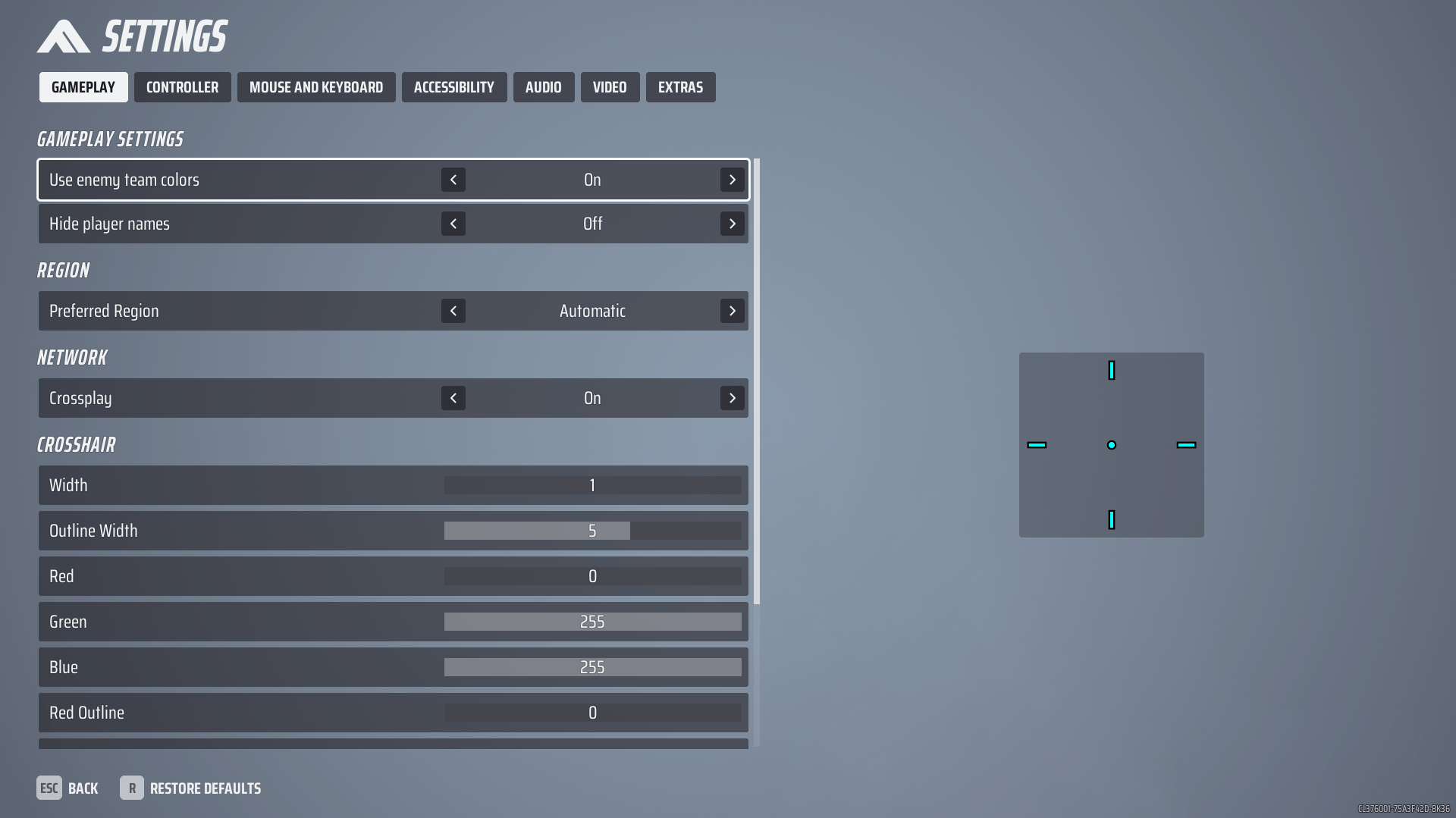
First, let’s cover The Finals in-game settings. For your convenience, we decided to make it a list that duplicates the list inside the game itself, and we chose The Finals Best Gameplay Settings for you:
- Use enemy team colors – On. This is one of the most important settings in the entire game. Allows you to highlight enemies with their color (pink, purple, red, orange);
- Hide player names – Off. This helps you to see enemies better, so we recommend to use it;
- Preferred Region – Automatic. Closest servers may be under pressure, so the game will find better ones;
- Crossplay – On. Controller is not very powerful, so we recommend you play with all the players to find matches faster;
- Crosshair – individual for every player. You can try our crosshair and then customize based on our version (Width: 1, Outline Width 5, Red 0, Green 255, Blue 255, Red/Green/Blue Outline 0, Center Dot On, Center Dot Radius 10, Opacity 100).
The Finals Video Settings
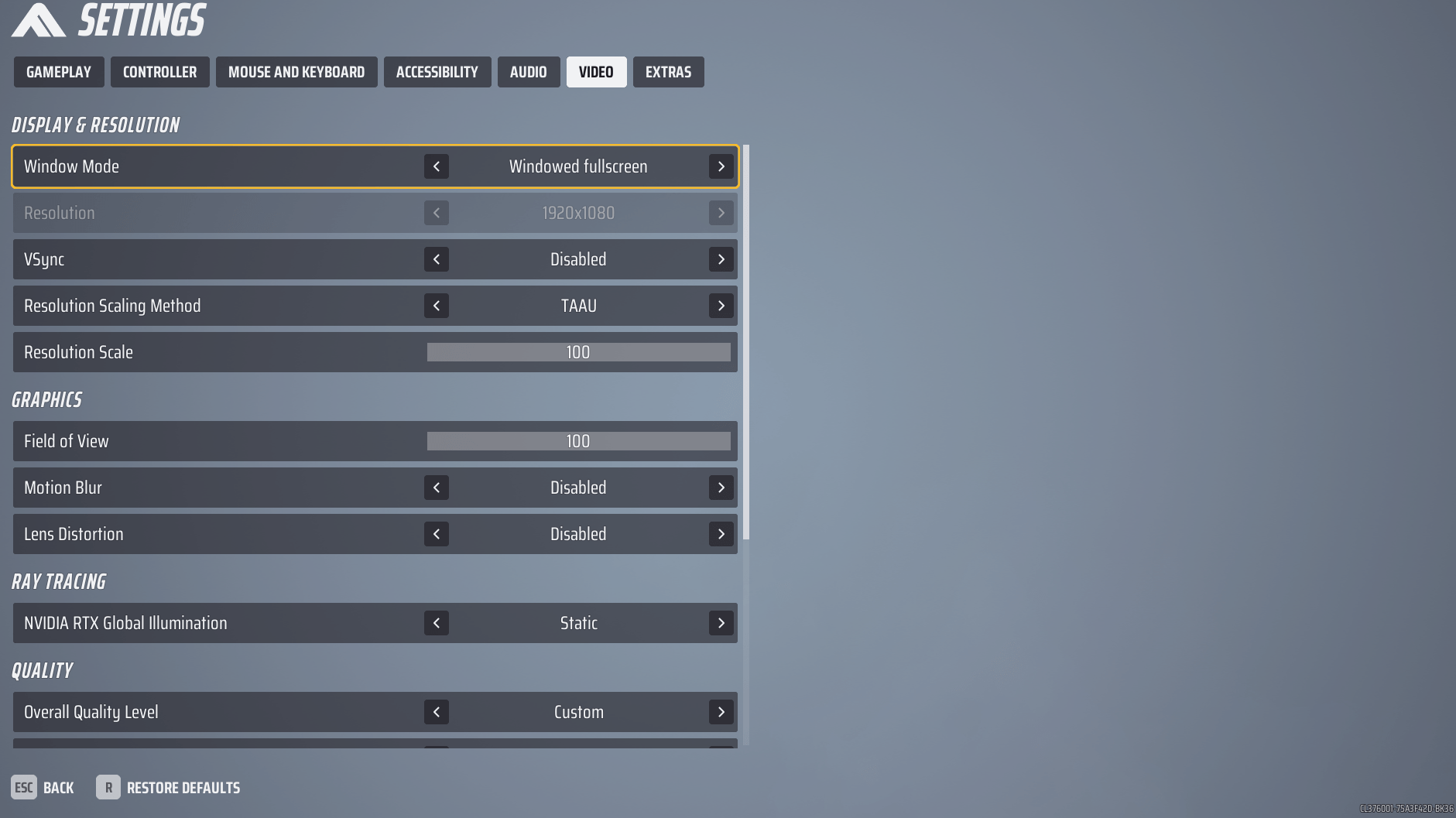
Now we’re getting to the fun part. Here, you need to build The Finals best performance settings so that FPS is decent and visibility is crystal clear:
- Window mode – Fullscreen. It makes the best performance;
- Vsync – Disabled. This is the FPS limitation under the monitor’s hertz. Be sure to turn it off. It’s useless;
- Resolution Scaling Method – TAAU. The best performance to quality ratio;
- Resolution Scale – 100. 100 is mandatory, as a value lower than this will cause the image to pixelate;
- Motion Blur – Disabled. As stated before, be sure to knock it out;
- Lens Distortion – Disabled. Artistic lens distortion effects like a subtle refraction towards edges of the screen and chromatic aberration;
- NVIDIA RTX Global Illumination – Static. Best performance, so we put it like this;
- View Distance – Low. Your battles will not be at the longest distances, so you don’t need to draw long-range objects. And rest assured, even with a sniper rifle, you won’t be looking at soapy textures;
- Anti-Aliasing – High. Smoothing helps our eyes a lot. Thus, the textures are not visible, and you can more easily distinguish objects from each other, not to mention player models;
- Shadows – Low. We just don’t need it. Don’t worry, the game doesn’t turn into a potato on shadow quality low settings;
- Post – Processing – Low. Excessive lighting settings. The eye is easier to navigate with simple settings;
- Texture – High. Right here, be sure to put the maximum that your video card can pull, so that it will be nice and beautiful to play. Low textures may not be very pleasing to the eye;
- Effects – Low. Unnecessary strain on the system. Take it out;
- Foliage – Low. Controls the density of foliage across the levels. Too much impact on GPU performance, so simply take it out;
- Global Illumination Resolution – Low. Screen-space resolution in which the global illumination is applied to the scene. As useless as post-processing.
These settings achieve a balance between visual quality and performance, resulting in smoother gameplay without any issues.
How to Boost FPS in The Finals
If you want to increase low FPS in The Finals, follow these instructions:
- Update your video card drivers. The Finals is a modern game, and for high frame rate it requires the latest drivers for your graphics card whether it’s AMD or NVIDIA;
- Go to Control Panel -> Hardware and Sound -> Power Options. Now enable High Performance mode, which will help you squeeze maximum performance out of your computer by uninterrupted increased electricity supply;
- Reduce the graphics settings to the minimum. This will allow you to achieve the smoothest gameplay and highest FPS;
- Determine where your computer’s performance is bottlenecked while playing a game. Use a third-party utility (e.g. FPS monitor) instead of Task Manager. See whether the CPU or video card is under load, and lower the appropriate settings (the game itself tells you what this or that setting affects);
- Change the native resolution if the previous tips didn’t help. Set it to 720p instead of 1080p. Yes, the picture will be unpleasant, but you will achieve playable FPS.
Best Controller Settings for The Finals
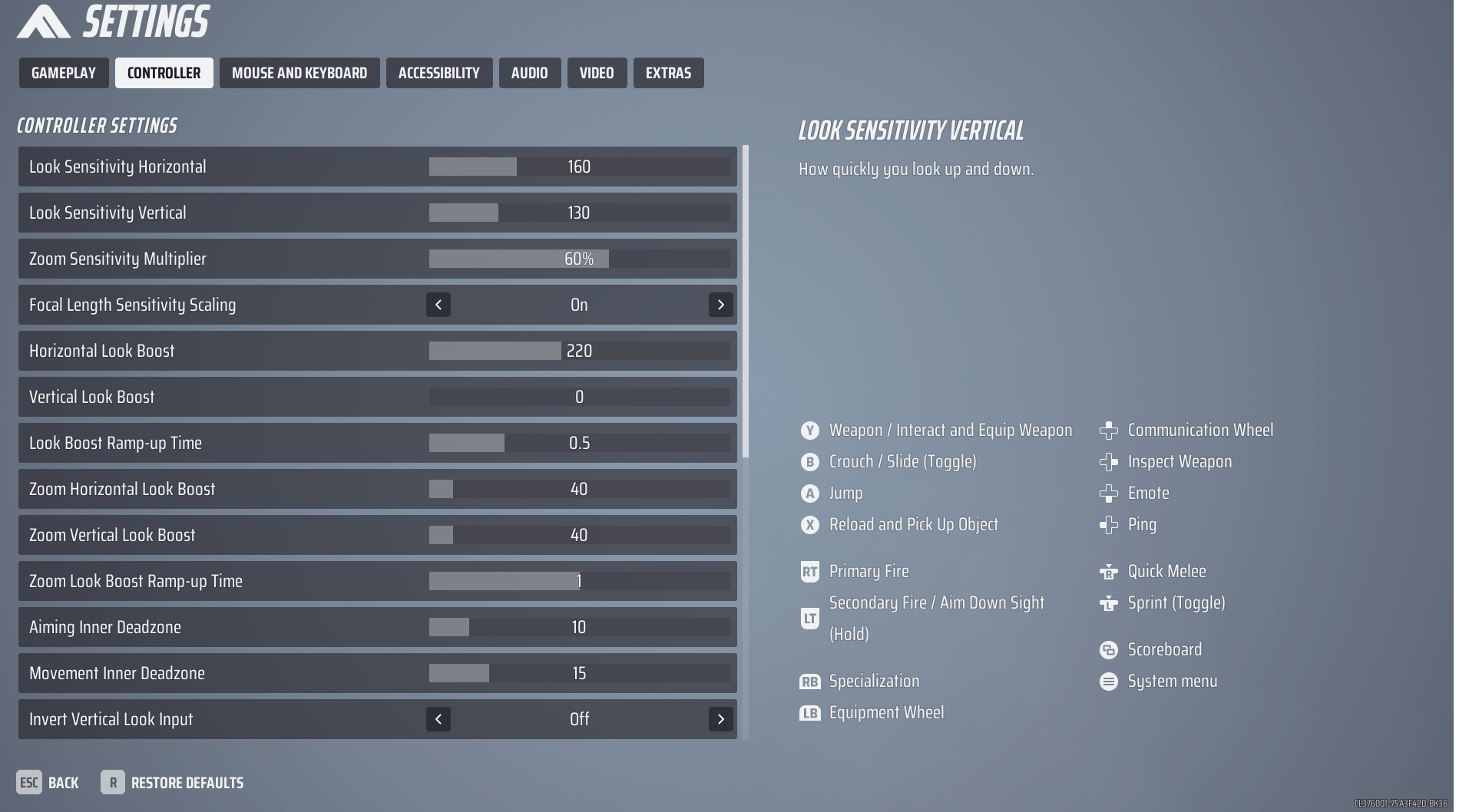
Let’s face it, not the best choice, unless you’re a console player. In The Finals gameplay, you won’t find the same cool aim assist as in Call of Duty, for example, so keyboard + mouse look like winners. Nevertheless, if you play on gamepad all the time, here are the optimal settings for controller in The Finals:
- Aim Assist – On. Everything until Aim Assist is very individual;
- Sensitivity Reduction – On. Slows sensitivity down when looking at a target. Balanced sensitivity will improve your precise aiming;
- Target Tracking – On. Helps with target tracking by slightly rotating the camera to follow their movement;
- Zoom Snapping – On. When zooming in while looking towards a target, the crosshair snaps to them for a short moment;
- Controller Vibration – Off. This controller setting only irritates your hands, so we recommend turning it off.
The Finals Best Mouse and Keyboard Settings
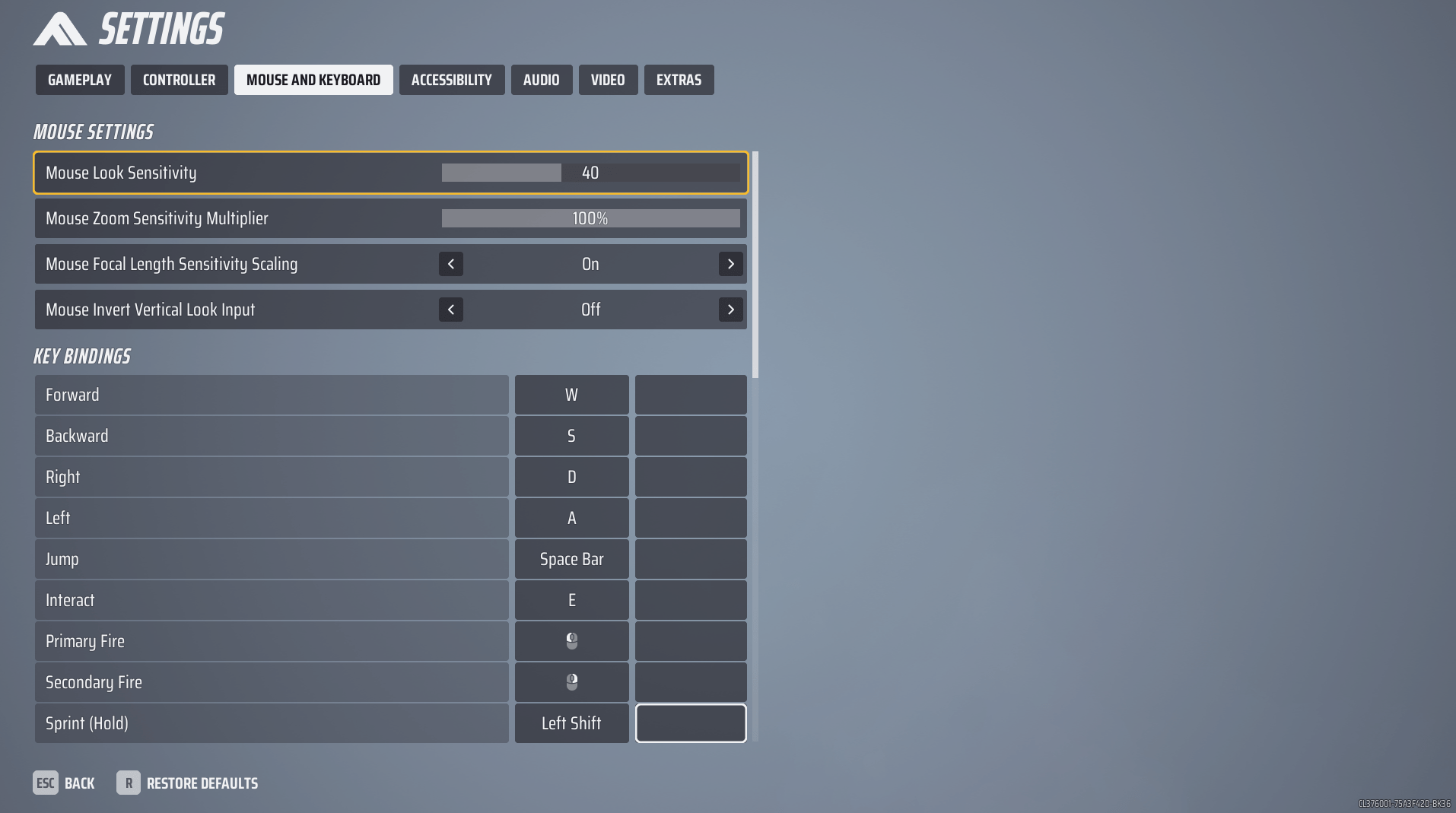
As with the controller most of the settings here are individual, but we’ll give advice on the parts that will objectively improve your gaming experience in The Finals:
- Next Item/Previous Item – Clear. An accidental click on the mouse wheel can be disastrous. We act preventively and remove the bind from the wheel.
Keep in mind that mouse sensitivity settings depend not least on the DPI, so go to Practice and adjust it to your needs.
The Finals Best Audio Settings
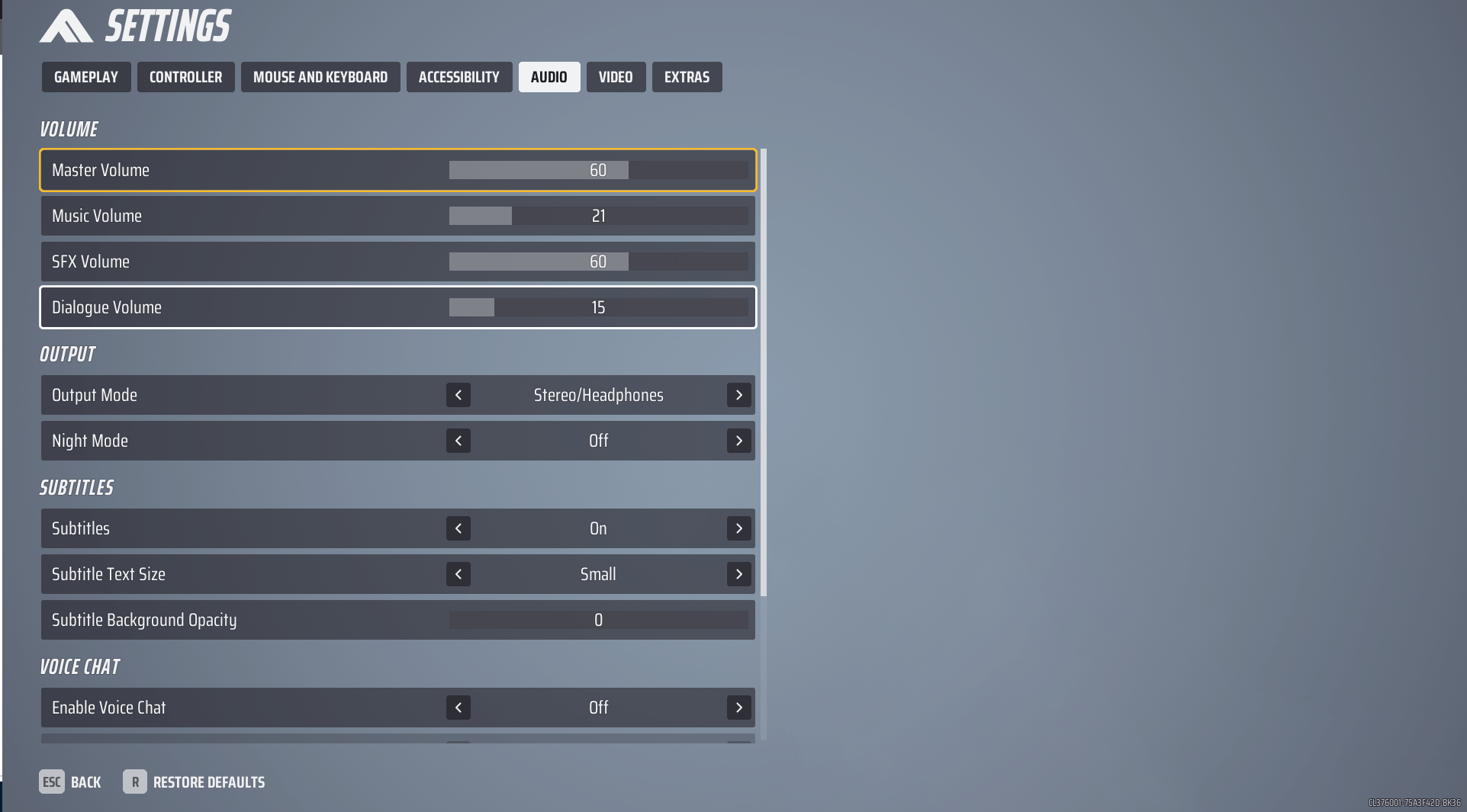
Again, most settings are individualized, but we’ll explain some of them and make recommendations to improve your audio experience in The Finals:
- Output Mode – Stereo/Headphones. Improves the quality of spatial understanding. Almost always with headphones on, you will be able to distinguish which way and at what height the enemy is located.
- The dialogue volume in this game does not play a big role, so it makes sense to put it at 15-50%, but the music volume is better to reduce or turn off completely, so as not to be distracted and not to miss something important.
The Finals Crosshair Settings
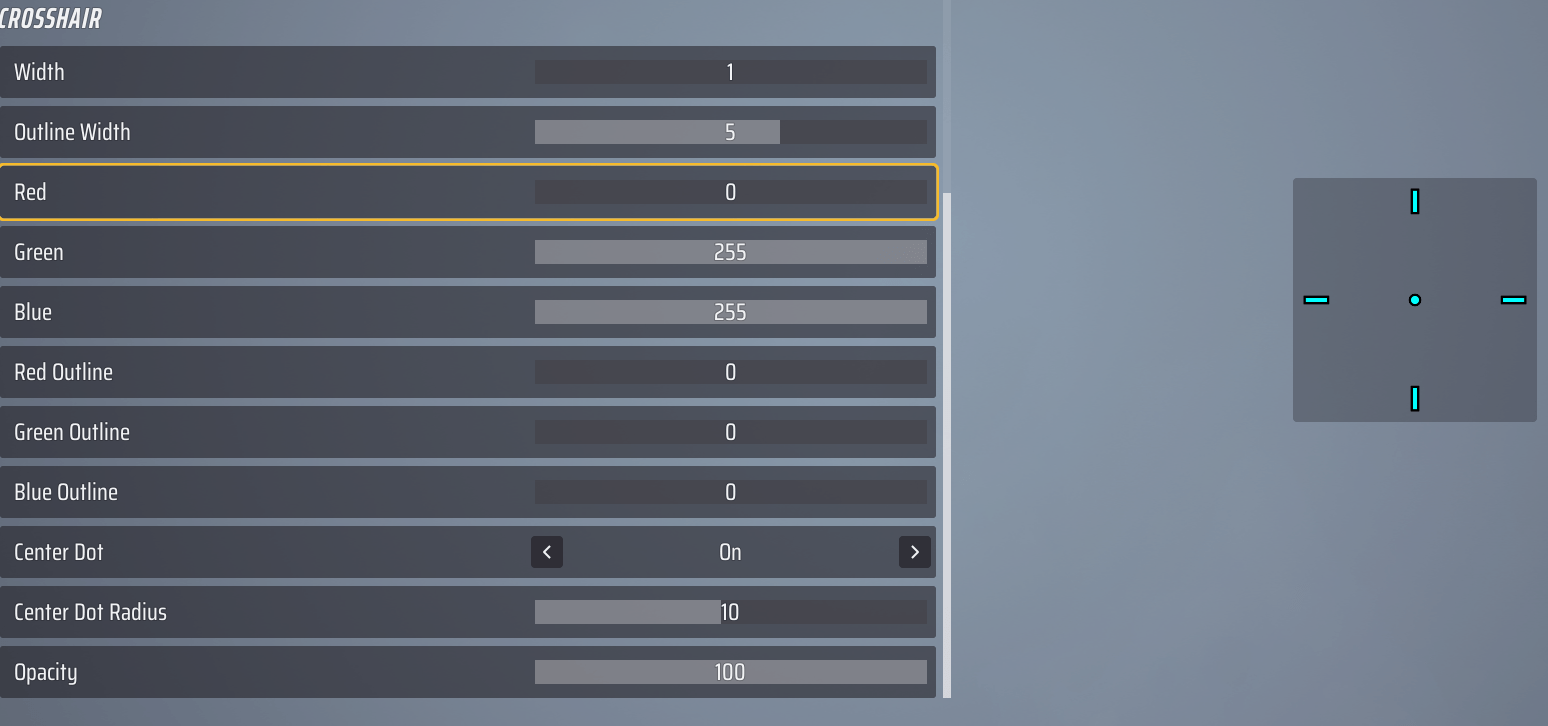
These gameplay settings are individual too, so here, of course, you will be choosing a scope, however, we will advise you on a few things regarding The Finals crosshair options:
- Choose bright crosshair colors: yellow, blue, green, red. There is a lot of orange and pink on the map, so we do not recommend using these colors even with a black outline;
- Use center dot. In a different situation, this setting may save your fight with another team;
- Do not make the sight too big or too small (thin or thick), as you simply will not be able to shoot properly from the hip in many situations. Or you can use our The Finals Coaching service with pro players to learn all the essential tips of gameplay.
The Finals Accessibility settings
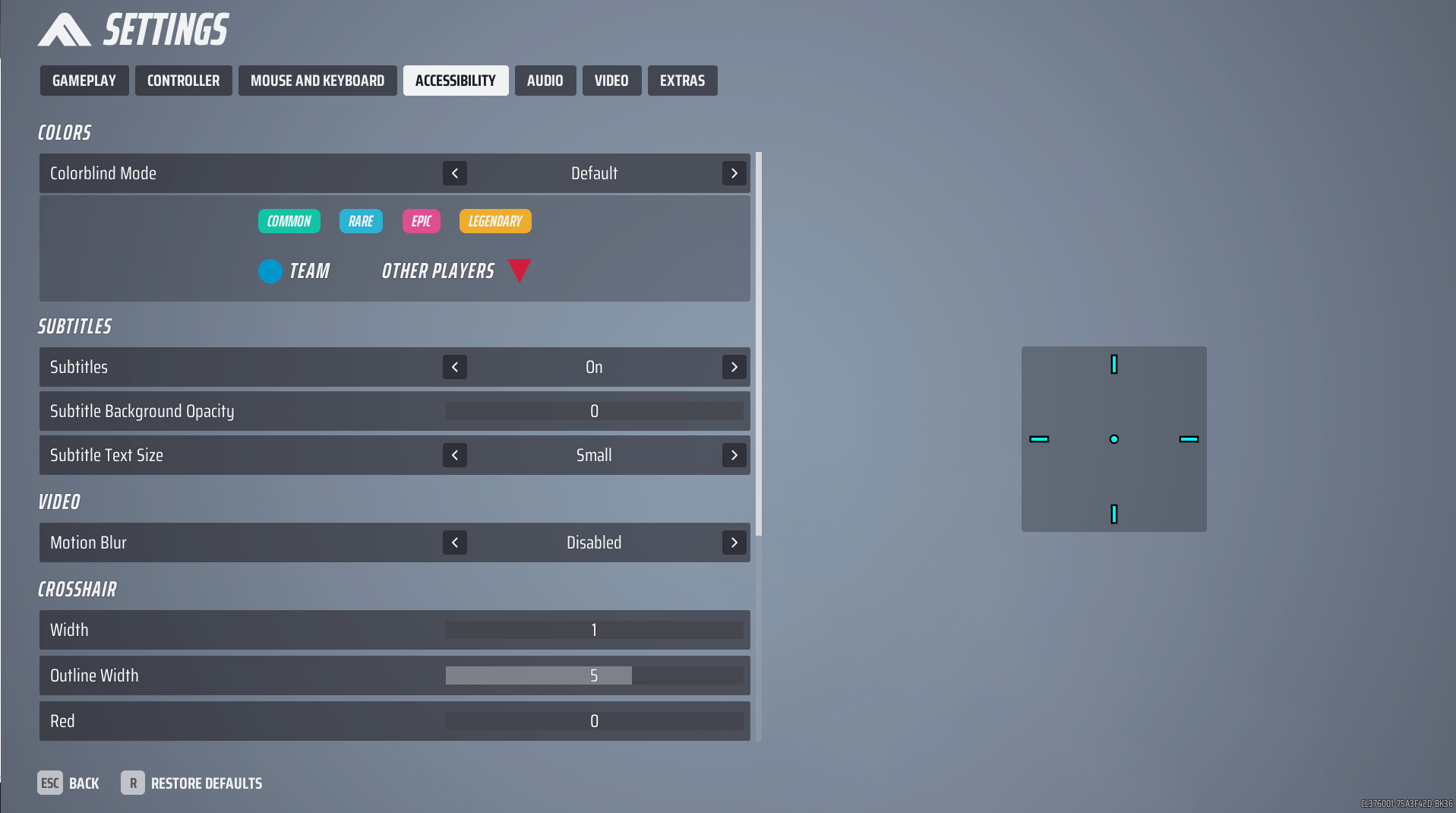
In The Finals Accessibility settings, you should only change something if it interferes with play. But there are a few tricks here, too:
- Subtitles – On. The subtitles are cool in that you can notice in the heat of battle that one of the four teams is wiped out. You might want to turn it on;
- Motion Blur – Disabled. Be sure to turn it off. It’s a nuisance everywhere.
4.9We hope this information has helped you, as our editorial team has already tried all The Finals settings tips and were satisfied! If you liked this guide and tips, please share it with your teammates and friends!
