Pioner is a demanding open-world survival shooter with large environments, intense firefights, and heavy atmospheric effects that can stress mid-range PCs. If you want smooth performance, responsive controls, and clear visibility, the right settings matter. This guide covers the best Pioner settings for graphics, performance, audio, and controls to help boost FPS, reduce stutter, and keep gameplay stable.
Pioner Game Best Settings Key Takeaways:
- Pioner operates optimally on mid-range computers with a 1080p resolution while utilizing DLSS or FSR.
- Shadows, Effects, and Ambient Occlusion affect the FPS the most.
- Exclusive Fullscreen mode with V-Sync turned off offers the lowest latency.
- In terms of a balance between visuals and performance, DLSS/FSR Balanced mode is the best.
- Motion blur and film grain should remain turned off for better visibility.
- The mouse acceleration and smoothing features make aiming unreliable and need to be disabled.
- Ray tracing is not recommended due to high performance cost.
 4.9
4.9Pioner Game Best Optimization Tips
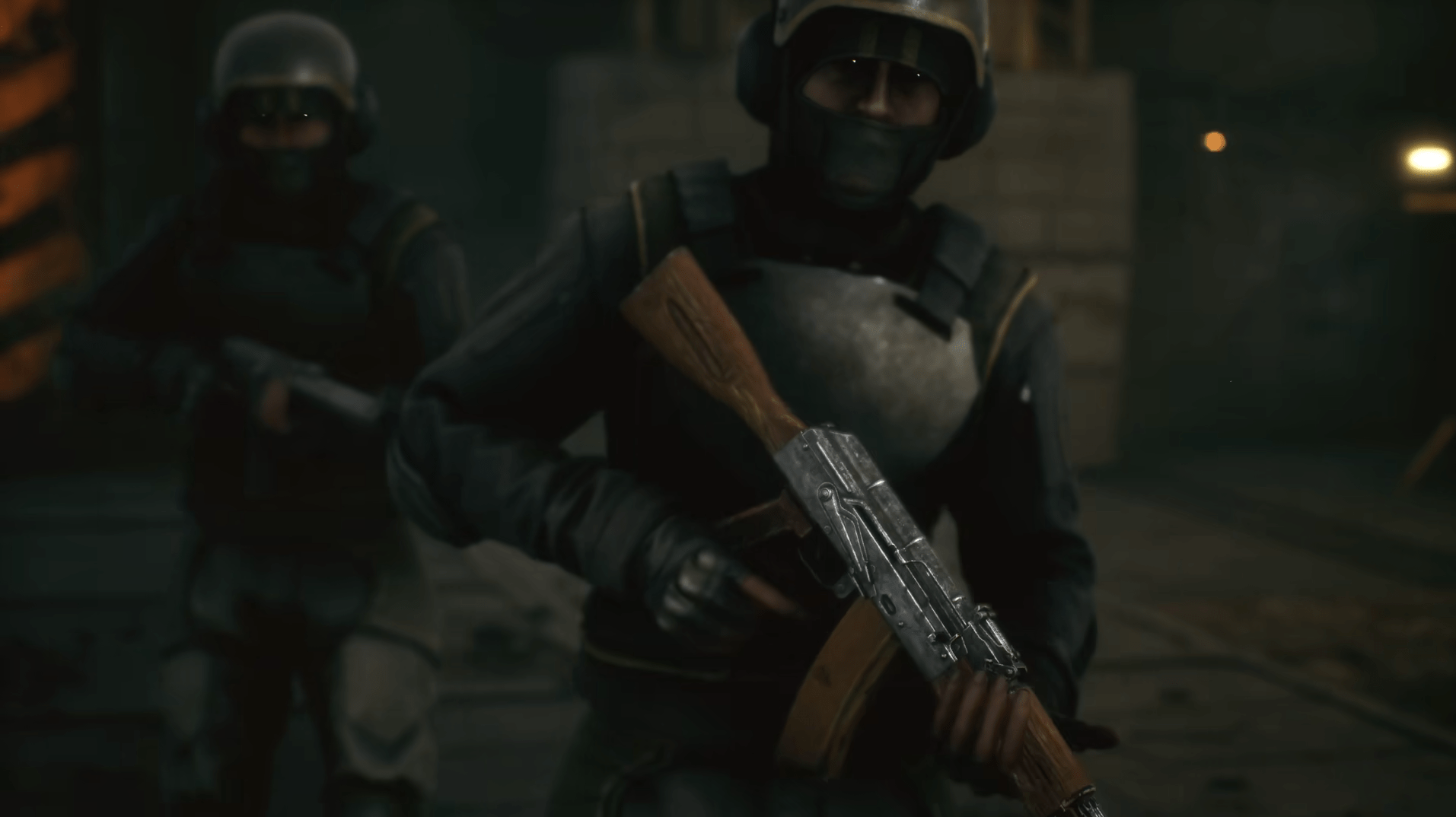
The Pioner optimization settings help smooth out the experience, remove stuttering, and ensure inputs are responsive on mid-range computers. Engine settings and other factors are given in this list and are considered far more important than graphics while you are in a battle or are exploring a world.
| Setting / Tip | Performance Focus | Quality / Comfort Focus |
|---|---|---|
| Display Mode | Exclusive Fullscreen | Borderless |
| V-Sync | Off | On |
| FPS Limit | Cap slightly below refresh rate | Unlimited |
| DLSS / FSR | Enabled | Quality mode or Off at native resolution |
| Background Apps | Close overlays and launchers | Keep only essential tools running |
| GPU Drivers | Latest stable version | Same |
| Shader Compilation | Let shaders fully compile before playing | Same |
Once your settings are dialed in, you can jump straight into the action without spending hours on early grind. With Pioner Leveling, you start playing with a higher-level character, unlocked abilities, and key progression already done.
Pioner Game Best Gameplay Settings
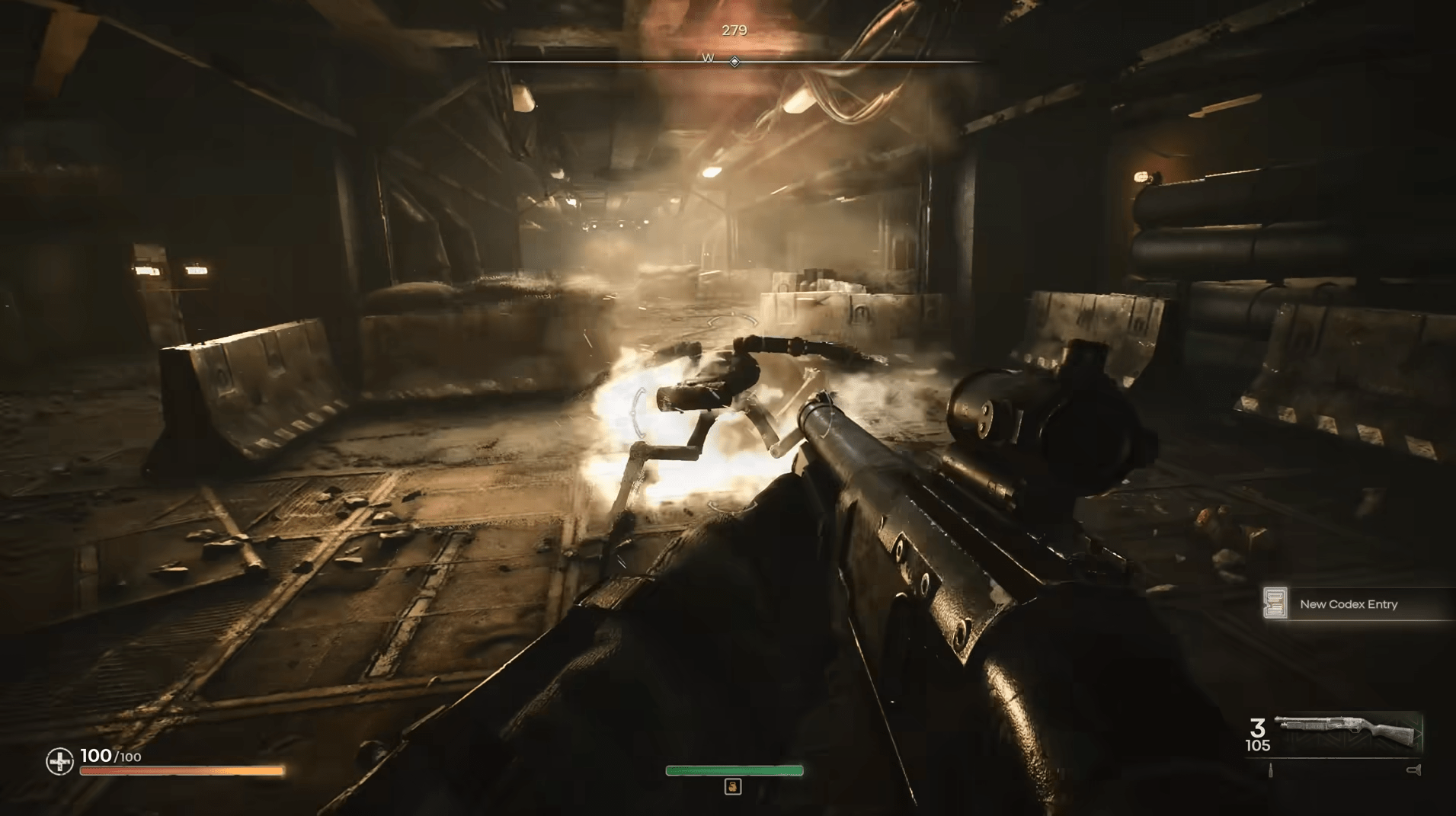
The Gameplay Settings in the Pioner interface control the movements, interaction, and camera reaction during battle and movement. The settings are not related to the fps; however, they highly influence the gameplay, particularly in the critical battle phases.
| Setting | Performance Focus | Quality / Comfort Focus |
|---|---|---|
| Sprint Behavior | Toggle | Hold |
| Crouch / Prone Behavior | Toggle | Hold |
| Auto Sprint | Off | On |
| Interaction Priority | Reload Priority | Interact Priority |
| Lean / Peek (if available) | Manual only | Automatic assist |
| Camera Shake | Off | Low |
| Aim Sway / Weapon Bob | Low or Off | Default |
| Field of View (FOV) | Higher value | Default |
| Auto Mantle / Vault | Off | On |
Pioner Game Best Display Settings
Display settings available in the Pioner control the display of the game on your monitor and affect the resolution of the image, the latency of input, and the stability of the game’s image. The setup of the display matters more in intermediate computers because even slight adjustments of the settings affect the smoothness of the game’s image in a major way without affecting the image quality.
| Setting | Performance Focus | Quality / Comfort Focus |
|---|---|---|
| Display Mode | Exclusive Fullscreen (lowest input latency) | Borderless Windowed (easier alt-tabbing) |
| Resolution | 1920×1080 (higher FPS, stable frametimes) | Native monitor resolution |
| Refresh Rate | Highest available | Highest available |
| V-Sync | Off (prevents input lag) | On (only if tearing is noticeable) |
| Aspect Ratio | Native | Native |
| HDR | Off (avoids brightness issues, lower overhead) | On (if display supports proper HDR) |
| Brightness / Gamma | Adjusted for visibility | Default or slightly higher for atmosphere |
| UI Scale | Default (clear HUD, no clutter) | Increased if playing on large screens |
After gameplay settings much easier to focus on exploration, firefights, and story content instead of micromanaging resources. With enough Hexes Currency on hand, progression feels smoother and less restrictive.
Pioner Game Best Advanced Settings
The advanced settings in Pioner influence rendering techniques, latency performance, and frame rate control. The settings have a real-world effect on performance issues and image quality. Getting the settings right will prevent stuttered performance and issues with frame rate delivery.
| Setting | Performance Focus | Quality / Comfort Focus |
|---|---|---|
| Upscaling Method | DLSS / FSR enabled | DLSS / FSR enabled |
| Upscaling Mode | Balanced or Performance | Quality |
| Sharpening | Low–Medium (restores clarity after upscaling) | Medium |
| Ray Tracing (if available) | Off (large FPS cost) | Off |
| Frame Rate Limit | Manual cap below refresh rate | Unlimited |
| Low Latency Mode / Reflex | On (reduced input delay) | On |
| Async Compute (if available) | On (better GPU utilization) | On |
| Dynamic Resolution | Off (avoids image fluctuation) | Off |
| Shader Cache | Enabled | Enabled |
Pioner Game Best Graphics Settings
The setting of the graphics in Pioner has the most significant effect in terms of image quality and performance. For mid-range computers, the intention is to maintain a clear image and an eerie atmosphere while ensuring there are no heavy FPS drops during combat and exploration missions.
| Setting | Performance Focus | Quality / Comfort Focus |
|---|---|---|
| Texture Quality | Medium (saves VRAM, stable performance) | High (minimal FPS impact) |
| Shadow Quality | Low or Medium (major FPS gain) | High |
| Effects Quality | Low (fewer frame drops in fights) | Medium or High |
| Post-Processing Quality | Low (clearer image, higher FPS) | Medium |
| Anti-Aliasing | Low or Off (use upscaling AA instead) | High (TAA or DLAA) |
| Ambient Occlusion | Off or Low (noticeable FPS boost) | Medium |
| Foliage / Vegetation | Low (better visibility, higher FPS) | Medium |
| View Distance / LOD | Medium (balanced CPU load) | High |
| Volumetric Effects / Fog | Off or Low | Medium |
| Motion Blur | Off | Off |
| Film Grain | Off | Off |
Pioner Game Best Audio Settings
The audio settings of Pioner impact situational awareness, enemy detection, and overall combat awareness. When adjusted correctly, audio sensitivity can improve your ability to detect footstep sounds, gunshots, and other environmental sounds that play an important role during intense battles.
| Setting | Performance Focus | Quality / Comfort Focus |
|---|---|---|
| Audio Mix | Headphones (clear positional sound) | Speakers (if using external speakers) |
| Master Volume | 80–90% (avoids distortion) | 100% |
| Effects Volume | High (footsteps, gunfire clarity) | High |
| Voice Volume | Medium (clear NPC dialogue) | High |
| Music Volume | Low or Off (less distraction) | Medium |
| Dynamic Range | Low or Medium (consistent volume) | High (more cinematic sound) |
| Surround / Spatial Audio | On (better directionality) | On |
| Voice Chat Volume | Adjust to preference | Adjust to preference |
Pioner Game Best Mouse Settings
The mouse settings in Pioner have a direct influence on the accuracy of shooting, reaction speed, and control during combat. Proper mouse settings prevent unnecessary input smoothing or acceleration, which can create a negative effect on a gamer’s muscle memory.
| Setting | Performance Focus | Quality / Comfort Focus |
|---|---|---|
| DPI | 800 DPI (balanced precision and speed) | 800–1600 DPI |
| In-Game Sensitivity | Low–Medium (fine aim control) | Medium |
| ADS Sensitivity Multiplier | 1.0 (consistent muscle memory) | 0.9–1.0 |
| Mouse Acceleration | Off (predictable movement) | Off |
| Mouse Smoothing | Off (raw input) | Off |
| Raw Input | On | On |
| Polling Rate | 1000 Hz (lowest latency) | 500–1000 Hz |
| Vertical Sensitivity | Match horizontal | Match horizontal |
Once you settle on your mouse settings, accuracy when aiming and shooting in this game is significantly improved. However, for this setup to be fully optimal, having good guns definitely helps.
Our Pioner Weapon Blueprints service allows players to bypass the process of grinding for blueprints and get immediately involved in battles by using high-level weapons. To fully appreciate Pioner’s gunplay mechanics, players must use good mouse aiming skills and quality weapons.
Pioner Game System Requirements
Requirements in a Pioner system identify a set of minimal, as well as optimal, hardware requirements. In mid-range PCs, knowledge of what is expected between each tier is crucial in assessing the balance between graphic quality and performance.
| Component | Minimum Requirements | Recommended Requirements |
|---|---|---|
| OS | Windows 10 (64-bit) | Windows 10 / Windows 11 (64-bit) |
| CPU | Intel Core i5-6600AMD Ryzen 3 1200 | Intel Core i7-8700AMD Ryzen 5 3600 |
| GPU | NVIDIA GTX 1060 (6 GB)AMD RX 580 | NVIDIA RTX 2060AMD RX 6600 |
| RAM | 16 GB | 16 GB |
| Storage | SSD recommended | SSD |
| DirectX | Version 12 | Version 12 |
Pioner Game Best Settings FAQ
Pioner Best Settings FAQs include answers that address the most frequently asked questions on game performance settings and graphics settings. This section will enable you to optimize your game easily and solve your FPS and display issues instantly.
What Are the Best Settings for FPS in Pioner on PC?
For maximum FPS, use 1080p resolution, enable DLSS or FSR in Balanced or Performance mode, and lower shadows, effects, and ambient occlusion.
Does Pioner Support DLSS or FSR?
Yes, Pioner supports upscaling technologies like DLSS and FSR. They provide the biggest performance boost on mid-range GPUs with minimal image loss.
Should I Enable V-Sync in Pioner?
V-Sync should stay off to avoid input lag. If screen tearing is an issue, use FreeSync or G-Sync instead.
Which Graphics Settings Impact Performance the Most?
Shadows, effects quality, ambient occlusion, and volumetric effects cause the largest FPS drops. Lowering these gives instant performance gains.
Is Ray Tracing Worth Using in Pioner?
No. Ray tracing has a high performance cost and limited visual benefit. It is not recommended for mid-range PC systems.
What Mouse Settings Are Best for Aiming in Pioner?
Use 800 DPI, disable mouse acceleration and smoothing, and keep ADS sensitivity close to 1.0 for consistent aim behavior.
Can I Run Pioner Smoothly on a Mid-Range PC?
Yes. With optimized settings and upscaling enabled, mid-range systems can achieve stable 60+ FPS at 1080p or 1440p.
4.9Pioner features dense environments and tense firefights that can be demanding on mid-range PCs. With the right settings in place, you’ll get smoother performance, clearer visuals, and more consistent controls, making every encounter feel more responsive and easier to manage.