In our Monster Hunter Wilds Best Settings guide you will get the ultimate settings for your PC setup, consoles, and Steam Deck. You will learn the best settings for performance, including minimum requirements settings and MH Wilds recommended settings for 1080p, 1440p, and 4K. Additionally, we share the best display and accessibility settings, and answer the most popular questions about Monster Hunter Wilds best settings for max FPS.
 4.9
4.9Monster Hunter Wilds PC Requirements
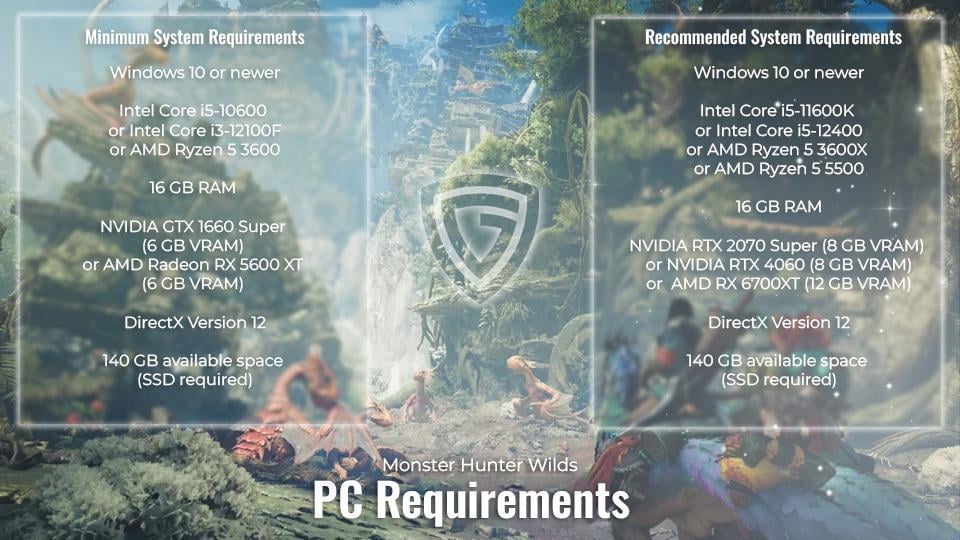
Monster Hunter Wilds is a new game designed specifically for high-performance PCs. Many players who have already tested the game report that it devours a big chunk of your CPU and GPU resources, so choosing the right settings is key.
Before we begin fine-tuning our settings, we should outline that your PC needs to meet the minimum system requirements to launch the game without crashing and run it at a playable FPS. If you want the best performance, check if your PC complies with the recommended system requirements. And of course, make sure that you have stable connection to avoid packet loss and jitter, with no sudden lag spikes.
| Specs | Minimum System Requirements | Recommended System Requirements |
|---|---|---|
| OS | Windows 10 or newer | Windows 10 or newer |
| CPU | Intel Core i5-10600 or Intel Core i3-12100F / AMD Ryzen 5 3600 | Intel Core i5-11600K or Intel Core i5-12400 / AMD Ryzen 5 3600X or AMD Ryzen 5 5500 |
| Memory | 16 GB RAM | 16 GB RAM |
| GPU | NVIDIA GTX 1660 Super (6 GB VRAM) / AMD Radeon RX 5600 XT (6 GB VRAM) | NVIDIA RTX 2070 Super (8 GB VRAM) or NVIDIA RTX 4060 (8 GB VRAM) / AMD RX 6700XT (12 GB VRAM) |
| DirectX | Version 12 | Version 12 |
| Storage | 75 GB available space (SSD required) | 75 GB available space (SSD required) |
| Additional Notes | This game is expected to run at 1080p (upscaled from 720 native resolution) / 30 fps under the “Lowest” graphics setting. DirectStorage supported. | This game is expected to run at 1080p / 60 fps (with Frame Generation enabled) under the “Medium” graphics setting. DirectStorage supported. |
There’s no universal configuration to suit everyone. However, we have split the PC configurations into basic categories to help you navigate through our settings for optimal specs and see what your PC is capable of. Based on the CPU, GPU, and RAM we’ve outlined 4 categories of PCs:
- Minimum Requirements (Lowest specs);
- Recommended for 1080p (Budget-friendly specs);
- Recommended for 1440p (Mid specs);
- Recommended for 4K (High-end specs).
For each of these specs, we have prepared Monster Hunter Wilds best settings lists explained further in our comprehensive guide. And while you figure out the best settings for your PC or console, our professional team can take care of your Hunter Rank.
Monster Hunter Wilds Optimized Settings
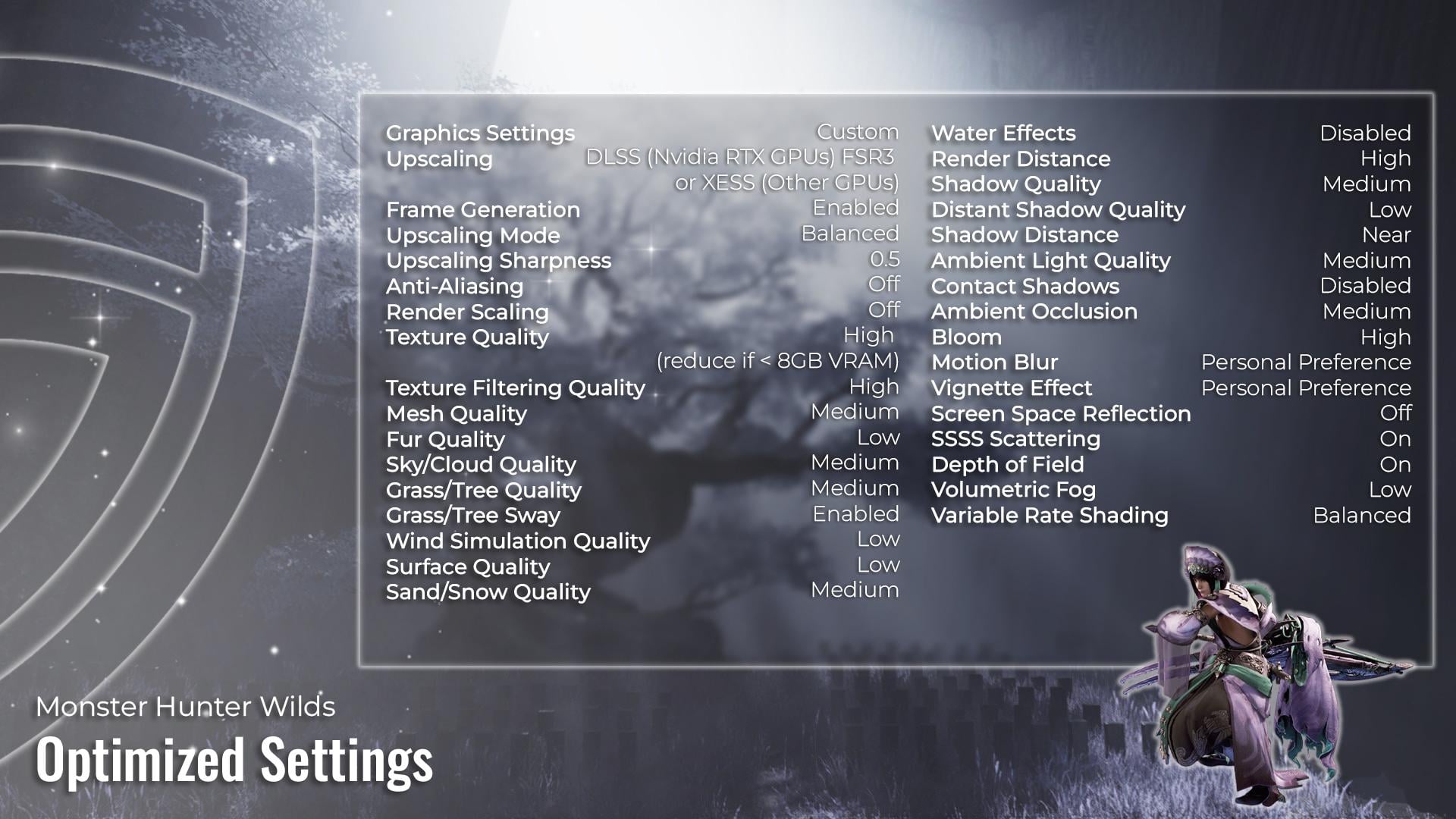
Our Monster Hunter Wilds optimized settings suggest options for an average PC setup that meets the minimum requirements to launch the game and even exceeds them. These settings allow to run Monster Hunter Wilds on 60+ FPS with a decent graphic quality. It offers a balance between the playable frame rate, satisfactory image, and overall smooth experience.
| Setting | Best Option |
|---|---|
| Graphics Settings | Custom |
| Upscaling | DLSS (Nvidia RTX GPUs) FSR3 or XESS (Other GPUs) |
| Frame Generation | Enabled |
| Upscaling Mode | Balanced |
| Upscaling Sharpness | 0.5 |
| Anti-Aliasing | Off |
| Render Scaling | Off |
| Texture Quality | High (reduce if GPU < 8GB VRAM) |
| Texture Filtering Quality | High |
| Mesh Quality | Medium |
| Fur Quality | Low |
| Sky/Cloud Quality | Medium |
| Grass/Tree Quality | Medium |
| Grass/Tree Sway | Enabled |
| Wind Simulation Quality | Low |
| Surface Quality | Low |
| Sand/Snow Quality | Medium |
| Water Effects | Disabled |
| Render Distance | High |
| Shadow Quality | Medium |
| Distant Shadow Quality | Low |
| Shadow Distance | Near |
| Ambient Light Quality | Medium |
| Contact Shadows | Disabled |
| Ambient Occlusion | Medium |
| Bloom | High |
| Motion Blur | Personal Preference |
| Vignette Effect | Personal Preference |
| Screen Space Reflection | Off |
| SSSS Scattering | On |
| Depth of Field | On |
| Volumetric Fog | Low |
| Variable Rate Shading | Balanced |
Monster Hunter Wilds Minimum Requirements Settings
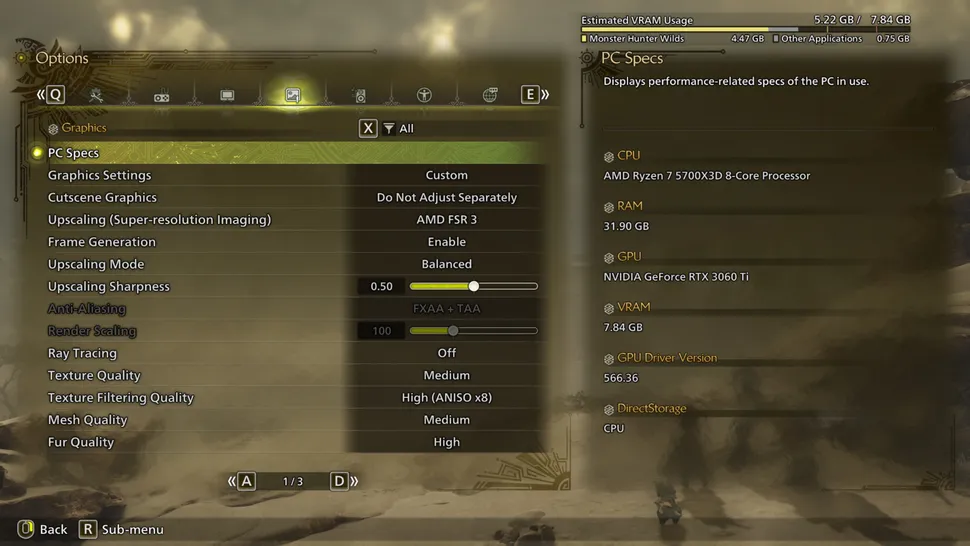
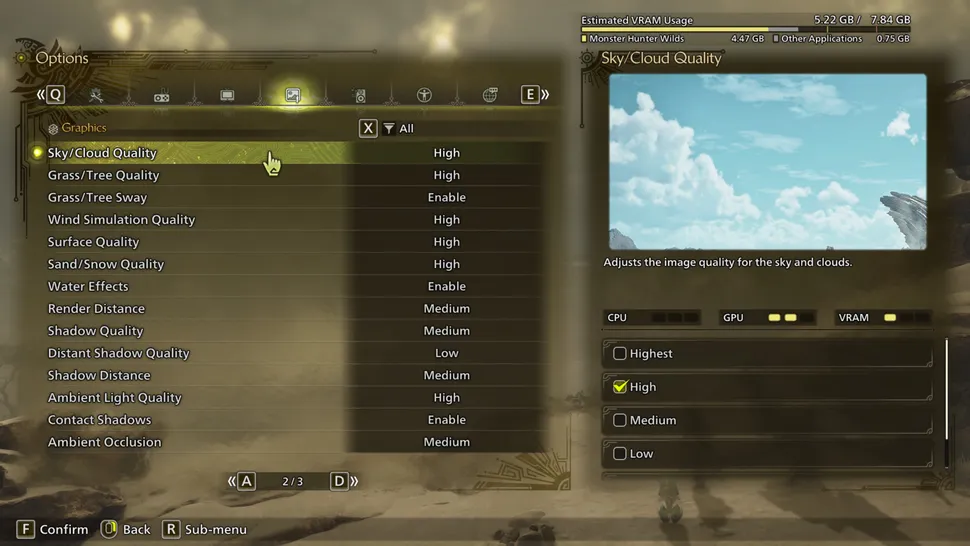
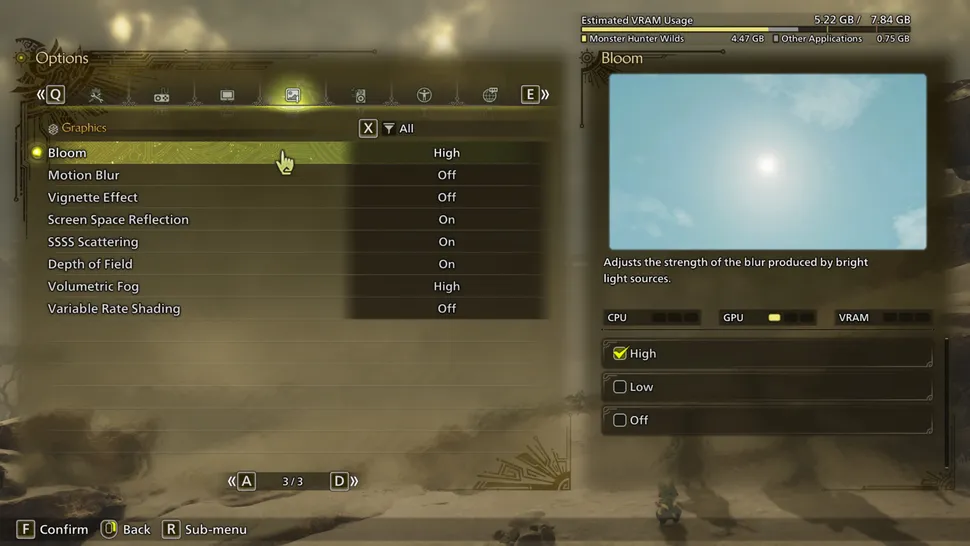
Here, we offer the ultimate Monster Hunter Wilds best settings for performance, which are suitable for computers that meet Monster Hunter Wilds minimum PC specs. These settings are just fine for PCs with Core i7 9700K (65W) CPU and Radeon RX 5700 XT GPU, or similar types.
🔧 Minimum Requirements — Bare Minimum for Hunting Specs:
- CPU: Core i7 9700K (65W);
- GPU: Radeon RX 5700 XT;
- RAM: 16GB DDR4-3200.
In terms of visual effects, you will not get a perfect picture, but rather a playable FPS rate and low-quality image. We aim to put the quality of textures, grass, sky, and others on low-mid quality, disable water, and blur effects. Set render distance on medium in order not to spoil the experience and be able to notice details on the screen from a middle range.
Sad but true, the lowest settings in case of minimum requirements setups are obligatory. But do not let this fact spoil your game. You still can enjoy every aspect of MH Wilds, including Armor Sets, with the assistance of our team.
| Setting | Best Option |
|---|---|
| Resolution | 1080p |
| Upscaling | FSR 3.1 Balanced |
| Frame gen | Disabled |
| Texture quality | Low |
| Texture filtering quality | Medium (ANISO x4) |
| Mesh quality | Medium |
| Fur quality | Low |
| Sky/Cloud quality | Medium |
| Grass/Tree quality | Medium |
| Grass/Tree sway | Disabled |
| Wind simulation quality | Low |
| Surface quality | High |
| Sand/snow quality | Medium |
| Water effects | Enabled |
| Render distance | Medium |
| Shadow quality | Medium |
| Distant shadow quality | Low |
| Shadow distance | Near |
| Ambient light quality | Medium |
| Contact shadows | Enabled |
| Ambient occlusion | Medium |
| Bloom | High |
| Motion blur | Disabled |
| Vignette effect | Disabled |
| Screen space reflections | Enabled |
| SSSS scattering | Enabled |
| Depth of field | Disabled |
| Volumetric fog | Low |
| Variable rate shading | Balanced |
✏️ Tip: One of the options allowing to improve performance on older computers or budget setups without NVIDIA graphics card is to use FSR 3 or Intel XeSS for upscaling.
Monster Hunter Wilds Recommended Settings

Recommended for 1080p

Recommended for 1080p

Recommended for 1080p

Recommended for 1440p
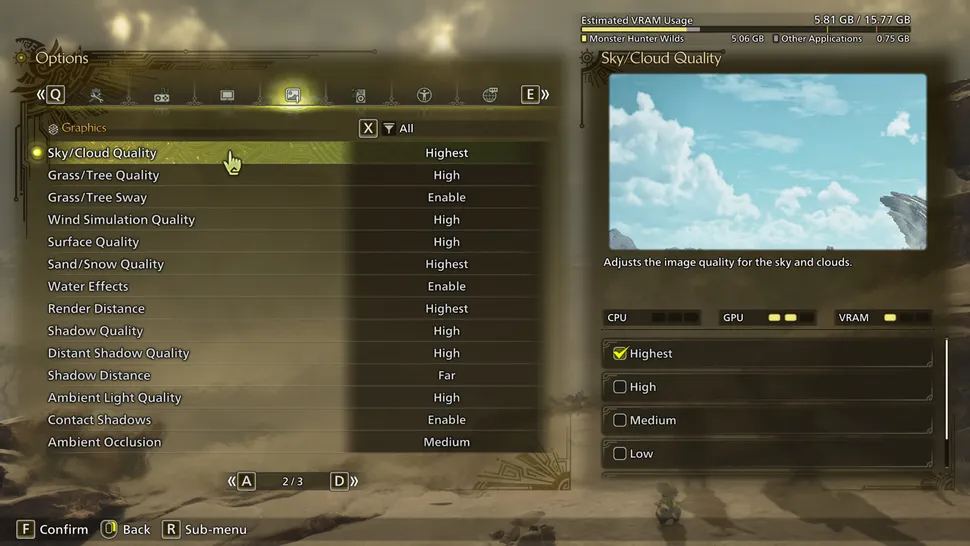
Recommended for 1440p
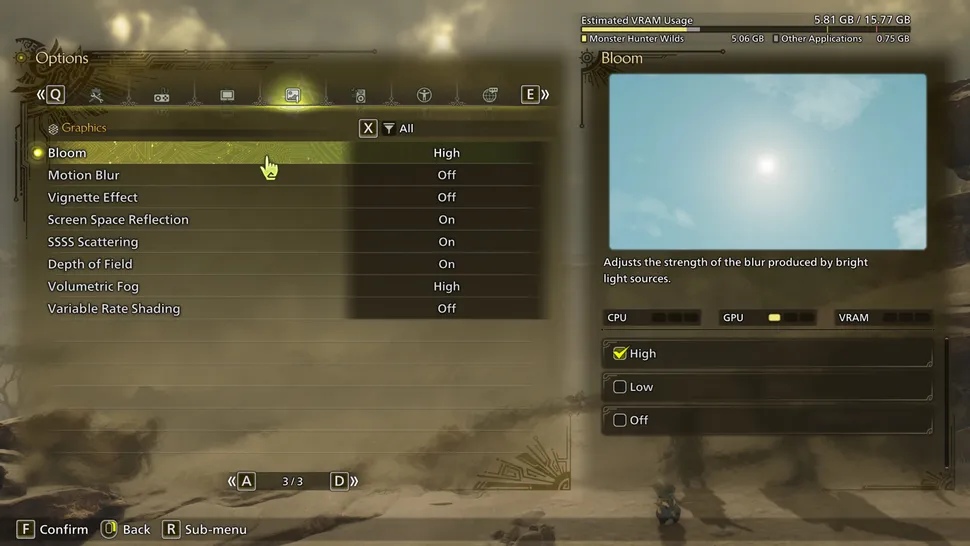
Recommended for 1440p

Recommended for 4K

Recommended for 4K

Recommended for 4K
Here we have gathered a pack of Monster Hunter Wilds recommended graphic settings suitable for budget computers, mid-specs, and high-end setups. The settings may vary depending on the rest of the specs on your computer, and you can switch on and off particular options for satisfactory performance. These settings are suitable for the following setups:
🔧 Recommended for 1080p — Smooth Hunts at 1080p Specs.
A solid choice for budget-conscious players who still want good visuals and stable performance. Expect 60+ FPS at high settings in 1080p, with the potential to push 1440p if you optimize settings.
- CPU: AMD Ryzen 7 5700X3D or Intel Core i7-11700K and Intel Core i5-12600K;
- GPU: Radeon 6700 XT or GeForce RTX 3060 Ti;
- RAM: 32GB DDR4-3200.
🔧 Recommended for 1440p — High Performance at 1440p Specs.
This is the sweet spot for most players. You’ll get smooth 1440p gameplay with high-to-ultra settings and consistent 60+ FPS, even in visually intense battles. Some 4K gaming is possible with optimized settings. However, better graphics do not make Monster Kill any easier without experience, and our team can assist you with this task.
- CPU: AMD Ryzen 5 7600X or Intel Core i5 13600K;
- GPU: Radeon RX 7800 XT or RTX 4070 Super;
- RAM: 32GB DDR5-6400.
🔧 Recommended for 4K — The Ultimate Hunting Machine Specs.
For those who want the best experience possible, here we have 4K ultra settings with high FPS. You’ll get buttery smooth performance, ray tracing, and all the eye candy Monster Hunter Wilds has to offer.
- CPU: AMD Ryzen 7 9800X or Intel Core Ultra 7 265K;
- GPU: RX 7900 XT or GeForce RTX 4080 Super;
- RAM: 48GB DDR5-8000.
| Settings | Recommended for 1080p | Recommended for 1440p | Recommended for 4K |
|---|---|---|---|
| Resolution | 1080 | 1440 | 4K |
| Upscaling | FSR 3.1 Balanced | FSR 3.1 Balanced | Upscaling |
| Frame gen | Enabled | Enabled | Frame gen |
| Texture quality | Medium | High | Texture quality |
| Texture filtering quality | High (ANISO x8) | Highest (ANISO x16) | Texture filtering quality |
| Mesh quality | Medium | Highest | Mesh quality |
| Fur quality | High | High | Fur quality |
| Sky/Cloud quality | High | Highest | Sky/Cloud quality |
| Grass/Tree quality | High | High | Grass/Tree quality |
| Grass/Tree sway | Enabled | Enabled | Grass/Tree sway |
| Wind simulation quality | High | High | Wind simulation quality |
| Surface quality | High | High | Surface quality |
| Sand/snow quality | High | Highest | Sand/snow quality |
| Water effects | Enabled | Enabled | Water effects |
| Render distance | Medium | Highest | Render distance |
| Shadow quality | Medium | High | Shadow quality |
| Distant shadow quality | Low | High | Distant shadow quality |
| Shadow distance | Medium | Far | Shadow distance |
| Ambient light quality | High | High | Ambient light quality |
| Contact shadows | Enabled | Enabled | Contact shadows |
| Ambient occlusion | Medium | Medium | Ambient occlusion |
| Bloom | High | High | Bloom |
| Motion blur | Disabled | Disabled | Motion blur |
| Vignette effect | Disabled | Disabled | Vignette effect |
| Screen space reflections | Enabled | Enabled | Screen space reflections |
| SSSS scattering | Enabled | Enabled | SSSS scattering |
| Depth of field | Enabled | Enabled | Depth of field |
| Volumetric fog | High | Low | Volumetric fog |
| Variable rate shading | Disabled | Disabled | Variable rate shading |
✏️ Tip: If applying these settings on setups beneath 4K offers you decent FPS (above 60), you can try to raise certain sliders to achieve even better performance keeping reliable frame rate.
Monster Hunter Wilds Settings for Consoles
Consoles are typically less demanding in terms of settings’ tuning than PCs. Here are optimal Monster Hunter Wilds settings for Xbox and PS5 that can help you improve your console gaming experience:
| Setting | Best Option |
|---|---|
| Resolution Mode | Performance Mode (for 60 FPS gameplay) |
| HDR | Enable (if supported) |
| V-Sync | Enable |
| Motion Blur | Off (for sharper visuals) |
| Ambient Occlusion | Medium |
| Shadow Quality | Medium |
| Volumetric Fog | Low (to maintain stable FPS) |
4.9Monster Hunter Wilds Steam Deck Settings
Monster Hunter Wilds just launched and is still not optimized for PC, let alone the Steam Deck. However, that’s no reason to miss out on this new gaming hit. We’ve put together the best Steam Deck graphic settings to help you play MH Wilds with decent FPS and visuals.
| Setting | Best Option |
|---|---|
| Resolution | 640×480 |
| Upscaling | AMD FSR |
| Frame Generation | Off |
| Upscaling Mode | Ultra Performance |
| Ray Tracing | Off |
| Texture Quality | Low |
| Texture Filtering Quality | Low |
| Fur Quality | Low |
| Sky/Cloud Quality | Low |
| Grass/Tree Quality | Low |
| Grass/Tree Sway | Off |
| Wind Simulation Quality | Low |
| Surface Quality | Low |
| Sand/Snow Quality | Low |
| Water Effects | Enable |
| Render Distance | Low |
| Shadow Quality | Low |
| Distant Shadow Quality | Low |
| Shadow Distance | Low |
| Ambient Light Quality | Low |
| Contact Shadows | Off |
| Ambient Occlusion | Low |
| Bloom | Low |
| Motion Blur | Off |
| Vignette Effect | On |
| Screen Space Reflection | Off |
| Scattering | Off |
| Depth of Field | Off |
| Volumetric Fog | Low |
| Variable Rate Shading | Off |
Monster Hunter Wilds Display Settings
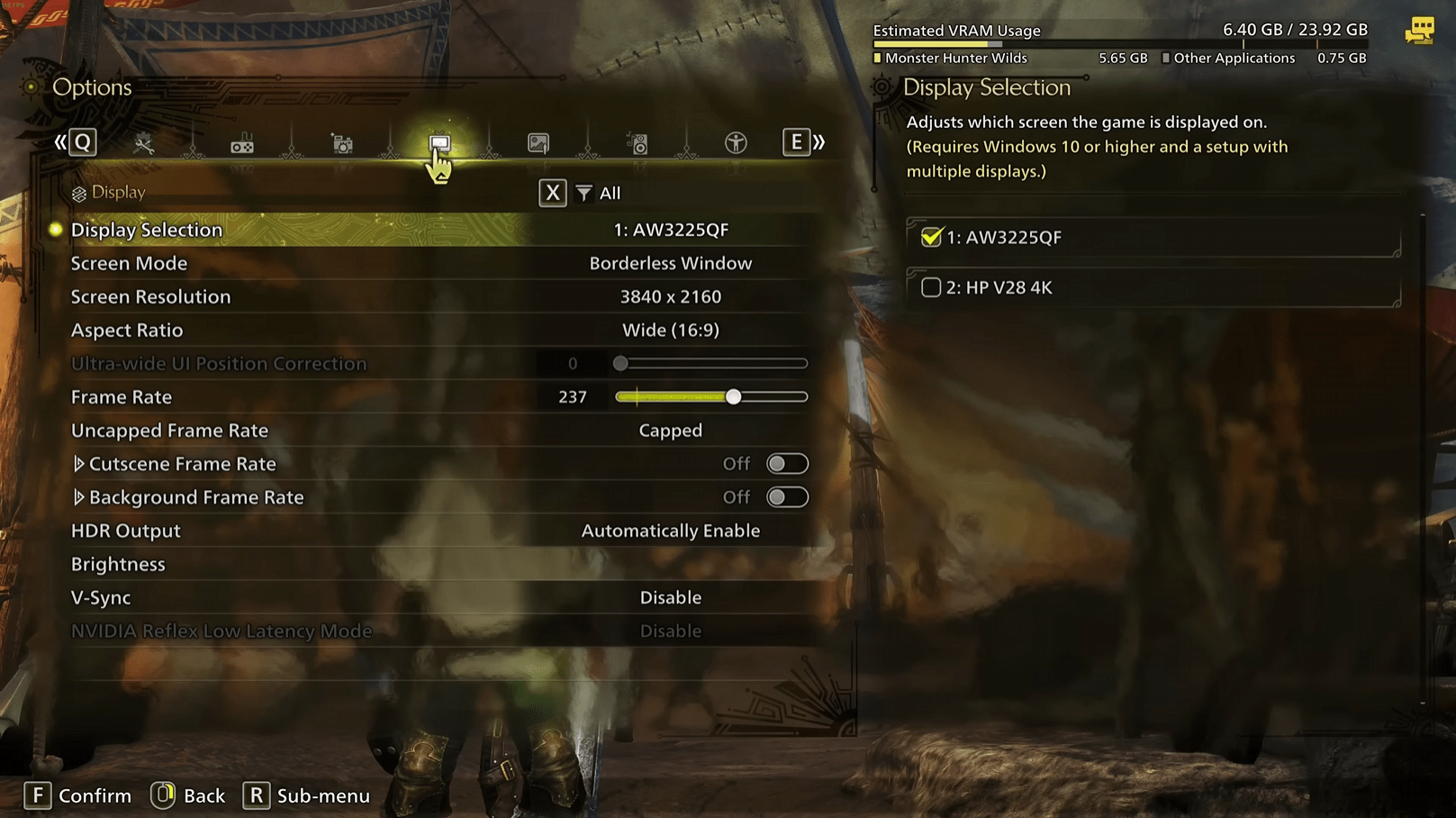
Not all the aspects of performance rely solely on your CPU, GPU, and RAM. You should also pick the optimal display settings to enjoy Monster Hunter Wilds. Below, you’ll find a breakdown of each Monster Hunter Wilds display setting, what it does, and how it affects performance and the image.
- Display Selection: Unchanged (unless using 2+ monitors);
- Screen Mode: Borderless Window (alternatively, Windowed Mode);
- Screen Resolution: 1920×1080 (optimal, but you can choose your native resolution, depending on the monitor);
- Aspect Ratio: Automatic;
- Ultra-wide UI Position Correction: Disabled (unless using an ultrawide monitor);
- Frame Rate: Uncapped;
- Cutscene Frame Rate: Off;
- Background Frame Rate: Off;
- HDR Output: Enable if your display supports HDR;
- Brightness: Default values;
- V-Sync: Disabled for lower input lag;
- NVIDIA Reflex Low Latency Mode: Enable for reduced latency (Nvidia GPUs only).
These settings will allow you to savor every detail of MH Wilds world and memorize its beautiful sights. But do you know what else is worth enjoying? Palico New Armor, that comes in various shapes and makes your companion even stronger. Reach out to our pro players to get it all.
Monster Hunter Wilds Accessibility Settings

Capcom hasn’t released any popular accessibility settings for Monster Hunter Wilds yet, neither colorblind mode nor limited key or controller rebinding. However, you can customize subtitles. To open the menu and change these settings, follow the path:
| Title Menu → Options → Interface |
Available MH Wilds subtitles, HUD text, and help messages customization options are:
- Menu Text Size: Small/Default/Large;
- Cutscene Subtitles: Display/Do Not Display;
- Subtitle Background: Display/Do Not Display;
- Speaker Names (Cutscenes): Display/Do Not Display;
- Speaker Names (Outside of Cutscenes): Display/Do Not Display.
Monster Hunter Wilds Settings FAQ
We have answered all the most popular questions related to Monster Hunter Wilds settings and are ready to share our knowledge with you. This section will help you to understand the nature of Monster Hunter Wilds performance and make the best of it.
How To Change Graphics Settings In Monster Hunter Wilds?
Find and click “Options” on a title screen after the game launch, and head to “Graphics” (fourth menu). Here you’ll find all the graphic-related switches and buttons.
Is Monster Hunter Wilds Optimized?
In its current state straight after release, Monster Hunter Wild is not yet fully optimized. Players on Xbox and PS5 may experience bad performance and FPS drops. The same can be said about PC gamers: many of them have reported game crashes, freezes, and FPS drops even on recommended builds. It doesn’t mean, however, inevitable troubles on each particular device.
How to Get 60 FPS in Monster Hunter World?
In order to reach the optimal minimum of 60 FPS try to use the Variable Resolution option. You should set it to the target frame rate, and the game will prioritize adjusting the performance to this value. Even if your setup is capable of providing a higher but inconsistent frame rate, it’s better to limit it for optimized performance.
How Much VRAM Does Monster Hunter Wilds Need?
Monster Hunter Wilds Minimum System Requirements suggest that you should have at least 6GB VRAM on your device. The optimal volume, however, is 8GB VRAM or higher.
Is My PC Good for Monster Hunter Wilds?
If your PC has at least an NVIDIA GeForce GTX 1660 Super with 6 GB of VRAM or an AMD Radeon RX 5600 XT with 6 GB of VRAM, you meet the minimum system requirements, and your computer is suitable to play MH Wilds.
4.9All in all, there’s no single option for Monster Hunter Wilds Best Settings. However, with the help of our comprehensive guide, you now should be able to pick the optimal settings for your setup, be it minimum requirements settings, or recommended settings for 1080p, 1440p, and 4K. So tune your display settings, put the Variable Resolution on 60 FPS, and enjoy the hunt.
