Our Marvel Rivals best settings guide will help you get smoother gameplay, higher FPS, and cleaner visibility on PC. This Marvel Rivals performance guide covers display options, graphics settings, audio, sensitivity, controller setup, NVIDIA Control Panel tweaks, Steam Deck settings, and Marvel Rivals optimized settings for low-end PC options.
Marvel Rivals Best Settings Key Takeaways:
- The best Marvel Rivals settings focus on stable FPS, low input delay, and clear visibility.
- For a quick Marvel Rivals FPS boost, lower shadows, effects, foliage, and post-processing first.
- The best Marvel Rivals graphics settings use SSGI Low, low shadows, low effects, and native display resolution.
- For Marvel Rivals best settings for FPS PC, keep Frame Generation off in competitive play.
- Use DLSS on NVIDIA RTX GPUs, FSR on AMD GPUs, and XeSS on supported Intel hardware.
- Marvel Rivals low end PC settings should prioritize 60 FPS over visual quality.
- Marvel Rivals NVIDIA Control Panel settings can help reduce latency and improve frame pacing.
- Marvel Rivals controller settings should focus on stable aim, lower deadzones, and clear ability binds.
- Marvel Rivals best Steam Deck settings work best around 40 FPS with low graphics settings.
- Avoid random Marvel Rivals Engine.ini settings unless you know how to revert them after a patch.
 4.9
4.9Marvel Rivals Display Settings
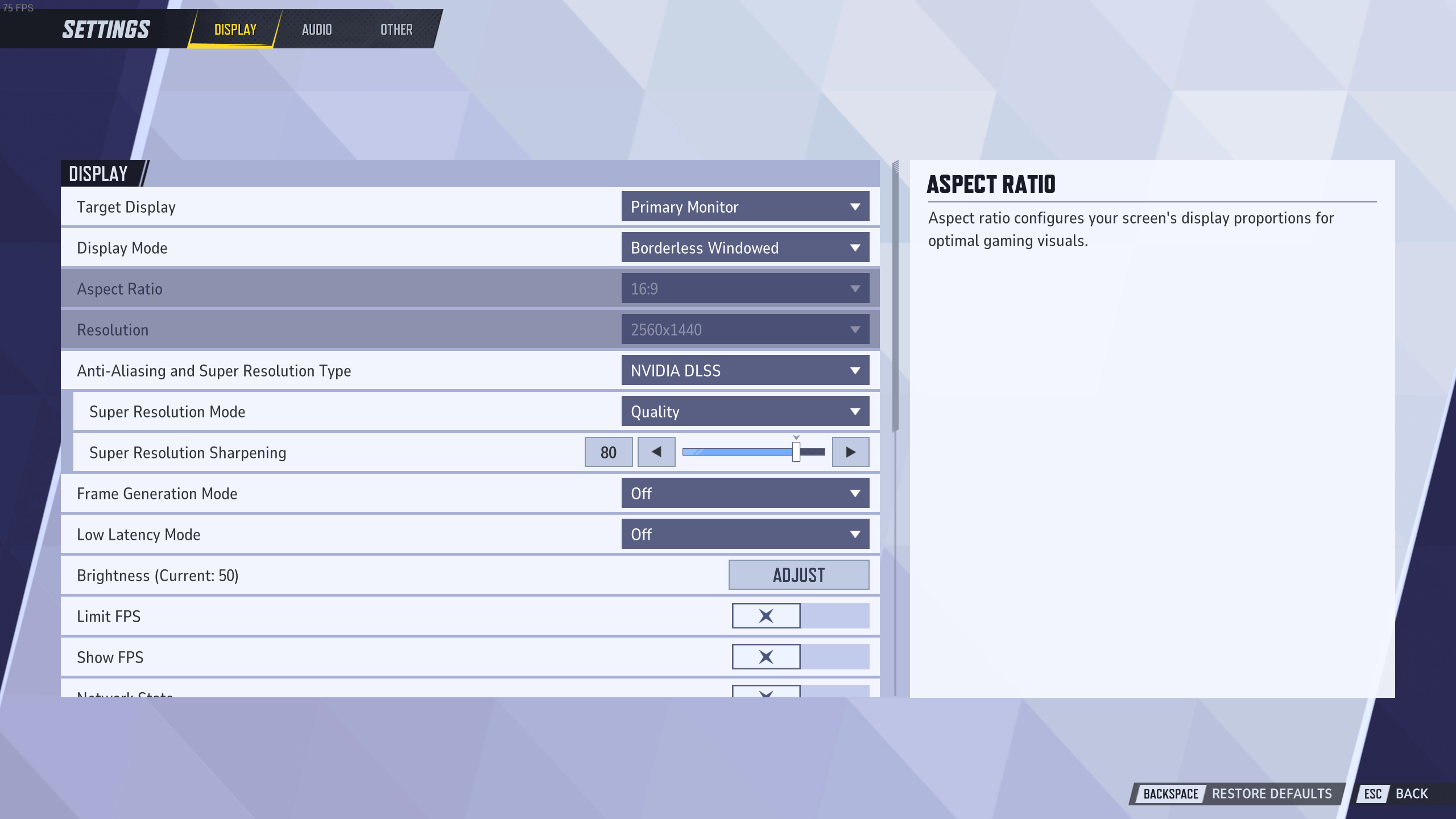
From a performance standpoint, Marvel Rivals runs well on many PC setups. Still, the game can drop frames during heavy teamfights, map destruction, and ability spam. That is why your Marvel Rivals PC settings should start with display options before graphics quality. These are the best display settings for Marvel Rivals if you want smoother gameplay and a clean FPS boost.
| Setting | Recommended Value | Explanation |
|---|---|---|
| Limit FPS | Off / Match Monitor | Turn it off for max FPS. Cap it slightly below refresh rate if frames feel unstable. |
| Show FPS | On | Keep this enabled to track drops during fights. |
| Network Stats | On | Helps you see ping spikes and connection issues. |
| V-Sync | Off | Reduces input delay. Enable only if screen tearing feels too distracting. |
| Display Mode | Fullscreen | Fullscreen usually gives better frame pacing and lower latency. |
| Aspect Ratio | Match Display | Use your monitor’s native aspect ratio for the clearest image. |
| Resolution | Match Display | Native resolution gives the cleanest visibility. Lower it only on weak PCs. |
| Anti-Aliasing and Super Resolution Type | DLSS / FSR / XeSS | Use DLSS for NVIDIA RTX, FSR for AMD, and XeSS for Intel GPUs. |
| Super Resolution Mode | Quality / Balanced | Quality looks better. Balanced gives a stronger FPS boost. |
| Super Resolution Sharpening | 50–70 | Helps reduce blur from upscaling. Tune it by preference. |
| Frame Generation | Off | Keep it off for ranked, since it can add input delay. |
| Low Latency Mode | NVIDIA Reflex / Equivalent Option | Turn it on to reduce input latency. |
| Brightness | Preference | Use a level that keeps dark areas readable. |
Marvel Rivals Super Resolution Settings
If you’re unsure about Anti-Aliasing and Super Resolution settings in Marvel Rivals, don’t worry — it’s straightforward. Super Resolution Technology allows games to render at a lower resolution and upscale to a higher one using advanced algorithms. This boosts performance while maintaining decent visual quality. Here’s a quick breakdown of common Super Resolution technologies:
- DLSS — Is NVIDIA’s AI-driven upscaling technology that improves image quality with minimal performance impact. Ideal for RTX-enabled NVIDIA GPUs.
- FSR — Is an open-source upscaling for both AMD and NVIDIA GPUs that gives decent performance gains.
- TSR — Temporal Super Resolution is a method used by Unreal Engine 5 in compositing information across many frames to produce quality upscale.
- XeSS — Intel’s AI-powered upscaling designed for Intel GPUs and compatible hardware.
For the best video settings in Marvel Rivals, enable both Super Resolution and Anti-Aliasing if you want to increase performance while reducing some of the lost detail. Enable DLSS for any RTX-capable NVIDIA GPUs, and enable FSR on AMD GPUs supporting FidelityFX Super Resolution. Never enable multiple technologies, or a host of performance issues can arise. As soon as you are done with setting all these values you will want to Unlock Competitive and start laddering, and our team can help you with this task!
Marvel Rivals Graphics Settings
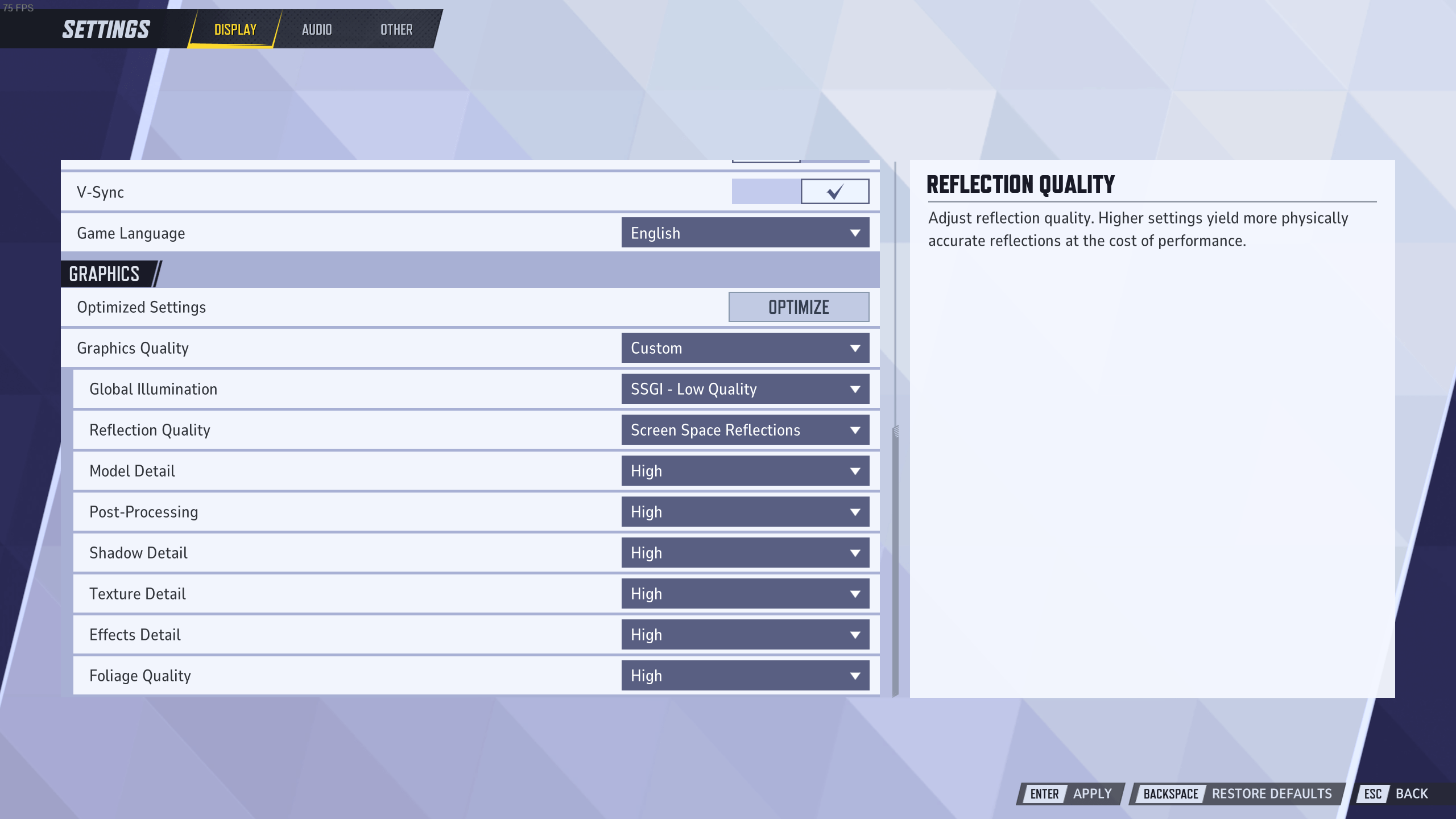
The following highly optimized settings will get you high FPS in Marvel Rivals even if you are on relatively low-end hardware. The Marvel Rivals best graphics settings should reduce visual clutter while keeping heroes, projectiles, and map geometry easy to read. Shadows, effects, foliage, and post-processing usually cost more performance than they are worth in competitive play. Below, you will find the best Marvel Rivals graphics settings to tweak the quality of visuals.
| Setting | Recommended Value | Explanation |
|---|---|---|
| Global Illumination | SSGI Low | Gives decent lighting without the heavy cost of Lumen. |
| Reflection Quality | Screen Space Reflections / Low | Keeps reflections lighter and improves frame stability. |
| Model Quality | Medium | Good balance between clarity and performance. Use Low on weak PCs. |
| Post-Processing | Low | Reduces blur and gives a useful FPS boost. |
| Shadow Quality | Low | One of the easiest settings to lower for more FPS. |
| Texture Quality | High / Medium | Use High with 6GB+ VRAM. Use Medium on older GPUs. |
| Effects Detail | Low | Reduces ability clutter and improves performance in teamfights. |
| Foliage Quality | Low | Lowers map detail that rarely helps in combat. |
Marvel Rivals Best Settings for FPS
For the best Marvel Rivals settings for FPS PC, use a performance-first setup. You want stable frames during teamfights, not just a high number in the practice range. The game can feel smooth alone, then suddenly stutter when six ultimates hit the screen. Use this setup as your starting point:
- Display Mode: Fullscreen;
- V-Sync: Off;
- FPS Limit: Off or capped below your refresh rate;
- Super Resolution: DLSS / FSR / XeSS;
- Super Resolution Mode: Balanced;
- Frame Generation: Off;
- Global Illumination: SSGI Low;
- Post-Processing: Low;
- Shadow Quality: Low;
- Effects Detail: Low;
- Foliage Quality: Low;
- Texture Quality: Medium or High.
This setup gives a strong Marvel Rivals FPS boost without making the game look unreadable. For competitive play, the biggest wins usually come from lowering effects, shadows, post-processing, and foliage.
Marvel Rivals Low End PC Settings
Marvel Rivals low end PC settings should focus on reaching stable 60 FPS first. Visual quality matters less when dropped frames make aiming and movement feel delayed. On older GPUs, even small changes can make teamfights feel much cleaner. Use these Marvel Rivals low end PC settings:
- Display Mode: Fullscreen;
- Resolution: Native first, lower only if needed;
- Super Resolution Mode: Balanced or Performance;
- Global Illumination: SSGI Low;
- Reflection Quality: Low;
- Model Quality: Low;
- Post-Processing: Low;
- Shadow Quality: Low;
- Texture Quality: Medium or Low;
- Effects Detail: Low;
- Foliage Quality: Low;
- Frame Generation: Off.
This works as a safer Marvel Rivals potato PC config for older systems. Lowering resolution should be your last step, because it can make enemies harder to see. Start with shadows, effects, and post-processing first.
Marvel Rivals Engine.ini Settings
Many players search for Marvel Rivals Engine.ini settings because Unreal Engine games often support config tweaks. Be careful with this. Random Engine.ini edits can break visuals, create crashes, or stop working after patches.
For most players, we recommend using the in-game Marvel Rivals graphics settings first. The game already includes enough options for FPS, visibility, upscaling, and latency. Config edits should only be used if you know how to back up files and revert changes. A safe approach looks like this:
- Change in-game settings first;
- Test FPS in the practice range and real matches;
- Update GPU drivers;
- Use Windows high-performance graphics mode;
- Avoid old config files after patches;
- Back up any file before editing it.
For a normal Marvel Rivals performance guide, in-game settings are safer than copying random Engine.ini lines. This is especially true after major updates, where old configs can cause strange bugs.
Marvel Rivals Mouse Settings
Marvel Rivals sensitivity settings depend on your role and aim style. Duelists usually need fast target switching, while Strategists and Vanguards can often use slightly steadier aim. The best setup is one you can control during messy fights. Recommended Marvel Rivals sensitivity settings:
- Mouse Sensitivity: 5–10;
- DPI: 400–800;
- Polling Rate: 1000 Hz;
- Mouse Acceleration: Off;
- Raw Input: On, if available;
- Scoped Sensitivity: Slightly lower than normal sensitivity.
For most PC players, 800 DPI with medium in-game sensitivity feels like a safe start. Lower sensitivity helps with precision heroes, while higher sensitivity can help on melee or movement-heavy characters.
Marvel Rivals Best Controller Settings
Marvel Rivals best controller settings should make aiming smooth without feeling slow. Controller players need clean stick response, comfortable ability binds, and a sensitivity level that works in close fights. Start with moderate values, then tune from there. Recommended Marvel Rivals controller settings:
- Horizontal Sensitivity: Medium-high;
- Vertical Sensitivity: Slightly lower than horizontal;
- Aim Assist: On;
- Deadzone: As low as possible without stick drift;
- Vibration: Off;
- Button Layout: Preference;
- Ability Binds: Keep movement and defensive tools easy to reach.
Lower deadzones make aiming feel more responsive, but too low can cause stick drift. Raise the deadzone slightly if your crosshair moves on its own. For heroes with fast movement, keep jump, dash, and defensive abilities on buttons you can press without losing aim control.
Marvel Rivals Audio Settings
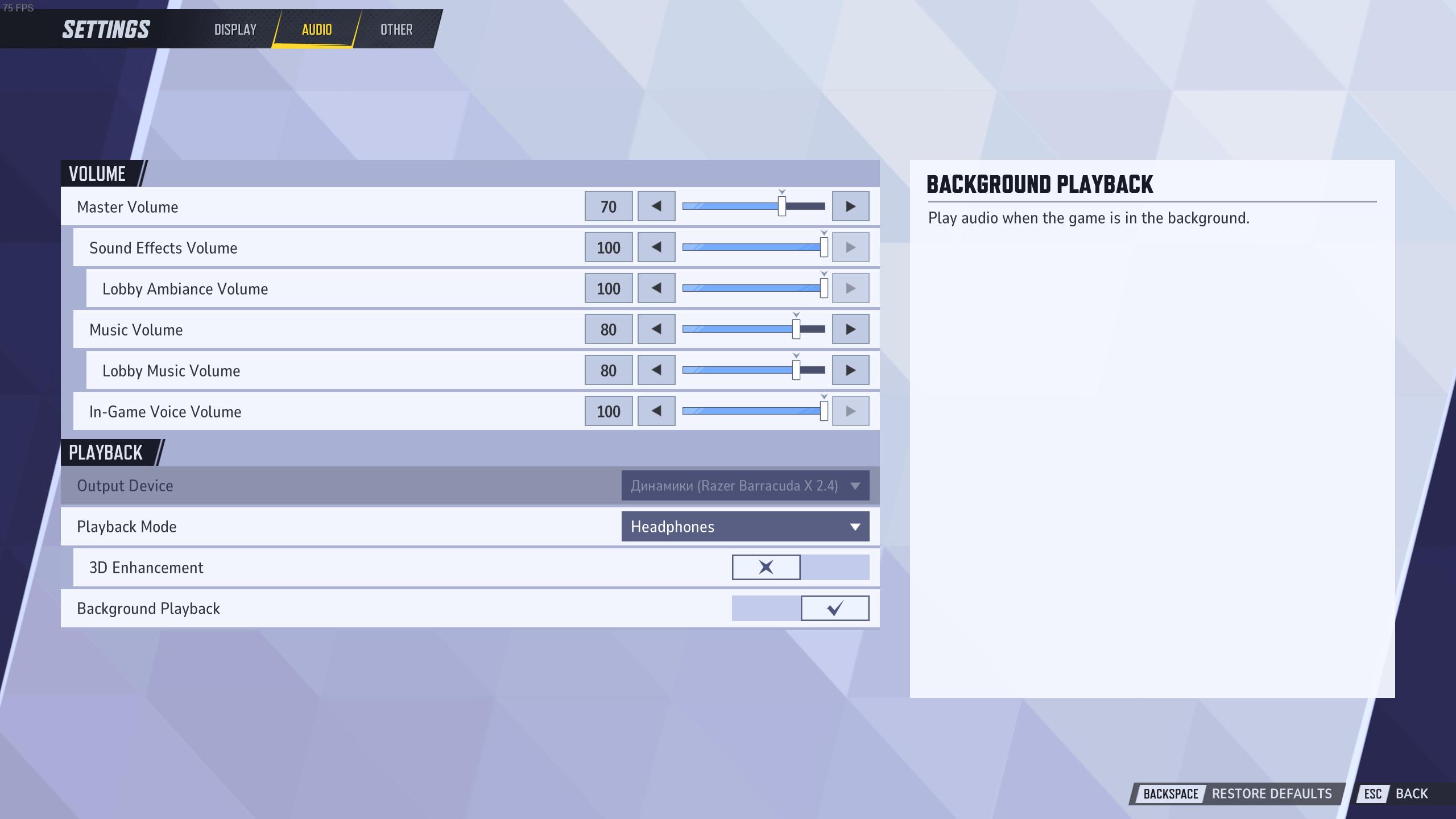
Audio settings do not boost FPS as much as graphics options, but they still matter for awareness. Good sound helps you hear movement, abilities, and fights before you see them. For ranked play, keep audio clean and avoid loud music.
| Setting | Recommended Value | Explanation |
|---|---|---|
| 3D Enhancement | On | Helps with directional sound when using headphones. |
| HRTF | On | Makes enemy positions easier to read by sound. |
| Music Volume | Low / Off | Reduces distractions during fights. |
| Dialogue Volume | Preference | Lower it if callouts or effects feel cluttered. |
| Effects Volume | High | Helps track abilities and combat cues. |
3D Enhancement activates spatial audio features, enhancing directional sound to help you pinpoint sound sources. This feature is only available when using headphones.
However, advanced 3D audio options such as 3D Spatial Audio, HRTF, or Dolby Atmos require additional CPU processing. If your system already runs poorly, these options may slightly drop your frames per second. Also, enabling 3D Enhancement along with Windows Spatial Audio Enhancement at the same time may result in some unexpected errors; therefore, it is not recommended to turn them on at the same time.
Marvel Rivals Best Steam Deck Settings
Marvel Rivals best Steam Deck settings should target stable gameplay instead of high visuals. The Steam Deck can struggle in heavy fights, so a 40 FPS target often feels better than chasing unstable 60 FPS. You also need to keep effects low, because Marvel Rivals has a lot happening on screen. Recommended Steam Deck settings:
- Frame Rate Limit: 40 FPS;
- Refresh Rate: 40 Hz;
- Resolution: 1280×800;
- Super Resolution: FSR;
- Super Resolution Mode: Balanced or Performance;
- Global Illumination: SSGI Low;
- Reflection Quality: Low;
- Model Quality: Low;
- Post-Processing: Low;
- Shadow Quality: Low;
- Texture Quality: Medium;
- Effects Detail: Low;
- Foliage Quality: Low.
These settings should make Marvel Rivals more stable on Steam Deck. Lower Texture Quality to Low if you still get stutters or memory-related drops. Keep your expectations realistic, since big teamfights can still be demanding.
Marvel Rivals Settings Tips
We want to make sure that the process of manual fine-tuning of your Marvel Rivals settings goes as planned. Therefore, we have gathered a list of the most useful and practical settings tips. The information below will help you to find answers to all your questions. And our team of professional players can help you with the Marvel Rivals’ Achievements. Just reach out to our team and choose what you need to be done.
Best Settings for Marvel Rivals
The Best settings for Marvel Rivals are the settings that allow you to enjoy the game without significant drops of FPS while providing a decent image quality. Therefore we aim to optimize the performance and visuals:
- Display Mode: Fullscreen;
- V-Sync: Off;
- Show FPS: On;
- Network Stats: On;
- Super Resolution: DLSS / FSR / XeSS;
- Super Resolution Mode: Quality or Balanced;
- Frame Generation: Off;
- Low Latency Mode: NVIDIA Reflex or equivalent;
- Global Illumination: SSGI Low;
- Reflection Quality: Low or Screen Space Reflections;
- Post-Processing: Low;
- Shadow Quality: Low;
- Texture Quality: High on 6GB+ VRAM, Medium on weaker GPUs;
- Effects Detail: Low;
- Foliage Quality: Low.
Good FPS for Marvel Rivals
Good FPS for Marvel Rivals starts at 60 FPS, but higher is better for competitive play. On a 144 Hz monitor, 120–144 FPS feels much smoother. On a 240 Hz monitor, stable 200+ FPS gives better motion clarity and lower input delay. Use these targets:
- 60 FPS — playable baseline;
- 90 FPS — smoother for casual ranked;
- 120–144 FPS — strong competitive target;
- 200+ FPS — best for high-refresh monitors.
The Best Sensitivity for Marvel Rivals
Speaking about the best sensitivity and the best mouse settings for Marvel Rivals in general we should mention the following properties:
- Mouse Sensitivity: 5-10 for general play;
- DPI: 400-800 for precise aiming;
- Polling Rate: 1000 Hz for minimal input lag;
- Mouse Acceleration: Off (for consistency).
These values are your primary aim for achieving enjoyable gameplay.
Marvel Rivals Best Settings FAQ
This Marvel Rivals Best Settings FAQ covers common questions about FPS, graphics, PC performance, controller setup, sensitivity, and low-end systems. If you want a quick answer before changing every option manually, start here.
What Are the Best Settings for Marvel Rivals?
The best Marvel Rivals settings use Fullscreen mode, V-Sync Off, Reflex or low latency mode On, and low-heavy graphics options. Set shadows, effects, post-processing, and foliage to Low first. Then use DLSS, FSR, or XeSS to improve FPS without making the game too blurry.
How Do I Get an FPS Boost in Marvel Rivals?
For a quick Marvel Rivals FPS boost, lower Shadow Quality, Effects Detail, Post-Processing, and Foliage Quality. You should also disable V-Sync and Frame Generation for ranked play. If your FPS still drops, switch Super Resolution Mode to Balanced or Performance.
What Are the Best Marvel Rivals Graphics Settings?
The best Marvel Rivals graphics settings for most players are SSGI Low, low shadows, low effects, low post-processing, and medium or high textures. Keep Texture Quality on High only if your GPU has enough VRAM. For weaker PCs, use Medium or Low to avoid stutters.
What Are the Best Marvel Rivals PC Settings?
The best Marvel Rivals PC settings focus on stable performance and low input delay. Use Fullscreen mode, native resolution, V-Sync Off, Show FPS On, Network Stats On, and Reflex On if available. For graphics, keep most heavy settings low and use your GPU’s best upscaling option.
What Are the Best Marvel Rivals Settings for FPS PC?
For Marvel Rivals best settings for FPS PC, use Fullscreen, V-Sync Off, Frame Generation Off, and Super Resolution on Balanced. Set Global Illumination, Shadows, Effects, Foliage, and Post-Processing to Low. This setup gives better frame stability during heavy teamfights.
What Are the Best Marvel Rivals Low End PC Settings?
Marvel Rivals low end PC settings should use Low for shadows, effects, foliage, post-processing, reflections, and model quality. Set Super Resolution to Balanced or Performance. Keep native resolution first, but lower it if your system still cannot hold stable FPS.
What Is the Best Marvel Rivals Potato PC Config?
A good Marvel Rivals potato PC config uses Low on almost every graphics setting. Use Performance Super Resolution, Low textures, Low models, Low effects, and Low shadows. Also close background apps, update GPU drivers, and install the game on an SSD if possible.
Should I Use Frame Generation in Marvel Rivals?
Frame Generation can make the game look smoother, but it may add input delay. For ranked or competitive matches, it is better to keep Frame Generation off. Use DLSS, FSR, or XeSS upscaling instead if you need more FPS.
What Are the Best NVIDIA Control Panel Settings for Marvel Rivals?
The best Marvel Rivals NVIDIA Control Panel settings are Low Latency Mode On or Ultra, Power Management set to Prefer Maximum Performance, V-Sync Off, and Preferred Refresh Rate set to Highest Available. Keep Reflex enabled in-game if your system supports it.
Should I Change Marvel Rivals Engine.ini Settings?
Most players should avoid Marvel Rivals Engine.ini settings unless they know how to back up and restore files. Bad config edits can break visuals, cause crashes, or stop working after patches. Start with in-game settings before touching config files.
What Are the Best Steam Deck Settings for Marvel Rivals?
The best Marvel Rivals Steam Deck settings target stable performance over high visuals. Use 1280×800 resolution, 40 FPS cap, 40 Hz refresh rate, FSR Balanced or Performance, and Low graphics settings. Lower Texture Quality if you still get stutters.
What Is the Best Marvel Rivals Sensitivity?
The best Marvel Rivals sensitivity depends on your role and aim style. A safe starting point is 400–800 DPI with medium in-game sensitivity. Turn mouse acceleration off, use a 1000 Hz polling rate, and adjust until tracking feels steady.
What Are the Best Marvel Rivals Controller Settings?
The best Marvel Rivals controller settings use Aim Assist On, low deadzones, and medium-high horizontal sensitivity. Keep vertical sensitivity slightly lower for easier control. If your stick drifts, raise the deadzone until the crosshair stops moving by itself.
What FPS Is Good for Marvel Rivals?
60 FPS is the basic playable target for Marvel Rivals. For ranked play, 120–144 FPS feels much better if your monitor supports it. Stable FPS matters more than peak FPS, so avoid settings that cause big drops during teamfights.
Are Marvel Rivals Pro Settings Good for Everyone?
Marvel Rivals pro settings can be useful, but they are not perfect for every player. Pros often use powerful PCs, high-refresh monitors, and specific mouse setups. Use pro settings as a starting point, then adjust sensitivity, graphics, and FPS caps for your own system.
How Do I Make Marvel Rivals Run Better?
To make Marvel Rivals run better, lower heavy graphics settings first and use the right upscaler for your GPU. Turn off V-Sync, keep Frame Generation off for ranked, and close background apps. This is the safest way to improve performance without risky config edits.
4.9By following our Marvel Rivals Settings guide, you’ll unlock the full potential of your system, ensuring smooth gameplay and competitive performance. With these recommended settings in Marvel Rivals, you can focus on climbing the ranks without worrying about technical setbacks. Let’s get started and fine-tune your setup for success!
