Our Marvel Rivals Best Settings guide will help you discover the best settings to optimize your gameplay and maximize FPS. With this valuable information, you’ll be able to dominate matches while keeping your computer running smoothly. Let’s dive into the optimal settings to help you climb the Marvel Rivals ladder with ease!
 4.9
4.9Marvel Rivals Display Settings
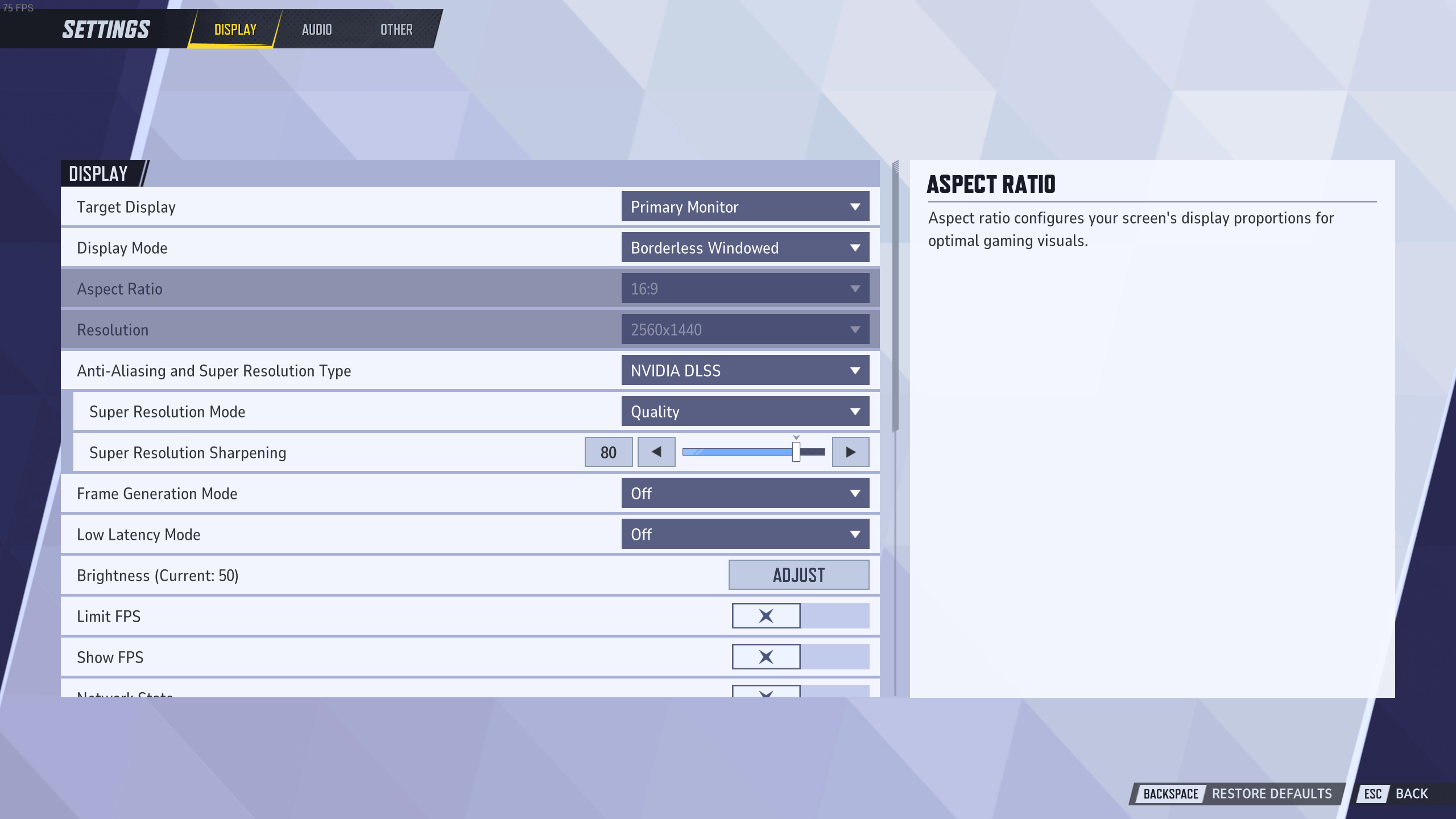
From an optimization standpoint, Marvel Rivals performs quite well on most setups. However, there’s still room to boost your frame rate by tweaking some advanced settings. If your gameplay feels sluggish, this Marvel Rivals display settings guide is exactly what you need.
| Setting | Recommended Value | Explanation |
|---|---|---|
| Limit FPS | Off | To maximize performance, keep “Limit FPS” turned off. If you’re streaming and experiencing frame drops, consider enabling FPS lock. |
| Show FPS | On | Enable this option to monitor your FPS at all times. |
| Network Stats | On | It’s also recommended to enable this option to monitor your internet connection and ping. |
| V-Sync (VNC) | Off | Disable this option to reduce input latency. However, you can enable it if you’re experiencing frame tearing. |
| Display Mode | Borderless Windowed / Fullscreen | You can choose the one you prefer, but fullscreen mode offers a more stable image. |
| Aspect Ratio | Match Display | For the best visual clarity, set the aspect ratio to match your display’s native resolution. |
| Resolution | Match Display | Set the resolution to match your monitor’s native settings as well. |
| Anti-Aliasing and Super Resolution Type | DLSS (NVIDIA) / FSR (AMD) | Leverage DLSS for NVIDIA GPUs and FSR for AMD GPUs to enhance performance. Be aware that TSR can cause visual blurring, while XSS might deliver inconsistent outcomes. |
| Super Resolution Mode | Ultra Quality / Quality | Set the value to “Ultra Quality” or “Quality” to boost performance without noticeable artifacts. |
| Super Resolution Sharpening | Preference | Adjust the super-resolution sharpness to a level that feels comfortable for you. |
| Frame Generation | Off | Disable this option, as it can increase response time and cause lag on some systems. |
| Low Latency Mode | NVIDIA Reflex Low Latency | Enable NVIDIA Reflex Low Latency to reduce input lag. If available, use the equivalent AMD option. |
| Brightness | Preference | Adjust the brightness to a level that feels comfortable for you. |
If you’re unsure about Anti-Aliasing and Super Resolution settings in Marvel Rivals, don’t worry — it’s straightforward. Super Resolution Technology allows games to render at a lower resolution and upscale to a higher one using advanced algorithms. This boosts performance while maintaining decent visual quality. Here’s a quick breakdown of common Super Resolution technologies:
- DLSS — Is NVIDIA’s AI-driven upscaling technology that improves image quality with minimal performance impact. Ideal for RTX-enabled NVIDIA GPUs.
- FSR — Is an open-source upscaling for both AMD and NVIDIA GPUs that gives decent performance gains.
- TSR — Temporal Super Resolution is a method used by Unreal Engine 5 in compositing information across many frames to produce quality upscale.
- XeSS — Intel’s AI-powered upscaling designed for Intel GPUs and compatible hardware.
For the best video settings in Marvel Rivals, enable both Super Resolution and Anti-Aliasing if you want to increase performance while reducing some of the lost detail. Enable DLSS for any RTX-capable NVIDIA GPUs, and enable FSR on AMD GPUs supporting FidelityFX Super Resolution. Never enable multiple technologies, or a host of performance issues can arise. As soon as you are done with setting all these values you will want to Unlock Competitive and start laddering, and our team can help you with this task!
Marvel Rivals Graphics Settings
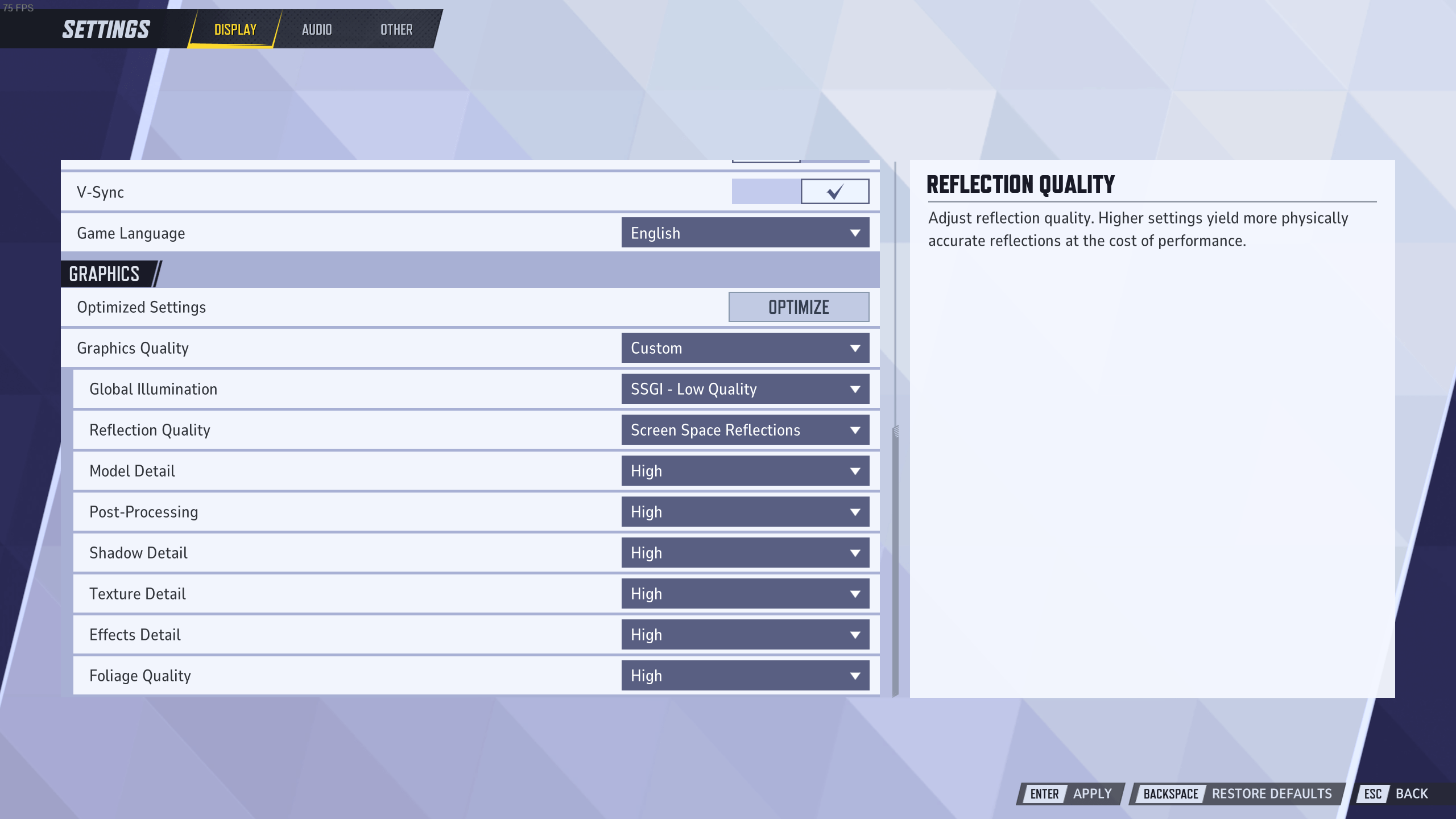
The following highly optimized settings will get you high FPS in Marvel Rivals even if you are on relatively low-end hardware. Reducing texture and shadow quality will affect your overall gaming experience, but if your FPS still drops below 60 in a fast-paced game like Marvel Rivals, your best option is to choose performance over visual quality.
Below, you will find the best Marvel Rivals graphics settings to tweak the quality of visuals. As in most games, some have a much bigger impact on your hardware than others.
| Setting | Recommended Value | Explanation |
|---|---|---|
| Global Illumination | SSGI (Low) | Set Global Illumination to SSGI (Low) to enhance performance. Avoid using Lumen if you’re focused on competitive play. |
| Reflection Quality | Screen Space Reflections | Enable Screen Space Reflections to balance good performance with decent visual quality. |
| Model Quality | Medium | Set to Medium for a balance between visuals and performance. Lower it to Low for less powerful systems. |
| Post-Processing | Low | Set this option to Low for a noticeable FPS increase with minimal visual impact. |
| Shadow Quality | Low | Set to Low for improved performance, or use Medium if you want minimal shadow details. |
| Texture Quality | High | Set this option to High unless you have limited VRAM. For GPUs with 6GB or more VRAM, Ultra provides enhanced visuals without impacting FPS. |
| Effects Detail | Low | This option reduces visual clutter and enhances performance stability. |
| Foliage Quality | Low | Set to Low to reduce environmental detail and improve performance. |
Marvel Rivals Audio Settings
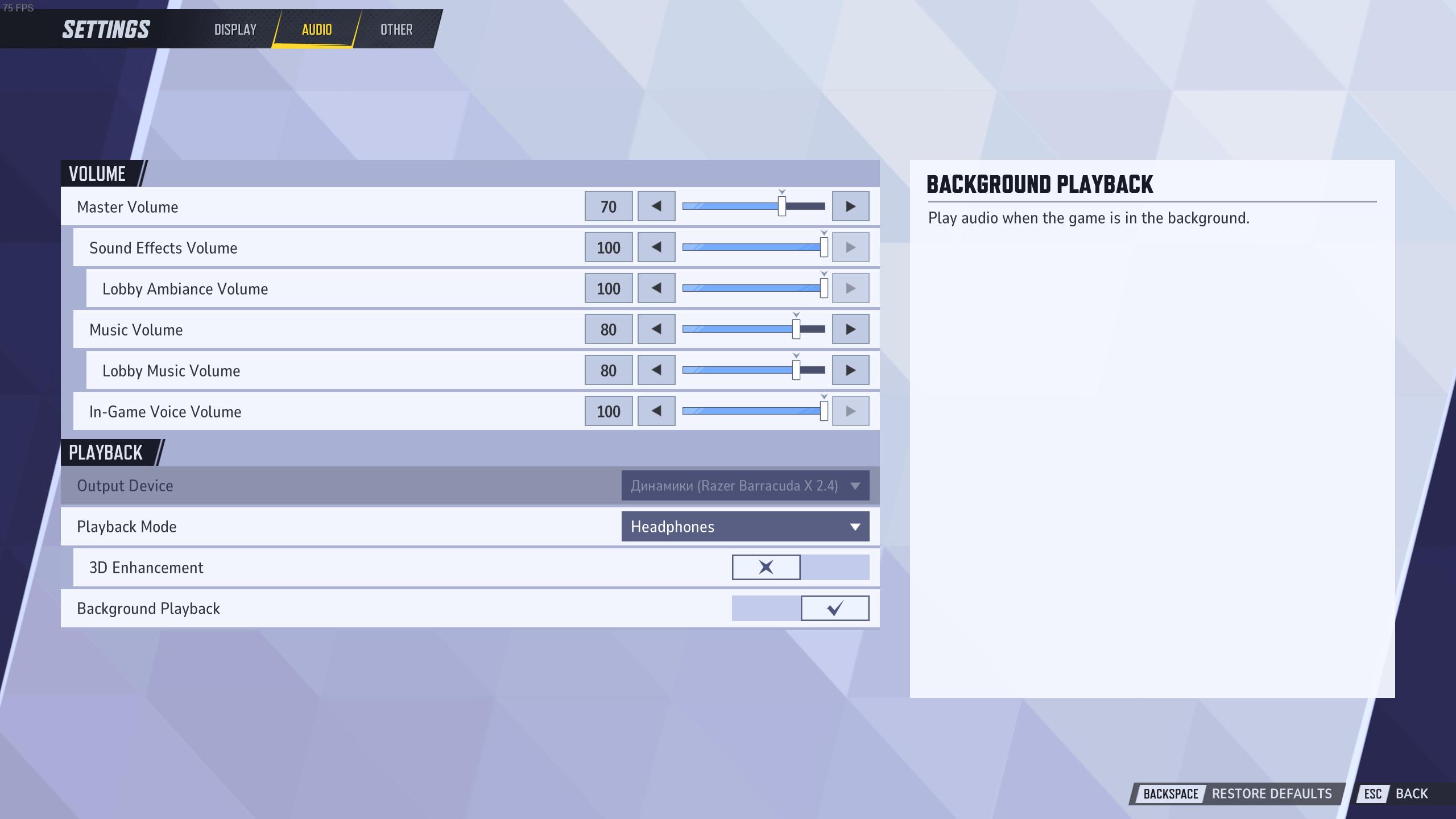
While audio settings don’t typically affect FPS as much as display and graphics settings, there are a few options worth reviewing to avoid unnecessary sound-related bugs. We’re not covering volume adjustments here since those are a matter of personal preference. However, we do recommend turning off the music volume to minimize distractions during gameplay.
| Setting | Recommended Value | Explanation |
|---|---|---|
| 3D Enhancement | On | Improves spatial awareness while using headphones. |
| HRTF | On | Enhances 3D audio, helping you accurately locate sound sources. |
| Music Volume | Lower / Off | Minimizes distractions for a more focused gameplay experience. |
3D Enhancement activates spatial audio features, enhancing directional sound to help you pinpoint sound sources. This feature is only available when using headphones.
However, advanced 3D audio options such as 3D Spatial Audio, HRTF, or Dolby Atmos require additional CPU processing. If your system already runs poorly, these options may slightly drop your frames per second. Also, enabling 3D Enhancement along with Windows Spatial Audio Enhancement at the same time may result in some unexpected errors; therefore, it is not recommended to turn them on at the same time.
Marvel Rivals Settings Tips
We want to make sure that the process of manual fine-tuning of your Marvel Rivals settings goes as planned. Therefore, we have gathered a list of the most useful and practical settings tips. The information below will help you to find answers to all your questions. And our team of professional players can help you with the Marvel Rivals’ Achievements. Just reach out to our team and choose what you need to be done.
Best Settings for Marvel Rivals
The Best settings for Marvel Rivals are the settings that allow you to enjoy the game without significant drops of FPS while providing a decent image quality. Therefore we aim to optimize the performance and visuals:
- Global Illumination: SSGI – Low Quality;
- Reflection Quality: Screen Space Reflections;
- Post-Processing: Low;
- Texture Detail: High;
- Anti-Aliasing: NVIDIA DLSS (for RTX cards) or AMD FSR (for AMD GPUs).
Good FPS for Marvel Rivals
The optimal FPS for Marvel Rivals that provides smooth movement and no reduction in input latency is 60 or higher FPS.
The Best Sensitivity for Marvel Rivals
Speaking about the best sensitivity and the best mouse settings for Marvel Rivals in general we should mention the following properties:
- Mouse Sensitivity: 5-10 for general play;
- DPI: 400-800 for precise aiming;
- Polling Rate: 1000 Hz for minimal input lag;
- Mouse Acceleration: Off (for consistency).
These values are your primary aim for achieving enjoyable gameplay.
4.9By following our Marvel Rivals Settings guide, you’ll unlock the full potential of your system, ensuring smooth gameplay and competitive performance. With these recommended settings in Marvel Rivals, you can focus on climbing the ranks without worrying about technical setbacks. Let’s get started and fine-tune your setup for success!
