This Marathon Settings guide is built for players who want more control, better performance, and a cleaner look in every match. We’ve gone through the current build and picked the most effective graphics and control tweaks to help you improve framerate, sharpen visibility, and stay consistent in fights.
Marathon Best Settings Guide Key Takeaways:
- This Marathon Settings guide focuses on stable FPS, clean visibility, and consistent input in every raid.
- These recommendations come from the Marathon Server Slam build, so expect small changes at launch.
- For competitive play, run Fullscreen, keep V-Sync off, and match your frame cap to your monitor refresh rate.
- Use DLSS or FSR for easy performance wins, while 90–100 FOV gives strong awareness without heavy FPS loss.
- Turn off Motion Blur, Film Grain, and Chromatic Aberration to reduce visual noise and spot targets faster.
- Shadows and foliage are your biggest FPS levers, so lower them first when frames dip in fights.
- NVIDIA Reflex (or low-latency options) helps most when you feel input delay, especially in fast PvP.
- Controller tweaks like vibration off and steady ADS sensitivity make aim feel more predictable under pressure.
- Audio matters: keep SFX and chat clear, since footsteps and callouts often decide extractions.
- Even if you meet minimum specs, an SSD and updated drivers noticeably reduce stutters and loading hiccups.
 4.9
4.9Marathon Best Video Settings
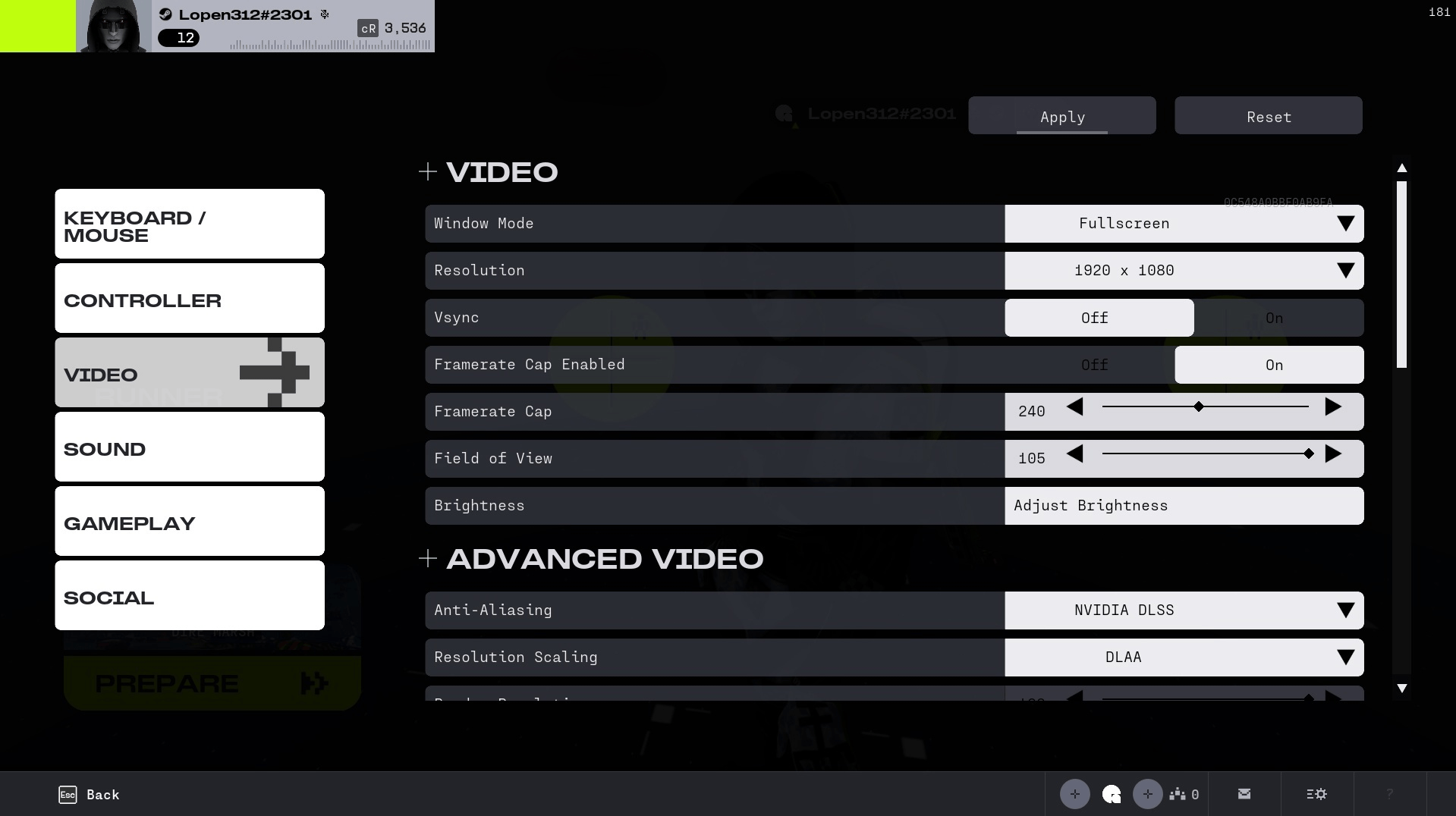 Your display settings have a huge impact on how smooth and stable the game feels. In this section, we walk through the optimal fullscreen mode, resolution, FOV, and framerate settings for Marathon.
| Setting | Value | Description |
|---|---|---|
| Window Mode | Fullscreen | Best for performance |
| Resolution | 1920×1080 | Based on the system power |
| V-Sync | Off | Use G-Sync instead |
| Framerate Cap Enabled | On | Controls frame spikes |
| Framerate Cap | 120–144 | Matches monitor refresh rate |
| Field of View | 90–100 | Wider view = better awareness |
Even with the best Marathon video settings, leveling can still take a serious amount of time. Clean visuals and stable FPS help, but they don’t speed up XP gains or shorten long raid sessions. If you’d rather focus on the fun parts, builds, fights, and late-game content, our team can help you Leveling faster and more efficiently. Skip the repetitive grind and move straight toward your target level with structured, optimized runs designed to save your time.
Marathon Best Graphic Settings
Graphic settings are where most of the performance gains or losses occur. In this table, we cover key visual options such as shadows, lighting, and detail distance to help you find the perfect balance between visuals and smooth gameplay.
| Setting | Value | Description |
|---|---|---|
| Anti-Aliasing | DLAA | High-end visual clarity for RTX GPUs |
| Resolution Scaling | DLSS | Upscaling for performance with great visual quality |
| Render Resolution | 100% | Keeps native sharpness, avoids blur |
| Target Frame Rate | 120 | Matches monitor refresh for smoother motion |
| Screen Space Ambient Occlusion | GTAO | Realistic shadows and depth lighting |
| Texture Anisotropy | 16x | Sharper textures at angles, no FPS cost |
| Texture Quality | Highest | Maximum texture detail |
| Shadow Quality | Highest | Improved lighting fidelity |
| Depth of Field | Highest | Cinematic blur when aiming |
| Environment Detail Distance | High | Detailed environments at range |
| Character Detail Distance | High | Player models stay sharp even far away |
| Foliage Detail Distance | High | More vegetation and clutter |
| Foliage Shadows Distance | Highest | Accurate shadowing from trees and plants |
| Light Shafts | Off | Sunray effects; off to avoid glare |
| Motion Blur | Off | Sharper view when turning |
| Wind Impulse | Off | Removes wind-based movement effects |
| HDR | Off | Enable only if the monitor supports HDR |
| Chromatic Aberration | Off | Cleaner image; disables lens distortion |
| Film Grain | Off | Removes artificial grain from the screen |
| NVIDIA Reflex | Off | Turn on if you’re experiencing input lag |
Marathon Best Settings for Maximum Quality
 If you’re playing on a powerful PC and want Marathon to look as good as it can, these settings are your go-to. We’ve tuned every detail, from shadows to ambient occlusion, to get the most out of the game’s style and world design, without dropping below playable framerates.
| Setting | Value | Description |
|---|---|---|
| Anti-Aliasing | DLAA | Produces clean, stable edges without upscaling |
| Resolution Scaling | DLSS | Upscaling with better sharpness on RTX GPUs |
| Render Resolution | 100% | Keeps full clarity, no pixelation |
| Target Frame Rate | 120 | Balanced smoothness without big FPS sacrifice |
| Screen Space Ambient Occlusion | GTAO | Adds realism to lighting and object contact |
| Texture Anisotropy | 16x | Boosts texture clarity at angles, great for surfaces |
| Texture Quality | Highest | Sharp detail on models, terrain, and gear |
| Shadow Quality | Highest | High-definition shadows, more accurate lighting |
| Depth of Field | Highest | Creates natural focus when aiming or in cutscenes |
| Environment Detail Distance | High | Draws rich detail far into the map |
| Character Detail Distance | High | Player models remain fully detailed even far away |
| Foliage Detail Distance | High | Lush vegetation and full density |
| Foliage Shadows Distance | Highest | Shadows under plants render at all distances |
| Light Shafts | Off | Optional effect, but disabling prevents glare |
| Motion Blur | Off or Low | Some players prefer a soft blur during movement |
| Wind Impulse | Off | Can be enabled for atmospheric detail |
| HDR | Off (or On if supported) | Richer color and contrast on HDR displays |
| Chromatic Aberration | Off | Optional lens effect — off keeps a cleaner image |
| Film Grain | Off | Remove for a sharp, clean presentation |
| NVIDIA Reflex | On | Still helpful even in quality mode |
Running Marathon on maximum quality makes the world of Tau Ceti IV look incredible. Still, better lighting and sharper textures won’t increase your loot chances or guarantee clean extractions.
If you want smoother raid progress alongside top-tier visuals, our team can guide you through high-reward Perimeter Runs with efficient routes and smart survival strategies. Spend less time risking failed attempts and more time securing valuable loot with structured, reliable raid support.
Best PC Settings for Marathon
These recommendations are based on the Marathon Server Slam build and may slightly change at launch. Still, the priority remains the same: stable frame rate first, visual extras second — especially in a high-risk extraction shooter like Marathon.
| Type | Graphics Option | Best Settings | Notes |
|---|---|---|---|
| Video | Window Mode | Fullscreen | While there’s no option for Borderless Fullscreen, normal Fullscreen should work fine for players. |
| Resolution | Native | Use your monitor’s native resolution to avoid blurry textures. | |
| VSync | Off | Keep VSync off to avoid input lag in matches. | |
| Frame Rate Cap | Off | No need to cap FPS unless playing on laptop battery. | |
| Field of View | Player Preference (80–95 Recommended) | Keeping FOV between 80–95 helps avoid unnecessary FPS drops. | |
| Advanced Video | Graphics Quality | Custom | Fine-tune each setting manually instead of using presets. |
| Anti-Aliasing | Nvidia DLSS / AMD FSR | RTX users should use DLSS; others can use FSR for similar results. | |
| Resolution Scaling | Balanced | Balanced lowers base resolution and upscales for better performance. | |
| Screen Space Ambient Occlusion | High | Adds noticeable depth without heavy performance cost. | |
| Anisotropic Filtering | 16x | – | |
| Texture Quality | GPU VRAM Dependent | 6GB VRAM: Low; 8GB VRAM: Medium; 12GB+ VRAM: High/Highest. | |
| Shadow Quality | Medium | Balanced visuals without major GPU load. | |
| Environment Detail Distance | Low | Reduces random FPS drops in dense areas. | |
| Character Detail Distance | High | Ensures enemies render clearly at distance. | |
| Foliage Detail Distance | Lowest | Improves visibility and boosts average FPS. | |
| Light Shafts | Player Preference | Purely aesthetic; no major performance impact. | |
| Additional Video | Motion Blur | Off | Reduces visual clutter in fast combat. |
| Chromatic Aberration | Player Preference | Aesthetic effect with minimal performance impact. | |
| Nvidia Reflex | On | Reduces input lag and improves responsiveness. | |
| UI Refresh Rate | High | Slight performance cost but prevents UI glitches. |
Optimizing your PC settings in Marathon gives you smoother fights and cleaner visuals. Still, even perfect performance won’t make Dire Marsh any less punishing. If you want consistent extractions, stronger XP gains, and better loot routes, our team can help you handle Dire Marsh efficiently. Focus on sharp aim and smart decisions while experienced players guide the raid flow and reduce unnecessary risks.
Marathon Best Settings for Maximum FPS
 Looking for a smoother experience in Marathon without sacrificing too much detail? This section is all about boosting the framerate while keeping the game clear and responsive. The settings below are ideal for players with mid-range hardware or anyone focused on performance during tense fights and fast rotations.
| Setting | Value | Description |
|---|---|---|
| Anti-Aliasing | DLSS (Performance) or FXAA | Minimal GPU load, stable visuals |
| Resolution Scaling | DLSS | Boosts FPS with decent clarity |
| Render Resolution | 100% | Avoids black screen bug or blurriness |
| Target Frame Rate | 144 | Ideal for high refresh monitors |
| Screen Space Ambient Occlusion | Off | Removes costly shadow rendering |
| Texture Anisotropy | 8x | Still sharp, slightly lighter on GPU |
| Texture Quality | Medium | Prevents VRAM overload on weaker cards |
| Shadow Quality | Low | Biggest visual setting for FPS boost |
| Depth of Field | Off | Clear aiming with no blur effects |
| Environment Detail Distance | Medium | Visible enough without being heavy |
| Character Detail Distance | Medium | Keeps enemies visible at range |
| Foliage Detail Distance | Low | Less clutter, better visibility |
| Foliage Shadows Distance | Low | Faster performance in open areas |
| Light Shafts | Off | Turns off unnecessary lighting |
| Motion Blur | Off | Boosts clarity when moving fast |
| Wind Impulse | Off | No physics on plants = smoother scenes |
| HDR | Off | Prevents issues if HDR monitor unsupported |
| Chromatic Aberration | Off | No visual distortion at screen edges |
| Film Grain | Off | Clean and sharp image |
| NVIDIA Reflex | On + Boost | Reduces system latency and input lag |
Marathon Best Controller Settings
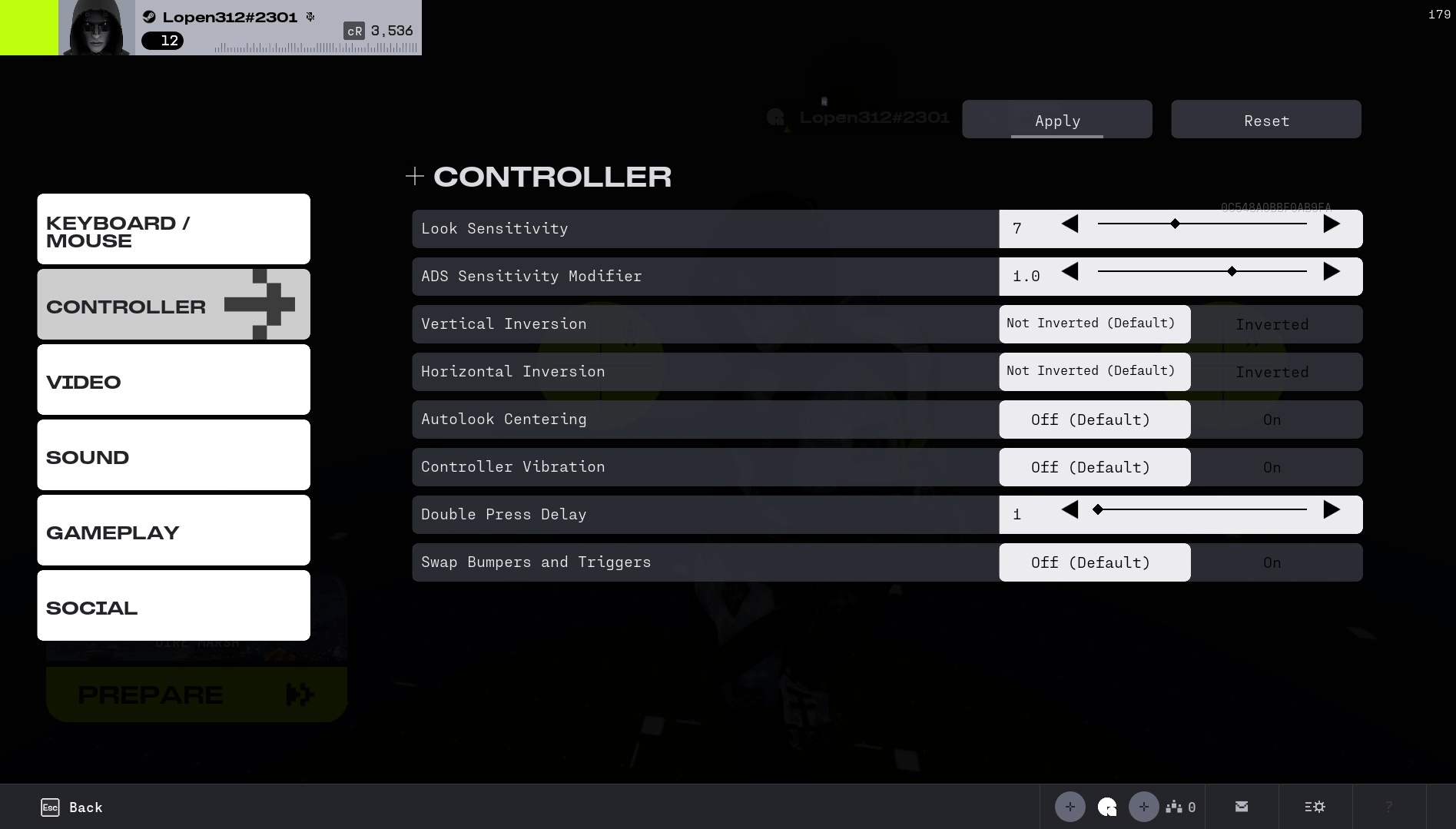
Using a controller in Marathon feels great — if you’ve got the right settings. Here’s a quick breakdown of the tweaks that make aiming tighter, inputs more consistent, and movement smoother.
| Setting | Value | Description |
|---|---|---|
| Look Sensitivity | 7 | Balanced speed for aiming and turning |
| ADS Sensitivity Modifier | 1.0 | Same feel when aiming down sights |
| Vertical Inversion | Not Inverted | Standard up or down look (invert if preferred) |
| Horizontal Inversion | Not Inverted | Standard left/right control |
| Autolook Centering | Off | Disabling gives more precise camera control |
| Controller Vibration | Off | Disabling reduces distraction and saves battery |
| Double Press Delay | 1 | Faster response for double-tap inputs |
| Swap Bumpers and Triggers | Off | Default layout — only enable if needed |
Even with the right controller sensitivity and aim setup, winning fights in Marathon comes down to positioning, timing, and smart decision-making. Clean inputs help, but game sense is what separates average runs from consistent extractions. If you want to improve faster, our Experienced Coaches can break down your settings, aim habits, and in-raid choices in real time. Learn how to survive tougher encounters, rotate smarter, and extract more consistently with structured 1-on-1 guidance tailored to your playstyle.
Marathon Best Audio Settings
 Hearing clearly in Marathon is just as important as seeing. This section includes recommended values for music, effects, dialogue, and voice chat, ensuring that important sounds like footsteps and callouts come through without distraction.
| Setting | Value | Effect |
|---|---|---|
| Lobby Music | 5 | Ambient mood |
| Gameplay Music | 5 | Not distracting |
| SFX Volume | 6 | Footsteps, reloads, cues |
| Dialogue Volume | 5–6 | Story clarity |
| Chat Volume | 6 | Voice clarity |
| Mute When Not Focused | Off | Keep the sound when alt-tabbed |
Marathon System Requirements
 Before adjusting your settings, make sure your PC meets the minimum requirements for Marathon. The game is surprisingly well-optimized — even entry-level gaming hardware can run it smoothly on low to medium settings.
| Component | Minimum Requirement |
|---|---|
| OS | Windows 10 or later |
| CPU | Intel Core i5-6600 AMD Ryzen 5 2600 |
| GPU | Nvidia GeForce GTX 1050 Ti AMD Radeon RX 5500 XT Intel Arc A580 |
| VRAM | 4GB (Nvidia & AMD), 8GB (Intel) |
| RAM | 8GB |
| Storage | Not specified (SSD strongly recommended) |
Tip: While the game will launch on these specs, for a competitive experience at 1080p/60+ FPS, we recommend using at least a GTX 1660, RX 580, or newer, and upgrading to 16GB RAM.
Marathon General Settings Tips for All Players
Before you drop into your next raid, don’t forget the small things that make a big difference. This final section includes general PC performance tips for Marathon, from driver updates and overlays to framerate capping and low-latency modes.
- Install the game on an SSD to reduce loading and stuttering.
- Update GPU drivers before each patch release.
- Enable NVIDIA Reflex or AMD Anti-Lag for the best response time.
- Close overlays like Discord, Steam, and browser tabs.
- Use Push-to-Talk in voice chat for clarity.
- Turn off Motion Blur and Film Grain for sharper visuals.
- Use frame cap near your refresh rate (e.g., 144 for 144Hz).
- Monitor FPS and frametime with in-game tools or MSI Afterburner.
Marathon Best Settings FAQ
Struggling with FPS drops, aim issues, or confusing graphics settings in Marathon? This FAQ covers the most common questions players ask when tuning the game.
What Are the Best Settings for Marathon on Low-End PCs?
If you’re on older hardware (GTX 1050 Ti or RX 5500 XT), set the game to 1080p, turn off V-Sync, use FXAA or DLSS on Performance mode, lower shadows to Low, and turn off effects like motion blur and depth of field. This setup will keep Marathon running smoothly while still looking clean.
Does Marathon Support NVIDIA DLSS or AMD FSR?
Yes. Marathon supports both DLSS (NVIDIA) and FSR (AMD), including DLSS Frame Generation on RTX 40-series GPUs. These options significantly improve FPS by rendering at a lower resolution and upscaling the image using AI or algorithms.
How Do I Reduce Input Lag in Marathon?
Turn off V-Sync, enable NVIDIA Reflex (or AMD Anti-Lag), and cap your framerate slightly below your monitor’s refresh rate (e.g., 141 FPS on a 144Hz monitor). Fullscreen mode and a wired mouse can also help reduce latency.
What’s the Best FOV Setting in Marathon?
We recommend 90–100 FOV for a balance of peripheral vision and stable performance. Competitive players may prefer 100–105 for maximum awareness, while lower-end systems can stick to 85–90 to keep frames high.
Should I Disable Motion Blur in Marathon?
Yes, especially for competitive play. Motion blur can make fast movement feel cinematic, but it reduces clarity when turning quickly. Turning it off makes it easier to track targets and reduces visual strain.
Does Marathon Support Voice Chat and Push-to-Talk on PC?
Yes. Marathon has built-in voice chat with a push-to-talk option. You can select your input device manually in the Social > Voice Chat menu and turn on or off PTT based on your preference.
Is Mouse Aim Assist Enabled by Default in Marathon?
Surprisingly, yes — Mouse Magnetism is ON by default even for keyboard & mouse users. You can disable it in the Keyboard/Mouse settings tab for a pure aiming experience.
Do I Need an SSD to Play Marathon?
Technically, no — but it’s highly recommended. Installing Marathon on an SSD drastically reduces loading times and helps with texture streaming and world loading, especially during fast-paced matches.
4.9By following our Marathon Best Settings guide, you’ll unlock the full potential of your system, ensuring smoother gameplay and sharper reactions in every raid. With these optimized settings, you can focus on winning gunfights and securing extractions without being held back by performance issues. Let’s fine-tune your setup and get you ready to dominate the battlefield on Tau Ceti IV!
