Borderlands 4 pushes PC hardware harder than past games in the series. That’s why we’ve created this Borderlands 4 Best Settings guide to show you how to balance visuals and performance. With just a few tweaks, you can make the chaos smoother and more responsive.
 4.9
4.9Borderlands 4 Best Graphics Settings
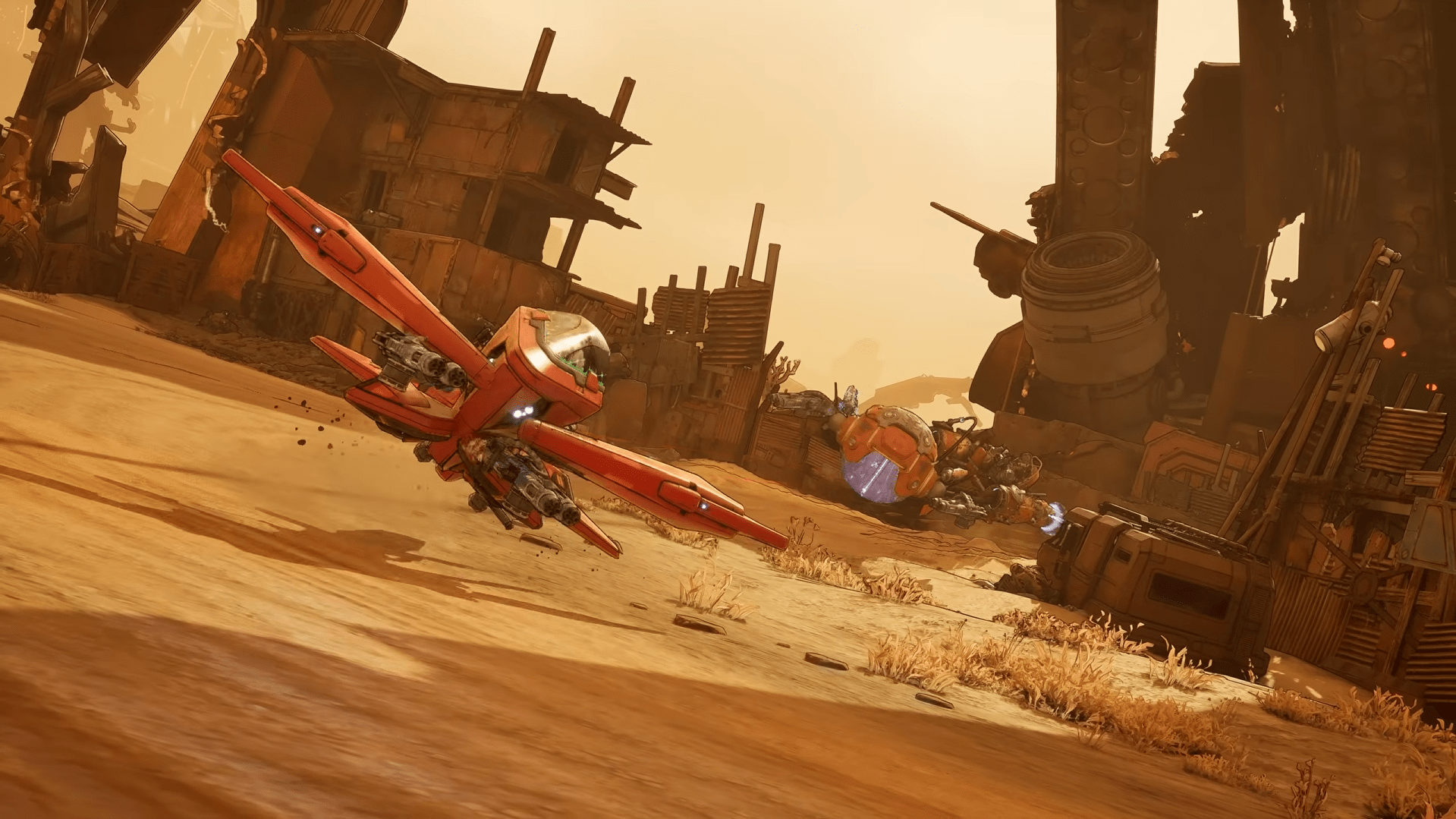
Borderlands 4 is very performance-intensive on the PC, but you can enjoy silky smooth FPS with the proper graphics setting, and yet not compromise the game’s trademark cel-shaded appearance. This article depicts the perfect graphics setting for Borderlands 4 for the best performance and graphics balance on mid-range and high-end machines.
| Setting | Recommendation | Why It Matters |
|---|---|---|
| Graphics Quality | Custom | Permits the adjustment for the preferred balance of FPS and graphics. |
| Texture Quality | High (8GB+ VRAM) / Medium (≤6GB VRAM) | Keeps surfaces crisp, prevents stutter on lower VRAM cards. |
| Texture Streaming | Medium | Avoids constant pop-ins, works best when installed on SSD. |
| Shadow Quality | Medium | Huge FPS impact, medium still looks clean in Borderlands’ art style. |
| Volumetric Fog & Clouds | Low | Reduces GPU usage and prevents frame stuttering during intense battles. |
| Global Illumination | Medium / High | Adds depth to lighting, very High tanks FPS for little reward. |
| Foliage Density | Low / Medium | Reduces visual impact and CPU/GPU usage. |
| Reflection Quality | Low | Saves GPU power, reflections aren’t crucial in Borderlands’ style. |
| Anti-Aliasing | On (TAA / DLSS / FSR Quality) | Takes away rough edges with little FPS impact when upscaling is enabled. |
| Post Processing | Low | Cuts heavy filters and retains the image clear for increased clarity. |
| Motion Blur / Chromatic Aberration / Film Grain | Off | Reduces unnecessary visual clutter and increases accuracy of aim. |
Borderlands 4 Best Advanced Settings

Borderlands 4 advanced settings can really help speed up responsiveness and stability. By adjusting frame limits, latency reduction, and upscaling solutions such as DLSS or FSR, you can make the game run smoother even through the heaviest firefights. These Borderlands 4 advanced settings will assist you in increasing FPS, reducing input lag, and maintaining clear visuals.
| Setting | Recommendation | Why It Matters |
|---|---|---|
| Resolution Scale | 100 | Keeps the image clear without adding blur because it doesn’t downscale. |
| Frame Rate Limiter | On — match your monitor’s refresh rate | Does not overwork the GPU and maintains a steady frame rhythm. |
| NVIDIA Reflex Low Latency | Enabled + Boost | Reduces input delay for quicker reaction times. |
| AMD Anti-Lag | Enabled | Lowers system latency for Radeon consumers. |
| Upscaling Technique | DLSS (NVIDIA) / FSR (AMD) / XeSS (Intel) | Increases FPS but leaves visuals clear. |
| Upscaling Quality | Quality (better visuals) / Performance (higher FPS) | Make your decision based on whether you prefer a sharper image or the highest framerate. |
| Frame Generation | Off (unless on RTX 40/50 series) | Increases FPS but introduces latency; only activates if Reflex is enabled. |
| Future Frame Rendering | Off | Reduces input lag by cutting back pre-rendered frames. |
| Performance Overlay | Off | Keeps the screen clear throughout the game. |
Borderlands 4 Best Camera Settings

In-game camera settings for Borderlands 4 directly affect what you can see and aim clarity. By adjusting the field of view and disabling distracting factors like motion blur, you will spot enemies faster and hold your aim steady. These preferred gaming settings for Borderlands 4 favor full visibility and comfort for longer gameplay sessions.
| Setting | Recommendation | Why It Matters |
|---|---|---|
| Field of View (FOV) | 100–110 | Wider view lets you catch enemies at the edges of the screen. |
| Vehicle 3rd Person FOV | 80–85 | Improves vehicle awareness without heavy distortion. |
| Weapon Field of View | Wide | Keeps more of your surroundings visible while aiming. |
| World Motion Blur | Off | Removes blur when turning, keeping targets sharp. |
| Weapon Motion Blur | Off | Keeps weapon clear and reduces visual distraction. |
| Camera Shake | 20 | Reduces screen shake during explosions for steadier aim. |
| Chromatic Aberration | Off | Removes lens distortion for a cleaner image. |
| Vignette | Off | Prevents dark screen edges that limit peripheral vision. |
| Film Grain | Off | Provides a sharper, clearer picture for spotting enemies. |
Borderlands 4 Best Display Settings
In-game display settings in Borderlands 4 help a lot with performance and smoothness. Playing the game at fullscreen, matching your game with your monitor refresh rate, and turning off unused features like V-Sync will grant you a clearer image and more stable FPS. These Borderlands 4 display settings are finely tuned for casual and competitive play runs.
| Setting | Recommendation | Why It Matters |
|---|---|---|
| Fullscreen Mode | Fullscreen | Maximizes performance and minimizes input lag compared to borderless. |
| Resolution | Native monitor resolution | Keeps the sharpest image without scaling blur. |
| Aspect Ratio | Auto | Matches your display to avoid stretching or distortion. |
| Refresh Rate | Highest your monitor supports | Delivers smoother animations and responsiveness. |
| Vertical Sync (V-Sync) | Off | Removes added input lag; rely on G-Sync or FreeSync if available. |
| HDR | On (if supported) | Improves color range and brightness for a richer image. |
| Brightness | 50–60 | Maintains visibility without washing out colors. |
| Sharpness | 70–80 | Keeps textures crisp and makes enemies easier to spot. |
Borderlands 4 Best Audio Settings

Sound is very prominent in Borderlands 4. With as many crazy firefights as there are, the proper sound mix can mean the difference between victory and defeat. By adjusting volumes and activating the proper presets, you will get the ability to clearly hear footsteps, shots, and enemy alerts without sacrificing the classic Borderlands vibe. These Borderlands 4 best sound setting options prioritize clarity over distraction.
| Setting | Recommendation | Why It Matters |
|---|---|---|
| Sound System | Auto | Detects and uses the best output for your setup automatically. |
| Audio Mix Preset | Headphones / Voice Focus | Boosts clarity of footsteps, gunfire, and dialogue cues. |
| Master Volume | 100 | Keeps all game sounds loud enough to track action. |
| Music Volume | 15–25 | Preserves atmosphere but doesn’t block combat sounds. |
| Sound Effects Volume | 100 | Highlights critical cues like footsteps, reloads, and shots. |
| Dialogue Volume | 80–90 | Story and callouts remain clear without overpowering effects. |
| Voice Chat Volume | 70–80 | Team comms stay audible but balanced with game audio. |
| UI Volume | 100 | Ensures important alerts and notifications are never missed. |
| Hit Indicator Sound | On | Plays a distinct sound on hits, improving combat feedback. |
| Force Mono | Off | Keep stereo or surround for positional awareness. |
Borderlands 4 System Requirements

Borderlands 4 will be testing the limits of the Unreal Engine 5, therefore, you will need stable hardware to keep the fast pace of the action going. Below you can find the official PC specs for Borderlands 4 minimum and recommendations for you to accurately establish what system you will need for the game.
Borderlands 4 Minimum PC Specs
These minimum PC specs will run Borderlands 4 at stable performance on older but capable systems.
- OS: Windows 10 / 11 (64-bit)
- Processor: Intel Core i7-9700 / AMD Ryzen 7 2700X
- Memory: 16 GB RAM
- Graphics: NVIDIA GeForce RTX 2070 / AMD Radeon RX 5700 XT / Intel Arc A580
- VRAM: 8 GB
- Storage: 100 GB available space (SSD required)
- Other: Requires a 64-bit processor, 8 CPU cores, and SSD for smooth gameplay
Borderlands 4 Recommended PC Specs
These recommended PC specs provide the intended Borderlands 4 experience, with smooth performance and higher detail settings.
- OS: Windows 10 / 11 (64-bit)
- Processor: Intel Core i7-12700 / AMD Ryzen 7 5800X
- Memory: 32 GB RAM
- Graphics: NVIDIA GeForce RTX 3080 / AMD Radeon RX 6800 XT / Intel Arc B580
- Storage: 100 GB available space (SSD required)
Borderlands 4 Best Settings FAQ
The following FAQ contains the answers to the most commonly perceived questions for the best Borderlands 4 settings. Whether you want more FPS, better controllability, or clearer visuals, these answers will assist you in setting up the game for the best performance.
What Are the Best Graphics Settings in Borderlands 4?
Medium Shadows, Low Volumetric Fog, Low Reflections, High Textures, and Anti-Aliasing On with DLSS or FSR give the best balance of visuals and FPS.
How Do I Boost FPS in Borderlands 4?
Lower Shadow Quality, reduce Volumetric Effects, disable Motion Blur, and enable DLSS or FSR to gain higher and more stable FPS.
Does Borderlands 4 Support DLSS, FSR, or XeSS?
Yes, Borderlands 4 supports DLSS, FSR, and XeSS. Using these upscalers can improve FPS without major image loss. DLSS Quality is best for NVIDIA users.
What Display Settings Improve Performance in Borderlands 4?
Use Fullscreen Mode, set Resolution to native, disable V-Sync, and match Refresh Rate with your monitor. HDR can be enabled if supported.
What Camera Settings Work Best in Borderlands 4?
Set Field Of View between 100–110, turn Off Motion Blur, reduce Camera Shake, and disable Film Grain for the clearest view.
What Audio Settings Should I Use in Borderlands 4?
Set Sound Effects and Dialogue to maximum, reduce Music to 15–25, and use Headphones or Voice Focus preset for better awareness of footsteps and shots.
Do I Need an SSD to Play Borderlands 4 Smoothly?
Yes, Borderlands 4 requires an SSD. Without it, texture streaming and open-world loading cause severe stutter and long load times.
4.9Optimizing your game can make a huge difference, especially in a title as demanding as Borderlands 4. Following the tips in our Borderlands 4 Best Settings guide ensures that every fight and every loot drop runs smoothly. Tweak your setup, and you’ll get the best mix of performance and style.
