In this Battlefield 6 Best Settings guide, we’ll take a look at the top settings for optimal performance in Season 2. We’ll cover graphics, display, audio, and gameplay options to help you find the perfect balance between visual quality, performance, and control. These Battlefield 6 settings will help you achieve smoother gameplay and more responsive controls with a gamepad or mouse in both large-scale battles and fast close-range fights.
Battlefield 6 Best Settings Key Takeaways:
- Set Graphics Quality to Custom and use High Textures + Low Effects for the best performance-to-visuals ratio.
- Enable NVIDIA Reflex Low Latency + Boost and disable Future Frame Rendering to cut input delay.
- Use DLSS (NVIDIA) or FSR (AMD) to gain more FPS without losing sharpness.
- Set Field of View to 105–110 and turn off Motion Blur, Film Grain, and Vignette for maximum visibility.
- Choose Borderless or Fullscreen mode with your monitor’s highest refresh rate for smoother gameplay.
- Keep Sound Effects Volume and Commander VO at 100 to hear every cue in combat.
- Use 100 Aim Assist values for both infantry and vehicles when playing with a controller.
- Adjust Infantry Sensitivity to ~42 and Vehicle Sensitivity to ~36 for the best aiming control.
 4.9
4.9Battlefield 6 Best Graphics Settings
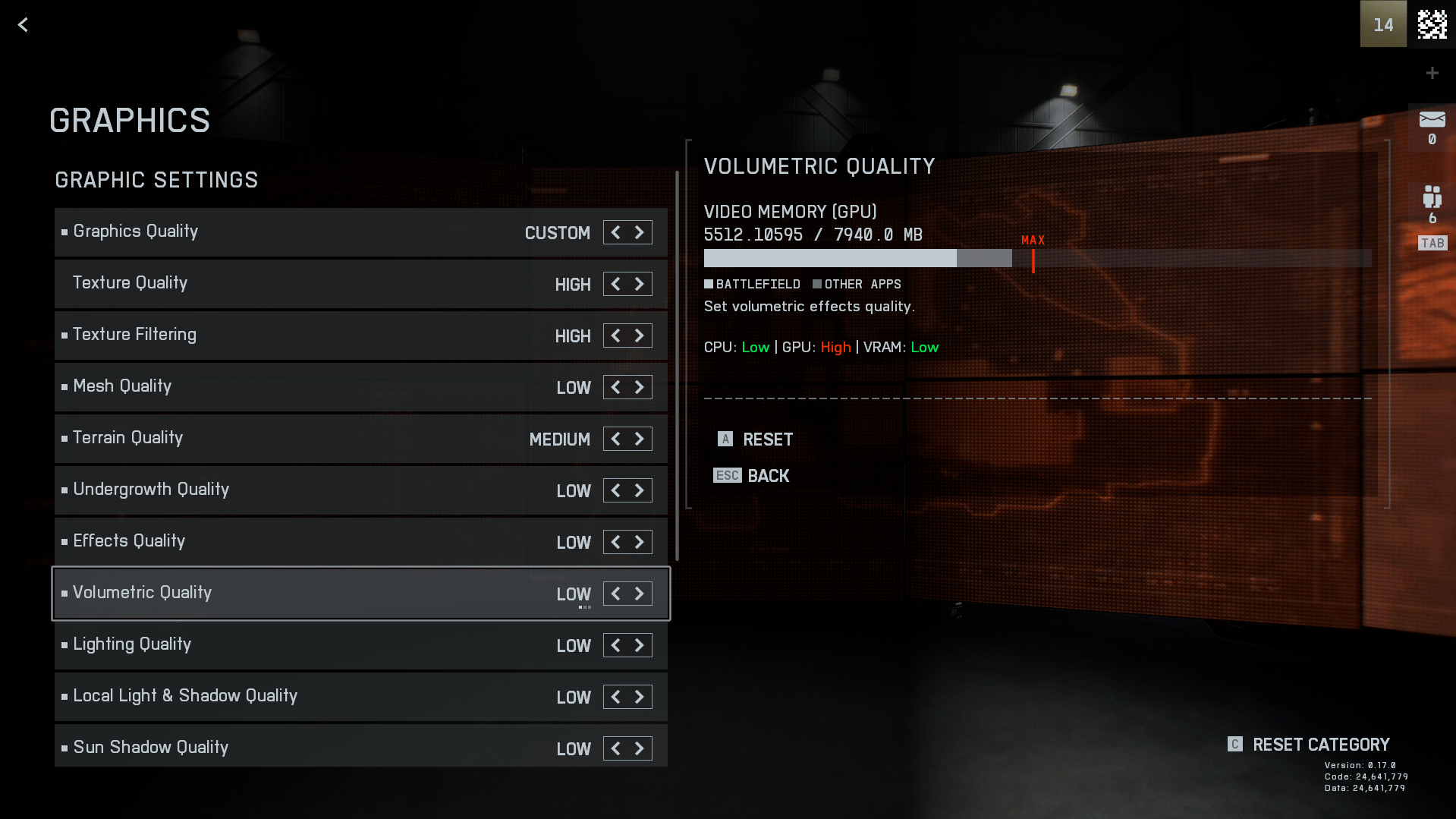
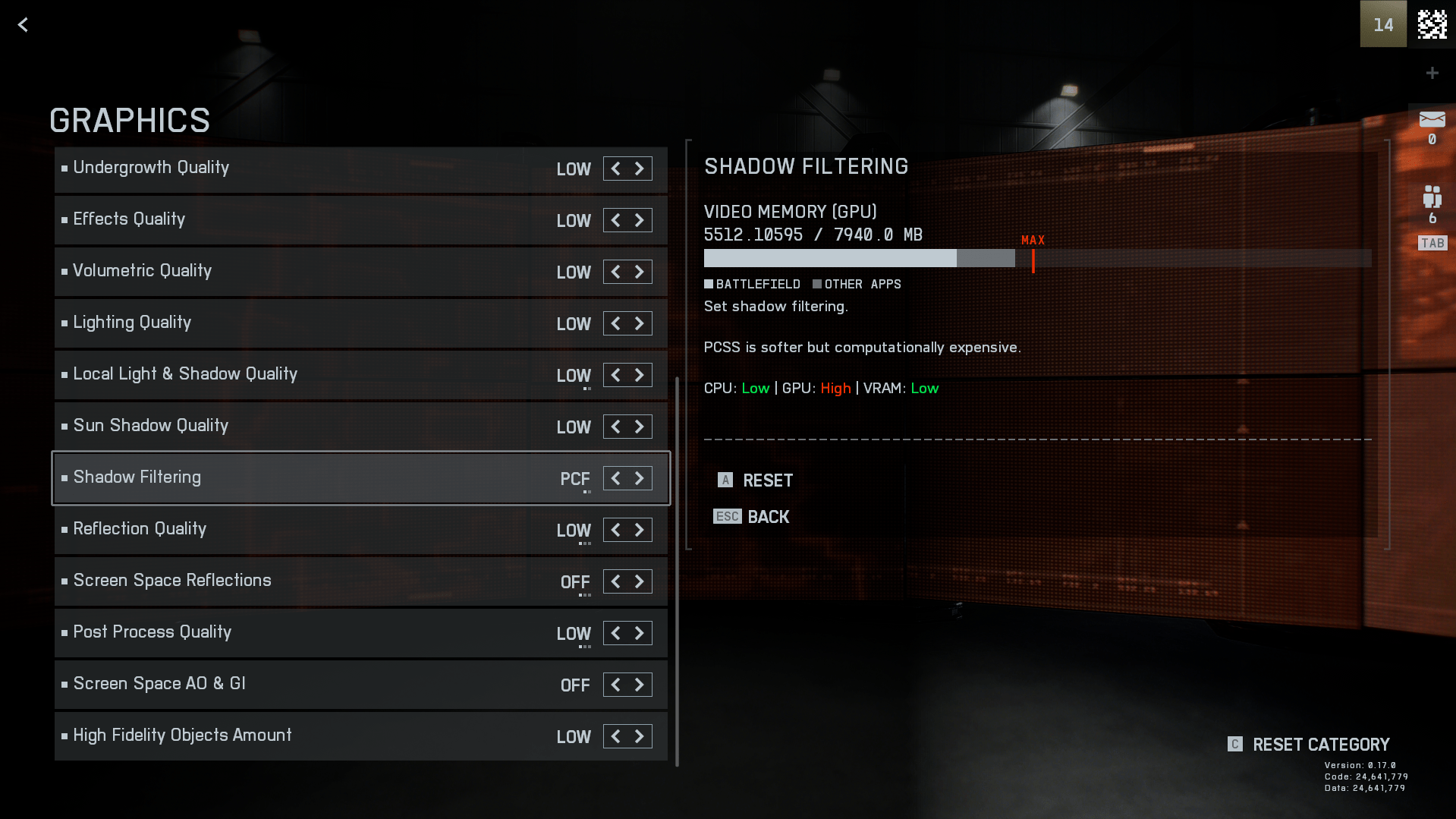
Battlefield 6 isn’t overly demanding and runs well on most systems, but fine-tuning your graphics can still make a big difference. With the right setup, you’ll get a smoother experience in BF6 Season 2, clearer visuals, and a better shot at topping the scoreboard. Our Battlefield 6 Best Graphics Settings will help you get there with ease.
| Setting | Recommendation | Why It Matters |
|---|---|---|
| Graphics Quality | Custom | Lets you fine-tune each option for best FPS-to-visuals ratio. |
| Texture Quality | High | Keeps surfaces detailed for better spotting and immersion. |
| Texture Filtering | High | Sharpens textures at a distance, making enemies easier to see. |
| Mesh Quality | Low | Reduces detail in far-off objects, freeing up GPU power. |
| Terrain Quality | Medium | Keeps ground detail decent without heavy FPS cost. |
| Undergrowth / Vegetation Quality | Low | Fewer bushes and grass for better visibility. |
| Effects Quality | Low | Reduces particle effects to prevent FPS drops during explosions. |
| Volumetric Quality | Low | Lowers fog/smoke quality for clearer vision. |
| Lighting Quality | Low | Simplifies light rendering to save performance. |
| Local Light & Shadow Quality | Low | Cuts shadow detail to improve FPS. |
| Sun Shadow Quality | Low | Lowers sunlight shadow resolution for smoother play. |
| Shadow Filtering | PCF | Balanced shadow look with minimal FPS loss. |
| Reflection Quality | Low | Reduces reflections for clearer visuals and more FPS. |
| Screen Space Reflections | Off | Removes heavy post-process reflections to boost performance. |
| Post Process Quality | Low | Cuts unnecessary visual effects for sharper gameplay. |
| Screen Space AO & GI | Off | Disables ambient occlusion to increase clarity and FPS. |
| High Fidelity Objects Amount | Medium | Keeps important object detail without overloading the GPU. |
| Brightness | 50–60 | Maintains good visibility without washing out colors. |
| Sharpness | 75 | Keeps the image crisp for spotting enemies. |
You’ve set up great settings, now don’t let your Battlefield 6 account sit idle. Get a Pro Player to keep your progress going for as long as you want.
Battlefield 6 Best Advanced Settings
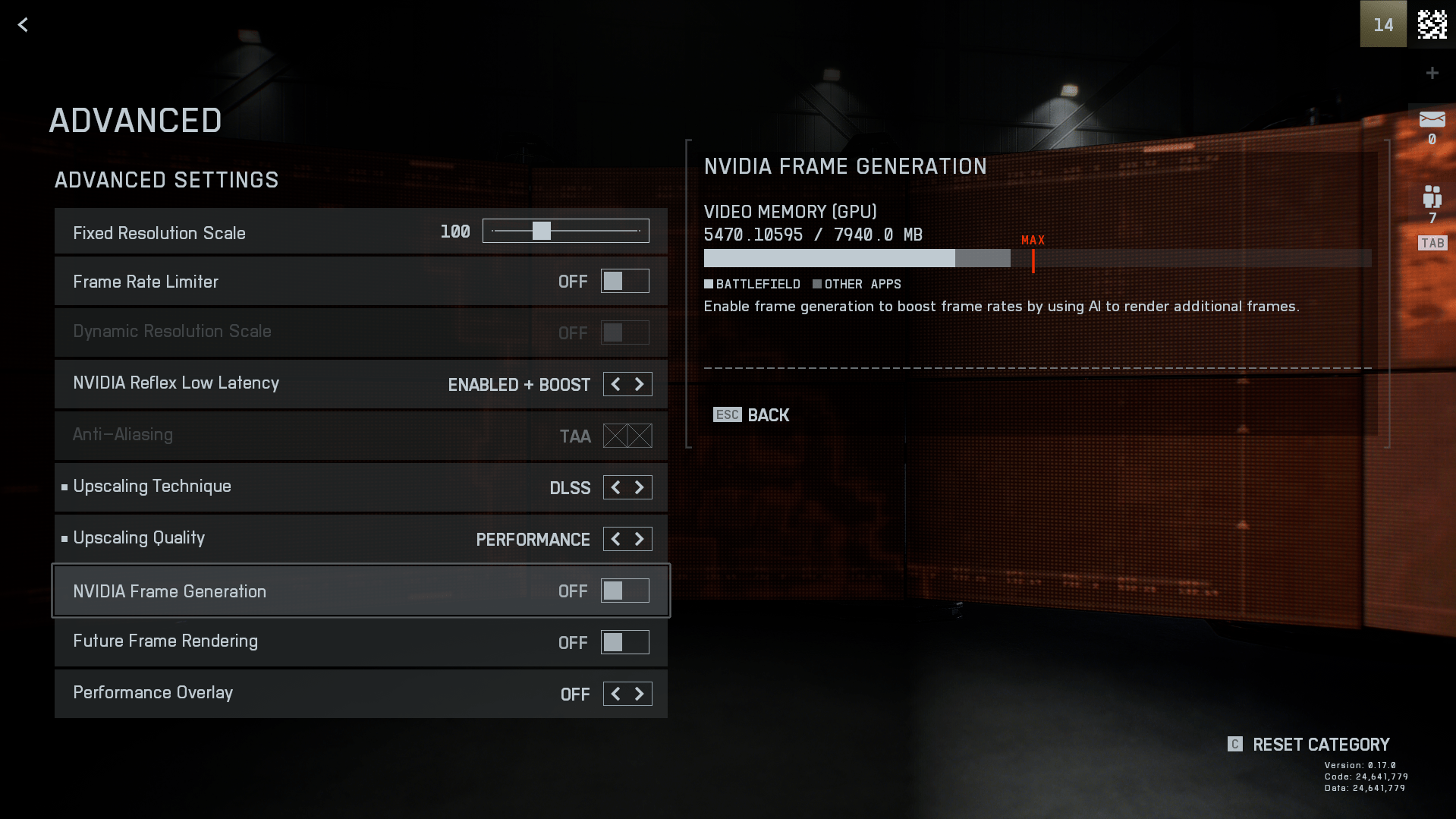
By adjusting options like latency, upscaling, and frame rendering, you can make aiming feel more responsive and keep FPS stable during the most chaotic firefights. Our Battlefield 6 Best Advanced Settings are designed to give you every possible advantage when it matters most.
| Setting | Recommendation | Why It Matters |
|---|---|---|
| Fixed Resolution Scale | 100 | Keeps image crisp without downscaling blur. |
| Frame Rate Limiter | On — match your monitor’s refresh rate | Prevents GPU overuse and screen tearing. |
| NVIDIA Reflex Low Latency | Enabled + Boost | Reduces input delay for faster reactions. |
| Upscaling Technique | DLSS (NVIDIA) / FSR (AMD) | Improves FPS while keeping visuals sharp. |
| Upscaling Quality | Quality (visuals) / Performance (FPS) | Lets you pick between image quality and max framerate. |
| NVIDIA Frame Generation | Off | Avoids extra input lag, even if FPS looks higher. |
| Future Frame Rendering | Off | Reduces delay between input and on-screen action. |
| Performance Overlay | Off | Keeps the screen clear during gameplay. |
Battlefield 6 Best Camera Settings

Camera settings in Battlefield 6 decide how much of the action you can see and how clearly you see it. A wider field of view helps catch enemies at the edge of your screen, while cutting motion blur and other visual effects keep the image sharp during fast moves. The settings below are tuned for maximum visibility without adding visual clutter.
| Setting | Recommendation | Why It Matters |
|---|---|---|
| Field of View | 105–110 | Wider view helps spot enemies on the edges. |
| Vehicle 3rd Person Field of View | 83 | Improves vehicle awareness without stretching visuals. |
| Weapon Field of View | Wide | Keeps more of your screen visible while aiming. |
| World Motion Blur | 0 | Removes blur when turning, keeping targets sharp. |
| Weapon Motion Blur | 0 | Keeps weapon view clear during movement. |
| Camera Shake Amount | 20 | Reduces screen shake for better aim control. |
| Chromatic Aberration | Off | Removes lens distortion for cleaner visuals. |
| Vignette | Off | Stops dark edges from obscuring view. |
| Film Grain | Off | Gives a cleaner, sharper image. |
Battlefield 6 Best Display Settings
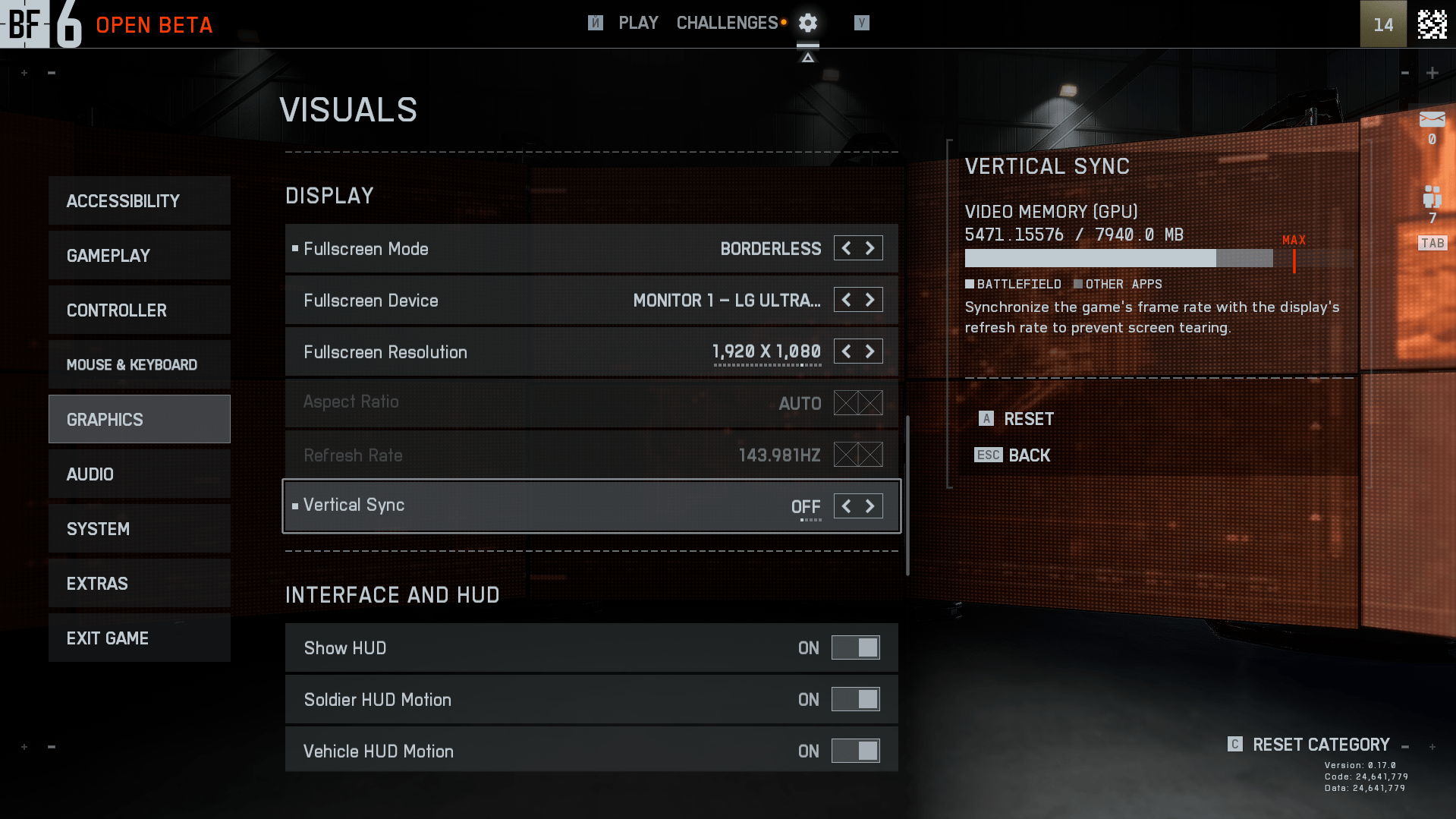
In Battlefield 6 display settings are important, as they can directly affect your FPS. That’s why our Battlefield 6 Best Display Settings are designed to help you achieve the smoothest gameplay possible.
| Setting | Recommendation | Why It Matters |
|---|---|---|
| Fullscreen Mode | Borderless or Fullscreen | Maximizes performance and input response. |
| Fullscreen Resolution | Native monitor resolution | Ensures the sharpest possible image. |
| Aspect Ratio | Auto | Matches your display for correct scaling. |
| Refresh Rate | Highest your monitor supports | Delivers the smoothest gameplay possible. |
| Vertical Sync | Off | Eliminates added input lag from V-Sync. |
Battlefield 6 Best Audio Settings

Audio is exceedingly vital in Battlefield 6, and the right audio settings can give you an edge over the competition. Using these recommendations, you’ll have the ability to hear footsteps, shots, and vehicles clearly, even in the middle of a firefight.
| Setting | Recommendation | Why It Matters |
|---|---|---|
| Sound System | Auto | Automatically selects the optimal output for your audio setup. |
| Audio Mix | Default Mix | Balanced distribution of all in-game sounds. |
| Audio In Background | On | Keeps the game audio playing when tabbed out. |
| Master Volume | 100 | Ensures all audio cues are loud and clear. |
| Music Volume | 20 | Preserves game atmosphere; lower it if you want footsteps more audible. |
| Sound Effects Volume | 100 | Maximizes detail for gunfire, footsteps, and vehicles. |
| Commander VO Volume | 100 | Makes sure voice commands are easy to hear. |
| UI SFX Volume | 100 | Keeps interface alerts clearly audible. |
| Hit Indicator | On | Plays a sound when you hit an enemy. |
Battlefield 6 Best Gameplay Settings
The Battlefield 6 Best Gameplay settings consist of several categories that contain essential game elements. They influence how you control your soldier, vehicles, and aiming, as well as the overall responsiveness in combat. Further we outline the best settings for every section to enable you to remain comfortable in BF6 Season 2, respond quicker, and play better in every single game.
Get any desired Weapon Level without stress, just contact us, and our pro players will quickly and easily level up any gun you want.
Battlefield 6 Best Vehicles Settings
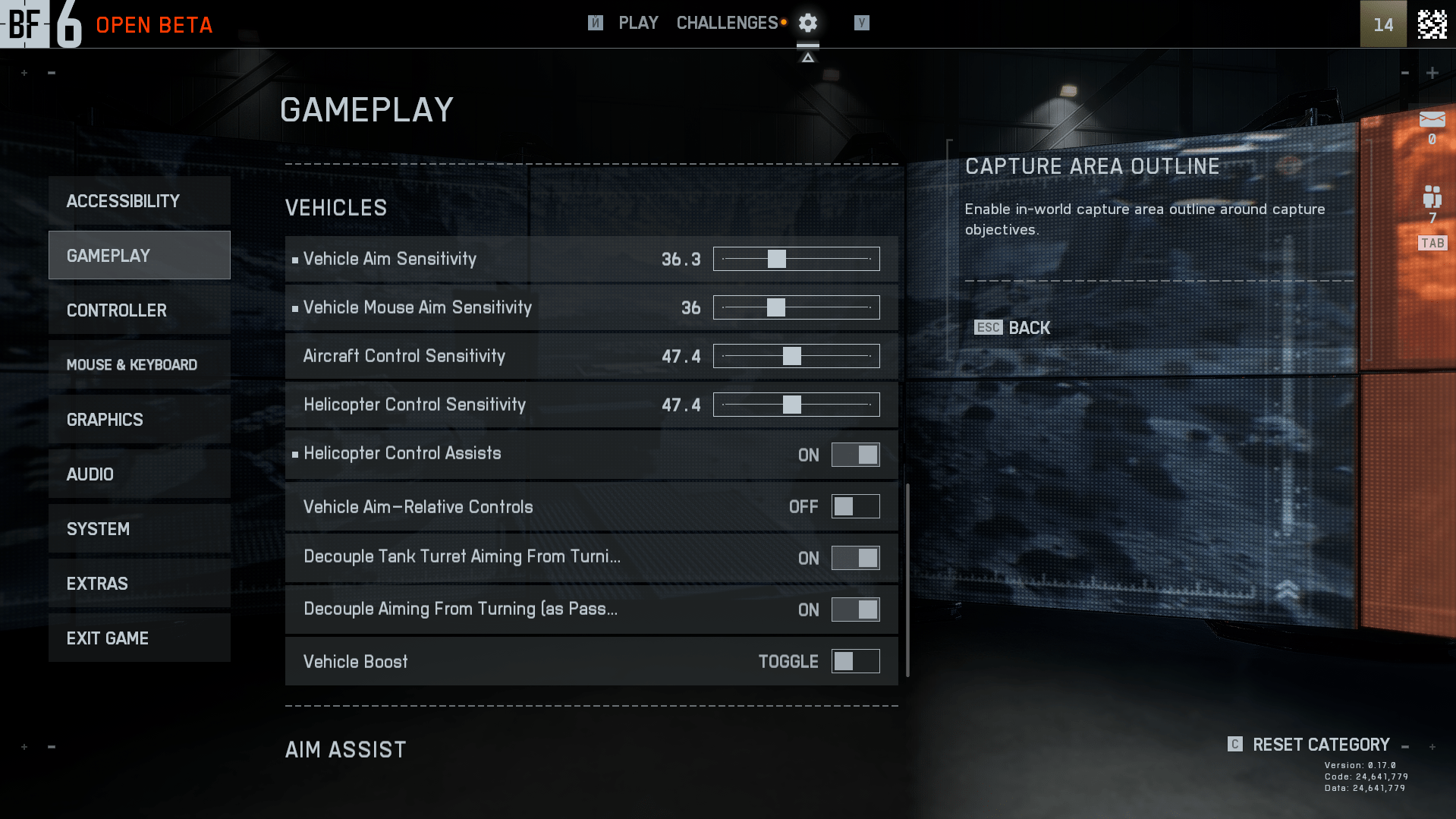
Battlefield 6 Best Vehicles Settings prioritize making tanks, planes, and other vehicles more manageable in the heat of combat. By adjusting sensitivity and assist options properly, you can aim shots more precisely, move fluidly, and remain in control even when things get chaotic.
| Setting | Recommendation | Why It Matters |
|---|---|---|
| Vehicle Aim Sensitivity | 36.3 | Keeps vehicle aiming responsive but steady. |
| Vehicle Mouse Aim Sensitivity | 36 | Balanced vehicle aiming with mouse. |
| Aircraft Control Sensitivity | 47.4 | Smooth, precise aircraft handling. |
| Helicopter Control Sensitivity | 47.4 | Fine-tuned for stable helicopter maneuvers. |
| Helicopter Control Assists | On | Helps keep helicopters stable in flight. |
| Vehicle Aim–Relative Controls | Off | Detaches aim from vehicle movement for easier targeting. |
| Decouple Tank Turret Aiming From Turning | On | Lets you aim turret independently from tank movement. |
| Decouple Aiming From Turning (as Passenger) | On | Stabilizes aiming while in passenger seat. |
| Vehicle Boost | Toggle | Allows boost activation without holding a button. |
Battlefield 6 Best Aim Assist Settings
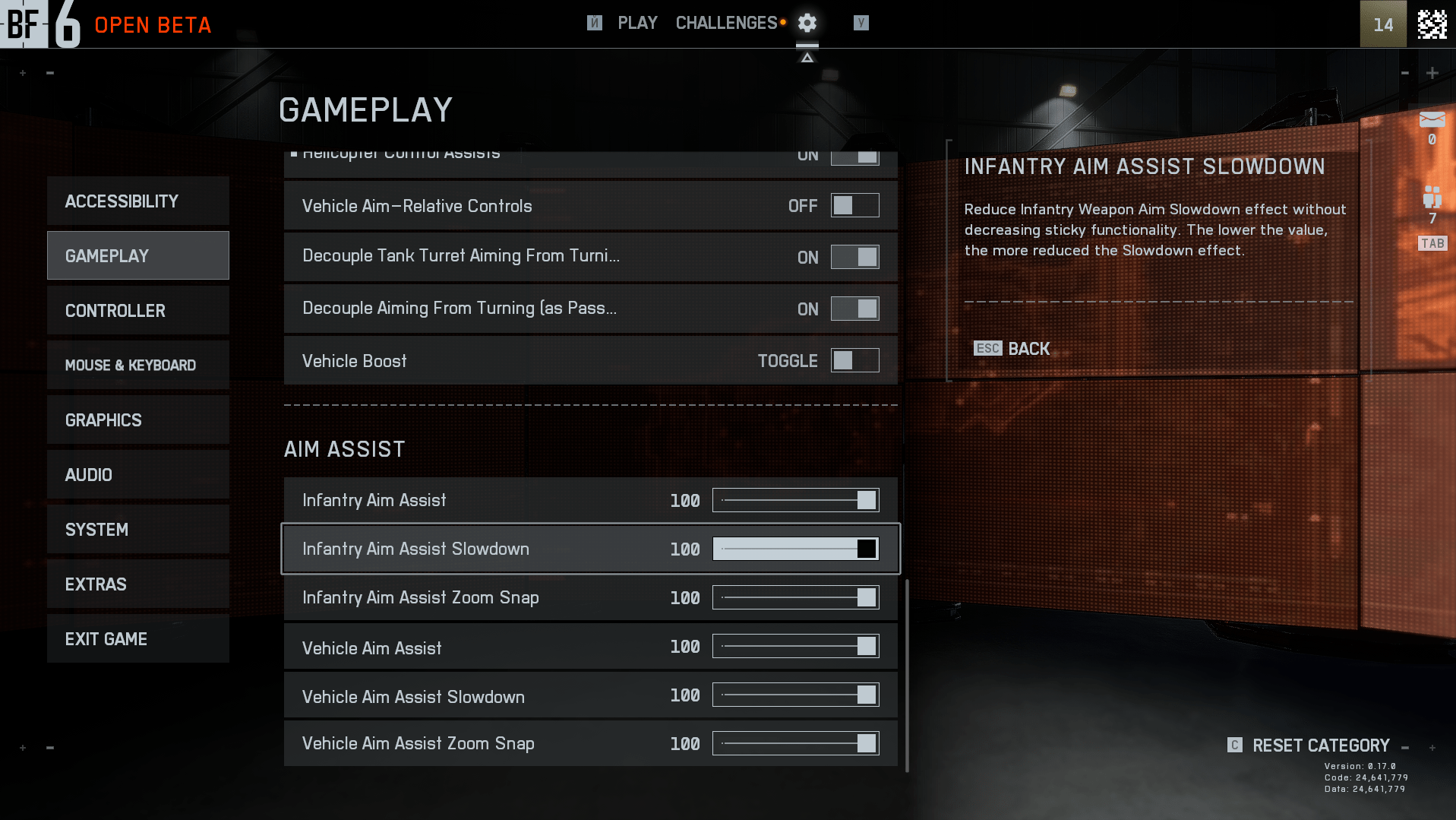
Battlefield 6 Best Aim Assist Settings are designed specifically for gamepad players, as aim assist does not work with a mouse and keyboard. Tuning these options can make aiming smoother, help you stay on target, and improve accuracy during fast engagements. Below, you’ll find the optimal values to get the most out of aim assist while keeping your aim natural and responsive.
| Setting | Recommendation | Why It Matters |
|---|---|---|
| Infantry Aim Assist | 100 | Maximum aim assistance for infantry. |
| Infantry Aim Assist Slowdown | 100 | Slows aim over targets for better accuracy. |
| Infantry Aim Assist Zoom Snap | 100 | Snaps aim to target when zooming in. |
| Vehicle Aim Assist | 100 | Maximum aim help in vehicles. |
| Vehicle Aim Assist Slowdown | 100 | Keeps vehicle aim steady over targets. |
| Vehicle Aim Assist Zoom Snap | 100 | Fast aim lock to targets when zoomed in vehicles. |
Battlefield 6 Best Infantry Settings
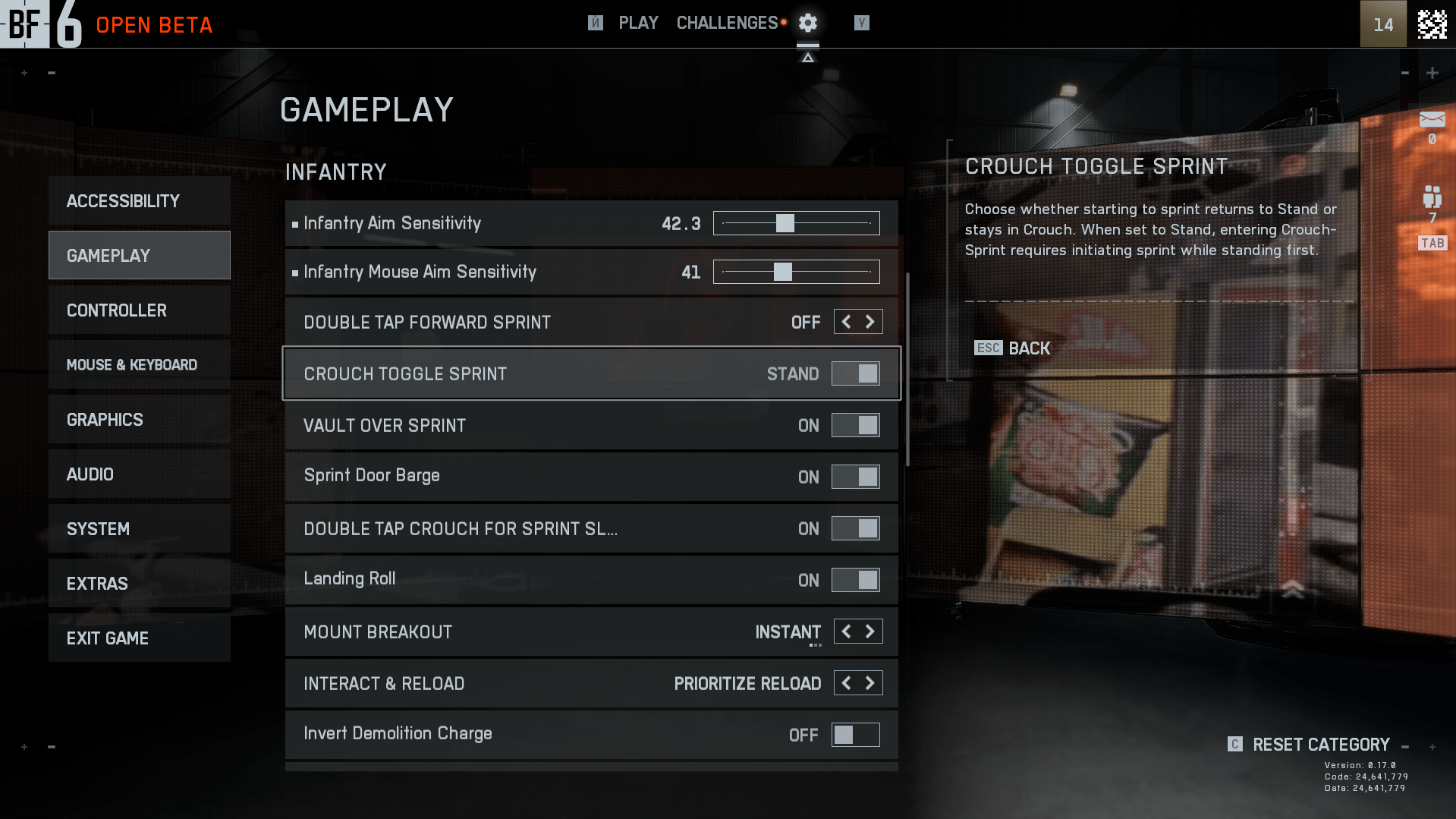
Footman control in Battlefield 6 is your control over the battlefield. In this section, we’ll show you the optimal infantry settings to keep your soldiers responsive and ready for any fight.
| Setting | Recommendation | Why It Matters |
|---|---|---|
| Infantry Aim Sensitivity | 42.3 | Balanced turn speed and aiming precision. |
| Infantry Mouse Aim Sensitivity | 41 | Smooth, controlled mouse aim for infantry combat. |
| Double Tap Forward Sprint | Off | Prevents accidental sprint activation from quick movements. |
| Crouch Toggle Sprint | Stand | Makes switching between crouch and sprint easier. |
| Vault Over Sprint | On | Automatically climbs over obstacles while sprinting. |
| Sprint Door Barge | On | Enables door smashing when running. |
| Double Tap Crouch for Sprint Slide | On | Quick way to perform a combat slide. |
| Landing Roll | On | Reduces fall damage and keeps momentum. |
| Mount Breakout | Instant | Instantly exits mounting without delay. |
| Interact & Reload | Prioritize Reload | Gives reload priority in combat situations. |
| Invert Demolition Charge | Off | Standard orientation for placing explosives. |
Battlefield 6 Best Settings FAQ
In this Battlefield 6 Best Settings FAQ we answer the most common questions players have when tuning their game for better performance and visuals. Whether you’re trying to squeeze out a few extra FPS, set up your audio for better enemy detection, or optimize controls for infantry and vehicles, this section has you covered. Use these quick answers to find the right settings fast and get back into the fight.
What Are the Best Graphics Settings for Battlefield 6?
From our recommended graphics table:
- Graphics Quality: Custom
- Texture Quality: High
- Mesh Quality: Low
- Terrain Quality: Medium
- Screen Space Reflections: Off
- Brightness: 50–60
- Sharpness: 75
How Can I Increase FPS in Battlefield 6?
- Lower Volumetric Quality, Reflections, and Post Process Quality.
- Disable Screen Space Reflections and AO & GI.
- Use DLSS (NVIDIA) or FSR (AMD) in Performance mode.
- Turn Off World/Weapon Motion Blur and Film Grain.
Do Battlefield 6 Advanced Settings Affect Input Lag?
Yes. From the advanced settings table:
- NVIDIA Reflex Low Latency: Enabled + Boost
- Future Frame Rendering: Off
What Is the Best Field of View in Battlefield 6?
From the camera settings table:
- Field Of View: 105–110
- Vehicle 3rd Person FOV: 83
- Weapon FOV: Wide
Which Display Settings Are Best for Battlefield 6?
From the display settings table:
- Fullscreen Mode: Borderless or Fullscreen
- Resolution: Native
- Refresh Rate: Highest Supported
- V‑Sync: Off
Do Battlefield 6 Audio Settings Improve Gameplay?
Yes. Proper audio tuning improves awareness:
- Sound Effects Volume: 100
- Commander VO Volume: 100
- Hit Indicator: On
Does Aim Assist Work in Battlefield 6 on PC?
Aim assist in Battlefield 6 works only with a gamepad; it is disabled for mouse and keyboard.
What Are the Best Controller Settings for Battlefield 6?
From the controller settings table:
- Aim Assist: 100
- Aim Assist Slowdown: 100
- Zoom Sensitivity: 85–90
- Vertical Aim Ratio: ~56
- Deadzone: 5
Are there Separate Settings for Infantry and Vehicles in Battlefield 6?
Yes. Infantry settings focus on soldier movement and aiming; vehicle settings tune sensitivity and assists for tanks, aircraft, and other vehicles.
Can I Use these Battlefield 6 Settings on Consoles?
Most recommendations carry over, but PC‑exclusive options like DLSS, FSR, and NVIDIA Reflex aren’t available on consoles.
4.9These are our recommended Battlefield 6 Best Settings for PC. If the game gets additional optimization options or console-specific settings, we’ll be sure to update this guide. For all the latest tips and best settings for Battlefield 6, stay tuned to Overgear!
