AION 2 best settings will provide steady FPS while not obstructing any enemies, bosses, or combat effects. This AION 2 Best Settings Guide provides tips on graphics, DLSS, controls, targeting, keybindings, camera, UI, and audio settings. We also have separate presets for low, medium, and high-end PC builds.
AION 2 Best Settings Key Takeaways:
- Use Fullscreen mode and your monitor’s native resolution.
- Set a fixed FPS limit that your computer can hold through group content.
- Lower Shadows, Reflections, Effects, and other player details first.
- Maintain high Texture Quality only if your graphics card has enough VRAM.
- DLSS Quality should be used at 1440p and 4K on NVIDIA RTX GPUs.
- Disable Motion Blur and Depth of Field for improved visibility in combat.
- AION 2 Mode is good for action combat and direct camera control.
- AION 1 Mode is best for cursor targeting and standard MMO controls.
- Keep your dodges, defenses, and consumables next to your movement keys.
- Check game performance in cities, dungeons, and PvP zones rather than empty areas.
- Install AION 2 on an SSD to prevent loading and asset streaming issues.
AION 2 Best Graphics Settings
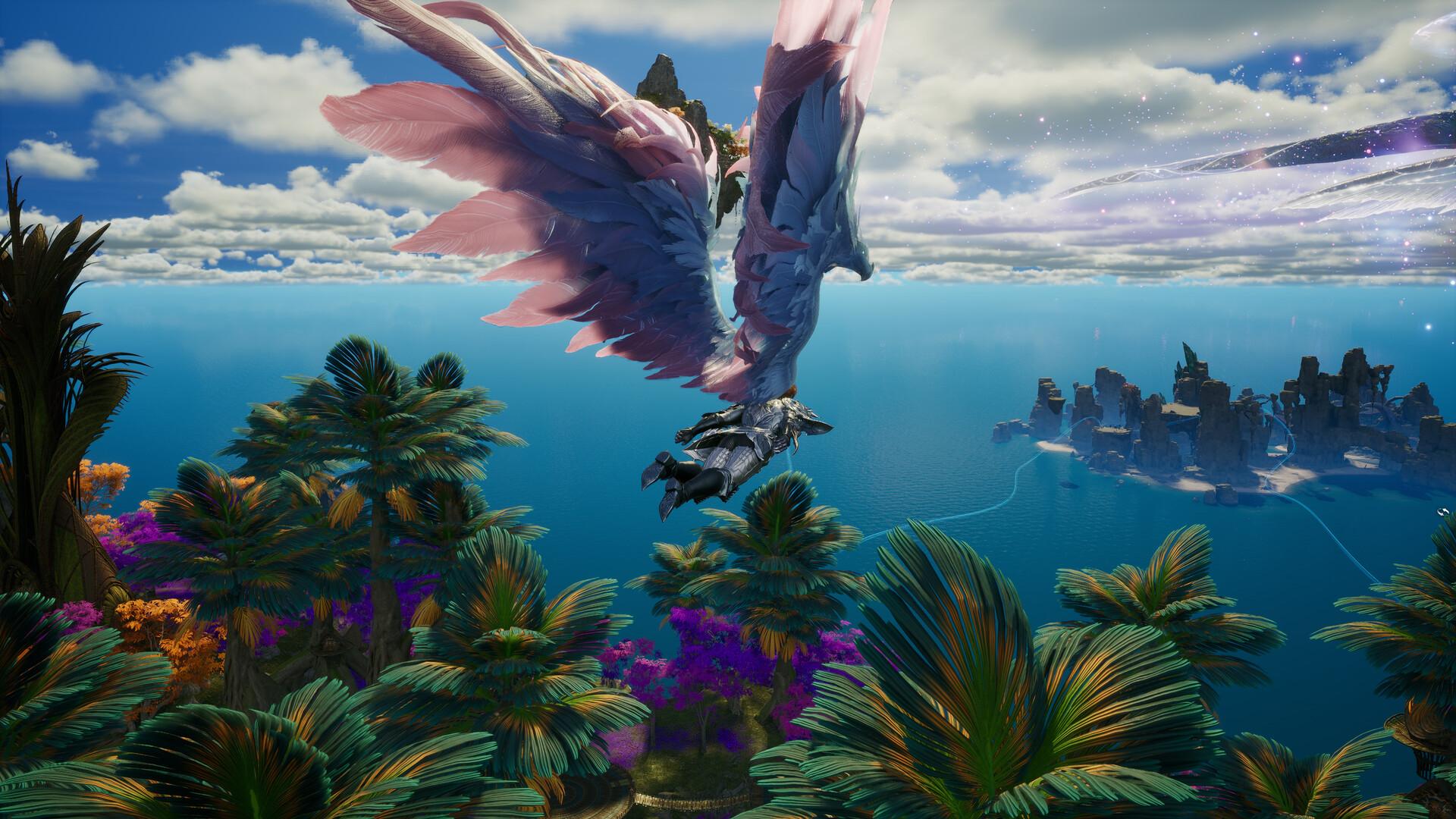
Graphics settings in AION 2 must keep all necessary information regarding fighting, as well as cut unnecessary graphics that do not have any impact on the game. When there is maximum graphics with dropped frames, the dodging and targeting become difficult. The following table shows the best AION 2 graphics settings:
| Graphics Setting | Recommended Value | Performance Impact | Recommendation |
|---|---|---|---|
| Display Mode | Fullscreen | Low | Use Borderless for frequent multitasking |
| Resolution | Native | High | Lower only after reducing other settings |
| Resolution Scale | 100% | High | Reduce to 85–90% on weaker systems |
| Frame Rate Limit | Stable target | — | Choose 60, 90, 120, or monitor refresh rate |
| VSync | Off | Low | Enable only when screen tearing remains visible |
| Graphics Preset | Custom | — | Allows individual optimization |
| Texture Quality | Medium or High | Medium | Choose according to available VRAM |
| View Distance | High | High | Useful for exploration and PvP |
| Character Detail | Medium | Medium | Reduce during crowded activities |
| Shadow Quality | Low | High | One of the first settings to lower |
| Effects Quality | Medium | High | Keeps important combat effects visible |
| Post-Processing | Low | Medium | Reduces unnecessary cinematic effects |
| Reflection Quality | Low | High | Expensive and rarely useful during combat |
| Foliage Quality | Low or Medium | Medium | Lower it in outdoor regions |
| Anti-Aliasing | Medium or High | Medium | Use when DLSS is disabled |
| Motion Blur | Off | Low | Improves clarity during movement |
| Depth of Field | Off | Low | Keeps distant targets clear |
| Bloom | Low or Personal Preference | Low | Reduce when abilities appear too bright |
| Other Player Effects | Limited | High | Important for group and faction content |
| Other Player Detail | Medium | High | Reduce in cities and large PvP battles |
AION 2 Display Settings
Use Fullscreen mode for the most consistent AION 2 performance. Borderless mode remains useful when you frequently switch between the game and other programs. Keep the output resolution matched to your monitor:
- 1920×1080 for a 1080p monitor;
- 2560×1440 for a 1440p monitor;
- 3840×2160 for a 4K monitor.
Lowering the output resolution creates a large performance gain but reduces image clarity. Adjust Shadows, Effects, Reflections, and player details first.
AION 2 Frame Rate Limit
The best FPS limit is one your PC can maintain during demanding content. A stable 60 FPS feels better than constant movement between higher values. Choose an AION 2 FPS limit based on your hardware:
- 30 or 45 FPS for systems below or near the minimum requirements;
- 60 FPS for entry-level and mid-range PCs;
- 90 or 120 FPS for stronger systems and high-refresh-rate monitors;
- Monitor refresh rate only when performance remains stable.
AION 2 VSync Settings
Set VSync to Off when using G-SYNC, FreeSync, or another variable refresh rate technology. This can reduce input delay.
Enable VSync when visible tearing remains a problem. Players without adaptive sync may prefer smoother presentation over slightly faster input.
Set a stable frame limit before enabling VSync. An unstable target can create uneven frame pacing.
AION 2 Texture Quality
Texture Quality in AION 2 controls surface detail on characters, equipment, terrain, and buildings. Its main hardware requirement is video memory. Use these AION 2 texture settings as a starting point:
- 4 GB VRAM: Low or Medium;
- 6 GB VRAM: Medium;
- 8 GB VRAM: High;
- 12 GB VRAM or more: High or the maximum available value.
AION 2 Shadow and Reflection Settings
Shadows are among the most resource-intensive AION 2 graphical settings. They add some depth but have little use for fighting.
- Adjust Shadows Quality to Low for most computers. Medium is acceptable if you maintain high frame rates in crowded environments.
- Leave Reflections Quality on Low. Reflections will put a strain on your GPU around water, glossy objects, and lighting.
AION 2 Effects Settings
Effects Quality in AION 2 determines particle effects, animations of skills, environmental effects, and other combat visual elements. High settings may drop FPS when playing in groups.
- Medium settings are recommended for starters. It will ensure that all necessary game mechanics remain visible without turning on all effects at maximum quality.
- When you have frame drops while playing in Expeditions or PvP fights, turn down Effects Quality to Low. Disable the effect quality of other players when possible.
AION 2 View Distance Settings
View Distance in AION 2 affects terrain, objects, enemies, and other details rendered farther from your character. High values help during exploration, flight, and open-world PvP.
- Start with High on modern systems. Reduce it to Medium when outdoor regions cause heavy CPU or GPU load.
- Avoid the lowest value during faction activities. Restricted visibility can make distant players and objectives harder to notice.
AION 2 Best FPS Settings
The optimal settings for FPS in AION 2 will vary depending on your hardware and screen resolution. Playing in crowded areas will place much more strain on your PC than playing alone. Below is a list of the best FPS settings in AION 2:
| Setting | Best FPS Value |
|---|---|
| Display Mode | Fullscreen |
| Resolution | Native |
| Graphics Preset | Custom |
| Resolution Scale | 100% |
| Frame Rate Limit | Stable target |
| VSync | Off |
| DLSS | Quality |
| Texture Quality | Medium |
| View Distance | Medium |
| Character Detail | Low or Medium |
| Shadow Quality | Low |
| Effects Quality | Low or Medium |
| Post-Processing | Low |
| Reflection Quality | Low |
| Foliage Quality | Low |
| Anti-Aliasing | Medium |
| Motion Blur | Off |
| Depth of Field | Off |
| Bloom | Low |
| Other Player Effects | Limited |
| Other Player Detail | Low |
AION 2 Settings for Low-End PCs
The minimum requirements target 1080p with the Very Low preset. Systems near this configuration require aggressive optimization. The table below provides the best AION 2 settings for low-end PCs close to the official minimum requirements:
| Setting | Low-End Recommendation |
|---|---|
| Resolution | 1920×1080 |
| Graphics Preset | Very Low or Custom |
| Resolution Scale | 85–90% |
| Frame Rate Limit | 45 or 60 FPS |
| Texture Quality | Low or Medium |
| View Distance | Medium |
| Character Detail | Low |
| Shadows | Low |
| Effects | Low |
| Post-Processing | Low |
| Reflections | Low |
| Foliage | Low |
| Motion Blur | Off |
| Depth of Field | Off |
| Other Player Effects | Limited |
| Other Player Detail | Low |
AION 2 Settings for Mid-Range PCs
A mid-range PC should target 60 FPS at 1080p or 1440p. Start with the Custom preset and reduce demanding options first. These AION 2 mid-range PC settings offer a balanced setup:
- native resolution;
- 60 or 90 FPS limit;
- Medium or High Texture Quality;
- High View Distance;
- Low Shadows;
- Medium Effects;
- Low Reflections;
- Low Post-Processing;
- DLSS Quality at 1440p;
- limited effects from non-party players.
AION 2 Settings for High-End PCs
High-end hardware can support better visuals, but large-scale content may still cause processor-related frame drops. Use the following AION 2 high-end PC settings:
- native 1440p or 4K resolution;
- a stable FPS limit suited to your monitor;
- High Texture Quality;
- High Character Detail;
- High View Distance;
- Medium Shadows;
- Medium or High Effects;
- Medium Reflections;
- DLSS Quality at 1440p or 4K;
- Motion Blur disabled;
- full party effects with limited non-party effects.
Maximum Shadows and Reflections rarely improve gameplay. Keep additional performance available for crowded activities.
AION 2 Resolution Scale Settings
DLSS is available in the regional PC client, but its exact Global options require confirmation. NVIDIA RTX users can use it to improve performance at higher resolutions. The following table compares the best AION 2 DLSS settings for 1080p, 1440p, and 4K.
| Resolution | Recommended DLSS Mode | Alternative |
|---|---|---|
| 1080p | Off or Quality | Use Quality only when extra FPS is necessary |
| 1440p | Quality | Switch to Balanced during demanding content |
| 4K | Quality or Balanced | Use Performance only on weaker hardware |
AION 2 Best Control Settings
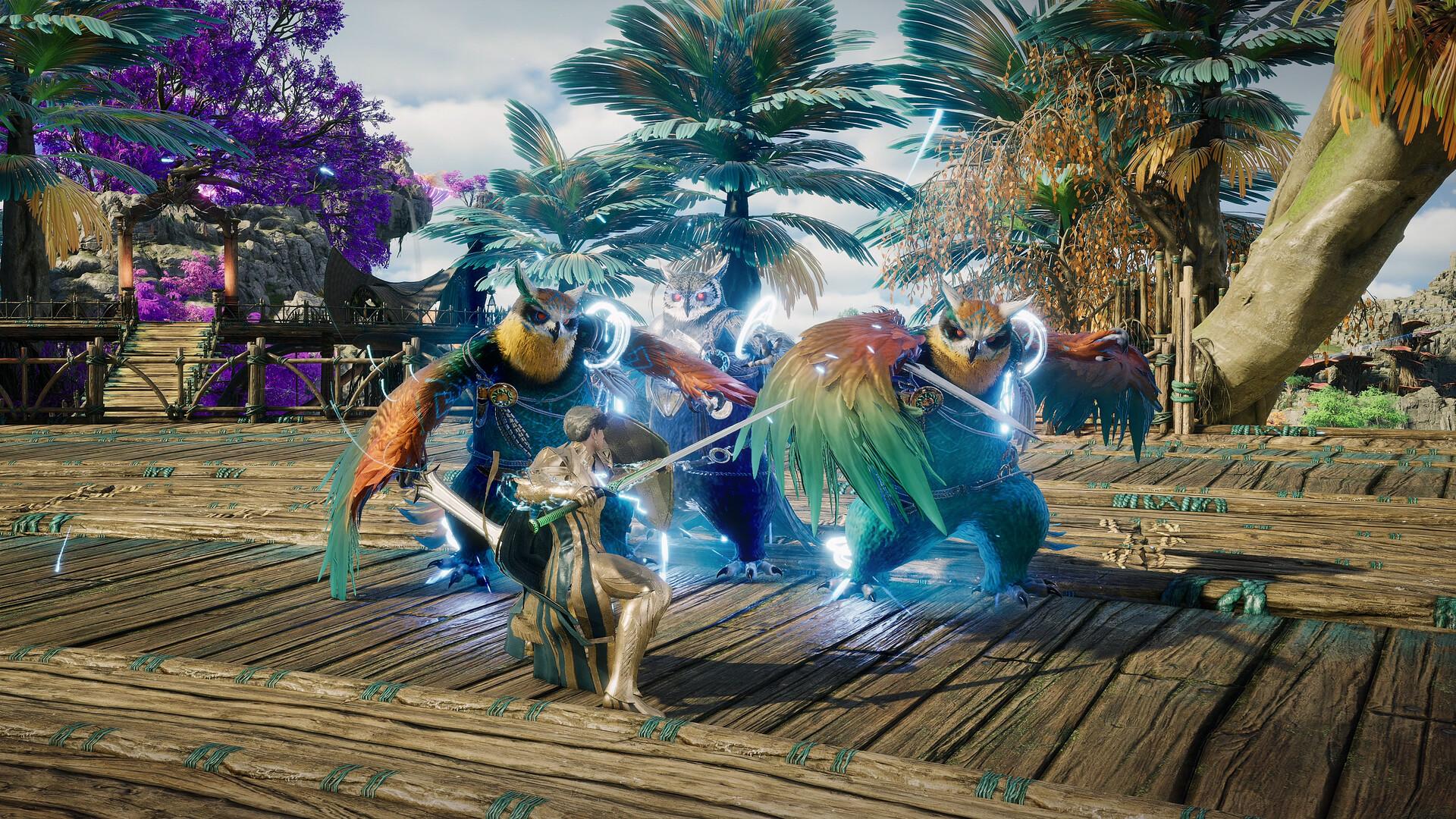
AION 2 offers two control schemes provides action-oriented aiming, while AION 1 Mode uses traditional MMO controls. The table below compares the main AION 2 control settings and explains which mode suits different players.
| Control Feature | AION 2 Mode | AION 1 Mode |
|---|---|---|
| Camera Control | Direct mouse movement | Camera and cursor work independently |
| Cursor | Hidden during regular movement | Visible |
| Target Selection | Center-screen aiming | Mouse and tab targeting |
| Target Lock | Available through Tab | Traditional target selection |
| Movement Style | Action-oriented | Traditional MMO and click movement |
| Best For | Action combat, movement, and PvP | Classic MMO controls and cursor management |
| Beginner Recommendation | Recommended starting mode | Use when traditional controls feel more comfortable |
AION 2 Mode Controls
AION 2 Mode Control action control mode is the default. Mouse movement controls the camera, and an aim point selects nearby targets. The game works well for people who play third-person action games. Controls for movement, dodging, and changing direction quickly will seem intuitive. Set your AION 2 Mode controls to:
- enable Main Target Lock;
- use Tab to lock important enemies;
- prioritize enemies in front of the camera;
- keep mouse sensitivity at a moderate level;
- reduce Camera Shake when available;
- bind dodge close to the movement keys;
- avoid excessive automatic target switching.
AION 1 Mode Controls
AION 1 Mode displays a cursor and separates it from camera movement. Players can select targets with the mouse and use traditional MMO movement. This control mode works well for:
- players familiar with the original AION;
- healers who select party members with the cursor;
- players who prefer tab-target combat;
- users with an MMO mouse;
- players managing several action bars.
Which AION 2 Control Mode Is Better?
AION 2 Mode is the best starting option for movement, dodging, and action combat. Its direct camera control also suits competitive PvP.
AION 1 Mode suits players who prefer cursor-based targeting and traditional MMO controls. It can also simplify party-frame management for support classes.
Test both modes against regular enemies before entering difficult content. Changing controls during a dungeon can disrupt movement and targeting.
AION 2 Best Targeting Settings
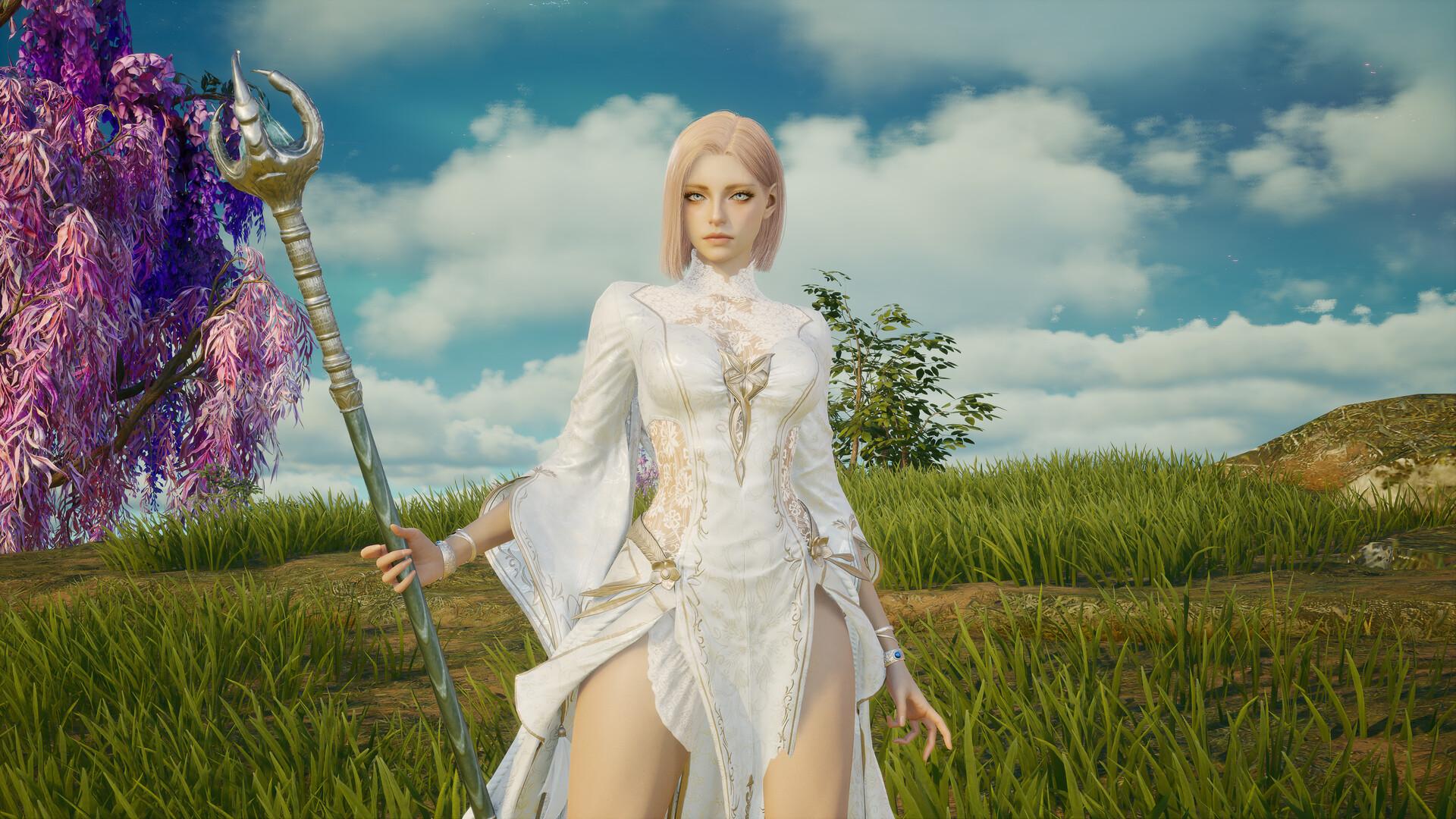
Reliable targeting prevents attacks from switching to the wrong enemy. The ideal setup depends on your class and chosen control mode. The following table lists the recommended AION 2 targeting settings for solo combat, party content, and PvP.
| Targeting Setting | Recommended Option | Purpose |
|---|---|---|
| Main Target Lock | On | Keeps attacks focused on the selected enemy |
| Set Main Target on Attack | On | Locks an enemy when combat begins |
| Tab Target Priority | Front or Nearest | Reduces unpredictable target selection |
| Automatic Pursuit | Off for ranged classes | Prevents unwanted movement |
| Automatic Pursuit | Optional for melee classes | Helps maintain attack range |
| Party Selection | Accessible keys or cursor | Improves healing and support |
| Target-of-Target Display | On | Shows who an enemy is attacking |
AION 2 Best Keybinds
The best AION 2 keybinds keep frequent and defensive actions within easy reach. Avoid placing important skills on distant number keys. The table below provides a practical AION 2 keybind setup for movement, combat, flight, and consumables:
| Action | Suggested Keybind | Reason |
|---|---|---|
| Movement | W, A, S, D | Standard movement layout |
| Dodge | Shift or Mouse Button 4 | Easy to press while moving |
| Target Lock | Tab | Quick access during combat |
| Basic Attack | Left Mouse Button | Supports frequent use |
| Primary Class Action | Right Mouse Button | Keeps the main action accessible |
| Core Skills | Q, E, R, F, 1–5 | Close to movement keys |
| Interrupt or Control | Q or E | Allows quick reactions |
| Defensive Ability | F, C, or Mouse Button 5 | Accessible under pressure |
| Recovery Consumable | Z, X, or Mouse Button | Avoids searching through action bars |
| Flight Ascent | Space | Natural vertical movement |
| Flight Descent | Ctrl or C | Easy to combine with movement |
| Control Mode Switch | Accessible secondary key | Allows quick testing outside combat |
AION 2 Camera Settings
The AION 2 camera settings should provide awareness without making precise targeting difficult. Excessive sensitivity can cause accidental target changes. Adjust the camera until you can turn around with one comfortable mouse movement. Avoid sensitivity that requires repeated mouse corrections. AION 2 recommended camera options include:
- moderate horizontal sensitivity;
- slightly lower vertical sensitivity when separate controls exist;
- a wide camera distance;
- reduced Camera Shake;
- limited automatic camera correction;
- enough distance to see nearby telegraphs;
- additional zoom during bosses and PvP.
AION 2 Interface Settings
The AION 2 interface settings should place important combat information near the center. Interface elements must remain visible without covering enemy telegraphs. Prioritize these AION 2 HUD elements:
- character health and class resources;
- target health and status effects;
- boss cast bar;
- party frames;
- important buffs and debuffs;
- skill cooldowns;
- consumable availability;
- target-of-target information;
- network and performance indicators.
AION 2 Audio Settings
Combat sounds can warn players about attacks before the animation finishes. Music and ambient sounds should not overpower these cues. The following table presents the best AION 2 audio settings for combat, dialogue, and party communication:
| Audio Setting | Recommended Level | Purpose |
|---|---|---|
| Master Volume | Personal Preference | Controls overall volume |
| Music | 30–50% | Prevents music from hiding combat cues |
| Sound Effects | 70–100% | Keeps enemy and ability sounds audible |
| Interface Sounds | 50–70% | Preserves useful menu and warning sounds |
| Dialogue | 60–80% | Keeps quest and encounter dialogue clear |
| Ambient Sounds | 30–50% | Reduces unnecessary background noise |
| Voice Chat | 70–100% | Keeps party communication audible |
How to Fix AION 2 Low FPS and Stuttering
Graphic settings will fix almost all performance issues. Other PC tweaking will help increase AION 2 FPS and minimize stuttering. Take the following steps to optimize AION 2:
- Install AION 2 on an SSD drive.
- Update your graphics card driver.
- Restart the game after making significant setting changes.
- Disable all unnecessary overlays and recording software.
- Lower Shadows and Reflections.
- Turn off Effects and Effects when not in party.
- Decrease View Distance outside.
- Set DLSS to Quality/Balanced on a compatible GPU.
- Set Resolution Scale to 85-90%, if needed.
- Choose your stable frame rate cap.
- Check the integrity of the game files using Steam/PURPLE.
AION 2 How to Fix Low FPS in Cities and PvP
Cities and PvP battles will create numerous characters, skins, effects, pets, and animations. This area can be constrained by the capacity of the processor. Lower the following AION 2 PvP settings initially:
- other player detail;
- non-party combat effects;
- character quality;
- View Distance;
- Shadows;
- nameplates.
AION 2 Stuttering Fixes
Stuttering can result from limited memory, VRAM pressure, background programs, or asset streaming. Try these AION 2 stuttering fixes:
- move the installation to an SSD;
- close memory-heavy background applications;
- lower Texture Quality when VRAM remains full;
- reduce View Distance;
- disable unnecessary overlays;
- restart the client after long sessions;
- verify the game files;
- allow the game to finish loading a new location.
AION 2 FPS and Network Lag
Low FPS and network latency create different problems. Graphics settings cannot fix a delayed connection. Low FPS usually causes:
- uneven camera movement;
- visible frame-time spikes;
- slow visual updates;
- reduced responsiveness in crowded scenes.
- Network latency usually causes:
- delayed ability activation;
- characters moving unpredictably;
- late damage registration;
- interaction delays.
AION 2 System Requirements
AION 2 uses Unreal Engine 5 and requires DirectX 12. The table below lists the official AION 2 system requirements for minimum and recommended PC configurations.
| Component | Minimum Requirements | Recommended Requirements |
|---|---|---|
| Operating System | Windows 10 or 11, 64-bit | Windows 10 or 11, 64-bit |
| Processor | AMD Ryzen 5 2600 or Intel Core i5-10500 | AMD Ryzen 7 3700X or Intel Core i7-11700 |
| Memory | 8 GB RAM | 16 GB RAM |
| Graphics Card | NVIDIA GTX 1050 Ti, 4 GB | NVIDIA RTX 2070, 8 GB |
| DirectX | DirectX 12 | DirectX 12 |
| Storage | 100 GB | 100 GB |
| Drive | SSD recommended | SSD recommended |
| Official FHD Preset | Very Low | Low |
AION 2 Best Settings FAQ
The following FAQ answers common questions about the best AION 2 settings, controls, and PC performance.
What Are the Best AION 2 Settings?
Use native resolution, Fullscreen mode, High textures, High View Distance, Low Shadows, Medium Effects, and Low Reflections. Disable Motion Blur and Depth of Field.
What Should I Lower First in AION 2?
Lower Shadows, Reflections, Effects, and other player details first. These options can improve FPS without heavily reducing image clarity.
Should I Use DLSS in AION 2?
Use DLSS Quality at 1440p or 4K on supported NVIDIA RTX cards. Switch to Balanced when you need additional performance.
Should I Enable VSync in AION 2?
Disable VSync when using G-SYNC or FreeSync. Enable it if visible screen tearing remains a problem.
Can AION 2 Run With 8 GB of RAM?
Yes. The official minimum requirements list 8 GB of RAM. However, this configuration targets the Very Low preset at 1080p.
Does AION 2 Require an SSD?
An SSD is officially recommended. It can reduce loading times and problems connected to streaming large environments and character assets.
Which AION 2 Control Mode Should I Use?
Use AION 2 Mode for direct camera control and action combat. Choose AION 1 Mode for cursor targeting and traditional MMO controls.
What Is the Best AION 2 FPS Limit?
Choose a limit your PC maintains during crowded activities. A stable 60 FPS feels better than an unstable higher frame rate.
How Can I Improve AION 2 PvP Performance?
Reduce player details, non-party effects, Shadows, and View Distance. Keep enemy nameplates and important combat telegraphs visible.
Will AION 2 Global Have the Same Settings as Korea?
The Global client may change option names, presets, and available technologies. Confirm every setting after the public test and full release.
Our AION 2 Best Settings Guide helps you improve performance without hiding enemies or important combat mechanics. Test the best AION 2 settings in cities, dungeons, and faction battles. Graphics are only part of the setup. Choose a comfortable control mode, keep emergency abilities accessible, and review your settings after major updates.
