In this Active Matter Best Settings guide, we’ll take a look at the top settings for the best performance and visual balance on PC. We’ll cover graphics, display, audio, and gameplay options to help you find the perfect mix of smooth FPS, clarity, and control in every match.
Active Matter Best Settings Key Takeaways:
- Turn off Motion Blur and Film Grain — they don’t add quality and only make visibility worse during fights.
- Use DLSS or FSR — these give the biggest FPS boost in Active Matter without a major visual downgrade.
- Lower Shadows and Post-Processing first — these two settings hit performance the hardest.
- Enable NVIDIA Reflex — it reduces input lag and makes aiming feel much more responsive.
- Play on High or Balanced presets — they offer the best mix of performance and detail for most modern GPUs.
- Cap FPS slightly below refresh rate — for smoother frame pacing and fewer stutters.
- Keep FOV between 90 and 100 — enough to improve awareness without hurting performance.
Active Matter Best Optimization Tips
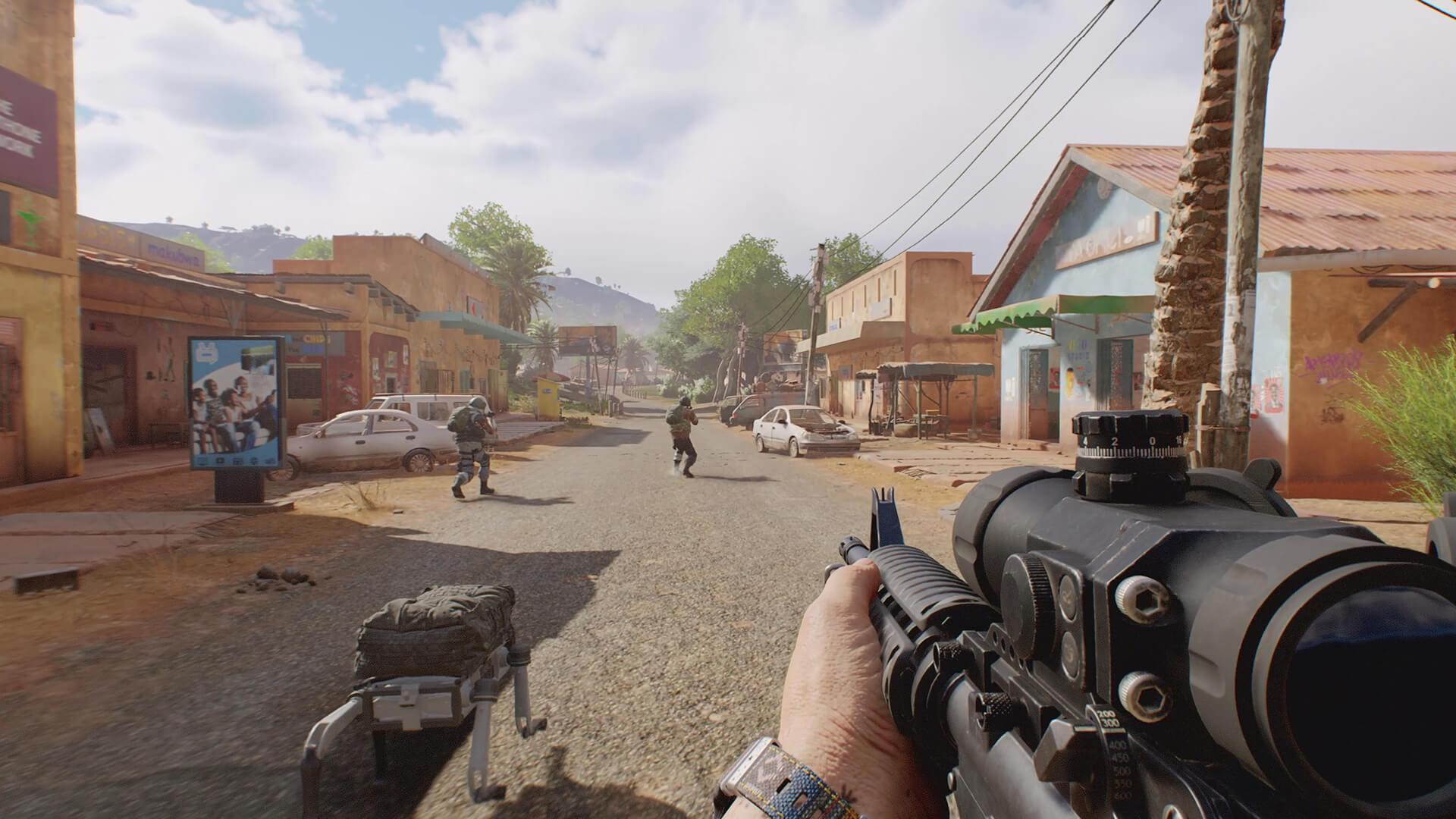
Even with a good setup, the Active Matter stutters as it is not fully optimized. The tips listed below will ensure the Active Matter FPS stabilizes and the gameplay is mostly smooth:
- Update your GPU drivers — new NVIDIA and AMD updates often fix FPS drops and improve stability for newly released titles.
- Run the game off of an SSD — textures and the maps will load faster, and you will avoid slight freezes on area loading.
- Enable Windows Game Mode — gives Active Matter higher CPU priority and limits background interruptions.
- Shut off background apps — browsers, overlay apps, or recording software can steal performance without complaint.
- Cap your FPS a bit lower than the native refresh rate of your monitor — e.g., 140 FPS on a 144Hz monitor maintains frame pace steadily and reduces tearing.
- Lower Shadows and Post-Processing — the hardest settings; lowering them can provide up to 20–30% additional FPS.
- Keep your PC cool — clean the fans and let it breathe; fluctuating or throttling frame rates can be brought about by overheating.
These optimizations improve the playing stability of Active Matter, minimizing frame drops as well as input lag throughout uninterrupted combat sessions.
Active Matter Best Graphics Settings
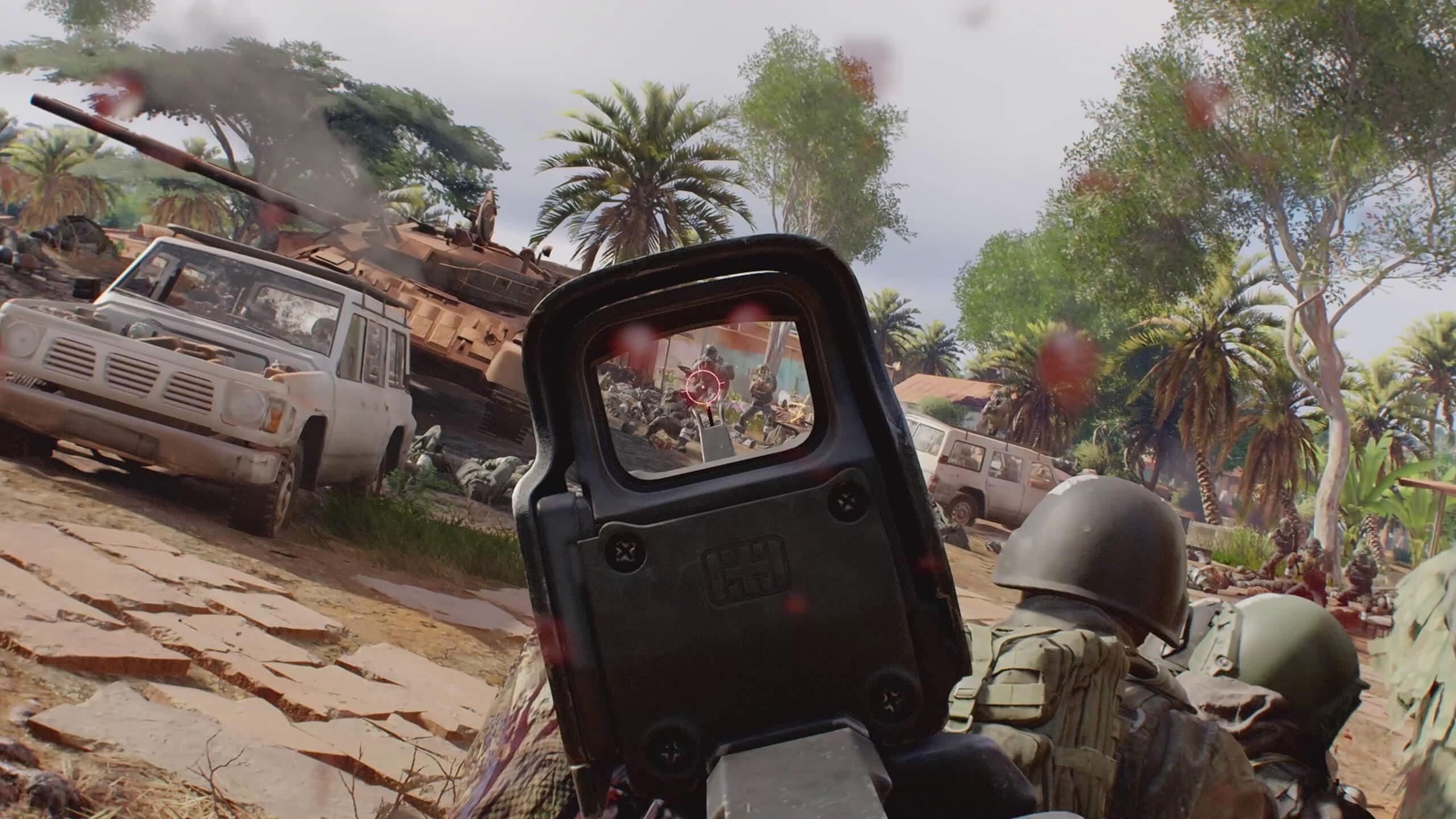
These are the main Active Matter graphics options that shape how the game runs and looks. Small tweaks here can greatly boost frame rate or make visuals sharper, depending on what you prefer. Here’s a quick breakdown of which Active Matter graphics settings to lower for performance and which to raise for visuals:
| Setting | Performance Focus | Quality Focus |
|---|---|---|
| Resolution | 1080p or 1440p | Native res (1440p/4K) |
| DLSS / FSR | Balanced mode | Quality mode |
| Textures | High | Ultra (if VRAM allows) |
| Shadows | Medium | High or Ultra |
| Anti-Aliasing | TAA + Sharpening | DLAA / TAA High |
| Motion Blur | Off | Off |
Active Matter Best Advanced Settings
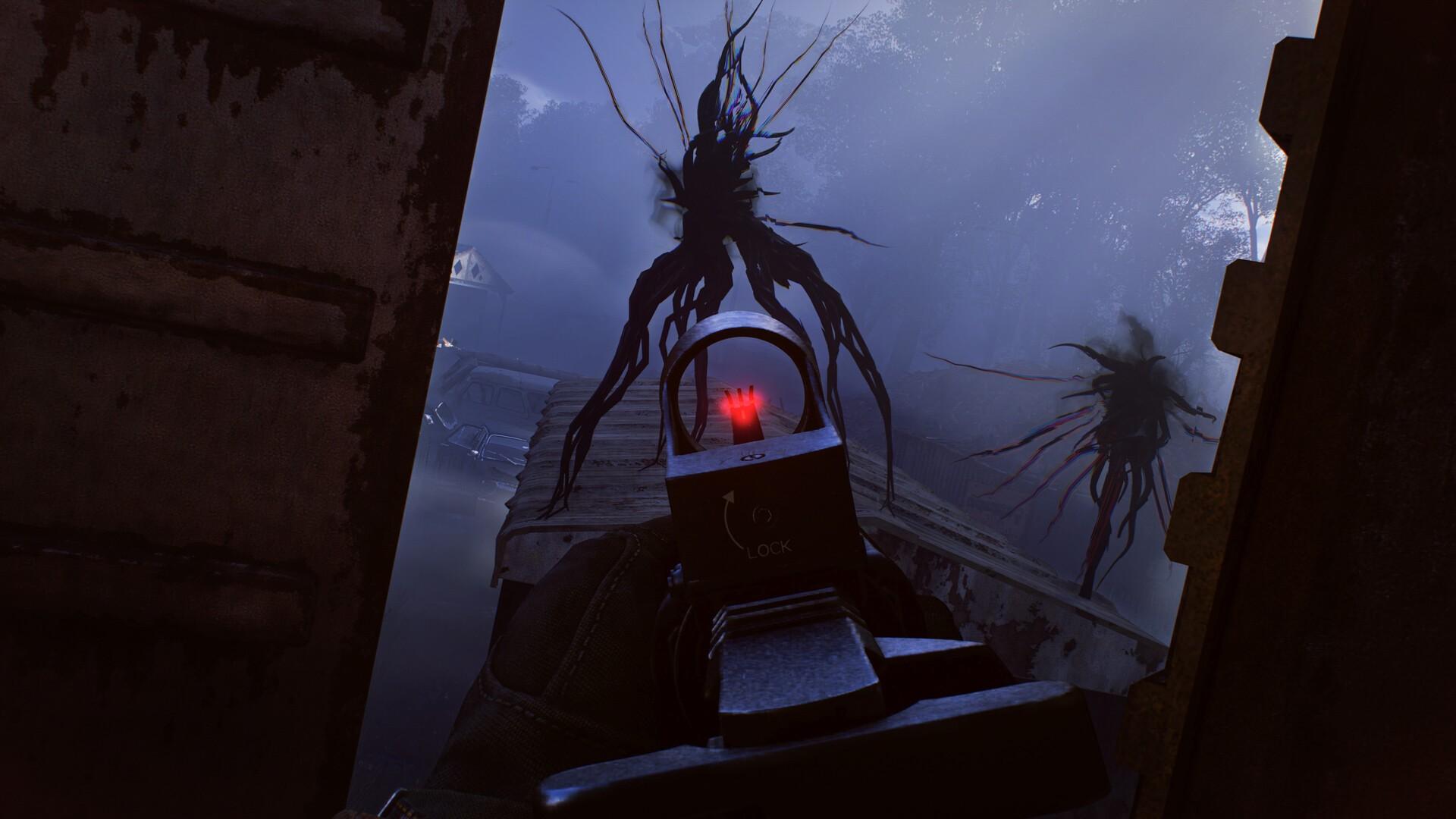
These Active Matter advanced settings in-game affect how responsive the game feels and how clean the visuals look. Here you’ll find the options that improve latency, image sharpness, and GPU load. Here’s a quick overview of the most impactful advanced settings for Active Matter performance and visual quality:
| Setting | Performance Focus | Quality Focus |
|---|---|---|
| NVIDIA Reflex | On | On |
| Depth of Field | Off | On (for immersion) |
| Film Grain | Off | Off |
| Chromatic Aberration | Off | Off |
| Ambient Occlusion | Low | High |
| Global Illumination | Off | High (if supported) |
| Post-Processing / Sharpening | 30–50% | 50–70% |
Active Matter Best Display Settings
Display settings in Active Matter control how smooth the game feels and how stable your frame rate stays. Tweaking these can remove stutters, reduce input lag, and make every firefight feel more consistent, especially if you’re on a high-refresh monitor. Here’s how to tune your Active Matter display options for both stable FPS and clean visuals:
| Setting | Performance Focus | Quality Focus |
|---|---|---|
| V-Sync | Off | On (if screen tearing appears) |
| Frame Cap | Match monitor refresh (60–120Hz) | 60 FPS lock for consistency |
| Refresh Rate | Native (60/120/144Hz) | Native |
| Field of View (FOV) | 85–90 | 95–100 |
| Dynamic Resolution | On (auto scales resolution) | Off |
| HDR | Off (saves power) | On (if supported) |
Active Matter Best Camera Settings
Camera options in Active Matter affect visibility, aiming comfort, and how the game “feels” during movement. Disabling unnecessary effects makes your view sharper and keeps your aim steady in fast fights or scoped shots. Here’s how to set up your camera settings in Active Matter for clear vision and better control:
| Setting | Performance Focus | Quality Focus |
|---|---|---|
| Realistic Scope Zoom | Off | On |
| Motion Blur | Off | Off |
| Camera Shake | Off | Low |
| Field of View (FOV) | 85–90 | 95–100 |
| Depth of Field (ADS) | Off | On |
Active Matter Best Audio Settings
Audio in Active Matter plays a huge role in situational awareness. Proper sound setup helps you hear footsteps, reloads, and enemy movement before you see them. These settings balance clarity and immersion for both competitive and casual play. Here’s how to tune your sound settings in Active Matter for the best spatial awareness and clean audio mix:
| Setting | Performance Focus | Quality Focus |
|---|---|---|
| Master Volume | 70–80% | 100% |
| Sound Effects | High | High |
| Voice Chat | Push-to-Talk | Open Mic |
| 3D Audio / Surround | On (if supported) | On |
| Music Volume | Low or Off | Medium |
| Dialog Volume | Medium | Medium |
Active Matter Best Gameplay Settings
Active Matter gameplay settings controls define how your player character moves around, shoots things, and behaves in combat. Tweaking them makes you respond faster under duress and feel intuitive with your controls. The brief table below will assist you in calibrating your Active Matter gameplay settings config to be comfortable yet readily responsive with:
| Setting | Performance Focus | Quality Focus |
|---|---|---|
| ADS Behavior | Hold | Toggle |
| Reload / Weapon Swap | Hold | Tap |
| Auto Sprint | On (for controller) | Off |
| Crouch / Prone Toggle | Hold | Toggle |
| Interaction Behavior | Tap | Hold |
| Crosshair / Reticle Style | Simple | Custom |
| Field of View (FOV) | 90 | 100 |
Active Matter Best Mouse Settings
Mouse settings in Active Matter define how precisely you can aim and how quickly you react under pressure. Finding the right sensitivity and DPI balance is key to consistent accuracy.
| Setting | Recommended Value | Notes |
|---|---|---|
| DPI | 800–1200 | Keeps aim stable without overreacting to small movements. |
| In-Game Sensitivity | 1.5–2.5 | Balanced range for both tracking and flick shots. Adjust slightly by feel. |
| ADS Sensitivity Multiplier | 0.8–1.0 | Lower for better precision when aiming down sights. |
| Mouse Acceleration | Off | Ensures consistent cursor movement for muscle memory. |
| Polling Rate | 1000 Hz | Provides the lowest input delay on modern gaming mice. |
| Invert Mouse | Off | Only enable if you prefer flight-sim style controls. |
| Raw Input | On | Bypasses Windows settings for direct, accurate input response. |
Active Matter Best Aim Assist Settings
Aim assistance in Active Matter enables controller players to remain precise during quick combat. Balancing the right amount of assistance with liberation makes aiming silky without being automated. The Active Matter aim settings play nicely with both console and PC controller gamepads. The following are the steps to set up aim assistance with consistent tracking and precise control:
| Setting | Performance Focus | Quality Focus |
|---|---|---|
| Aim Assist Strength | Medium | Strong |
| ADS Snap | Off | On |
| Response Curve | Linear | Dynamic |
| Look Sensitivity | 3–5 | 5–7 |
| Input Deadzone | Low (2–4%) | Medium (5–7%) |
| Aim Smoothing | Off | On |
Active Matter System Requirements
Before you lower the Active Matter graphics setting, you should also check to determine if your PC can run Active Matter smoothly. The minimum and the recommended official specifications to run the Active Matter smoothly on different setups:
| Specification | Minimum Requirements | Recommended Requirements |
|---|---|---|
| OS | Windows 10 (64-bit) | Windows 11 (64-bit) |
| Processor | Intel Core i5-8600 / Ryzen 5 2600 | Intel Core i7-10700 / Ryzen 7 5800X |
| Graphics Card | NVIDIA GTX 1060 6GB / AMD RX 580 | NVIDIA RTX 3070 / AMD RX 6800 |
| Memory (RAM) | 16 GB | 32 GB |
| Storage | 70 GB available space (SSD recommended) | 70 GB on SSD |
| DirectX | Version 12 | Version 12 |
| Internet Connection | Broadband (for online features) | Broadband (stable high-speed recommended) |
Active Matter Best Settings for Competitive Play
Active Matter competitive gamers need max responsiveness, visibility, and performance. The table below shows how to set up your settings to get the best-looking visuals and best reactions during ranked matches, as well as during Active Matter PvP matches.
| Setting | Competitive Recommendation | Description |
|---|---|---|
| Graphics Mode | Performance Mode | Higher FPS = faster reaction and smoother aim tracking. |
| Shadows | Medium or Low | Keeps visibility high and avoids unnecessary GPU load. |
| Motion Blur | Off | Prevents screen smearing and improves clarity during movement. |
| Depth of Field | Off | Keeps targets in focus even at long range. |
| Film Grain / Chromatic Aberration | Off | Removes visual noise and distortion for a clearer image. |
| Field of View (FOV) | 95–100 | A wider view helps spot enemies from the corners of your screen. |
| NVIDIA Reflex | On | Reduces input latency and improves shot timing. |
| Crosshair Style | Simple, bright color | Clean reticles make tracking enemies easier. |
| V-Sync | Off | Lowers input delay; use G-Sync/FreeSync instead. |
| Audio Output | Headphones + 3D Audio | Enhances spatial awareness and direction of footsteps. |
| Frame Limit | Slightly below monitor refresh (e.g. 140 on 144Hz) | Ensures stable performance and smooth frame pacing. |
Active Matter Best Settings FAQ
Before wrapping up, let’s answer the most common questions players have about optimizing Active Matter. Whether you’re tuning the game for better FPS or adjusting visuals for clarity, these answers cover the settings that matter most.
What Are the Best Settings for Low-End PCs in Active Matter?
To make Active Matter run smoothly on weaker systems, lower Shadows, Textures, and Post-Processing first. Set Resolution to 1080p, use DLSS or FSR in Performance mode, and disable Motion Blur and Film Grain.
Does Active Matter Support DLSS or AMD FSR?
Yes, Active Matter supports both technologies. DLSS is available for NVIDIA RTX cards, and AMD FSR works on most modern GPUs, helping boost FPS while keeping visuals sharp.
How Can I Reduce Input Lag in Active Matter?
Enable NVIDIA Reflex in Active Matter to minimize latency. Turn off V-Sync and cap your FPS slightly below your monitor’s refresh rate for smoother and more responsive aiming.
What Is the Best Field of View (FOV) Setting in Active Matter?
A FOV of 90–100 works best in Active Matter. It offers a good balance between awareness and performance, though lowering it slightly can improve stability on mid-range PCs.
Which Post-Processing Effects Should I Disable in Active Matter?
Turn off Motion Blur, Depth of Field, Film Grain, and Chromatic Aberration. These effects in Active Matter make the image look softer and reduce clarity during combat.
Will Active Matter Have a 120 FPS Mode on Consoles?
Currently, Active Matter is available only on PC. The developers have mentioned plans for console versions, but no FPS modes or performance targets have been confirmed yet.
Optimizing your game can make a huge difference, especially in a title as demanding as Active Matter. Following the tips in our Active Matter Best Settings guide will help every encounter, mission, and firefight run smoothly. In a word, tweak your setup, and you’ll find the perfect balance between performance, clarity, and control.
